Eureka Analytics gives you a complete view of how search drives customer engagement and sales. You can track performance from the first query to the final purchase, across campaigns, products, and keywords. It helps you answer questions such as:
Are customers finding the products they want?
Which campaigns, products, or keywords generate the most revenue?
Where are you losing potential sales?
These metrics connect customer intent (search) to revenue. They help you:
Identify catalog gaps by tracking high-no-result searches.
Measure how search drives clicks, add-to-carts, and purchases.
Compare performance across channels, platforms, and locales to prioritize fixes and content updates.
In short, clear, accurate metrics give you the confidence to optimize search, product data, and campaigns—and ultimately increase conversions.
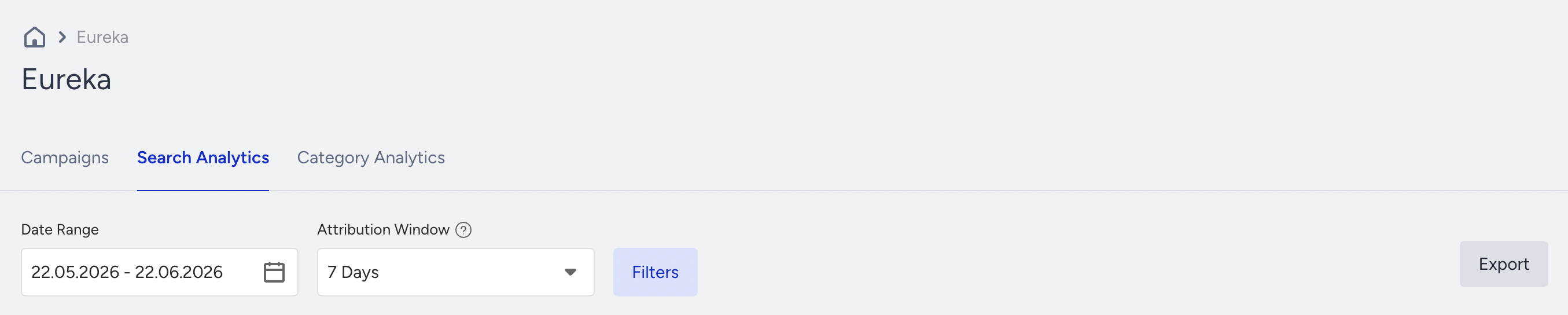
To reach your Eureka Analytics dashboard, navigate to Reports > Eureka Analytics > Search Analytics, or go to the Search Analytics tab on Eureka’s homepage.
Filter and interpret metrics
You can filter your analytics based on different options:
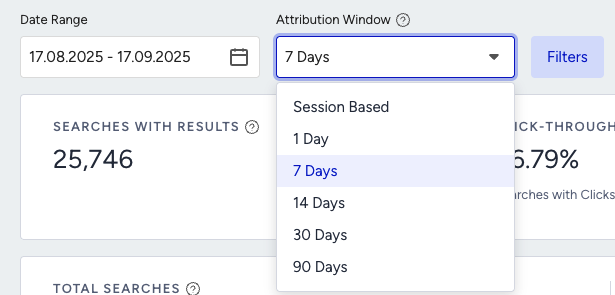
Attribution Window: Choose the time window used to attribute add to cart or purchase actions back to a product click.
Date Range: Limit which days are shown for all metrics.
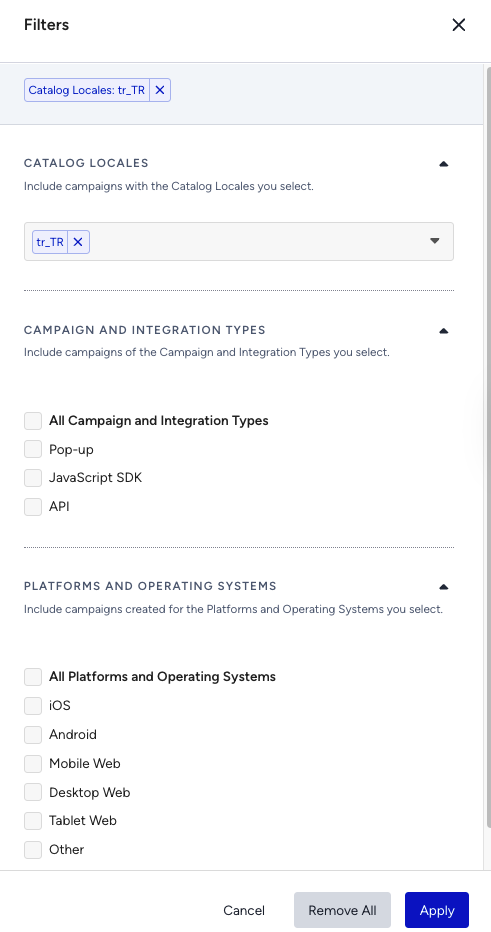
Catalog Locales: Multi-select locales to see metrics only for those activated locales.
Integration Types: Multi-select Pop-up, Javascript SDK, API for integration types
Platforms & Operating Systems: Multi-select IOS, Android, Mobile Web, Desktop Web, Other
Revenue Cards
To show both individual category listing revenue contribution and total Eureka revenue contribution, revenue is displayed as separate cards:
Search Revenue: Revenue attributed to Search → Click → Purchase.
Category Listing Revenue: Revenue attributed to Category view → Click → Purchase.
Eureka Revenue: Combined revenue from Search + Category Listing.
How Eureka defines a search
Eureka does not count every keystroke as a separate search.
Search counting rule: On each keystroke, Eureka waits 10 seconds without typing to decide whether the user has finished the query; then it counts one search for the latest term.
Actions like clicking facets, changing sort, or paging do not start a new search while the query hasn’t changed (during the 10s window).
If the user clicks a product or clears the entire query after typing, Eureka immediately treats the interaction as the end of that search and counts it as a new search (no 10-second wait).
Attribution Window
Eureka is designed to capture the real impact of product discovery on your revenue, even when customers complete their purchase days or weeks after they first interact with a product.
When a user clicks a product from search results, Eureka:
Saves that product as a “recently clicked” item in the browser’s local storage (via the referred-products object described in Insider One Cookies, Local Storage and Session Storage)
When an add-to-cart or purchase occurs, it matches the action to the most recently clicked product stored in local storage within your selected attribution window (for example, 7 days).
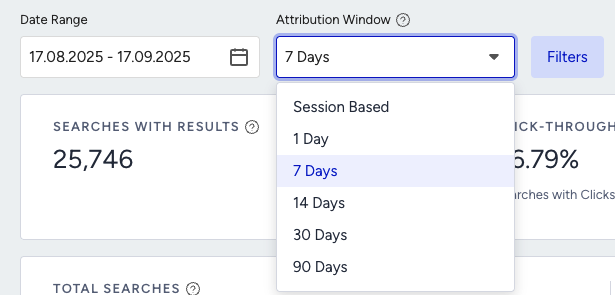
This period between engagement (click) and goal action (add-to-cart or purchase) is called the Attribution Window. You can change it at any time to reflect your customers’ real buying behavior.
Variant attribution with product group code
If the item added to cart or purchased is not the same SKU as the clicked product but a variant of it (for example, a different size or color), Eureka uses the product group code to keep attribution accurate:
The clicked product and the added-to-cart/purchased product are compared by group code.
If they share the same group code, the add-to-cart or purchase is attributed to the originally clicked product group, even if the SKU/variant is different.
This logic applies to both goals that use the attribution window:
Add-to-cart metrics
Purchase/conversion metrics
Why the attribution window matters
Different businesses have very different decision cycles:
If you are a fast‑moving consumer goods retailer, many customers will complete their purchase on the same day or even in the same session.
If you are a furniture retailer, customers might research and then complete their purchase 10–14 days or even a month after the first click.
If both use the same 7‑day attribution window:
The FMCG retailer will see most add-to-carts and purchases correctly attributed to Eureka.
The furniture retailer will miss add-to-carts and purchases that occur on day 10 or later, even if they start from an Eureka-powered category click, so analytics won’t reflect the true performance.
Choosing the right attribution window ensures you see the full contribution of Eureka to your add-to-cart and purchase goals, aligned with your customers’ real decision journey.
Available attribution window options
The attribution window is the time allowed for an end user to complete the add-to-cart or purchase of a clicked product. Events (add-to-cart and purchase) that occur within this window are attributed to the most recently clicked product (or its product group, in the case of variants) in local storage.
You can choose among:
Same Session
Same Session: Session starts when a user lands and ends after 30 minutes of inactivity (Eureka uses this session logic). One viewable impression is sent per session; a user can make multiple clicks/add-to-carts/purchases from the same campaign in a single session.
Note on Google Analytics 4: GA4 defines a session similarly (30 minutes of inactivity). Midnight and campaign-change rules in GA4 do not apply to Eureka’s session logic.
1 Day
7 Days
14 Days
30 Days
90 Days
Use shorter windows (Same Session / 1 Day) for fast purchase journeys, and longer windows (7–30–90 Days) for higher‑consideration products where customers take more time to decide.
Overall Search Engagement Funnel Metrics
Eureka shows these funnel metrics in summary cards. Your core funnel KPIs are:
Searches with Results
Purchases
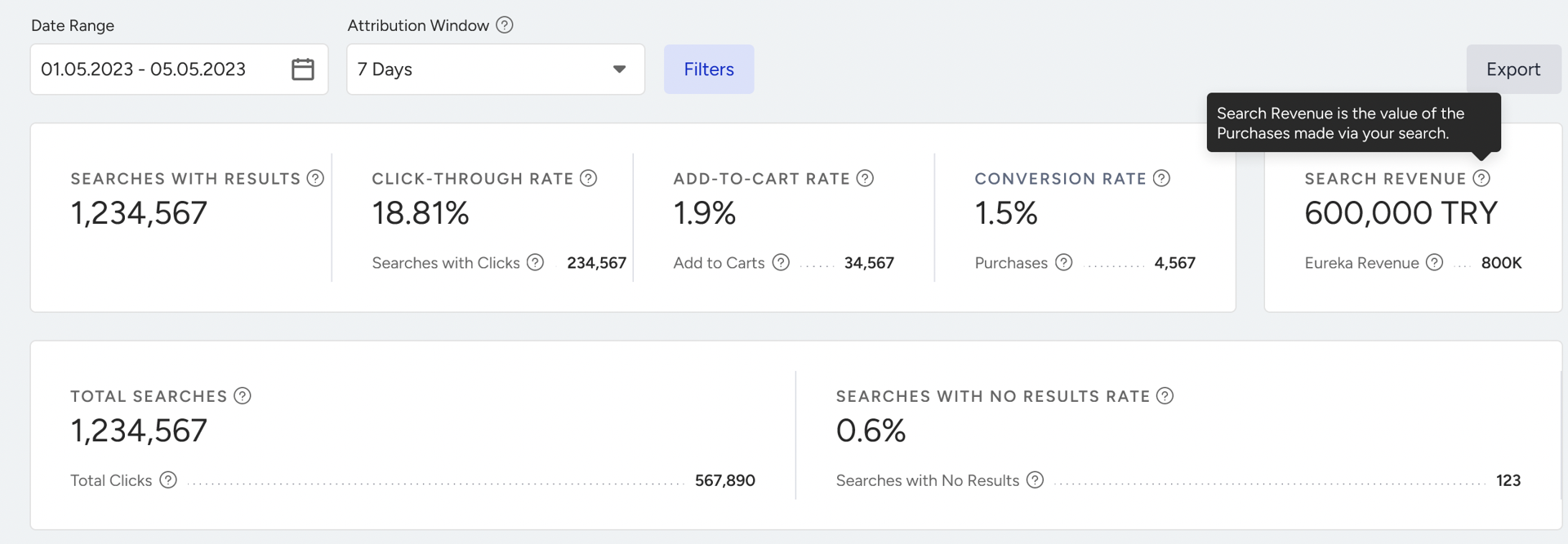
All other metrics help you understand how users move from searches to purchases.
Searches with Results: Number of searches that returned at least one product result.
Counting rule: Eureka counts a search per the 10-second rule (or immediately if the user clicks a product or clears the query). Only searches that return at least one result are included here.
Total Searches: All searches, including those that returned no results.
Counting rule: Each completed query counts as one search per the 10-second rule. Searches with and without results are included.
Searches with Clicks: Number of searches with results where at least one product click happened. Use this to see how many result‑showing searches led to any product engagement.
Total Clicks: All product clicks across all search sessions.
Counting rule: Every product click is counted. This is a non‑unique count (if a user clicks multiple products, or clicks the same product multiple times, all clicks are included).
Click-Through Rate (CTR): How often a search with results leads to at least one product click.
Calculation: CTR = Searches with Clicks ÷ Searches with Results
Searches that return no results are excluded from the denominator, so CTR reflects engagement only where results were shown.
Add to Carts: Total add-to-cart actions attributed to search.
Counting rule: Eureka counts add-to-carts only if the product was found via search, clicked, and then added to cart within your selected attribution window. Multiple quantities in the same order are included in the count.
Add-to-Cart Rate: Rate of add-to-cart actions attributable to search.
Calculation: Add-to-Cart Rate = Add to Carts ÷ Searches with Results
Purchases: Total purchases attributed to search.
Counting rule: Purchases are counted only when the product was found via search, clicked, and purchased within the attribution window. Purchases are counted by quantities sold, not “1 per product per order”.
Example: If one order contains a total of 5 items, Purchases = 5. If an order includes 3 units of product A and 2 units of product B, the purchase count is 5.
Conversion Rate: Purchase rate attributable to search.
Calculation: Conversion Rate = Purchases ÷ Searches with Results
In the past, multiple purchases of the same product within a single order were counted as a single conversion. Now, purchases are counted by quantity sold. As a result, your purchase and conversion metrics may increase slightly, especially if your products are often bought in larger quantities.
Searches with No Results: Number of searches that returned zero products. Use this to identify missing inventory or mismatched attribute terms.
Searches with No Results Rate
Calculation: No Result Rate = Searches with No Results ÷ Total Searches
High no‑result rates highlight opportunities to enrich your catalog or add synonyms.
Revenue: Revenue attributed to the Search → Click → Purchase funnel, within the selected attribution window.
Counting rule: Eureka includes order value only if the purchase is attributed to search based on the rules above (search → click → purchase within the attribution window).
Why can a keyword appear in No-Result Searches even if it sometimes returns products?
A keyword can appear in No-Result Searches if a shopper first gets results, then applies filters and ends up with zero products. In that case, the keyword may be counted in the no-result report for that search experience. This does not always mean the keyword has no matching products in the catalog.
To investigate, test the keyword first without filters, then with the same filters, locale, platform, and date range used in the report. If the unfiltered search returns products but the filtered search does not, review filters, searchable attributes, synonyms, and merchandising rules before treating it as a true catalog gap.
Variant attribution with product group code
If the item added to cart or purchased is not the same SKU as the clicked product but a variant of it (for example, a different size or color), Eureka uses the product group code to keep attribution accurate:
The clicked product and the added-to-cart/purchased product are compared by group code.
If they share the same group code, the add-to-cart or purchase is attributed to the originally clicked product group, even if the SKU/variant is different.
Performance Metrics
The dashboard includes a timeline line chart so you can spot trends over time.
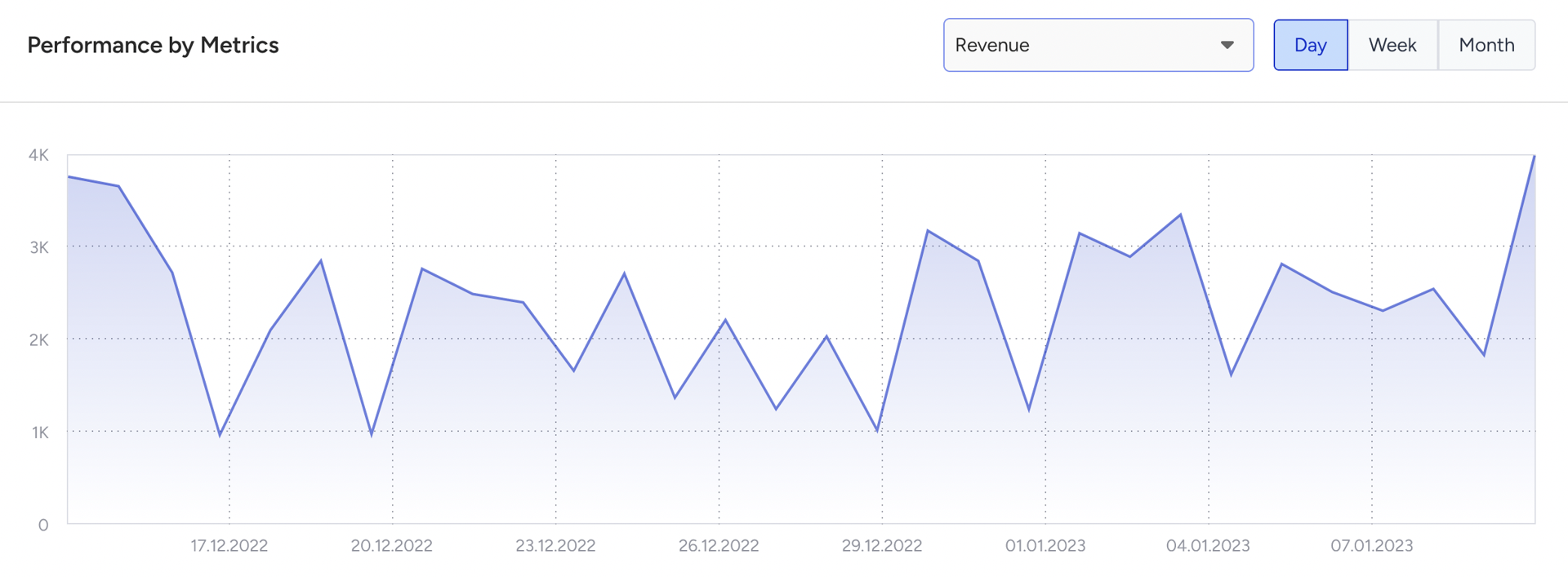
X-axis (time): Time is shown on a daily, weekly, or monthly basis, depending on the date range you select.
Y-axis (selectable metrics): You can choose which metric to plot on the Y-axis:
Revenue
Total Searches
Searches with Results
Searches with Clicks
Click-Through Rate (CTR)
Add to Carts
Add-to-Cart Rate
Purchases
Conversion Rate
Searches with No Results
No Result Rate
You can use this chart to:
See how changes in search configuration (ranking, facets, relevance) affect searches, CTR, add-to-carts, and purchases.
Compare short-term and long-term trends for your main search funnel metrics.
Campaign, Product, and Keyword Metrics
Eureka goes beyond the overall engagement funnel by allowing you to break down performance by campaigns, product groups, and search keywords. These views help you answer questions such as:
Which campaigns generate the most revenue?
Which products or product groups attract clicks but don’t convert?
Which search terms leave customers without results—and revenue on the table?
Why these views matter
Campaign insights: Measure the real impact of each campaign and compare variant performance side by side.
Product insights: See how individual SKUs and product groups perform from impressions through conversions.
Keyword insights: Learn what your customers are searching for, and where your catalog or search settings may need optimization.
Together, these reports show you where to double down and where to fix gaps to boost conversions.
Interpret keyword, campaign, and product reports
Keyword Search insights
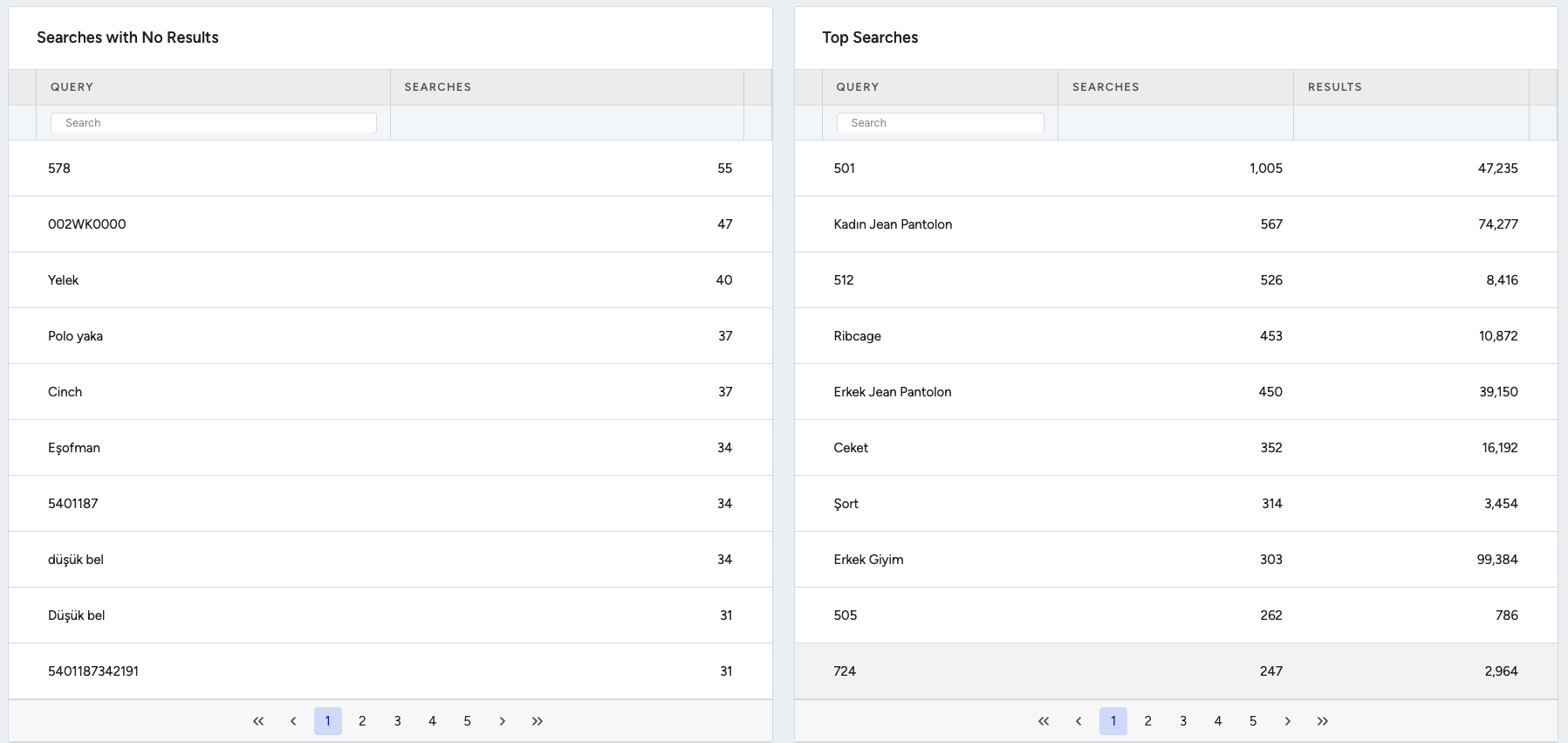
On the Keyword insights tab, you see the top 500 searched keywords with results, and the top 500 no-result keywords.
Why no-result keywords matter
No-result keywords are opportunities to optimize your catalog or search settings:
If a keyword is searched often but you don’t carry the product → add it to your catalog to capture demand.
If customers use a different word than your catalog attributes include→ add one-way or group synonyms to map it.
If the keyword exists in a product attribute, but the product attribute is not in the searchable attributes → add it so search can return relevant products.
If the keyword is informational (e.g., “return policy”) → add a URL redirect to the right page.
Example: If many users search “hoodie” but your catalog uses “sweatshirt,” add a synonym so the products are shown.
Campaign and variant engagement performance
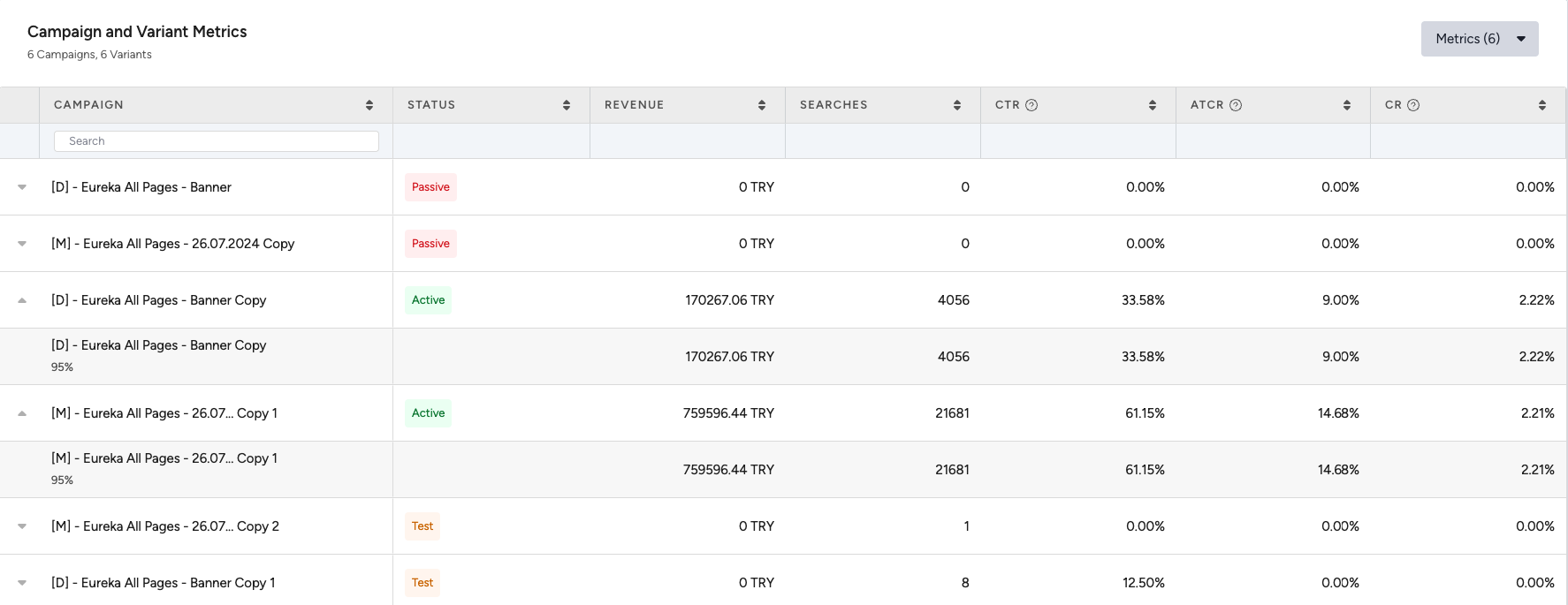
To view the campaign and variant engagement performance, in the analytics dashboard, open the campaign performance table. You see that each row is a campaign; clicking it expands the nested rows for its variants.
Metrics shown per campaign/variant:
Campaign Status
Revenue
Searches with Results
Click-Through Rate
Add-to-Cart Rate
Conversion Rate
Searches with Clicks
Add-to-Carts
Purchases
Total Searches
Total Clicks
Searches with No Results
No Result Rate
Integration Type
Platform
Use this view to identify top-performing variants and spot underperforming campaigns where CTR or conversion is below average.
Product engagement insights
Scroll down to see the Product engagement tables (with tabs for Products and Product Groups). You can view up to the top 10,000 engaged products, sorted by revenue (descending).
Products (per SKU) metrics
Metrics are calculated with the same funnel rules explained earlier, but broken down at the individual product level:
Product Image
Product Name
Product ID
Revenue (from purchases via search → click → purchase funnel)
Impressions (number of times product appeared in search sessions)
Clicks
Click-Through Rate = Product clicks ÷ product impressions
Add-to-Carts
Add-to-Cart Rate = Product add-to-carts ÷ product impressions
Conversions
Conversion Rate = Product conversions ÷ product impressions

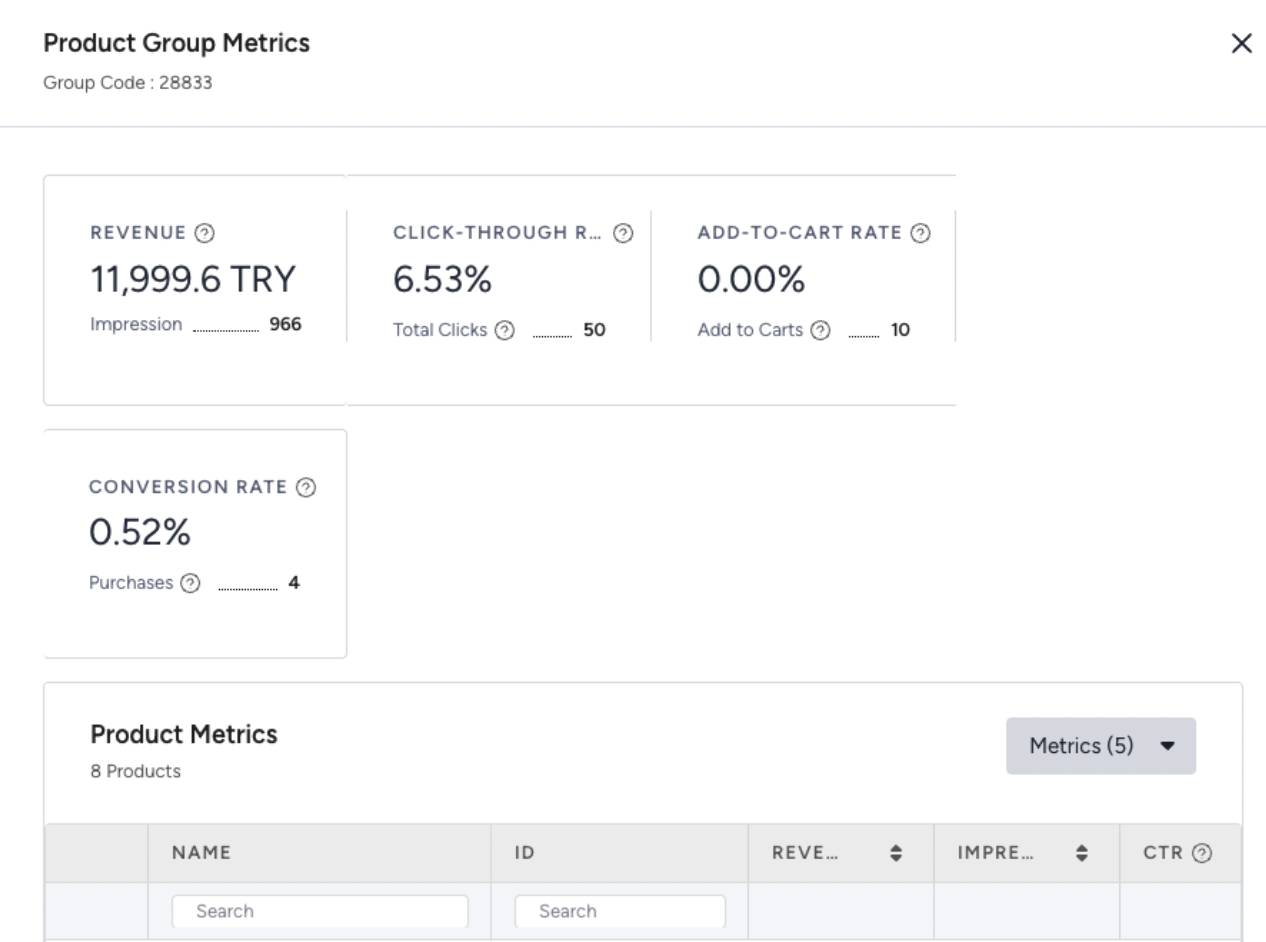
Product Group metrics (by Group Code)
Metrics calculated the same way, but aggregated by product group (e.g., different sizes or colors of the same item):

Product Image
Product Name
Group Code
Revenue
Impressions (sum of group variants)
Clicks
CTR = Group clicks ÷ any group product impressions
Add-to-Carts
Add-to-Cart Rate = Group add-to-carts ÷ any group product impressions
Conversions
Conversion Rate = Group conversions ÷ any group product impressions
Product variant drill-down (product details)
Click the Info icon on a Product Group row to open a modal with SKU-level details for the products/variants in that group. The modal lists the metrics for each item so you can compare how different sizes and colors perform within the same product group. Each row shows the performance of an individual variant in the group:
Export your results
The Export button lets you export all analytics data into a spreadsheet. The export reflects all filters currently applied (date range, attribution window, locales, integrations, platforms).
To access your results, click the Export button in the dashboard; a new tab will open, allowing you to download the file.

Best practices
Align attribution windows with buyer behavior
Fast-fashion: Same Session or 1 Day
Considered purchases: 7–30 Days
Monitor CTR trends
Low CTR = search results aren’t engaging
Improve product titles, thumbnails, or relevance
Use the no-results report
Prioritize catalog enrichment by adding missing products or mapping synonyms.
Check Add-to-Cart and Conversion Rates
Strong CTR but weak conversions? → Optimize product detail pages, pricing, or trust signals
Compare across platforms and locales
Spot UX gaps, catalog inconsistencies, or regional demand differences
Identify low-CTR products
High impressions but low clicks? → Improve visuals, titles, or positioning
Spot high-cart, low-conversion products
May indicate pricing, shipping, or availability issues
Analyze product group performance
Variants (e.g., color, size) may behave differently → promote strong ones, fix or phase out weak ones.
Act on no-result keywords
Add products, synonyms, or redirects → the clearest opportunities for growth.
Watch high-volume, low-conversion terms
Customers find these products but don’t buy → optimize pricing, content, or UX.
Keep enriching searchable attributes
Ensure customer language maps to your catalog’s product data
Integration & log collection
Category Listing Analytics is supported via:
Event collection via JS SDK
To calculate the category funnel, your implementation needs to track:
Search
Product Click (from search results )
Add to Cart
Purchase
For further information, refer to Eureka SDK Log Collection Methods.
Troubleshooting (common issues + fixes)
Conversions missing
Check the attribution window → Purchases outside the selected window are not attributed.
Verify product group codes for variants → Ensure variant purchases are matched back correctly.
CTR seems low
Review “Searches with No Results” → Low CTR is often caused by missing attributes or low relevance.
Check catalog coverage → Products or synonyms may need to be added.
The exported spreadsheet shows fewer rows
Confirm active filters → Exports respect date range, locales, and integration filters.
Re-run export with broader filters if you need a complete dataset.
Changes in Search and Conversion Calculation Logic
Two minor updates were made to Eureka Analytics on August 27, 2025.
Search counting rule update
Previously, if a user typed a query, deleted it entirely, and then entered a new query within 10 seconds, the new query was not counted as a separate search (because the 10-second window had not yet elapsed).
Now, whenever a query is completely deleted, the following keyword entered is always counted as a new search.
This change may slightly increase your total search counts.
Conversion counting rule update
Previously, multiple purchases of the same product in a single order were counted as a single conversion.
Now, conversions are counted by quantity sold.
This change may slightly improve your conversion metrics, especially if products are often purchased in multiples per order.
Changes in Eureka Campaign Analytics
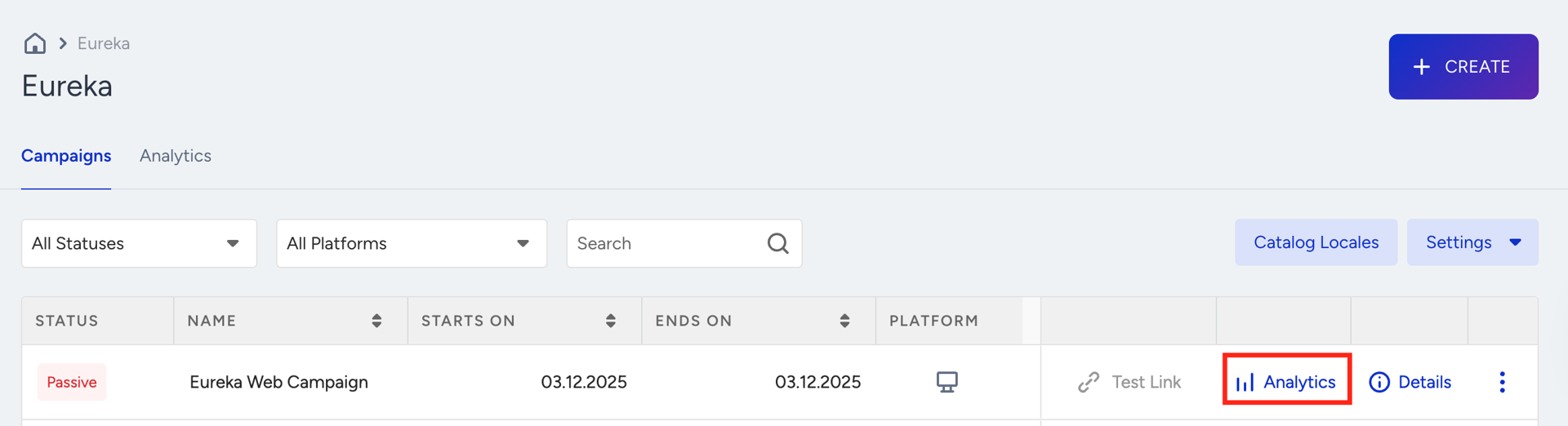
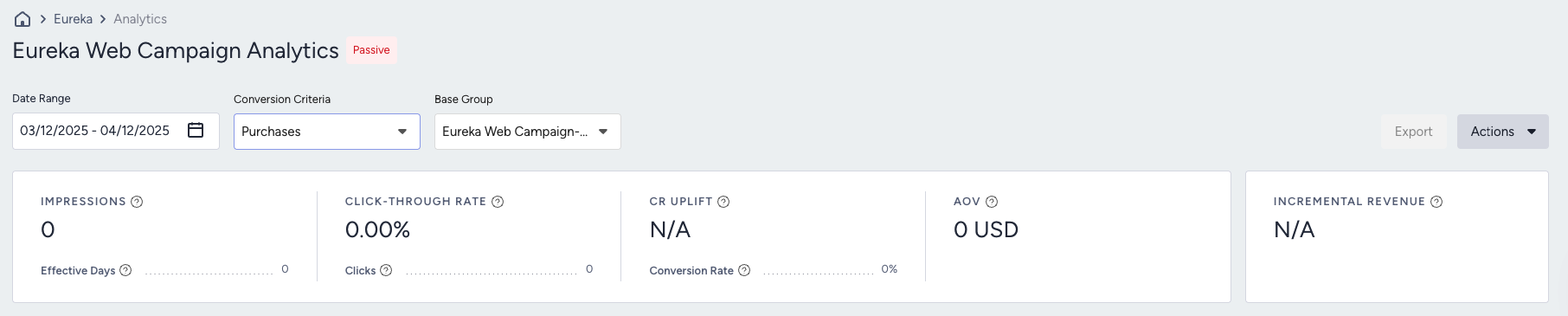
You can click Analytics for any Eureka campaign on the Eureka campaign listing page to view its performance. Please note that Eureka Campaign Analytics was removed on January 2, 2026.
After the removal, you can view the Campaign Variant and Metrics table under Eureka Analytics to review all campaign and variant-level metrics for Eureka.
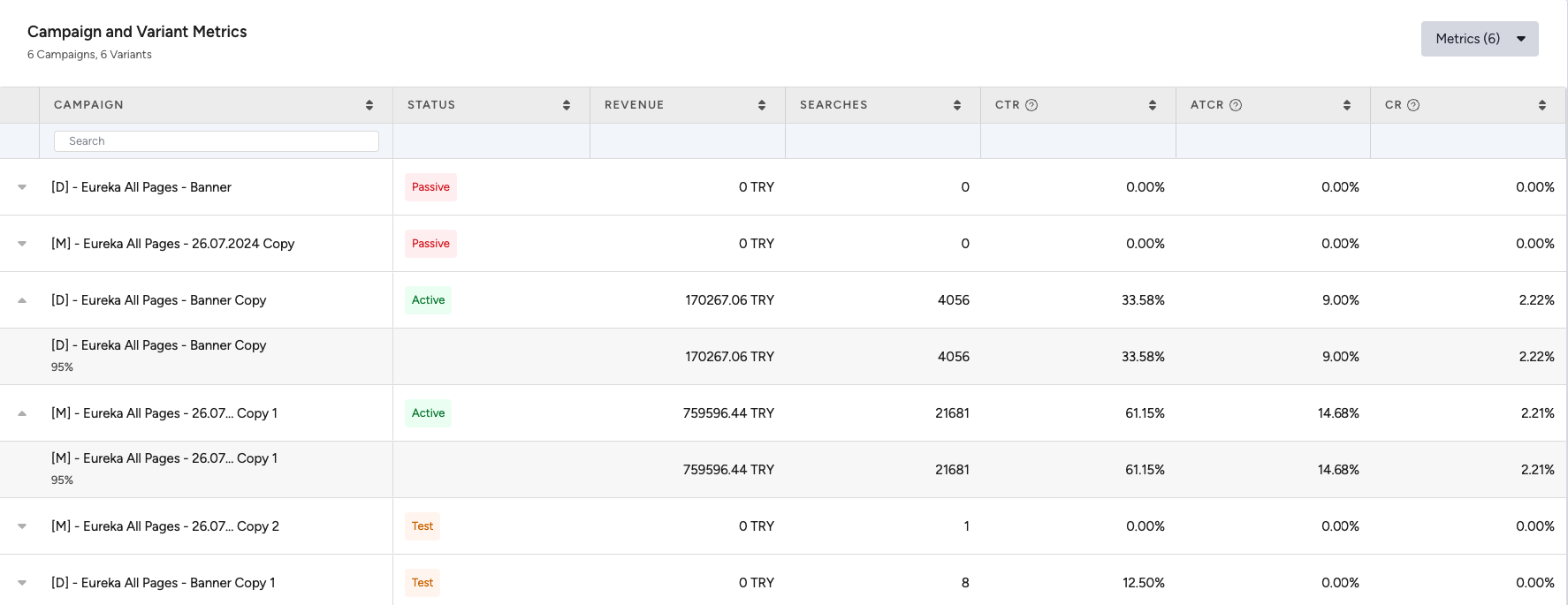
Below is a breakdown of why you should use the Eureka Campaign and Variant Metrics table for Eureka performance evaluation instead of Eureka Campaign Analytics:
Impressions don’t represent search intent or usage
Campaign Analytics tracks impressions, which only indicate when the Eureka pop-up is displayed. For Eureka, meaningful engagement is measured by actual search activity, specifically, when users open the search interface and enter a query.
The Eureka metrics correctly capture this through the Searches metric, which reflects real usage rather than passive exposure.
Clicks do not indicate product Interaction
In Campaign Analytics, any click on the pop-up counts as a click, even if it does not lead to product selection. Eureka metrics count only meaningful product clicks, meaning the user actively selects a product from the search results. This provides a cleaner view of product-level engagement.
Conversions are attributed differently
Campaign Analytics counts any purchase made after the pop-up impression, even if the user never searched or clicked within Eureka. Eureka Analytics uses a more accurate model:
A conversion is counted only when the user:
Performs a search
Clicks a product in Eureka
Purchases that exact product within the attribution window