The feed of the User Profile page is built from different sources in Insider One's Unified Customer Database (UCD) (e.g., CRM, web, mobile, and campaign interactions). After you start using Insider One, it creates a customer profile for each user visiting your web or app platforms. You can view all this information in User Profiles.
A user profile is updated in real time whenever the event is available on UCD.
To view a User Profile, navigate to Audience > User Profiles and click on the user you want to view.
Profile View
When you click on a user profile, you can view all the details about the user under the profile view. A profile page provides a 360-degree view of a user, comprising three key sections: Overview, Events, and Analytics. 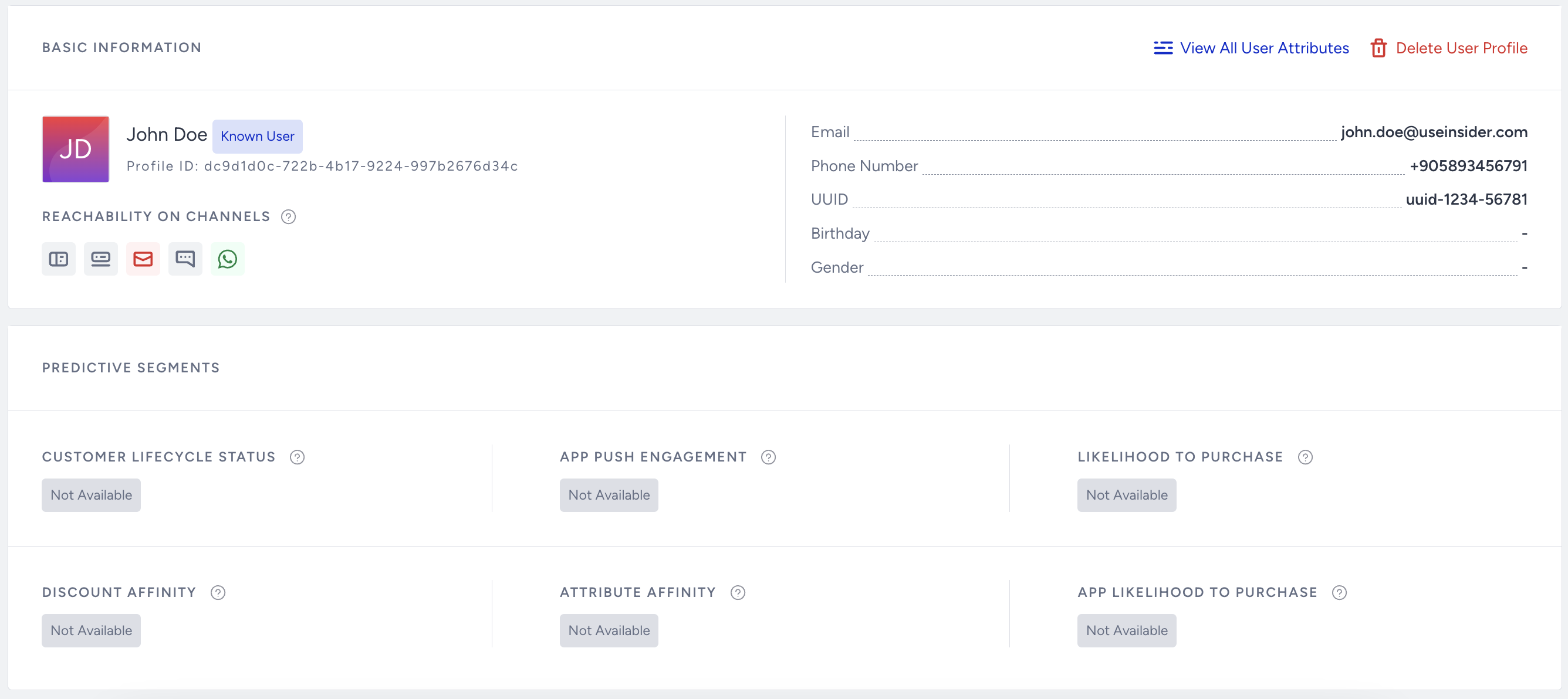
To delete a user profile, click Delete User Profile at the top right corner of the Basic Information section.
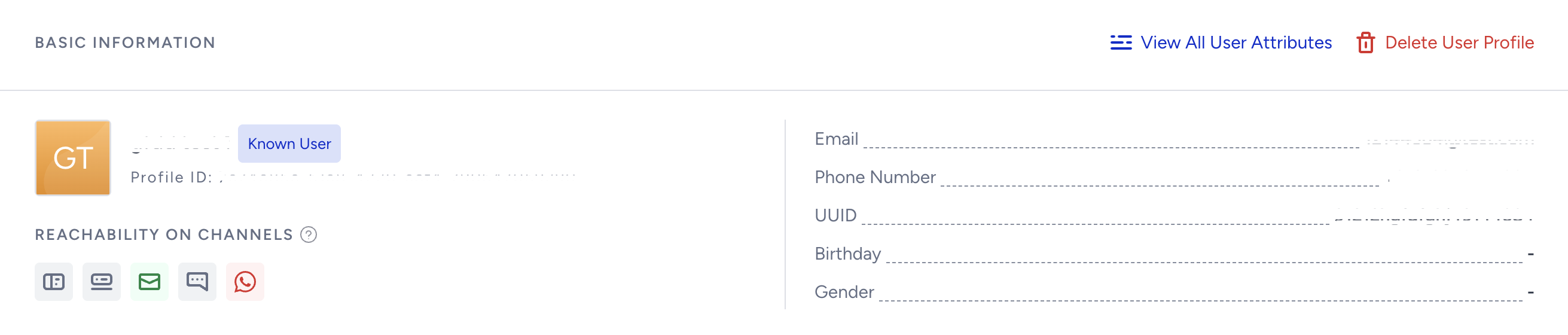
You can also delete a user on the listing page of User Profiles by clicking the Delete icon next to the user.
User profiles are automatically deleted or archived after 12 months of inactivity, measured from the user's last update date (upta). For this policy, inactivity is defined as a 12-month period with no new data ingestion, events, attribute updates, or API activity.
Only users with Administrator and Editor roles can delete a user profile.
This deletion action cannot be undone. We highly recommend taking a backup before initiating the deletion process.
Overview
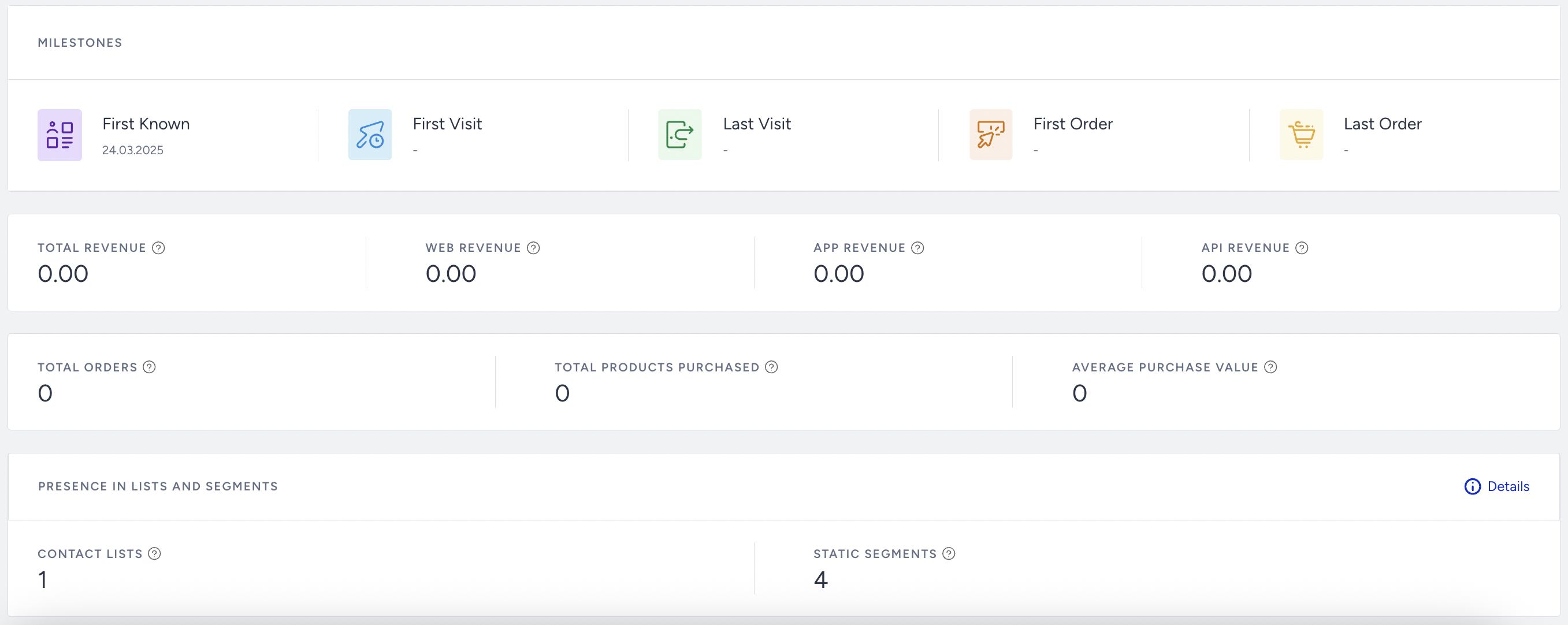
Under the Overview tab, you can see a user's basic information, predictive segments, milestones, total revenue and its allocation, total orders, and their presence in lists and segments.
Basic Information
Basic Information displays the following details about a user:
User’s Personally Identifiable Information (PII). PII can be collected from different sources.
User’s default and custom attributes. Custom attributes can be collected from emails, CRM, and mobile devices. To view all user attributes, click the View All User Attributes button.
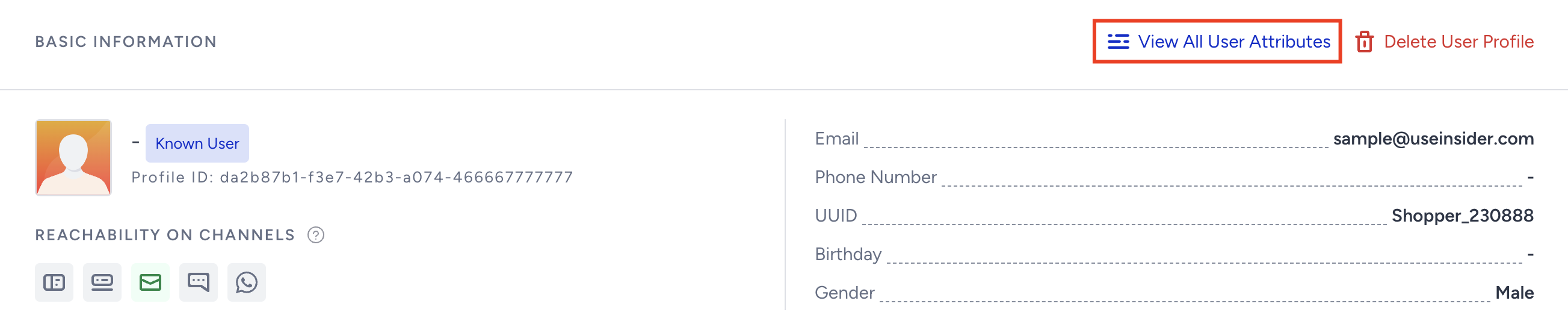
User’s reachability on channels as described below:
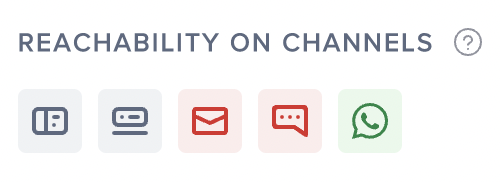
Green icon: Indicates that the user is reachable on that channel.
Gray icon: Indicates that the user is not reachable on that channel.
Red icon: Indicates that the user has opted out of that channel.
If Email Opt-in is enabled but email reachability is unavailable, check whether the email address is globally unsubscribed or has another blocking status.
Predictive Segments
Insider One's predictive segmentation capability is available for each user. You can view predictive segments for an individual user here.
Predictive Segments | Possible Values |
Silent, Visitor, Potential, Churn, Inactive, Active, NA | |
App Push Engagement | High, Medium, NA |
High, Low, NA | |
| |
[Changeable], NA | |
App Likelihood to Purchase | High, Medium, Low, NA |
Milestones
This part displays the user’s landmarks on different channels.
First Known is the date when the user gets identified by Insider One.
First Visit is the date of the user's first visit.
Last Visit is the date of the user’s last visit.
First Order is the date of the user’s first order.
Last Order is the date of the user's last order.
Purchase Details
You can view the user’s currency purchase metrics, including their total order and product purchase counts.
Presence in Lists and Segments
This part displays the user’s presence in the following ways:
Contact Lists shows the number of contact lists that a user is in.
Static Segments shows the number of static segments that a user is in.
Click Details to see which contact lists and static segments the user is in.
Events
This section shows you the user's behavioral data from different sources. You can view the user’s category purchases alongside their product historical behavior, along with recommendations for the last three months. The category names come from system rules, so unrelated category names may not align with those rules. 
The bottom of the page shows the user’s complete behavioral history and opt-in history.
You can observe a maximum of 500 events under Activity.
Product History
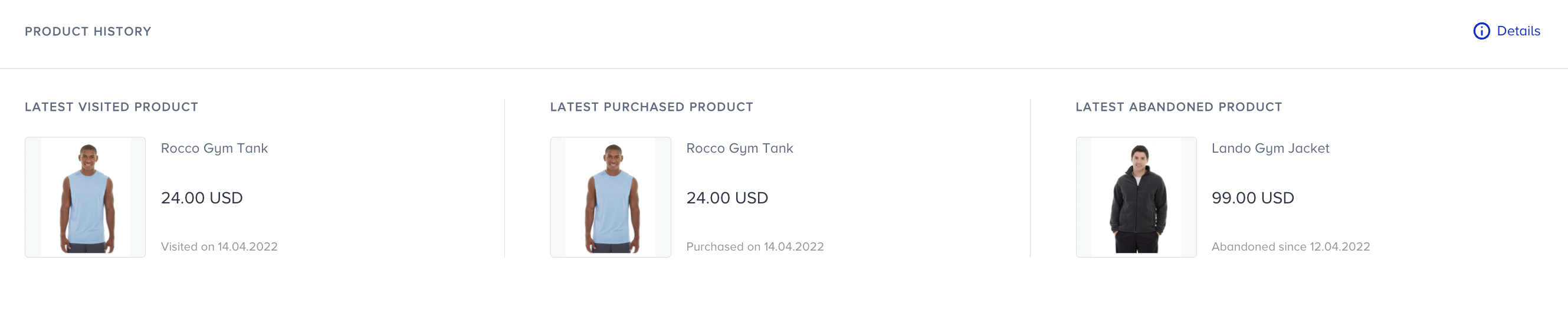
This section is also created using information gathered from various sources. You will see the user's Last Visited, Last Purchased, and Last Abandoned products. The image and the product name, along with the dates, are displayed here.
User Activity
This section shows the user's behavioral activities, events, and opt-in history.
Event
Events are the historical data structure used by the UCD. The table below shows the events you see in the events section of the User Profiles. Data for the last month will be uploaded by default, but you can change the time range and query earlier user events for up to three months.
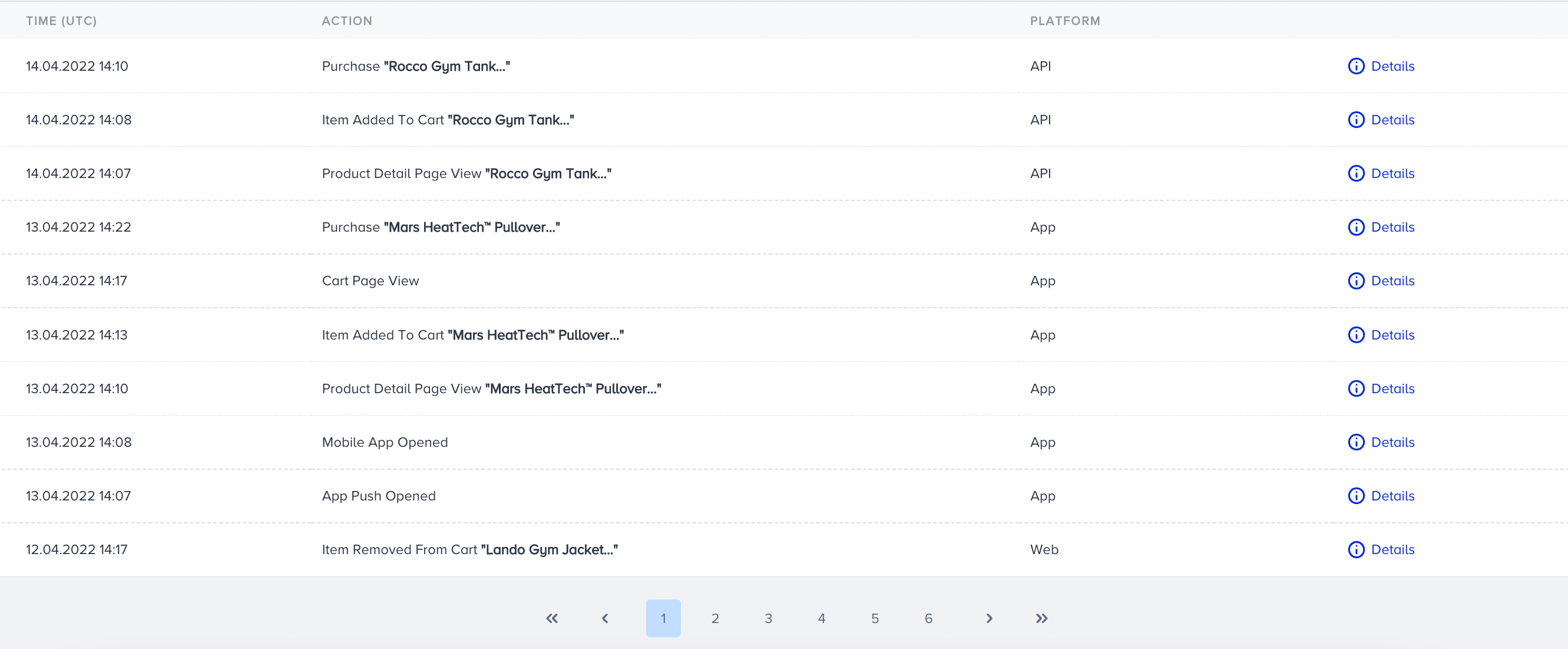
If you send events using an API, refer to Attributes and Events to see the proper naming of each event.
When you click Details, you can see the activity details.

Event availability and historical data
User Profiles display behavioral events recorded in the Unified Customer Database (UCD). Some events, including Web Push View and Web Push Click, must be enabled before they can be collected.
Once enabled, these events are recorded for new Web Push interactions. Interactions that occurred before the events were enabled are not added retroactively. Therefore, selecting an earlier date range will not display previously unrecorded views or clicks.
Date filters can query only events that were recorded and are available within the supported User Profile time range.
Consent
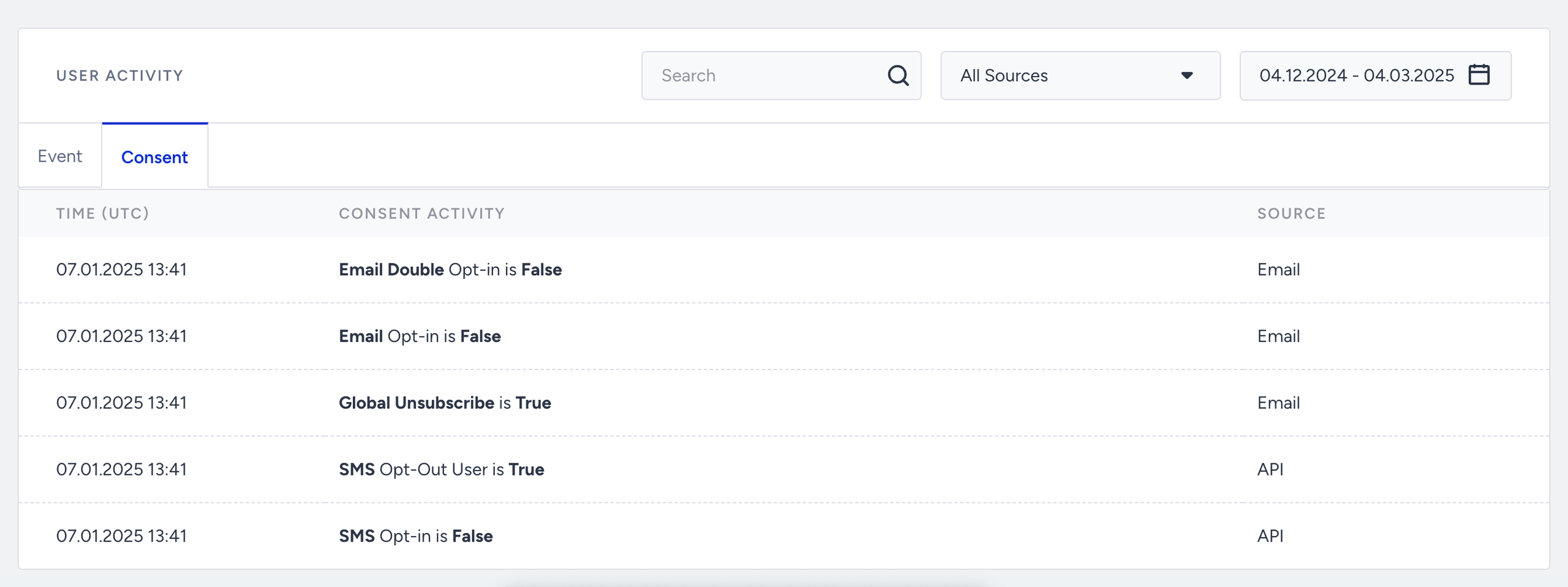
The Consent section displays changes in opt-in values, allowing debugging and historical data review directly from the User Profile. It displays all changes for the values listed below:
Email Opt-in (February 2021)
GDPR Opt-in (February 2021)
Global Unsubscribe (February 2021)
WhatsApp Opt-out User (February 2021)
Double Opt-in (April 2022)
SMS Opt-in (April 2022)
WhatsApp Opt-in (April 2022)
SMS Opt-out User (April 2022)
You can find the opt-in values starting from the date they began to be stored.
When a previously unsubscribed user opts back in, use the channel’s Resubscribe API rather than updating the opt-in attribute alone.
Analytics
This page displays the user’s campaign analytics for your selected time range. You can view the email, app, and architect analytics visualized on this page.

If you are not using Email, Mobile App, or Architect, each metric will receive a value of 0.