You can access Smart Recommender through Campaigns > Recommendation > App Smart Recommender.
You will see 10 predefined campaigns listed with their names, recommendation strategies, statuses, and last update dates. You can edit these existing campaigns.
1. Click the Menu against the campaign you want to edit and click the Edit option.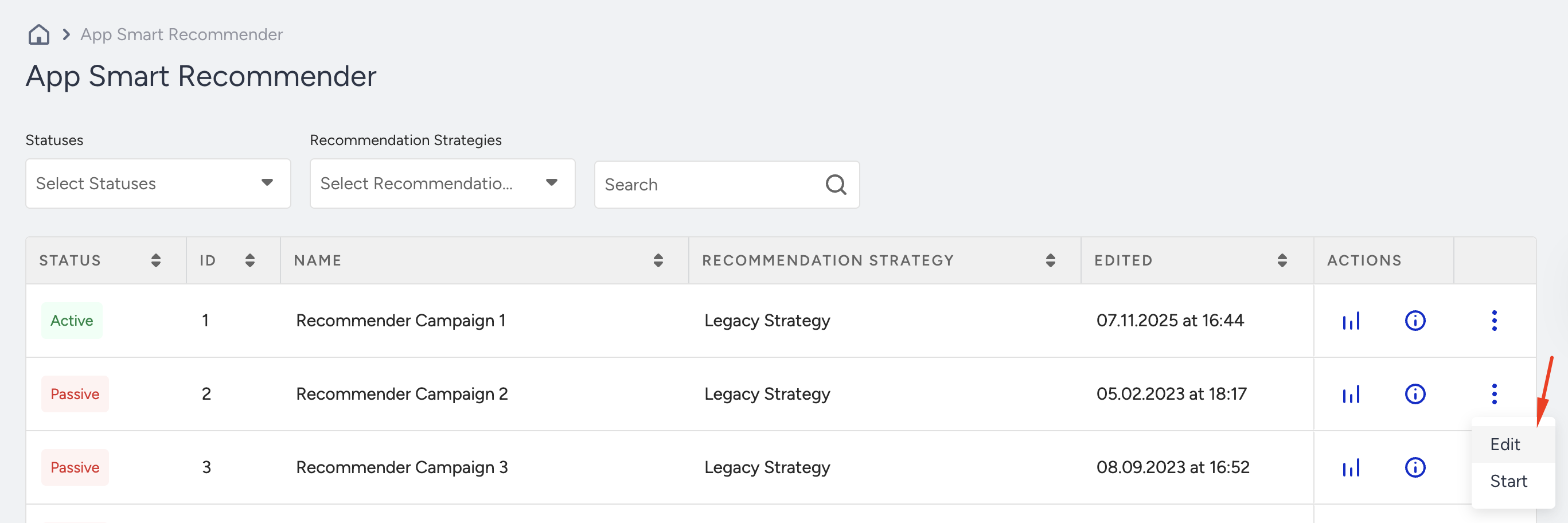
2. Search or browse available strategies to select one.
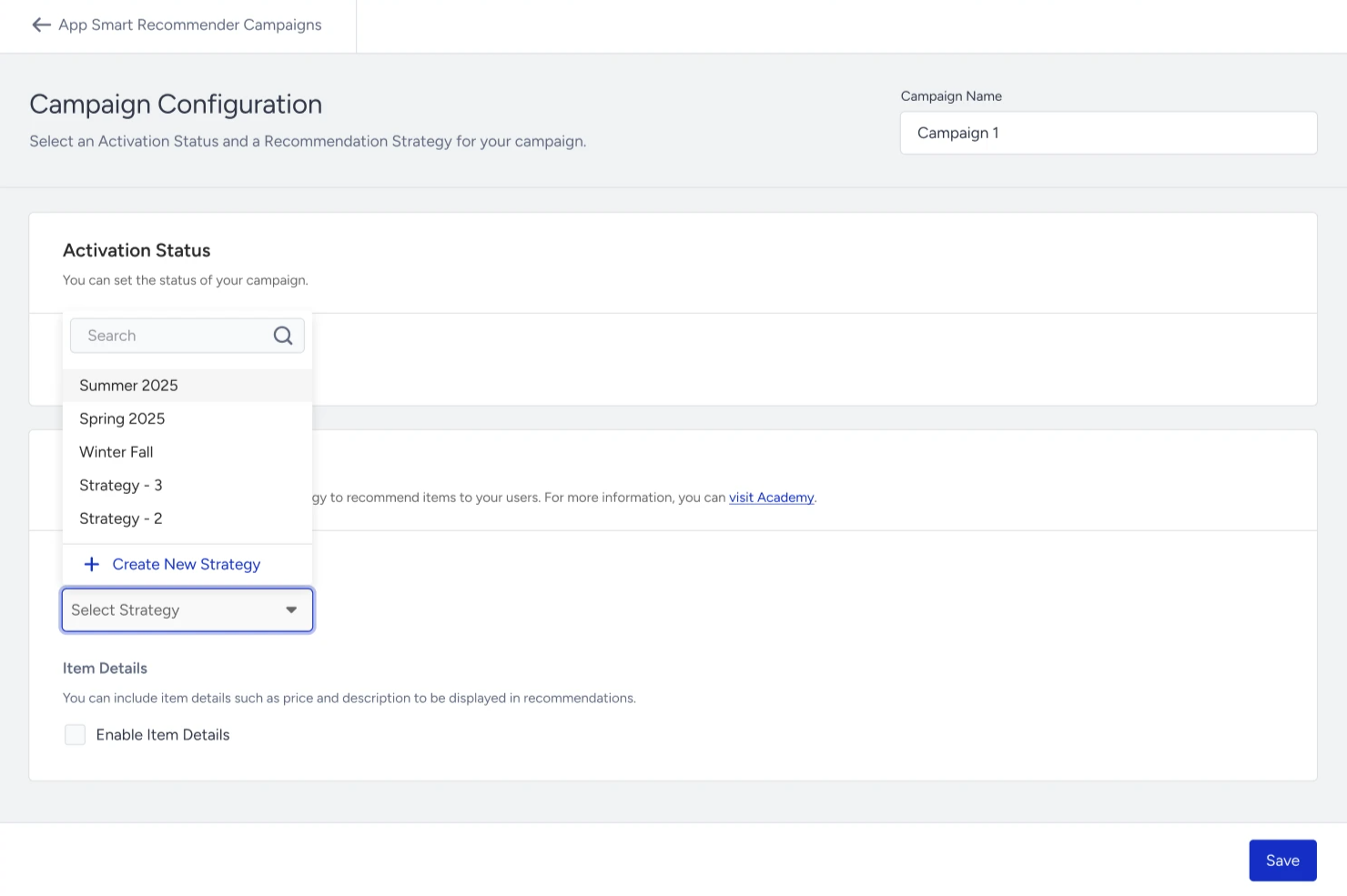
A preview infobox displays the selected strategy's settings (e.g., algorithms, filters). Once you confirm the selected option, you can change the activation status to Active and Save this step to activate the campaign.
Create a new strategy
1. If you do not find a suitable strategy, you can click the Create New Strategy button at the bottom of the list to reach the Strategy page.
2. Configure your strategy with the recommendation algorithms and methods, number of products to recommend, and whether to shuffle the recommended products. Click the Create and Assign button to save your configuration.
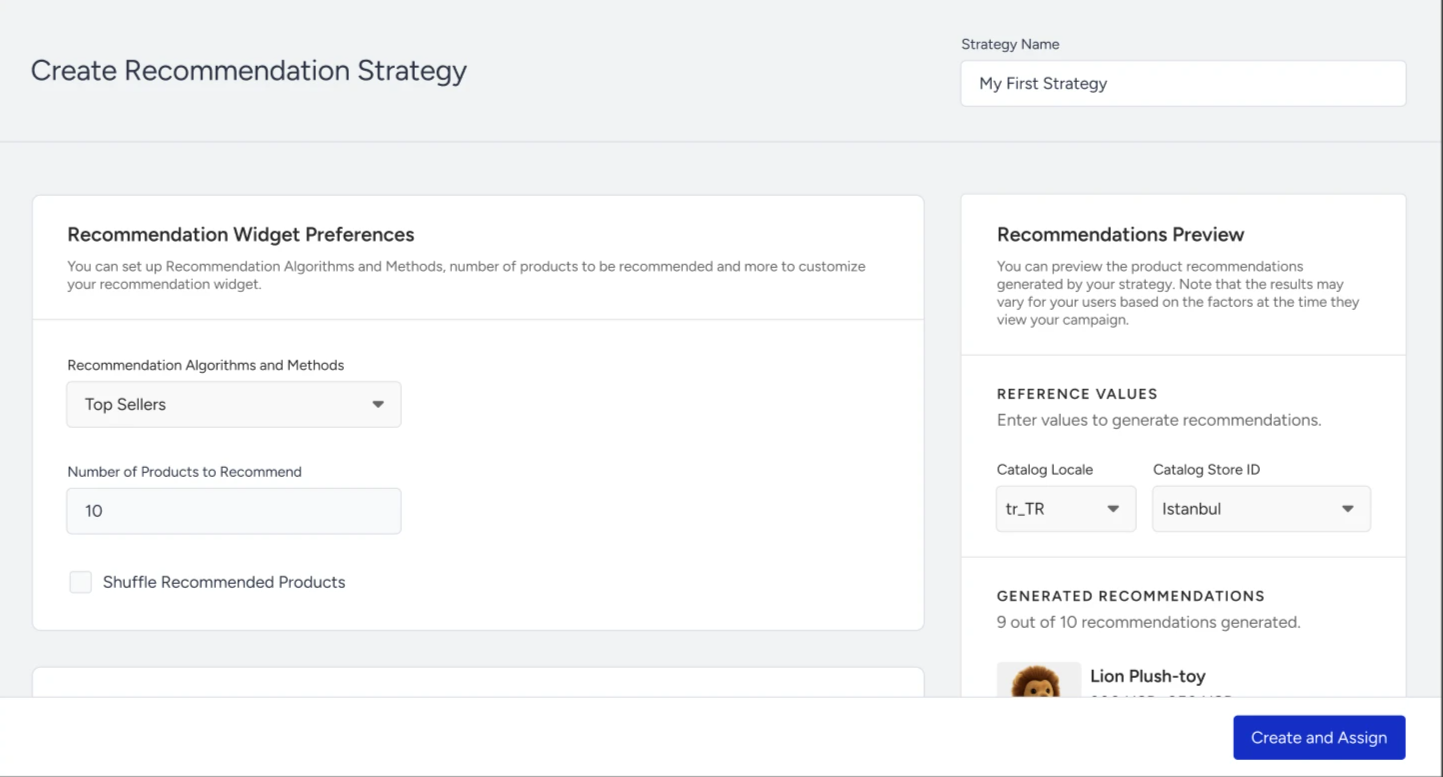
Once you save this page, you are redirected to the App Smart Recommender campaign page. The new strategy will be automatically selected.
You can use this strategy for other campaigns and enable it for other channels via the Recommendation Strategies page.
You can filter your recommendations based on Standard and Dynamic filters. You can add up to 20 different filters to the same campaign.
Standard Filters are default attributes and product attributes. They are generated from campaign settings and do not depend on dynamic behavior or data values that vary across end-users.
Dynamic Filters are generated from campaign settings, and their behavior varies across end-user sessions. Dynamic filters are available only for the product detail page-oriented recommendations, as they take the data from the respective product. In this case, the related attribute's value is the browsed product's attribute value.
The Dynamic Filters without the category attribute will not function on devices with SDK versions older than iOS 13.10.0, Android 14.8.0, ReactNative 6.8.2, Flutter 3.18.2, and Cordova 2.4.0. You need to update your SDK to a compatible version and prompt your users to update their apps to use the Dynamic Filters without the category attribute.
To use the product attributes, you must define them via Inone > Components > Attributes and Events > Product Attributes. You should also add the product attributes from your web and app sources to the product attributes list.
Migrate existing campaigns
When you open the strategy dropdown, the previously used campaign strategies will be listed in the Legacy Strategy section.
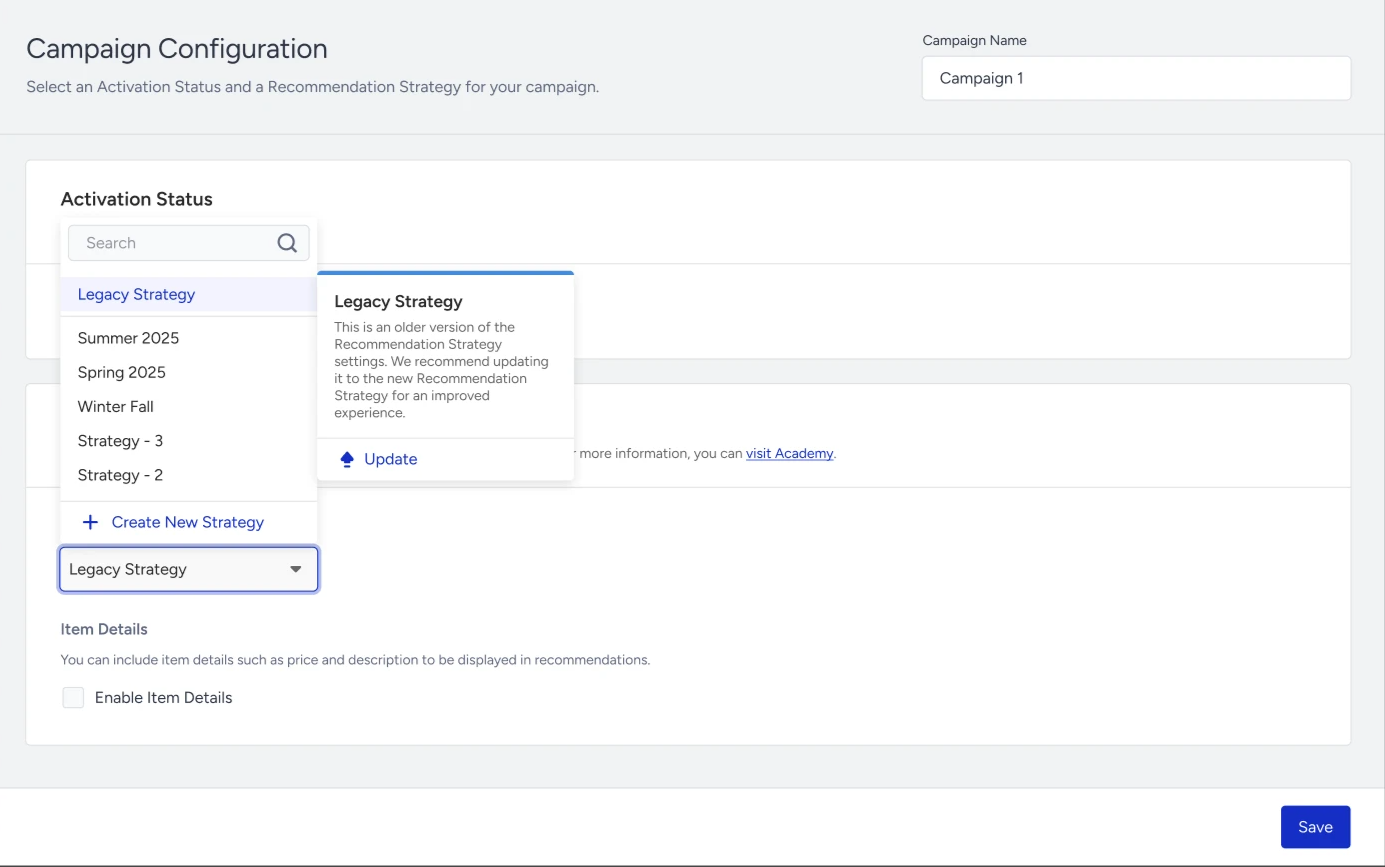
1. Hover on the information box to click the Update button.
2. Migrate the old campaign configuration into the new strategy-based structure.
- The migration checks for the same algorithm. If it matches the existing one, the matching strategy will be assigned.
- If no matching strategy exists, the old settings will automatically map to the new format without manual re-entry. You will be redirected to the strategy page to review and update as needed.
Migration of category algorithms
If one of the following algorithms is selected in the legacy strategy, it will no longer be available on the strategy page.
- Top Sellers of the Category
- Most Popular Items of the Category
- Trending Products in the Category
- Highest Discounted Items of the Category
- New Arrivals of the Category
- Most Valuable Products of the Category
Therefore, it will be mapped to their corresponding equivalents below.
| Legacy algorithm | New algorithm |
|---|---|
| Top Sellers of the Category | Top Sellers |
| Most Popular Items of the Category | Most Popular Items |
| Trending Products in the Category | Trending Products |
| Highest Discounted Items of the Category | Highest Discounted Items |
| New Arrivals of the Category | New Arrivals |
| Most Valuable Products of the Category | Most Valuable Products |
Location-based Top Sellers and Chef algorithms are unavailable in App Smart Recommender.
With additional filters and settings:
- A category filter will be selected with "contains the currently viewing category's attribute" operator.
- "Expand the category filter to include recommendations from the next category if there aren't enough products to display." checkbox will be selected.