The Sender domain helps your recipients identify your emails, and builds trust. In this step, you can add your sender domain(s) from which your emails will be sent.
What is a sender domain?
A sender domain example: mail.mydomain.com
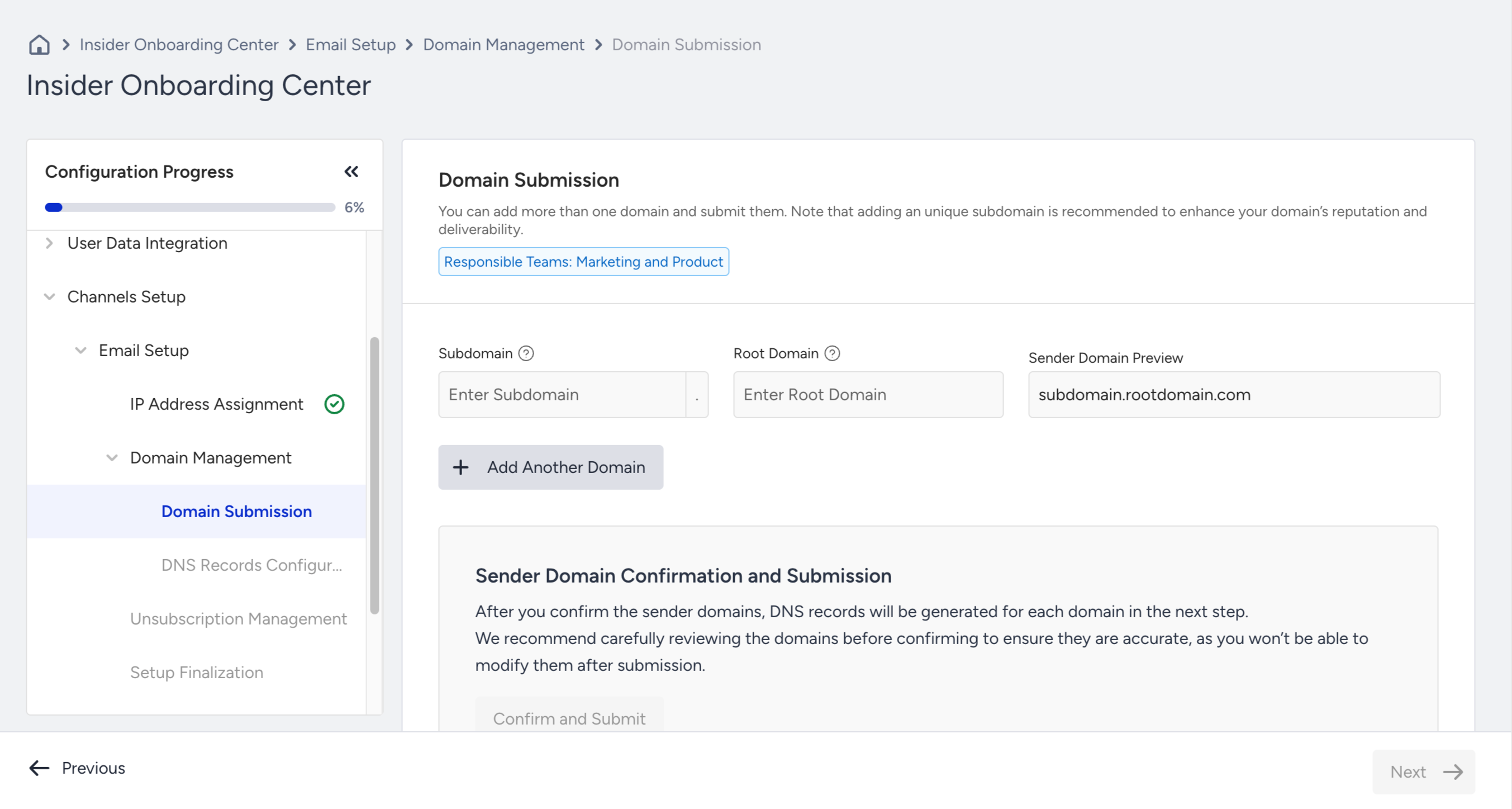
In the Domain Submission step, you will be guided on entering your subdomain and root domain to define and submit your sender domain. Adding a root domain is mandatory to proceed. While adding a subdomain is optional, we strongly recommend using a unique subdomain to improve your domain reputation and email deliverability.
If you want to add more than one sender domain, you can click the Add Another Domain button and define new sender domains.
Once you enter your sender domains, click Confirm and Submit to proceed to the next step and obtain the necessary DNS records for your Sender domains. Keep in mind that once you submit your Sender domains from the Domain Submission step, you will not be able to edit this page again. If you want to add new sender domains, you can always visit Components > Domain and Sender Management.
Only users with Collaborator, Editor, or Administrator access can submit a domain. If you do not have the necessary access, you should upgrade your access.