Dynamic segments, also known as auto-updating lists of users, are audience groups built from rules you define with events and attributes. Insider One checks these rules against current user data each time the segment is used, for example, when a campaign sends, a journey checks the segment, or you request a count. This way, the segment includes users who meet the criteria and drops users who no longer match. For timing details, see How dynamic segment membership updates.
This article covers the answers to the questions below:
Use cases
Dynamic segments help ensure your campaigns and automations remain timely, relevant, and aligned with each user’s current activity:
Send targeted campaigns
Build precise audience subgroups to deliver more relevant messages instead of contacting your entire list. For example, target newsletter subscribers who opened an email in the last 30 days.
Trigger automated flows
Use a segment as the trigger for automated campaigns across channels such as Email, Web Push, WhatsApp, or SMS. For example, launch a welcome flow when a user makes their first purchase.
Analyze audience trends
Track how segment size changes over time with Segment Analytics. It captures a daily snapshot of each tracked segment's user count, so you can see whether a segment is growing, shrinking, or holding steady.
How dynamic segment membership updates
A dynamic segment stores only its rules, not a list of users. Insider One checks the rules against current user data each time the segment is used. Users join when they start to match the rules and leave when they stop matching, on the same timing.
Rolling time windows
A condition with the "in the last" time range counts whole calendar days. "In the last 7 days" covers today and the 7 days before it, starting at midnight UTC. When an event falls outside the window, it stops counting, even if the user has no new activity, and a user who matched only because of that event leaves the segment.
For example, a user opened an email six days ago and matches "opened an email in the last 7 days". Two days later, that open is outside the window, and the user no longer matches the condition.
When new data reaches your segments
New data changes segment membership as soon as it is available for segmentation. How long that takes depends on how the data arrives:
Data source | When the data is available for segmentation |
|---|---|
API and SDK events and attributes | Typically within seconds of ingestion |
Amazon S3 imports | Processing starts when Insider One receives the file's event notification |
Snowflake, Google BigQuery, and Databricks imports | After each scheduled sync completes. Snowflake and Google BigQuery can sync from every 15 minutes up to once daily. Databricks can sync hourly or daily. |
Lookup Tables | Within 15 to 60 minutes |
Event Delete and Update requests | Segments are re-evaluated automatically against the corrected event data, with no manual trigger |
The sync frequency sets how often a sync can start, not when it finishes. For details, see Data Ingestion Limits and Performance.
Some segment types follow their own schedule:
RFM Segments are recalculated once a day.
Zero-Copy Segments use the latest completed sync. Users added to your warehouse during a sync join at the next sync.
When you add RFM or Zero-Copy Segments to a dynamic segment, that part of the segment changes only when they update. Saved dynamic segments that you use inside another dynamic segment are checked live, like the rest of its rules.
Dynamic Segments listing page
To view the Dynamic Segments listing page, navigate to Audience > Segments > Dynamic Segments. You can find the following details of your dynamic segments on this page:
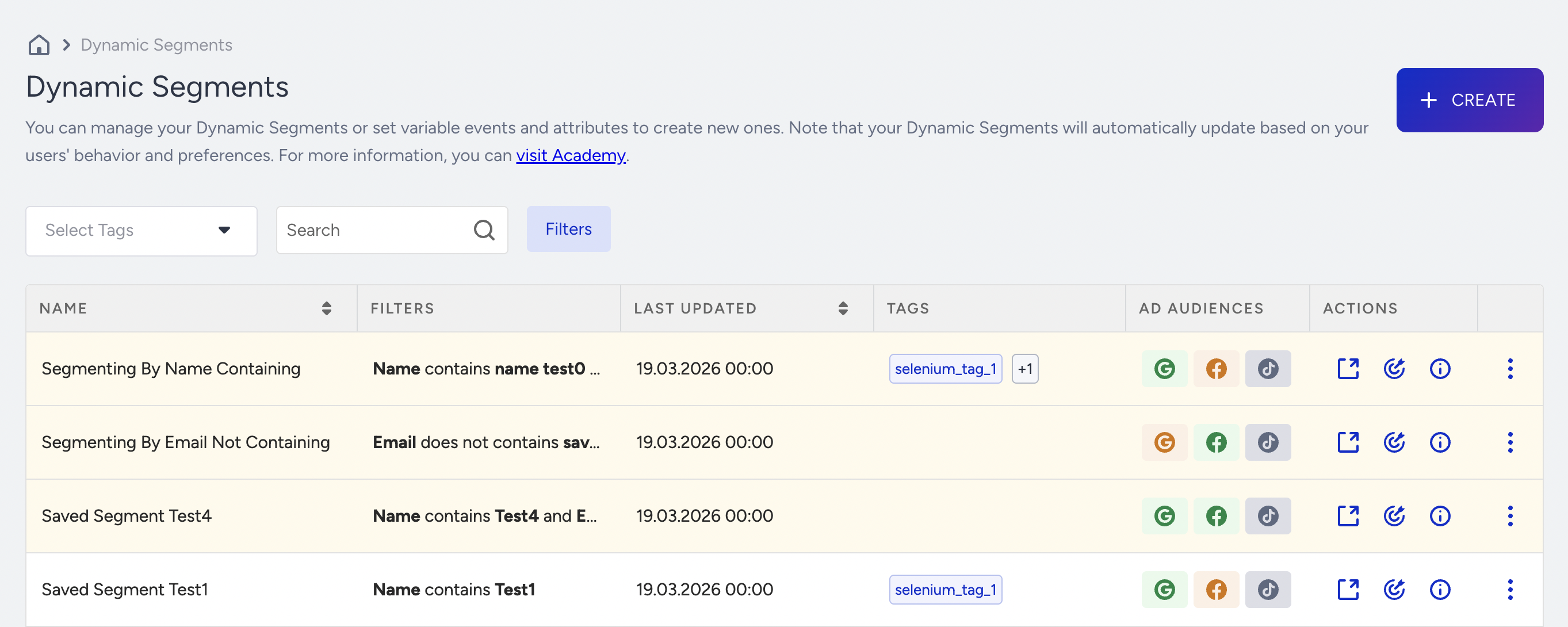
Select Tags: Displays the segments based on the tags.
Search: Describes the search criteria. You can search for a segment by email, name, uuid, or phone number.
Name: Specifies the name of the segment you assign while creating segments. When you click on a segment, you can view the summary details and users.
Filters: Specifies the applied filters to a particular segment, if any.
Last Updated On: Displays the last date the segment was updated.
Tags: Displays the tags that you have assigned.
Remarketing: Displays the remarketing channels to which you send your dynamic segments. It turns blue when it is integrated.
Actions: Exports the details of the dynamic segment to a CSV file.
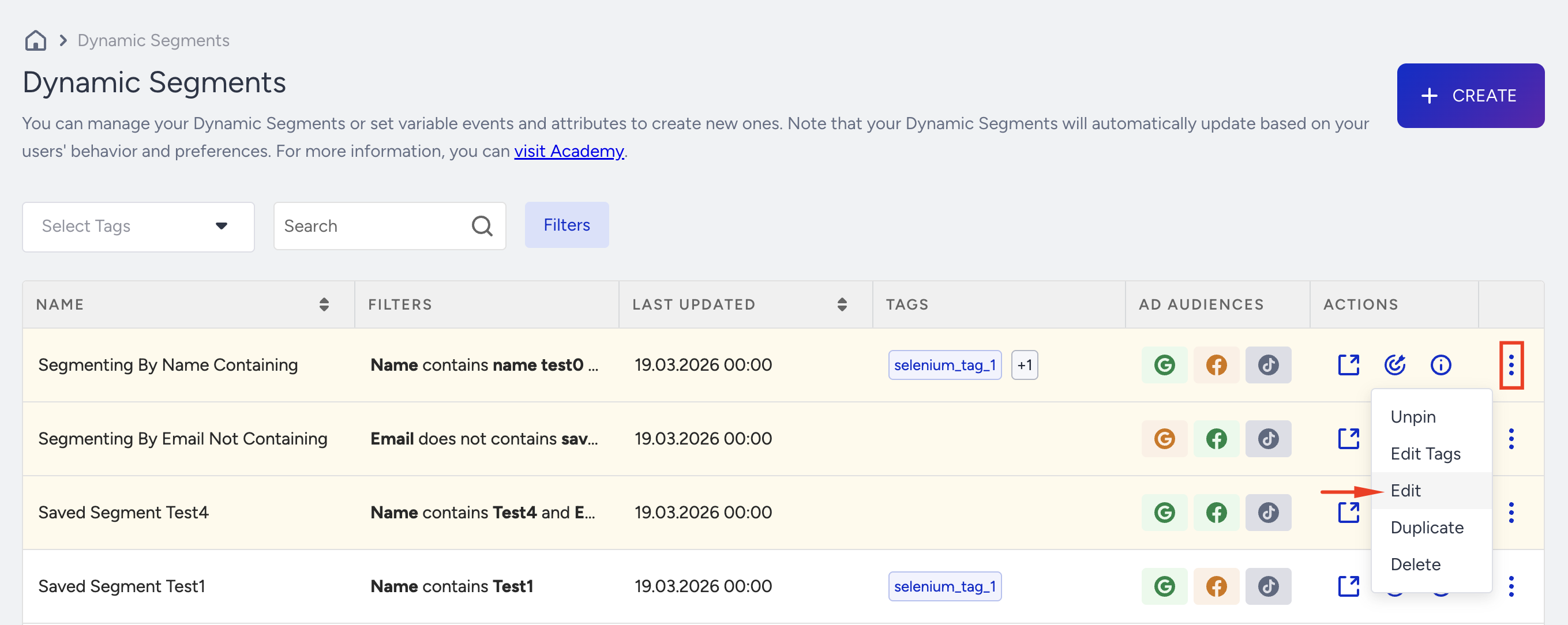
Menu (three-dots): If you click the menu against a segment, you can see the following options:
Pin to Top: Use it to pin the selected dynamic segment at the top. If the dynamic segment is already pinned, this becomes Unpin.
Edit Tags: Use it to edit the tags assigned to the segment.
Edit: Use it to edit the segment you created previously.
Duplicate: Use it to clone a segment to run some experiments. You can change the name by clicking the segment name and editing the input field.
Delete: Use it to remove a segment permanently.
The deletion action for the Dynamic Segments indicates that the user will only be removed from the list, not deleted entirely from the Unified Customer Database (UCD)
Dynamic Segments summary page
To access the Dynamic Segment summary page, click on the segment name from the listing page.
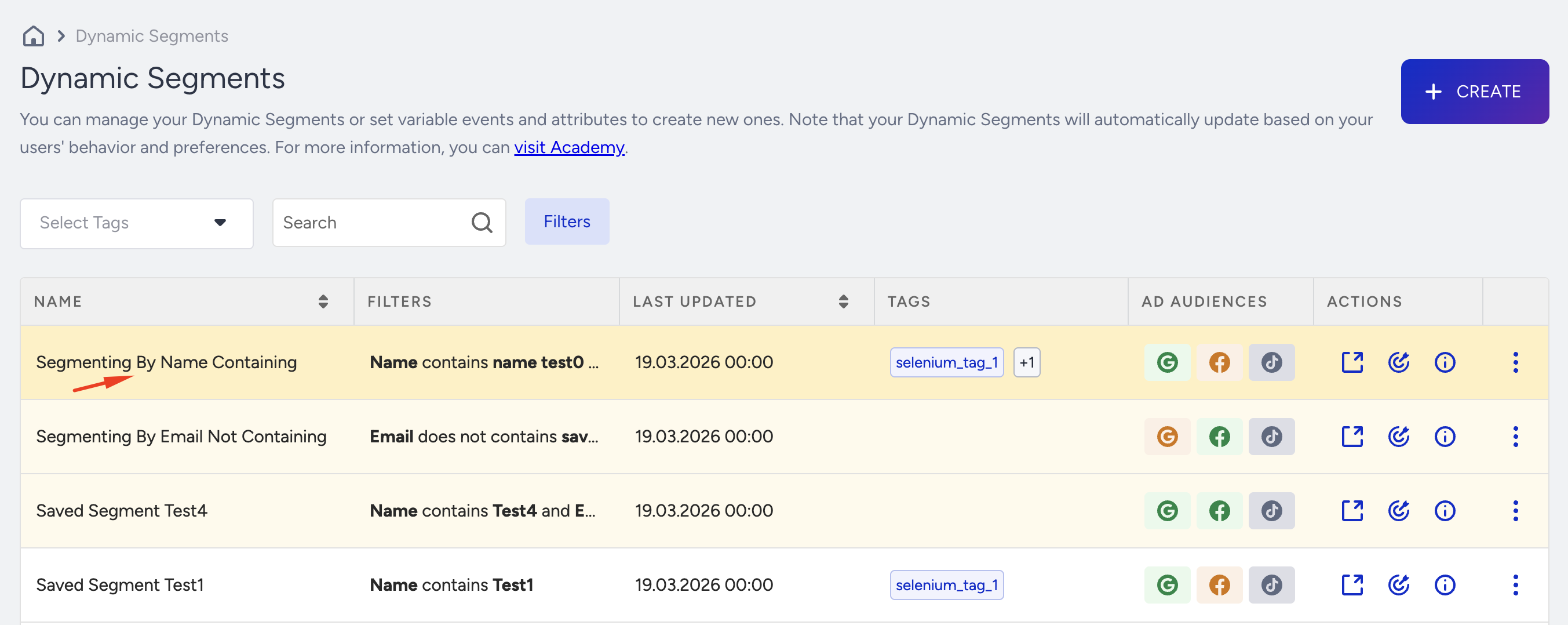
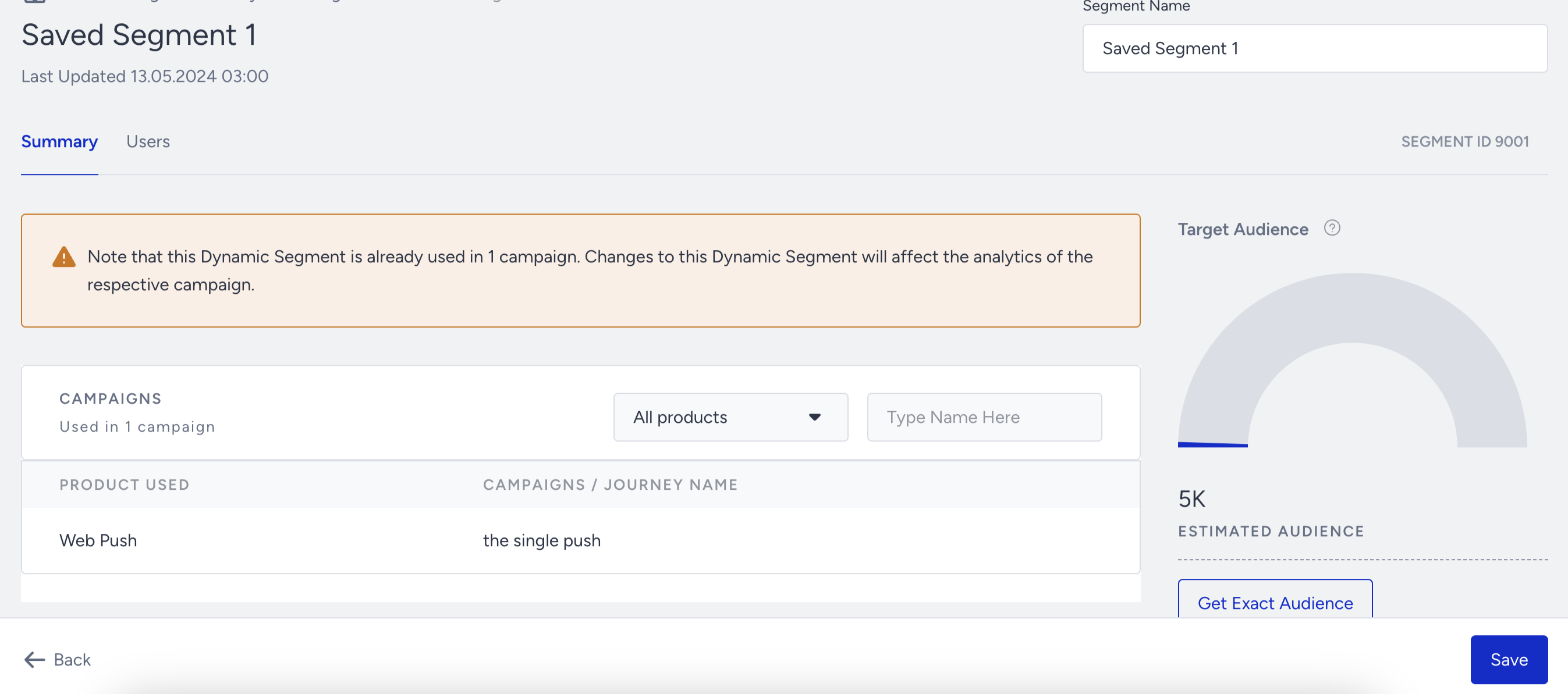
You can find the following details of your Dynamic Segments on the Summary tab:
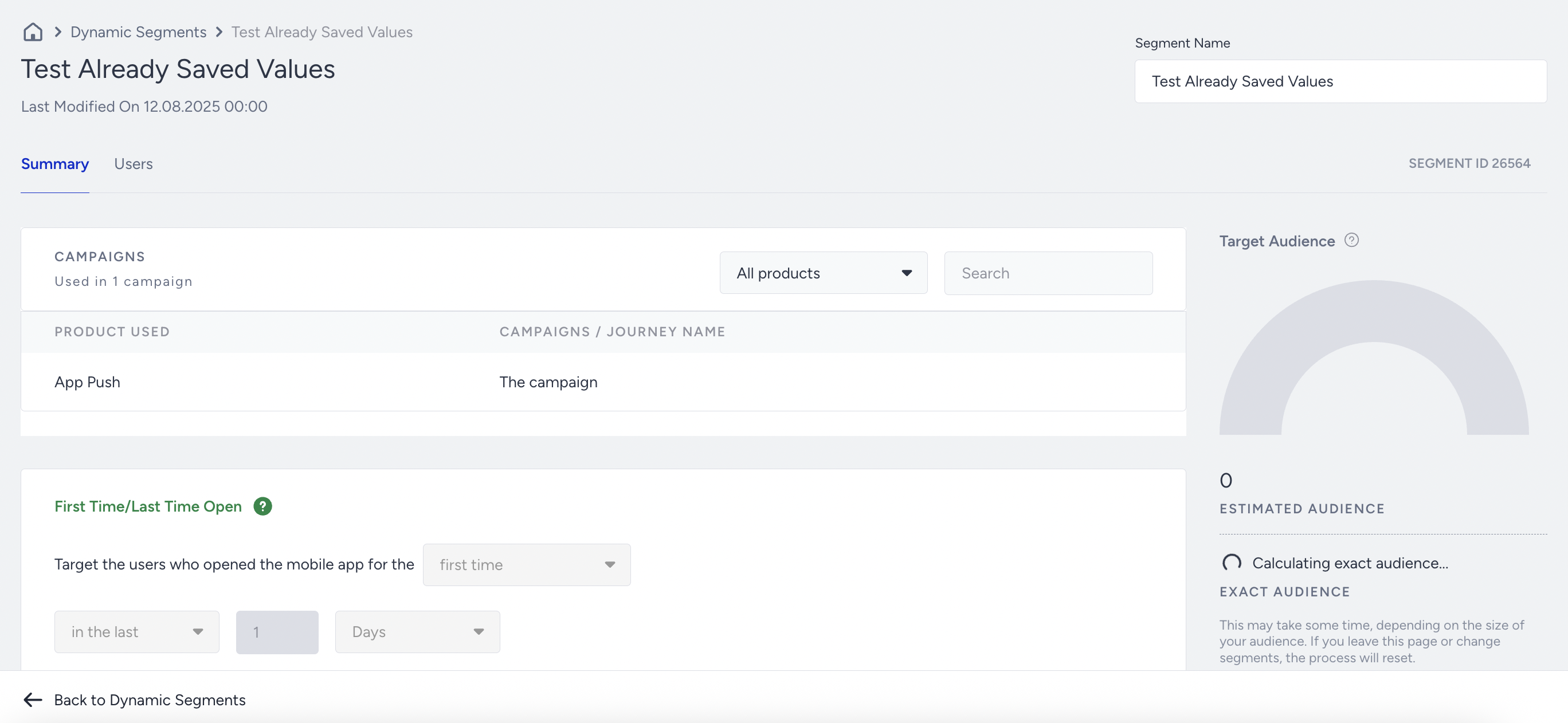
Segment ID: Located under the Segment Name field, it displays a unique ID to differentiate the segments.
Segment Name: Specifies the name of the segment you assign while creating segments.
Campaigns: Displays the number of campaigns in which the segment is used.
Search: Displays the list of segments by Insider One product. You can select All products, Email, Architect, SMS, WhatsApp, or Web Push. You can also enter a name to display search results.
Product Used: Displays the Insider One product to which the segment belongs.
Campaigns / Journey Name: Displays a segment's campaign or journey name.
Target Audience: Displays the number of users that your message could reach.
Estimated Audience: Displays the approximate number of users based on your current segmentation settings.
Get Exact Audience: Displays the actual count of users based on your current segmentation settings.
The Estimated Audience is calculated from a 1% sample of your users, so it can differ from the exact count, especially for small segments. Get Exact Audience counts every user who matches the rules when you click it. How long the exact count takes depends on how complex your rules are and how many users and events your account has.
A campaign or journey can show a different number for the same segment, because it counts only users you can reach on that channel. To see how many users in the segment you can reach on each channel, use Audience Analytics. To follow segment size from day to day, use Segment Analytics.
Dynamic Segment users page
Switch to the Users tab, and you can find the following details of your Dynamic Segment users on this page:
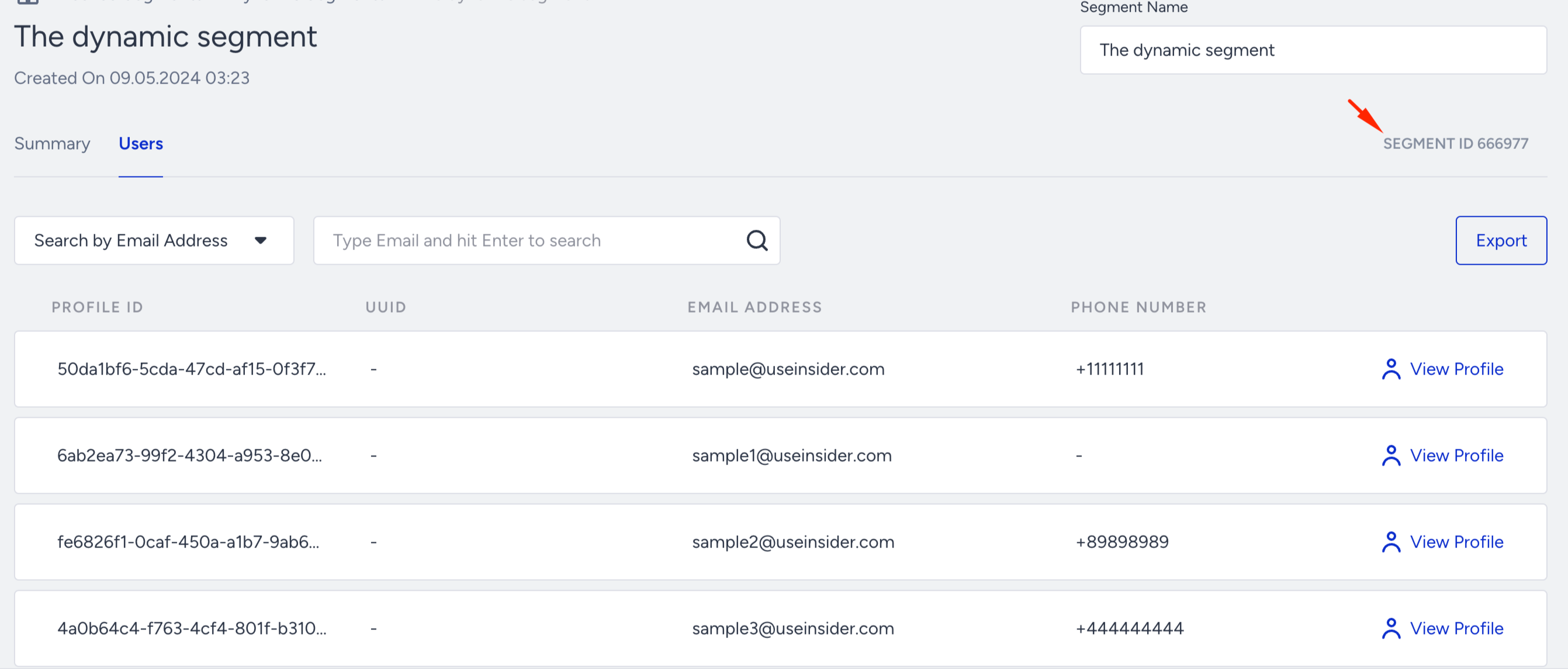
Segment ID: Located under the Segment Name field, it displays a unique ID to differentiate the segments.
Segment Name: Displays the name of the segment that you assigned.
Search: Search for a segment by entering the name, email, phone number, or UUID.
Profile ID: Displays the profile ID of each user.
UUID: Displays the user's unique ID.
Email Address: Displays the user's email address.
Phone Number: Displays the phone number of the user.
View Profile: Displays the user profile.
Only users granted Personally Identifiable Information (PII) permission or the account administrator role can see the user data on this page. Otherwise, the data will be partially masked.
Create a Dynamic Segment
To create a Dynamic Segment to narrow your users:
Click the Create button on the Dynamic Segments listing page.

Enter a short, descriptive name and click the Create button. You can also select tags or create new ones to use as a filter later on.
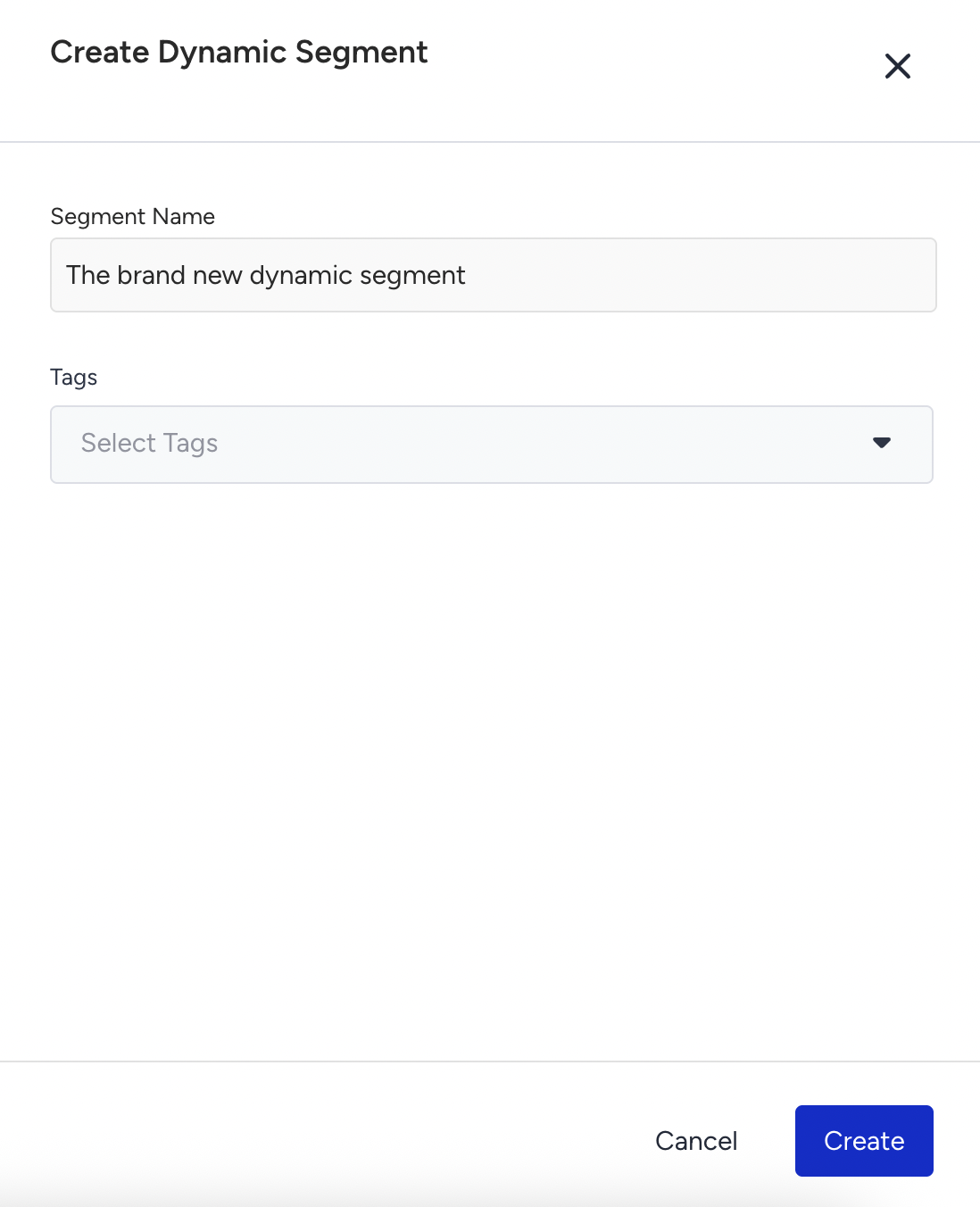
You land on the Segments selection page. By default, no filter is applied. To narrow down your audience, choose a segment to categorize your users.
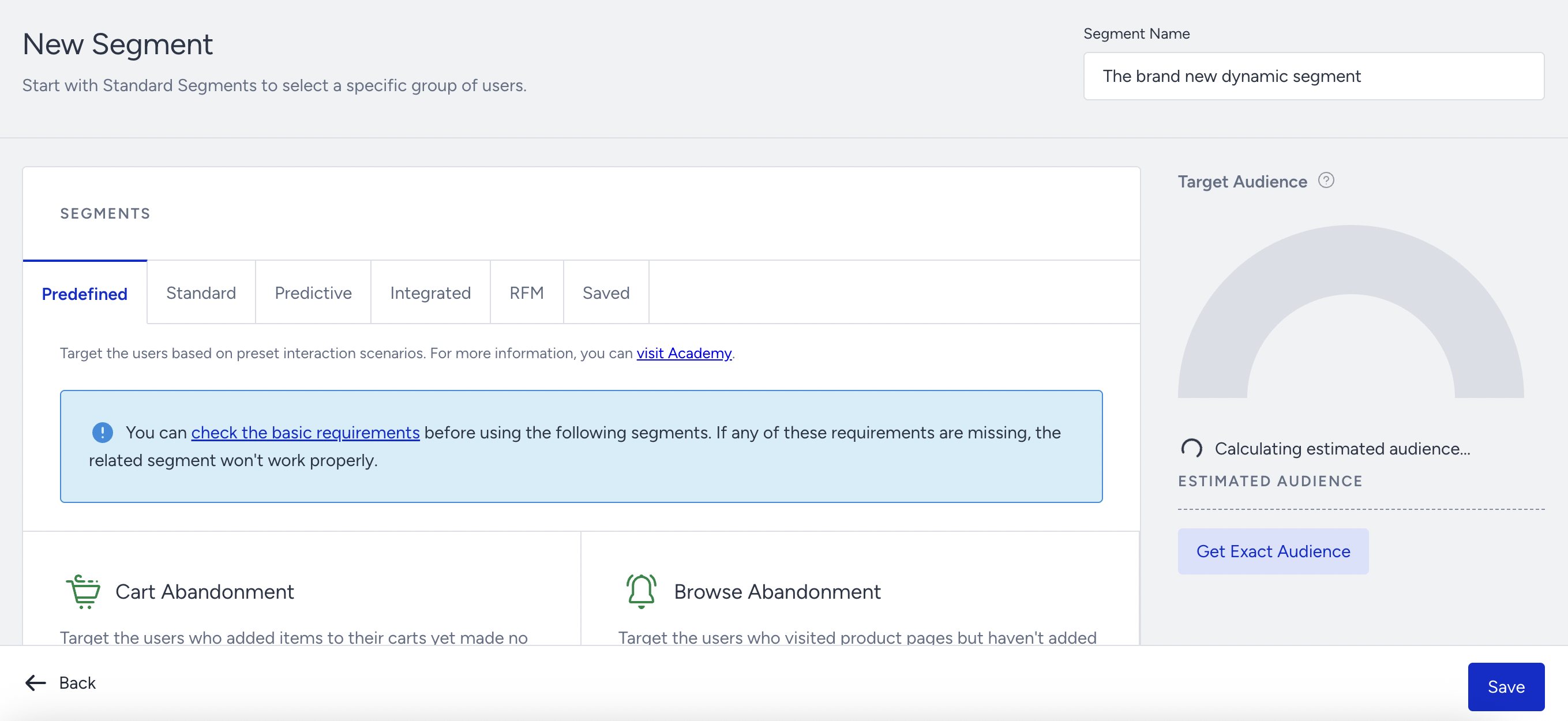
The available segment options are:
Saved Segments
Dynamic Segments
In the segment creation steps, you can add or remove any segment or segment group and change AND/OR conditions as you prefer. You can also apply filters.
How AND and OR affect your audience
Use AND when a user must meet every condition. Use OR when a user can meet any one of the conditions. Conditions within a group share one operator; separate groups have their own operator.²
For example, add these two conditions to one group:
City is Istanbul
Email opt-in is Yes
With AND, the group matches only users in Istanbul who have opted in to email. With OR, it matches users in Istanbul, users who have opted in to email, and users who meet both conditions.
The operator between groups works separately. Suppose Group 1 is “City is Istanbul AND Email opt-in is Yes,” and Group 2 is “Purchase count is at least 3”:
Group 1 OR Group 2 matches users who meet either group.
Group 1 AND Group 2 matches only users who meet both groups.
You can select multiple values for an attribute, which enables you to filter users in one box by selecting more than one value. You can easily choose them from the value dropdown menu.
The multiple value selection feature allows you to select data whose type is string or array for attributes. Number and boolean types are not supported.
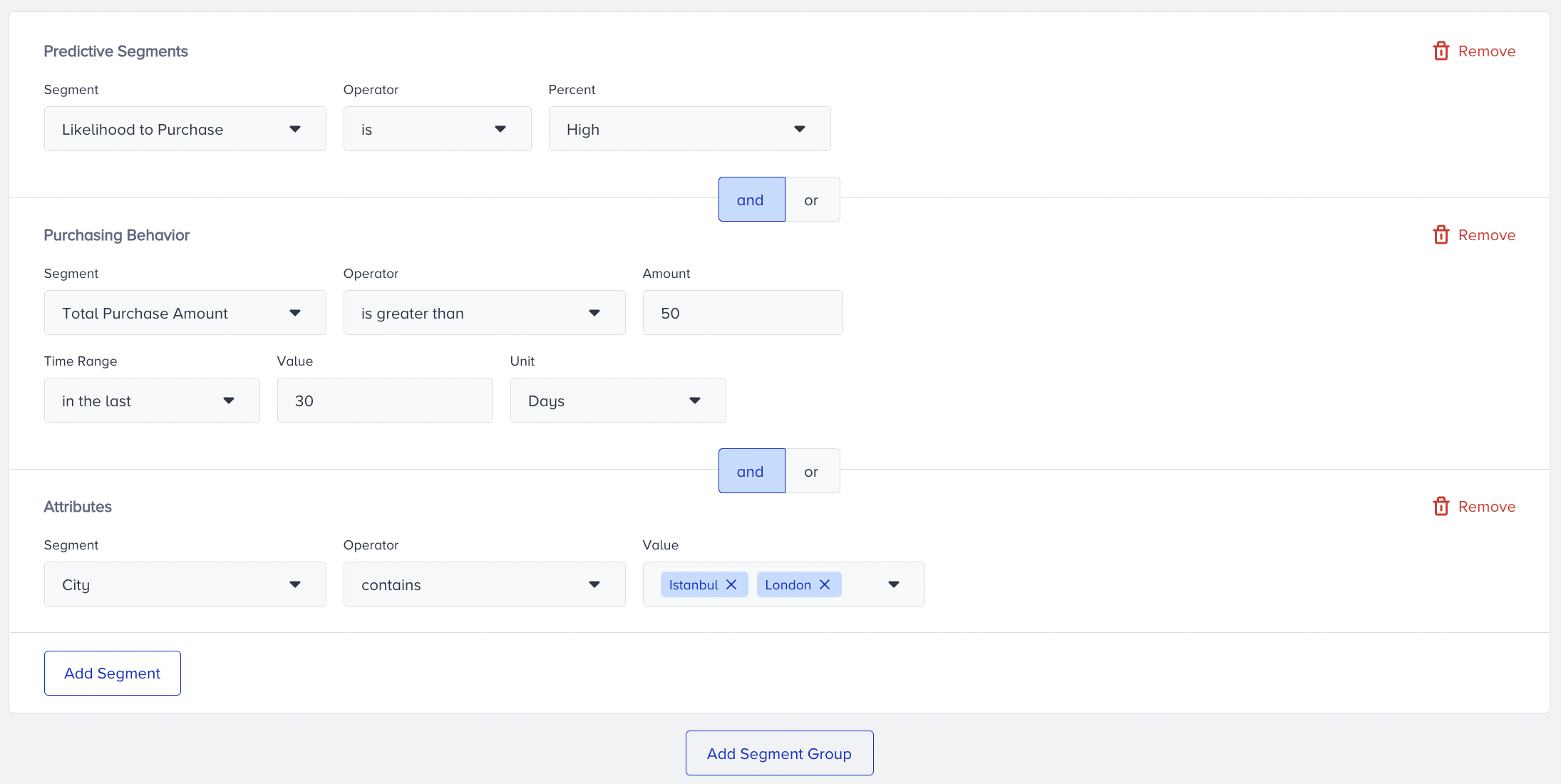
You can find an example below for a segment that targets users with a high likelihood to purchase value, who have made a total purchase amount of 50 in the last 30 days, AND whose city is either "Istanbul" or "London". When you’re ready to save your filters, click Save.
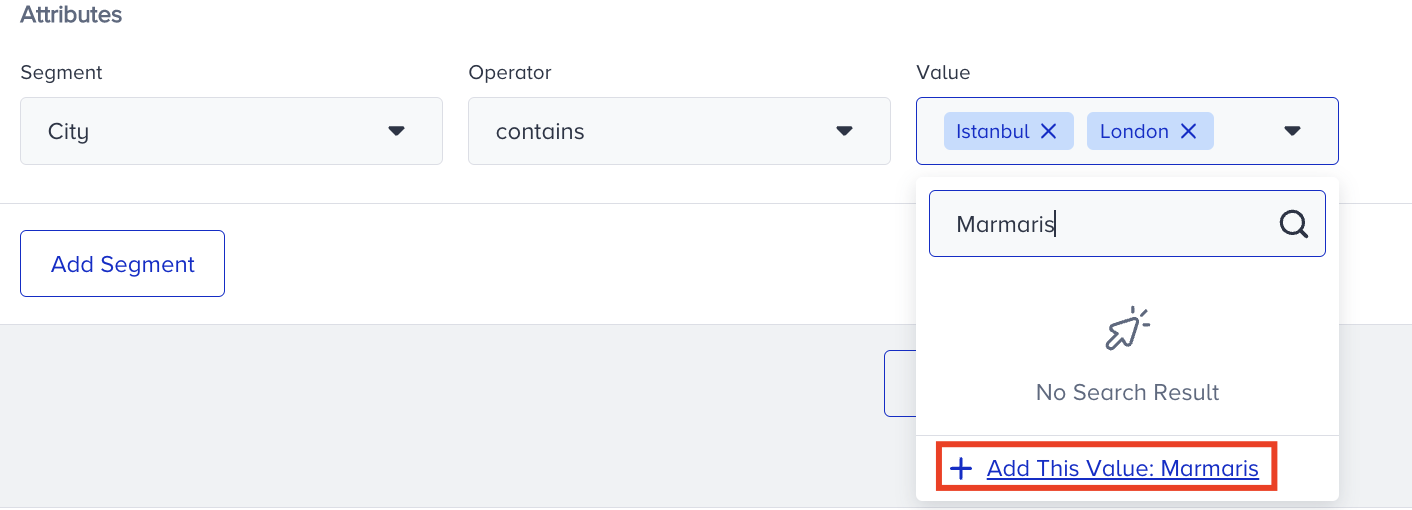
You can also add any new value that doesn't exist for an attribute in the dropdown. When you start to type, the Create option appears.
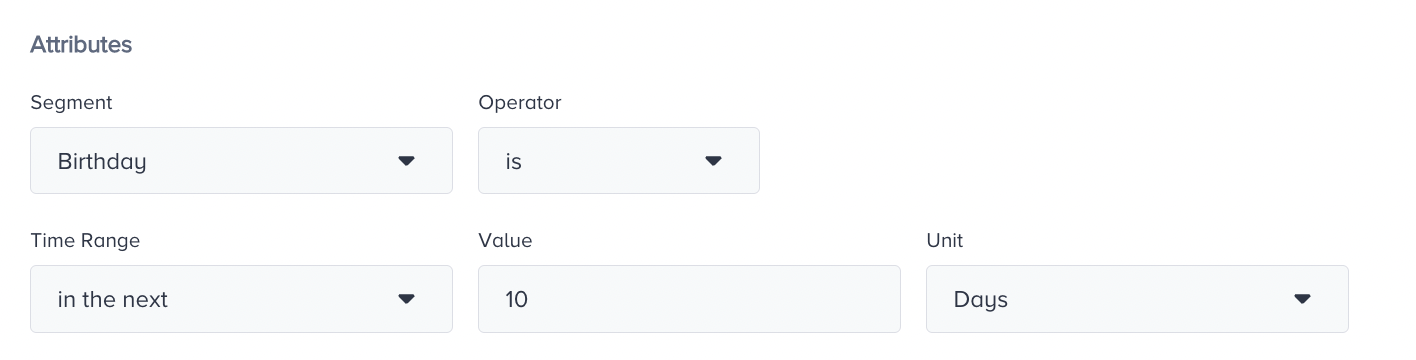
Date attributes, such as birthday, use these operators:
is
is not
is empty
is not empty
You can choose these time ranges for "is" and "is not":
in the last (a number of days, weeks, or months)
in the next (a number of days, weeks, or months)
on date (date picker)
between (date range)
after (date picker)
before (date picker)
today
yesterday
this month
To target a date that recurs every year, such as a birthday or an anniversary, use the Annual Occasions segment. It has its own operators and time ranges. See Standard Segments: Annual Occasions. For the operators of every data type, see Segment Conditions.
When you click +Add an Event Parameter, you can also apply multiple value selection, which enables you to select more than one value to filter users in one box. You can easily choose them from the value dropdown menu.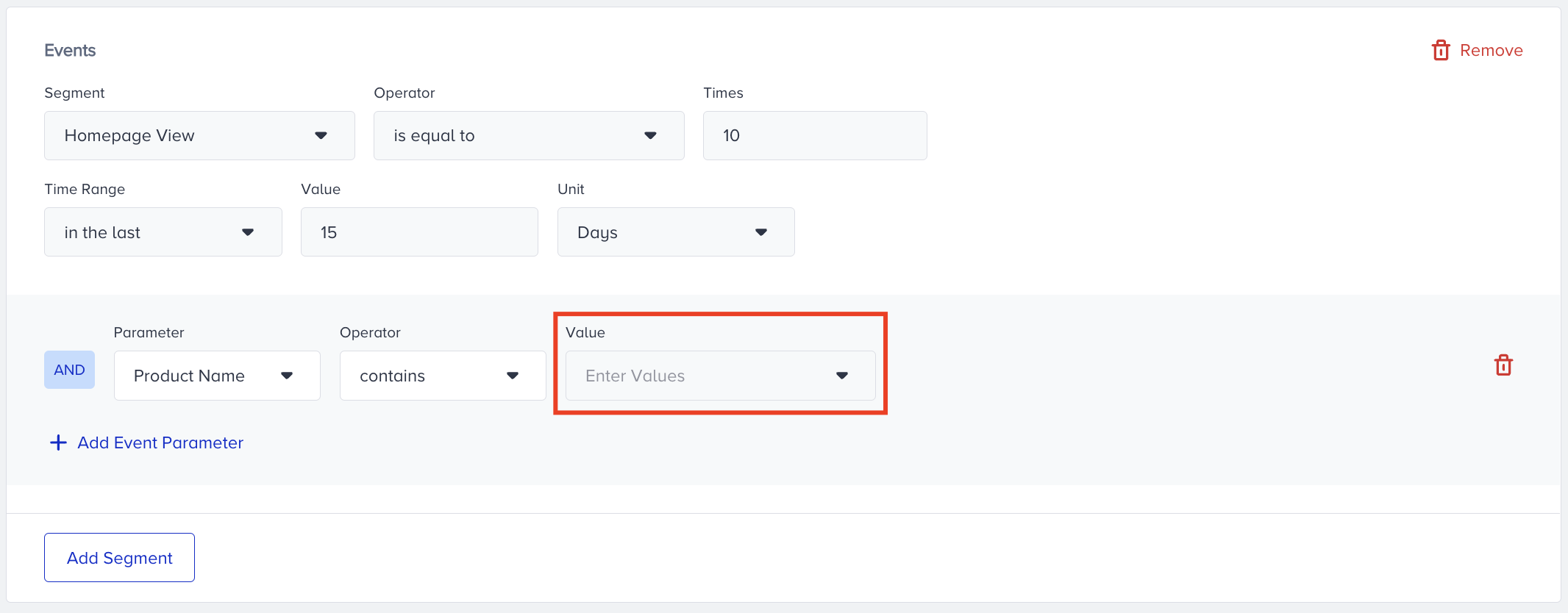
For example, if you want to target a cap and a beanie for the product name, you don’t need to add event parameters separately; instead, you can keep them together.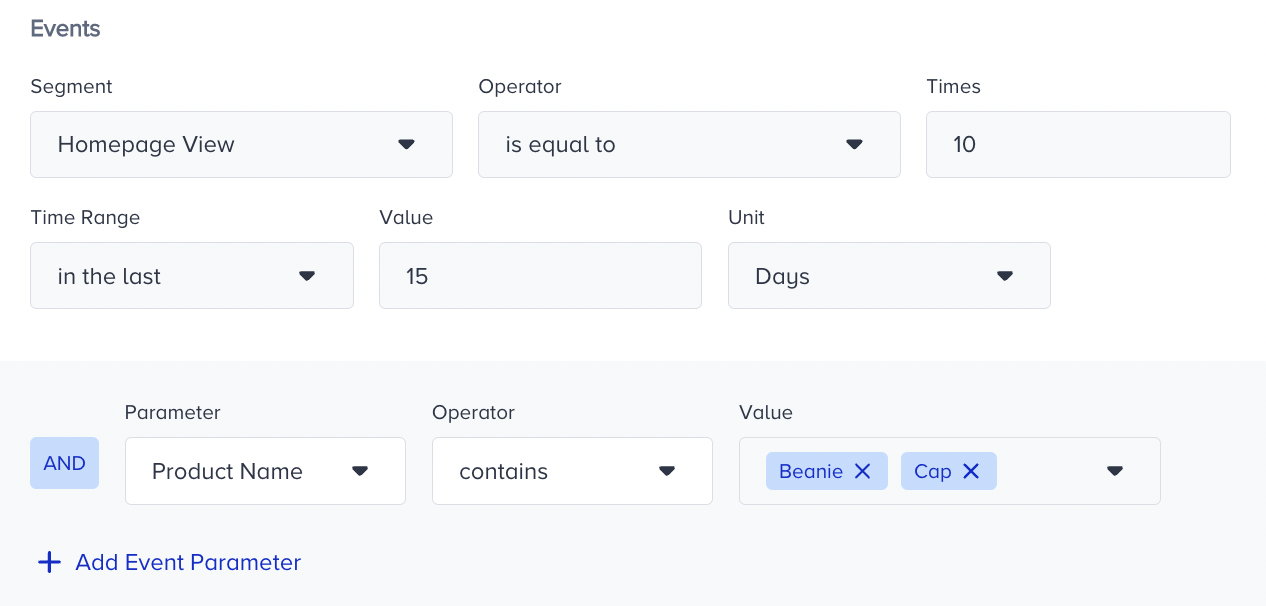
You can use this feature to select all types of data except for date and boolean for event parameters.
Note that when you delete the segment, the campaigns in which your segment is used will not be affected until that campaign is rescheduled.
You can create up to three condition groups and use up to 15 conditions per group.
Check the audience size before you save. While you add or change conditions, the count bubble shows the Estimated Audience for your current rules. To count every matching user before you save, click Get Exact Audience.
Edit a Dynamic Segment
If you want to update your Dynamic Segment, you can edit it:
Click the Edit option next to the Dynamic Segment you want to change.
If the Dynamic Segment you want to edit is used in a campaign, you will see information about it under the Summary tab, along with its details.
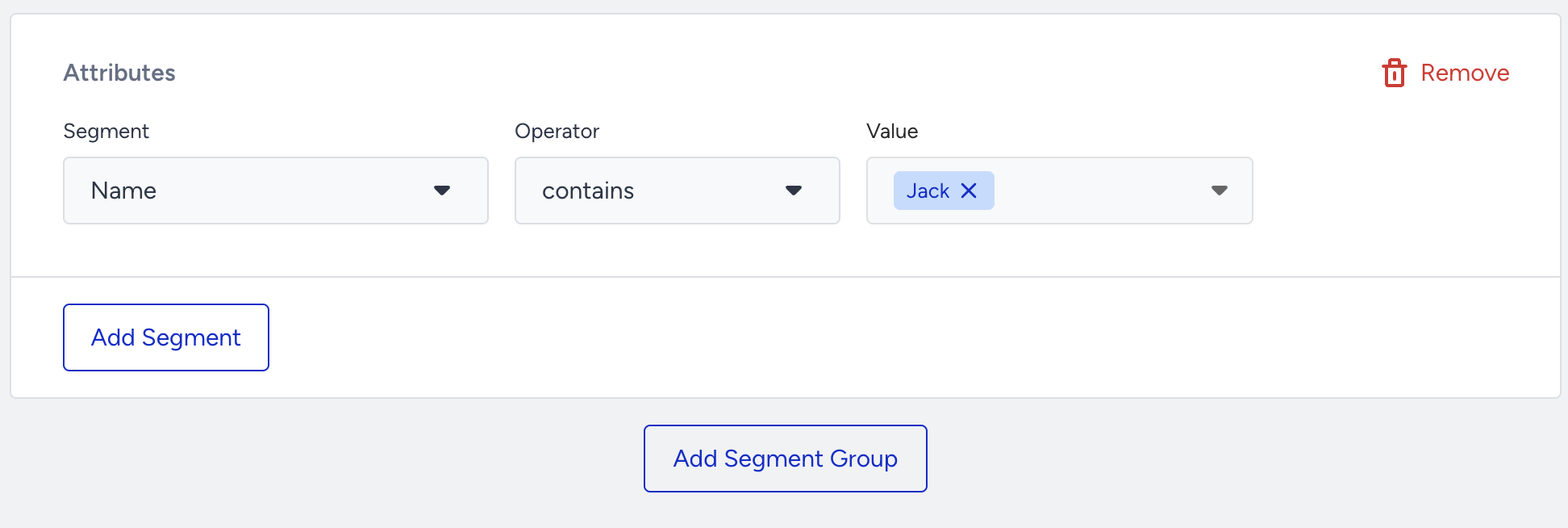
Click the Add Segment or Add Segment Group to edit your existing segment, and click the Save button.
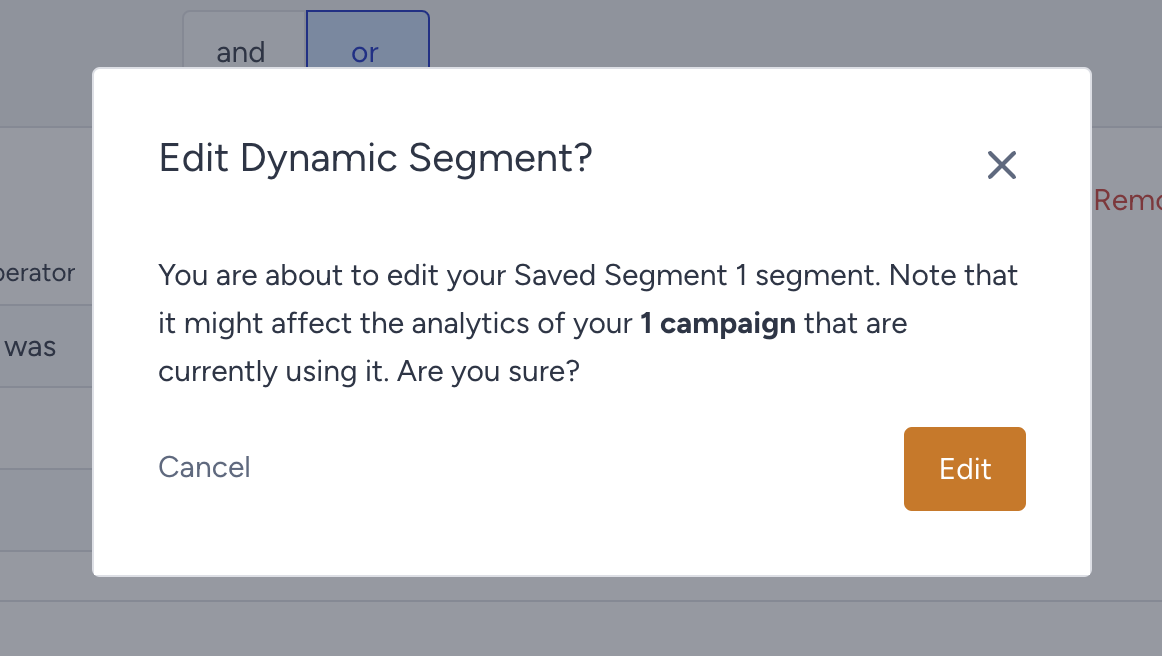
To proceed, you will see a warning about the campaigns using the segment.
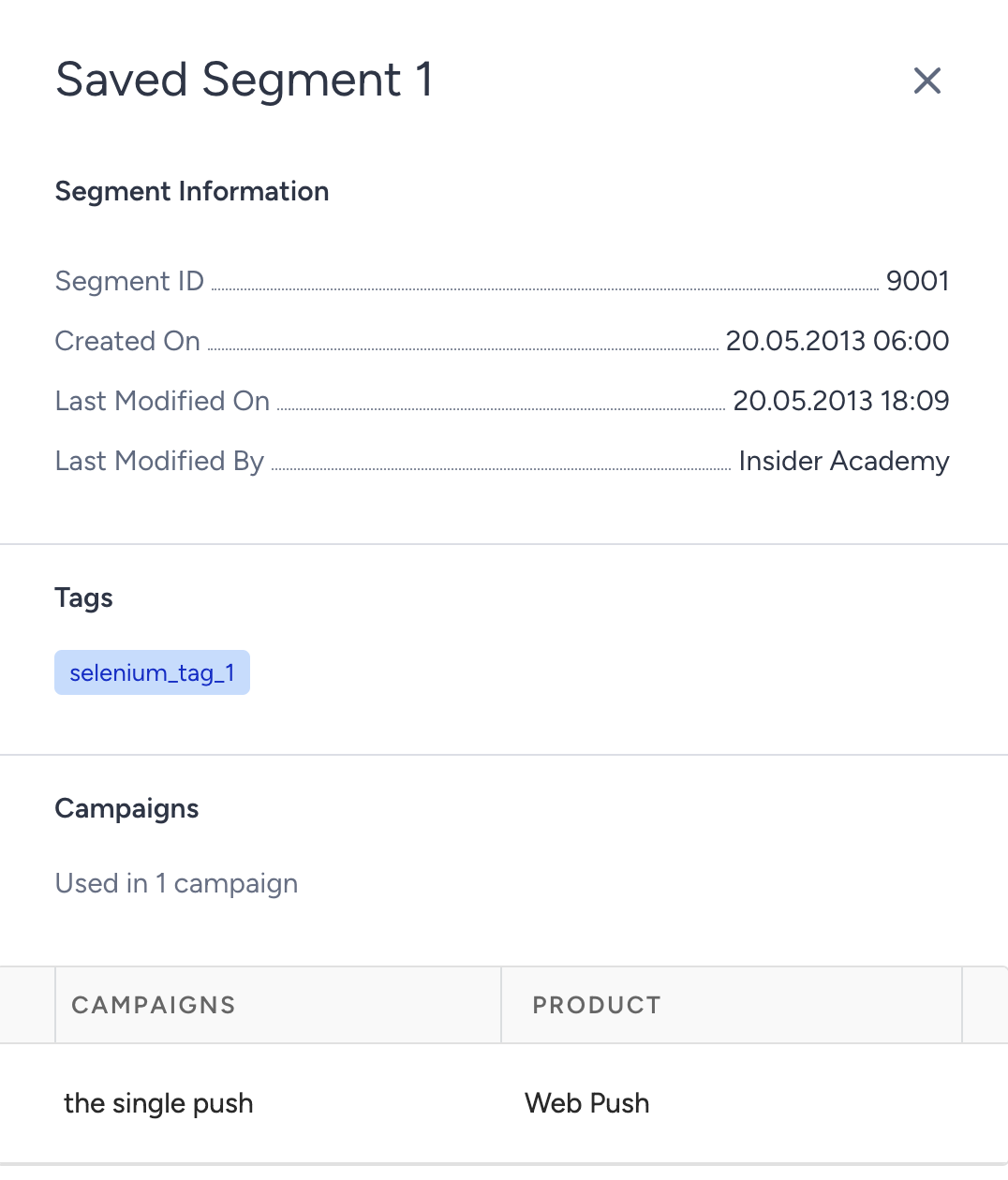
When you click the Details button next to the Dynamic Segment, you can see the last modification date and user information.
To remove a condition in a dynamic segment, use its own delete control. Other conditions in the group remain in place. If you remove the group’s last condition, the empty group is removed.
Export a Dynamic Segment
You can export your saved Dynamic Segments in .csv format.
1. Click the Export button against the Dynamic Segment you want to export on the Dynamic Segments listing page.
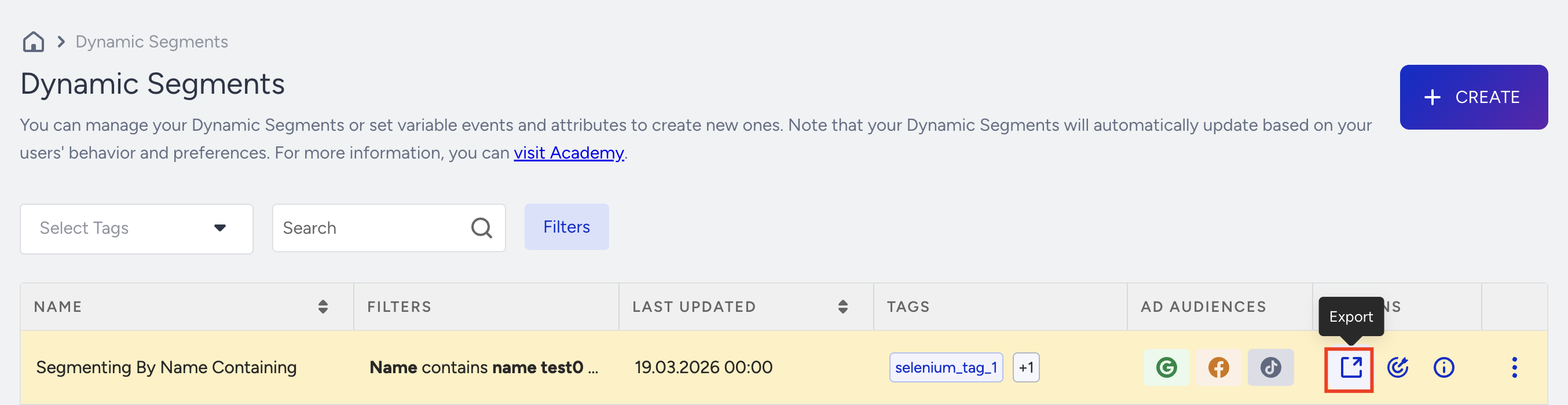
You can directly export your dynamic segment without including user attributes. If you choose to do so, you will receive your CSV export with identifiers (Email, phone number, profile ID), respectively.
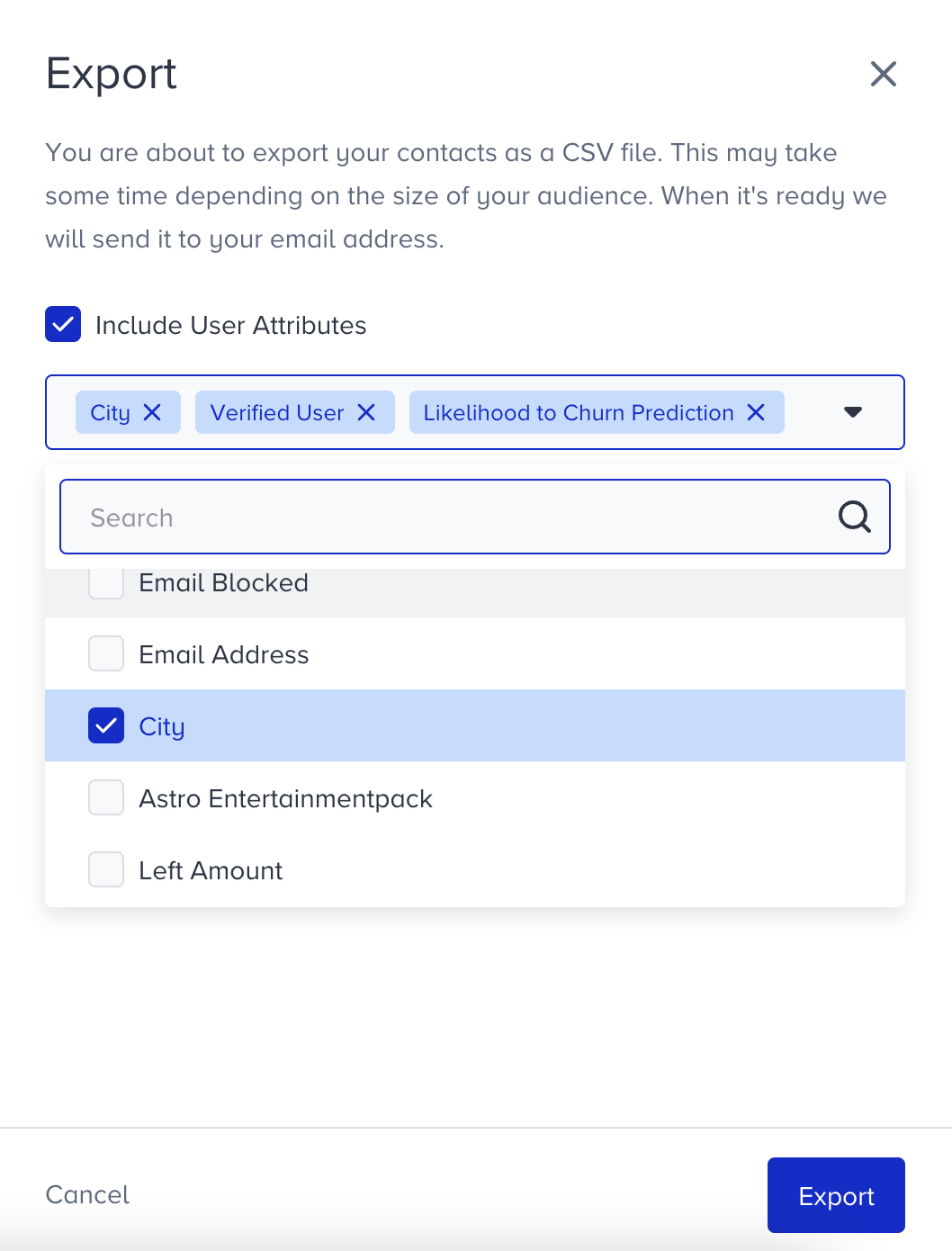
You can also get exports by selecting different user attributes. Once you choose your user attributes from the dropdown list and click the Export button, you will see your chosen user attributes appended to your CSV file.
You can include a maximum of 20 additional attributes in one export file.
Dynamic Segments work independently. If the Dynamic Segment as a Filter feature is not enabled for your account, you cannot combine them with other saved segments or filters.
Send Dynamic Segments to Remarketing Channels
You can send Dynamic Segments to the following ad platforms. Refer to the articles below to see the details:
All remarketing segments undergo an update during the nightly sync job.