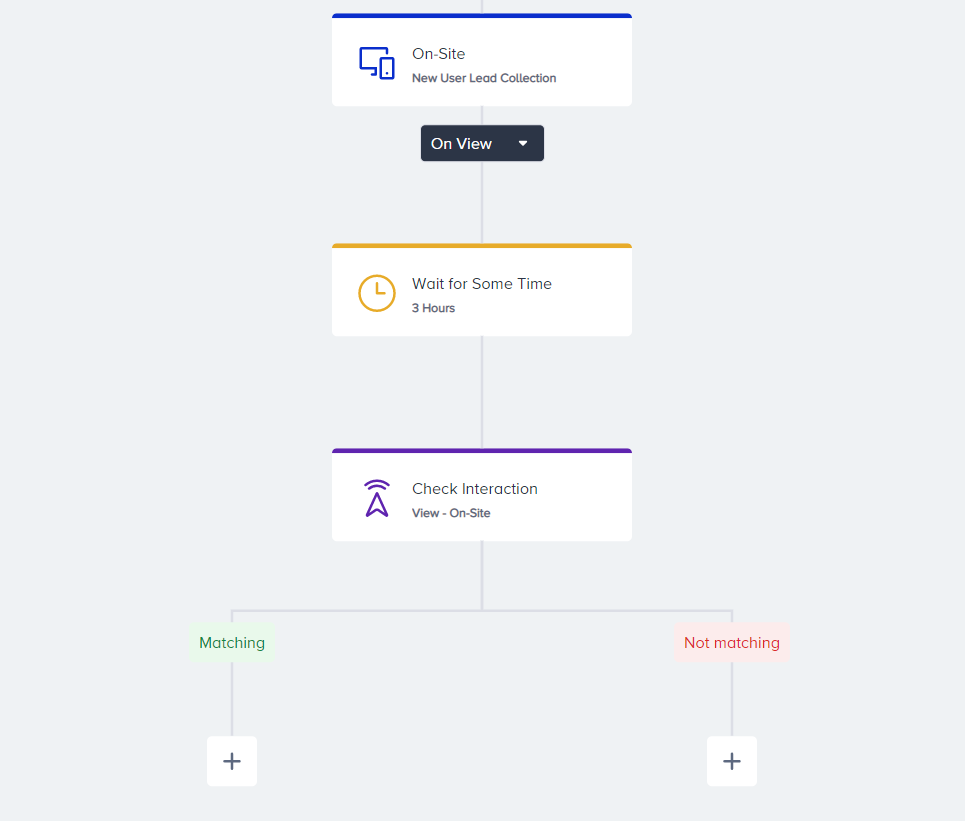
You can display On-Site campaigns to your users within your journeys. You can follow these steps to design your campaign:
Onsite campaign creation steps are similar to those on web templates with the following differences:
There is no segment step specific to your campaign, as users who enter the journey and arrive at the onsite channel are already segmented based on their activities.
There are no Campaign Trigger Settings specific to your campaign on the rules step to allow the campaign to be triggered by another campaign.
There is no A/B testing specific to your campaign on the design step, as it is inconvenient with journey logic. If needed, you can use the A/B split function instead.
There are no Browser Storage Settings specific to your campaign on the goals step, as the journey has its own eligibility and conversion goal functions.
There is no language selection specific to your campaign on the launch step. The journey has its language selection on the launch settings.
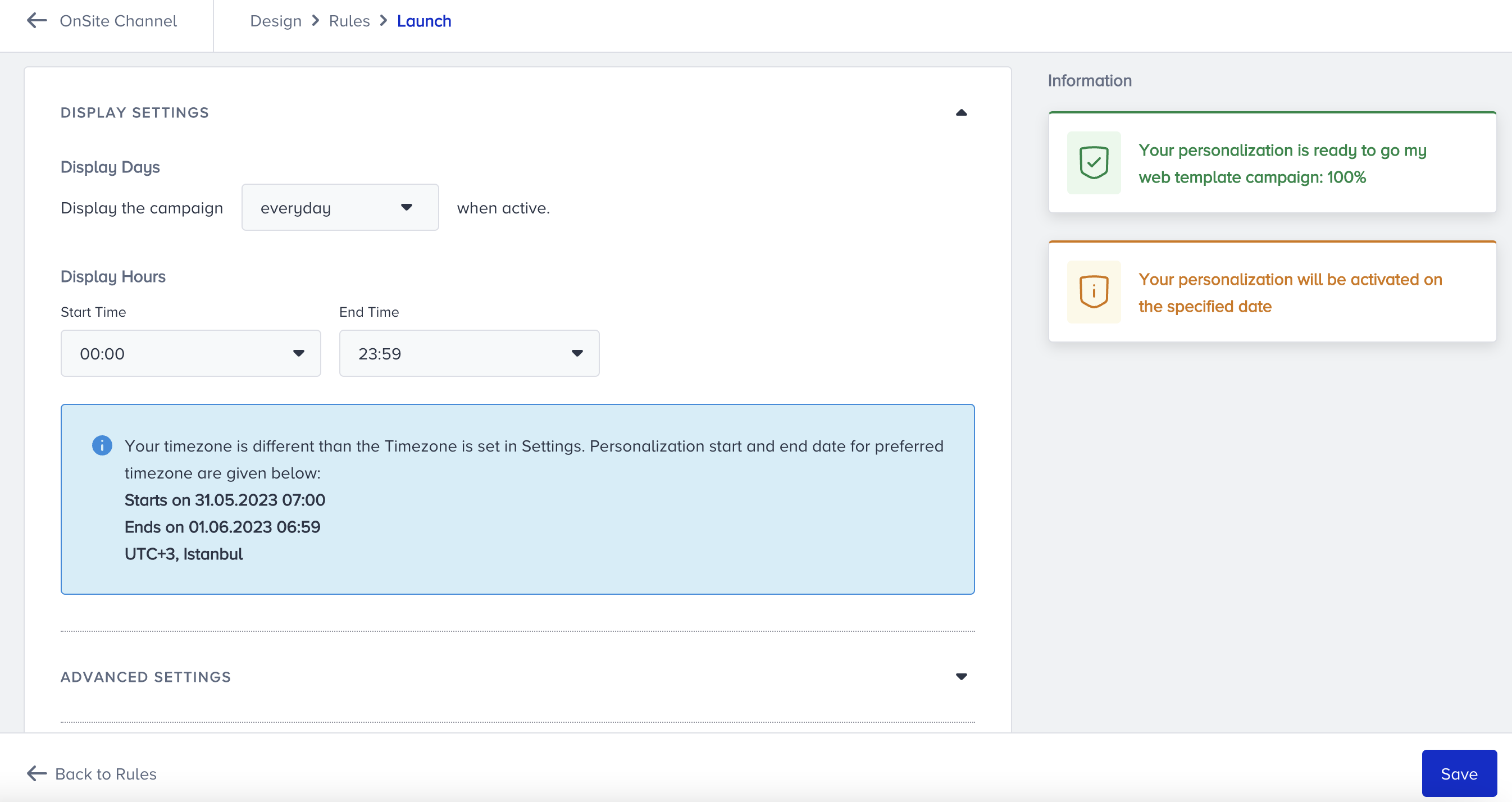
There is no activation day & time specific to your campaign on the launch step. This campaign can only be active on your website when the journey is active. Also, each journey has its activation day & time on the launch settings.
There is no activation status specific to your campaign on the launch step. This campaign can only be active on your website when the journey is active. You can test the campaign using the test link on the onsite element page.
After you complete the integration process, you can follow these steps to start creating onsite campaigns in your journeys:
1. Add On-Site element on canvas
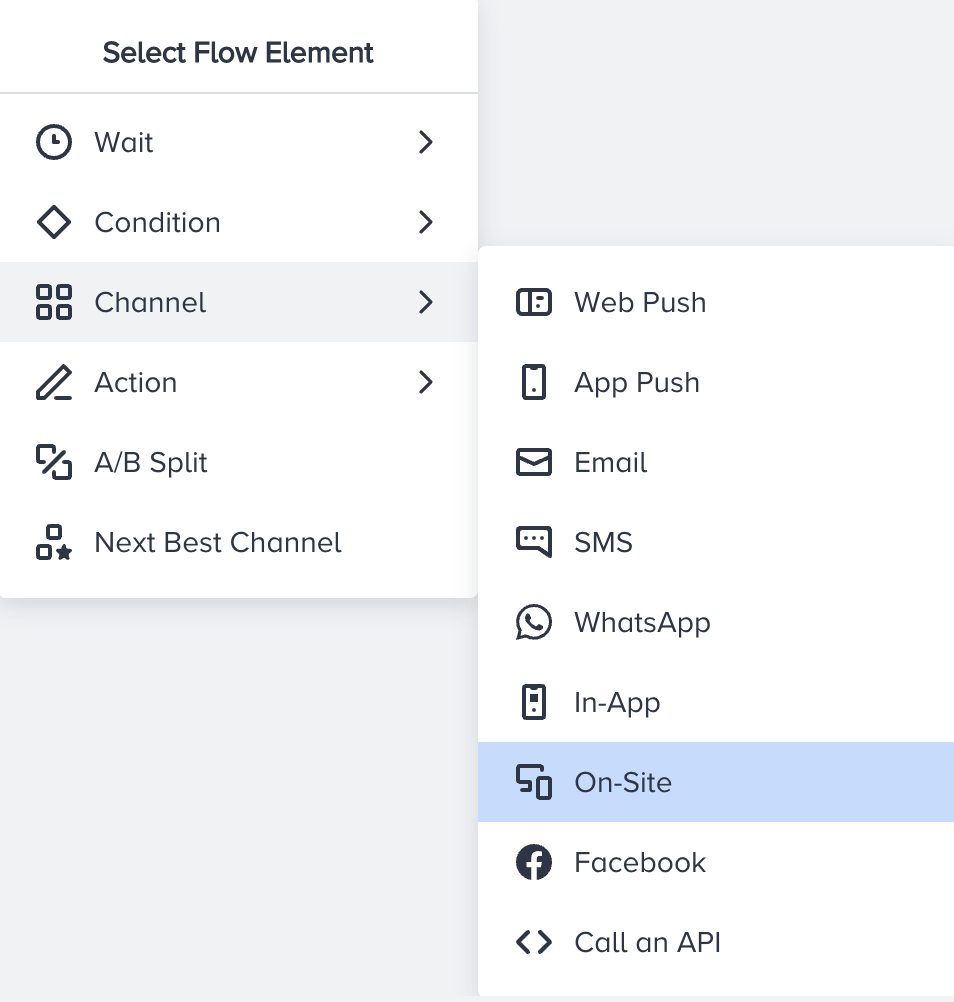
Click the Add button on the path you want to add the On-Site channel on your journey.
Click Channel > OnSite.
2. Select your campaign type
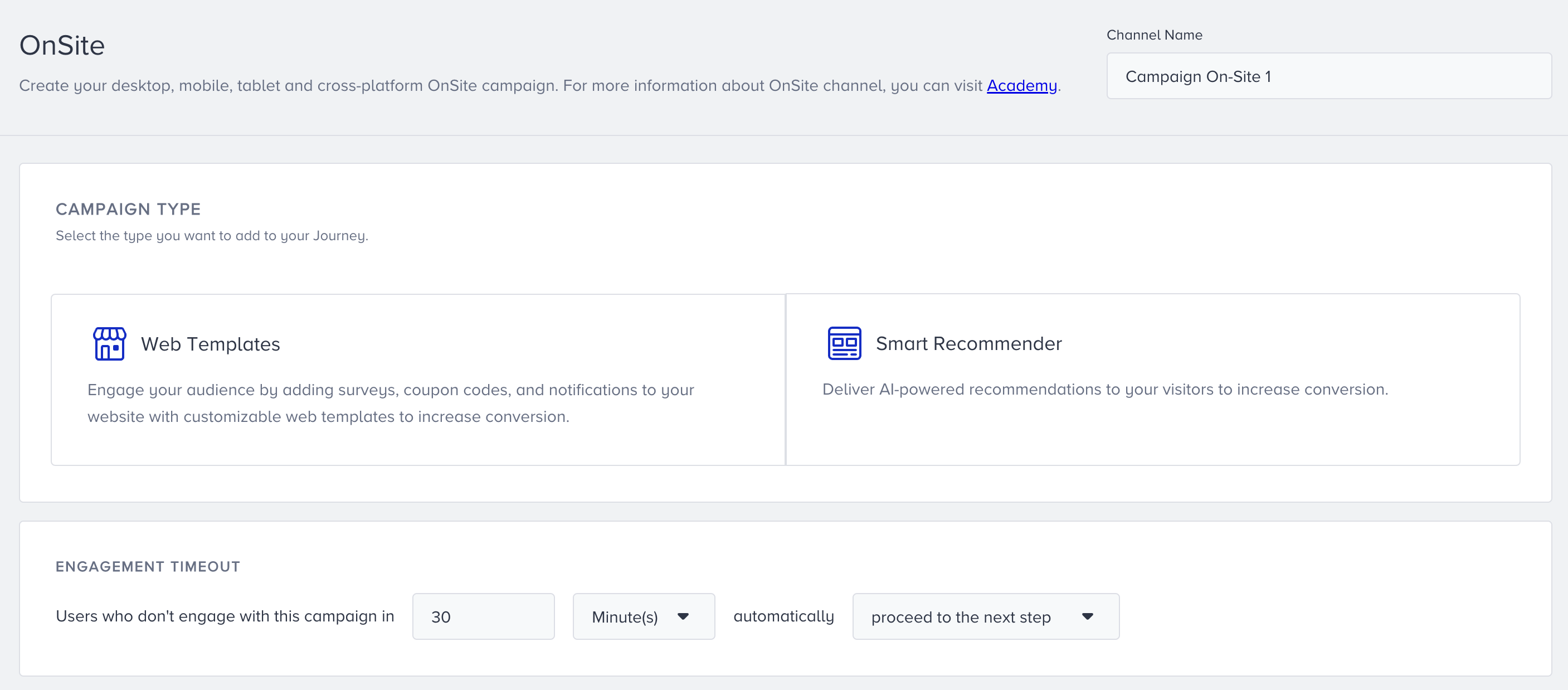
Select the type you want to add to your Journey to create your desktop, mobile, tablet, and cross-platform OnSite campaign.
3. Name your campaign and select your platform
3.1 Smart Recommender
If you select Smart Recommender:
Name your campaign and select the platform on which you want to create your campaign.
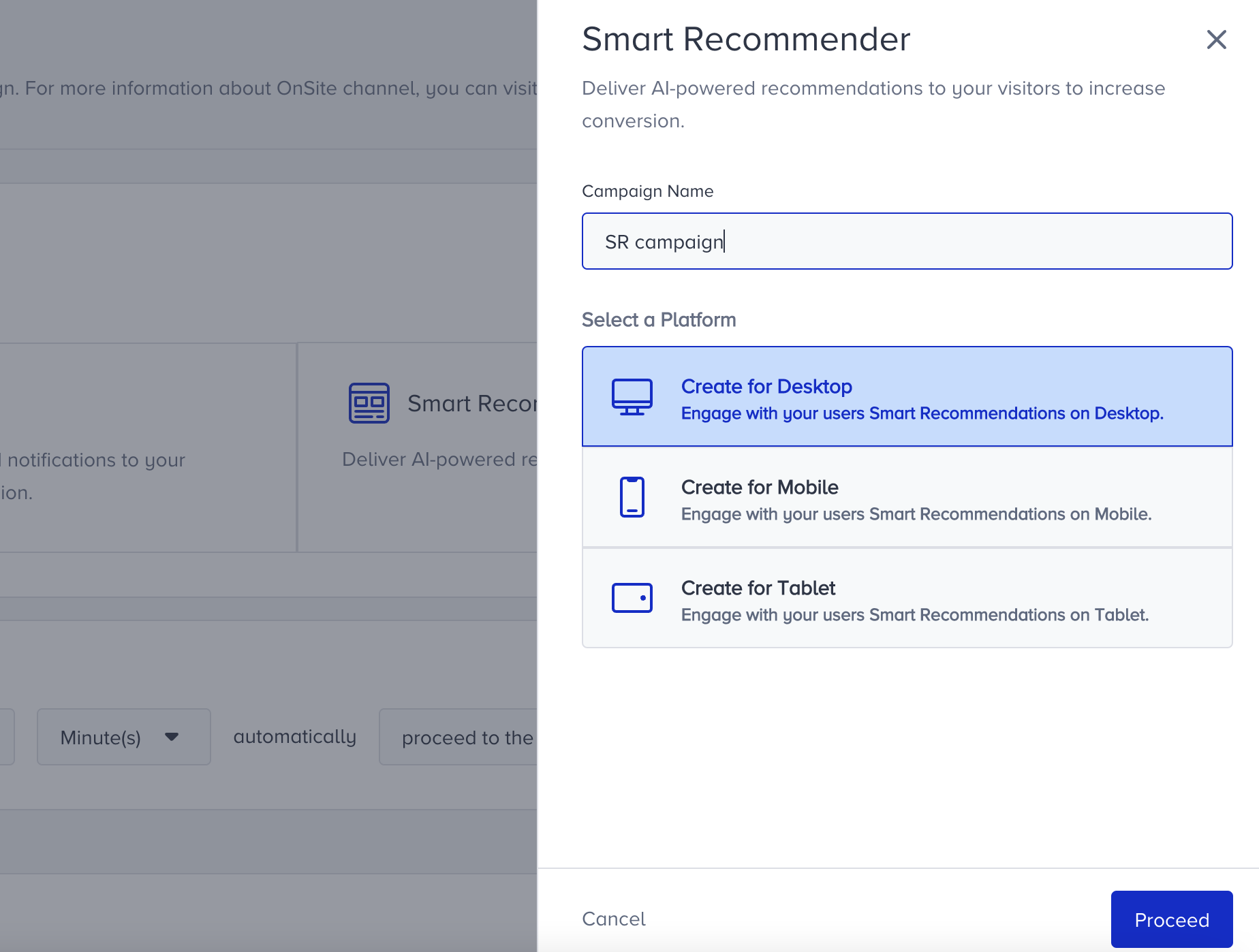
Click the Proceed button to start creating your campaign.
3.2 Web Templates
If you select Web Templates:
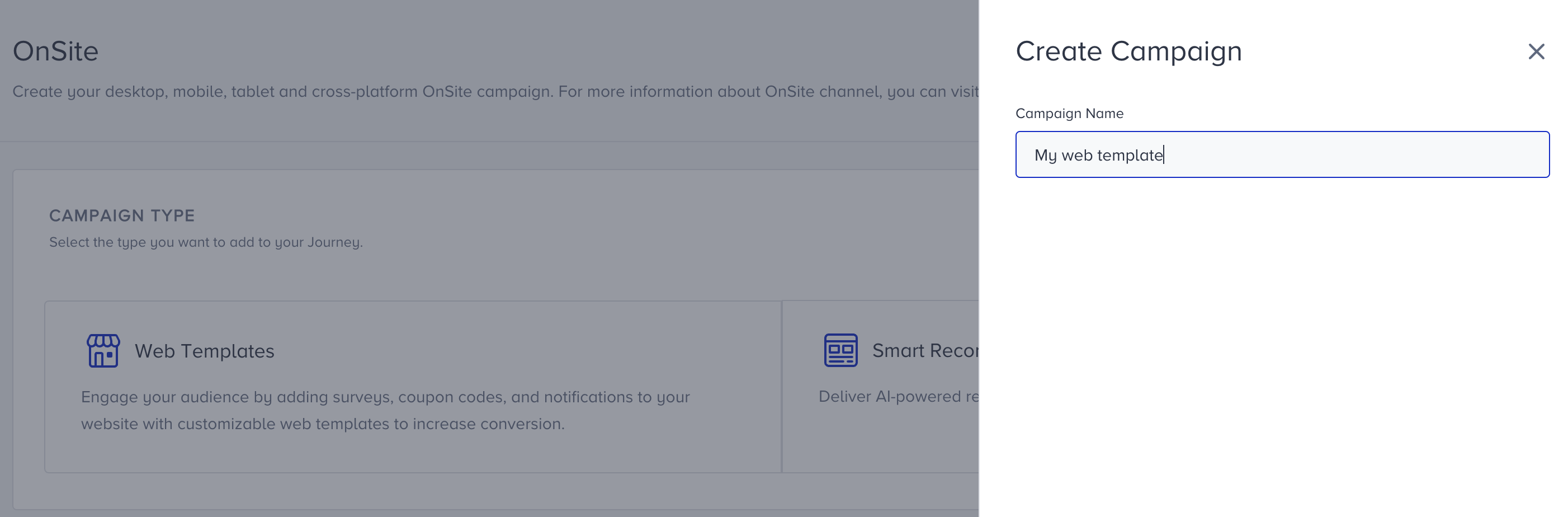
Name your onsite campaign and click the Next button to proceed.
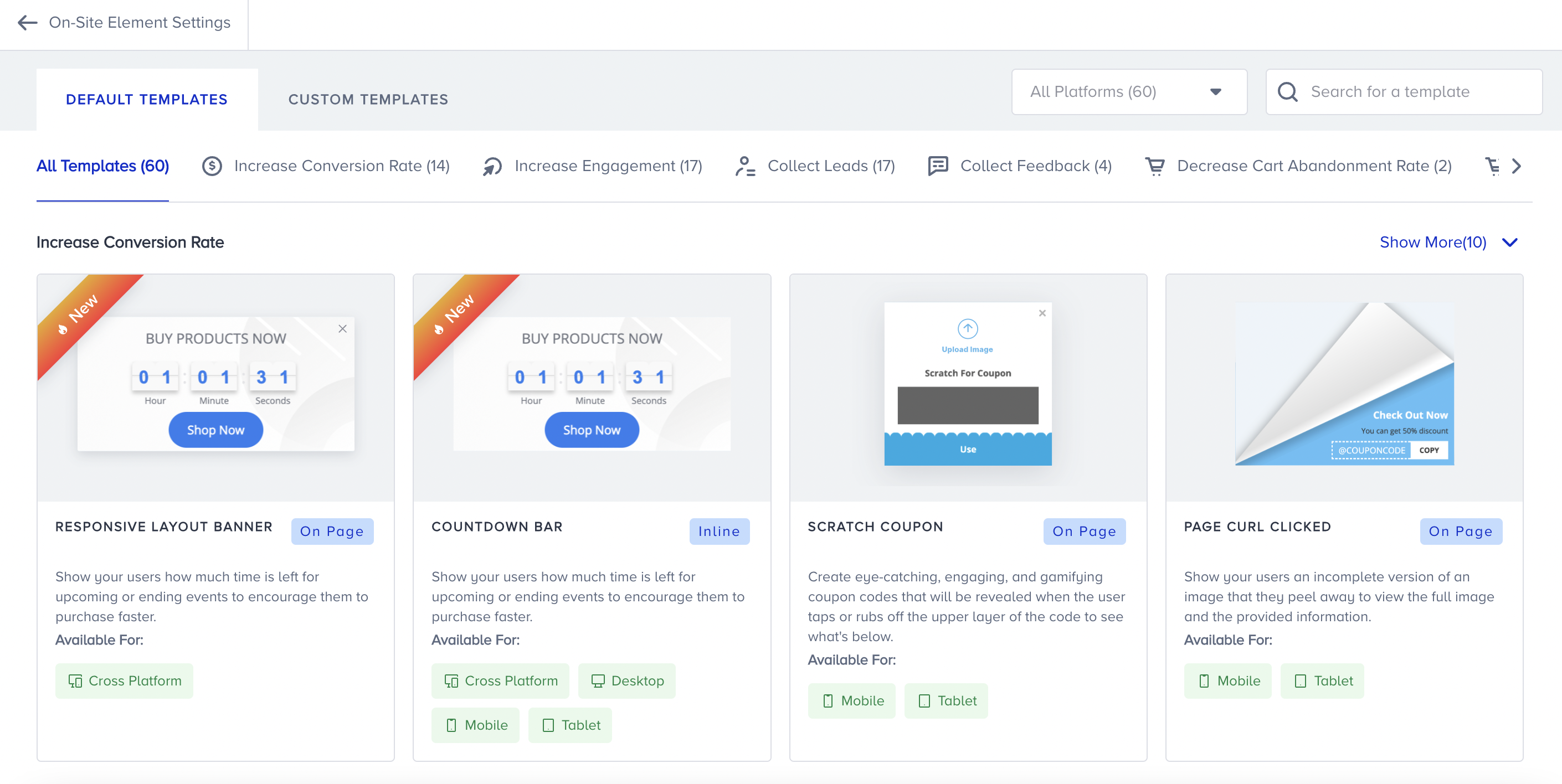
Select a template from the Template Store. You can filter templates by their platforms or the goals you want to achieve.
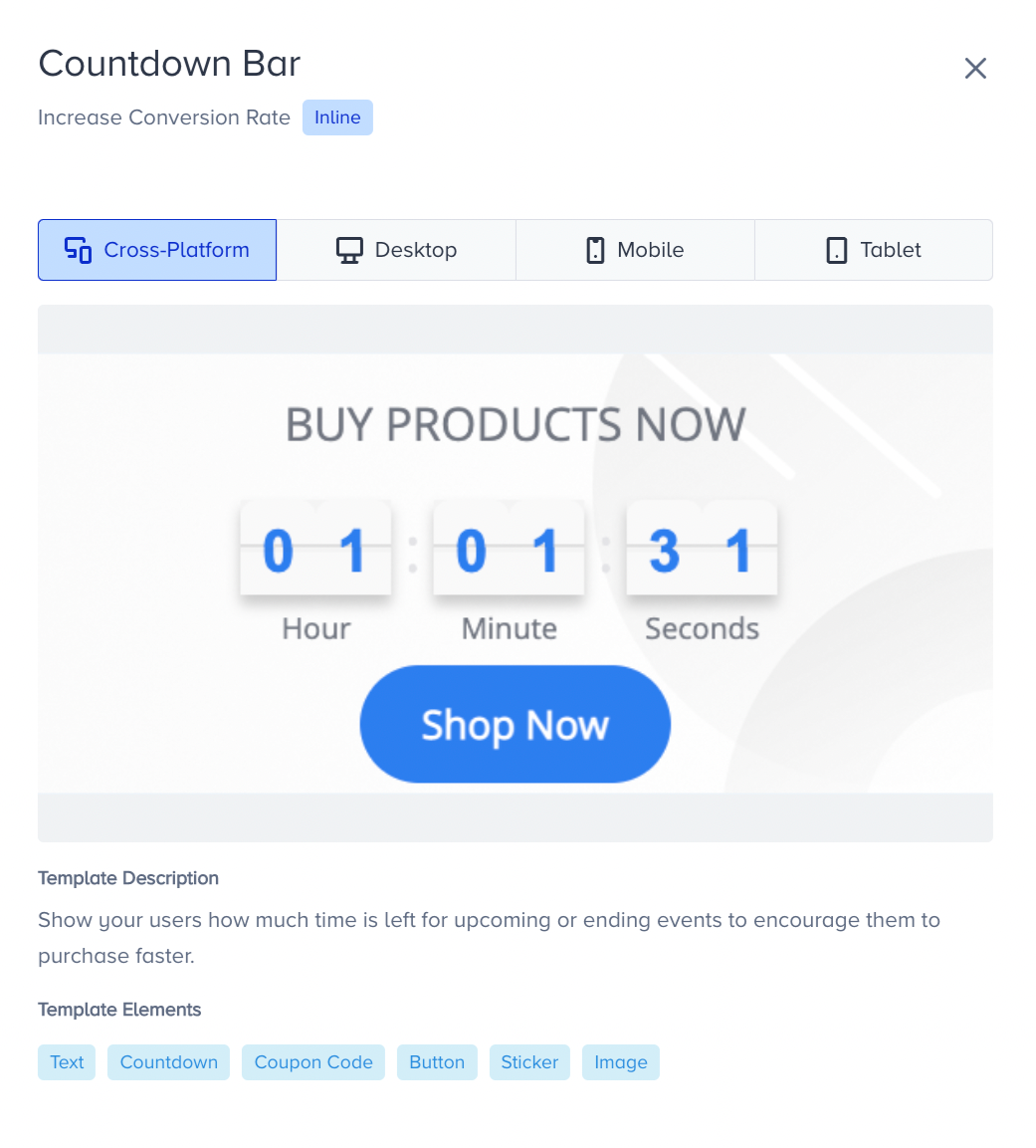
After selecting your template, you can also choose your device type. Refer to Template Store for further details.
If you select a responsive template with the Cross-Platfrom option, you do not need to create campaigns separately for each device. You can create only one campaign with the cross-platform template. If you prefer to use separate campaigns for each device campaigns, you can create only one campaign per device.
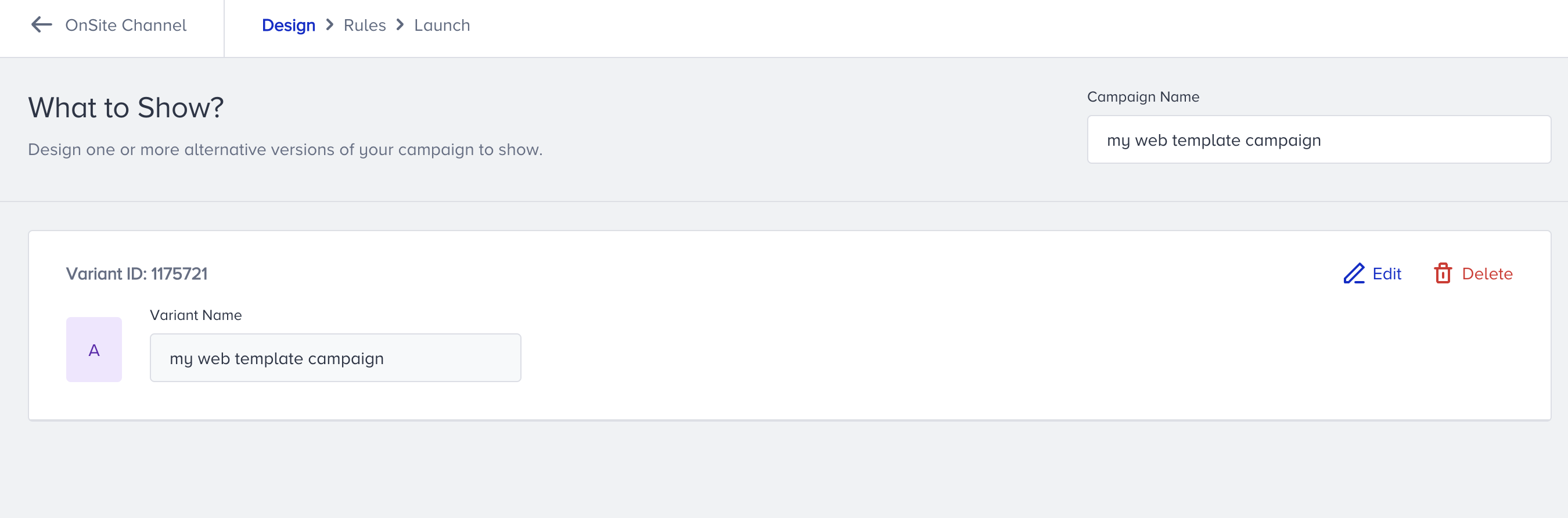
4. Create your campaign
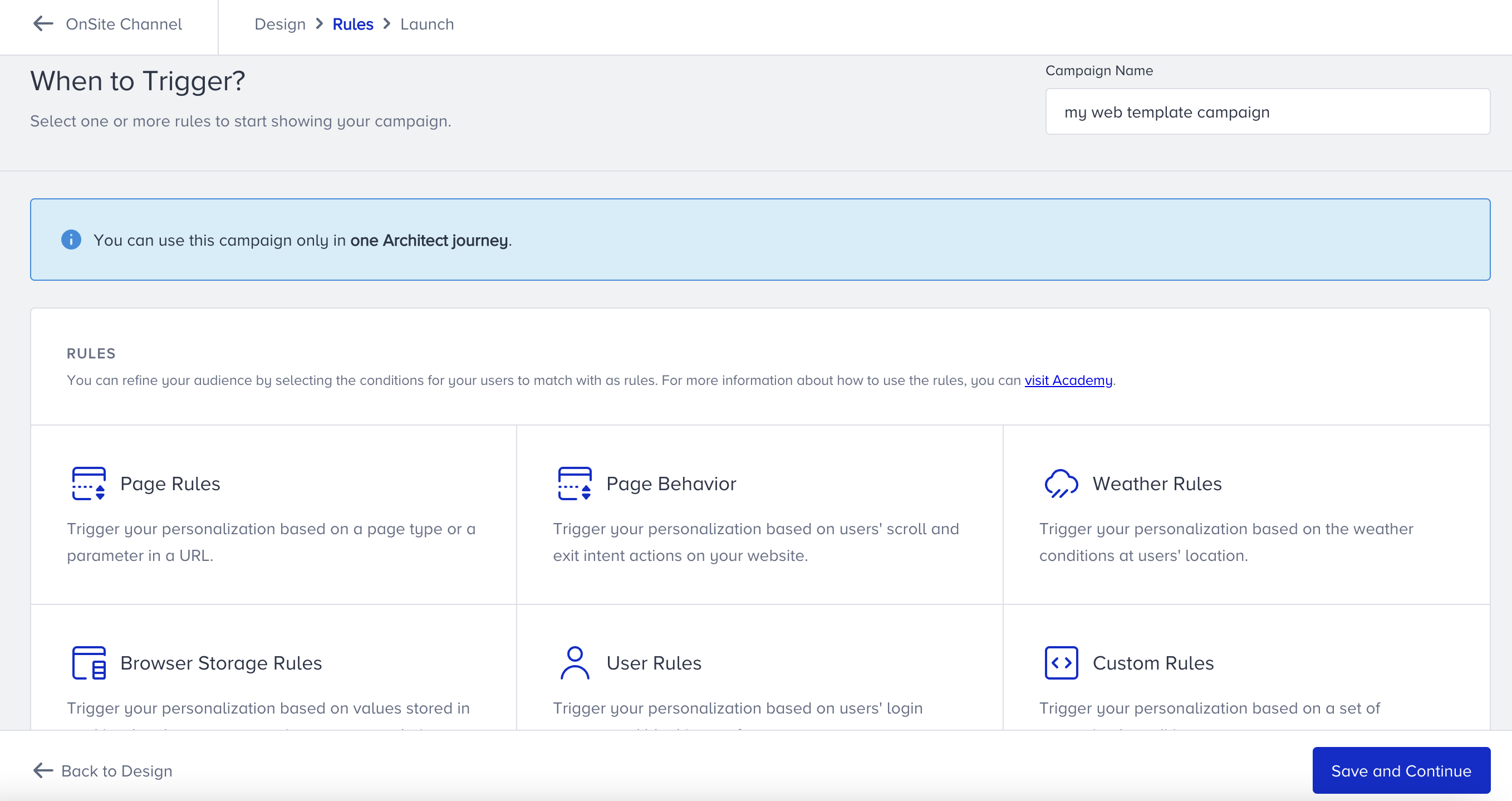
After completing the design of your campaign, click the Save and Continue button at the bottom of the page to proceed with the Rules and Launch steps.
Set your conditions on the Rules step that will trigger your onsite campaign on your website. Save this step.
Configure your display days and hours on the Launch step.
Configure Advanced Settings and Priority if needed.
We recommend you set the priority to 0. Otherwise, it might not display the campaign to users in the event of other onsite campaigns.
5. Save your campaign
Save your onsite campaign. You'll be redirected to the first page of the onsite element.
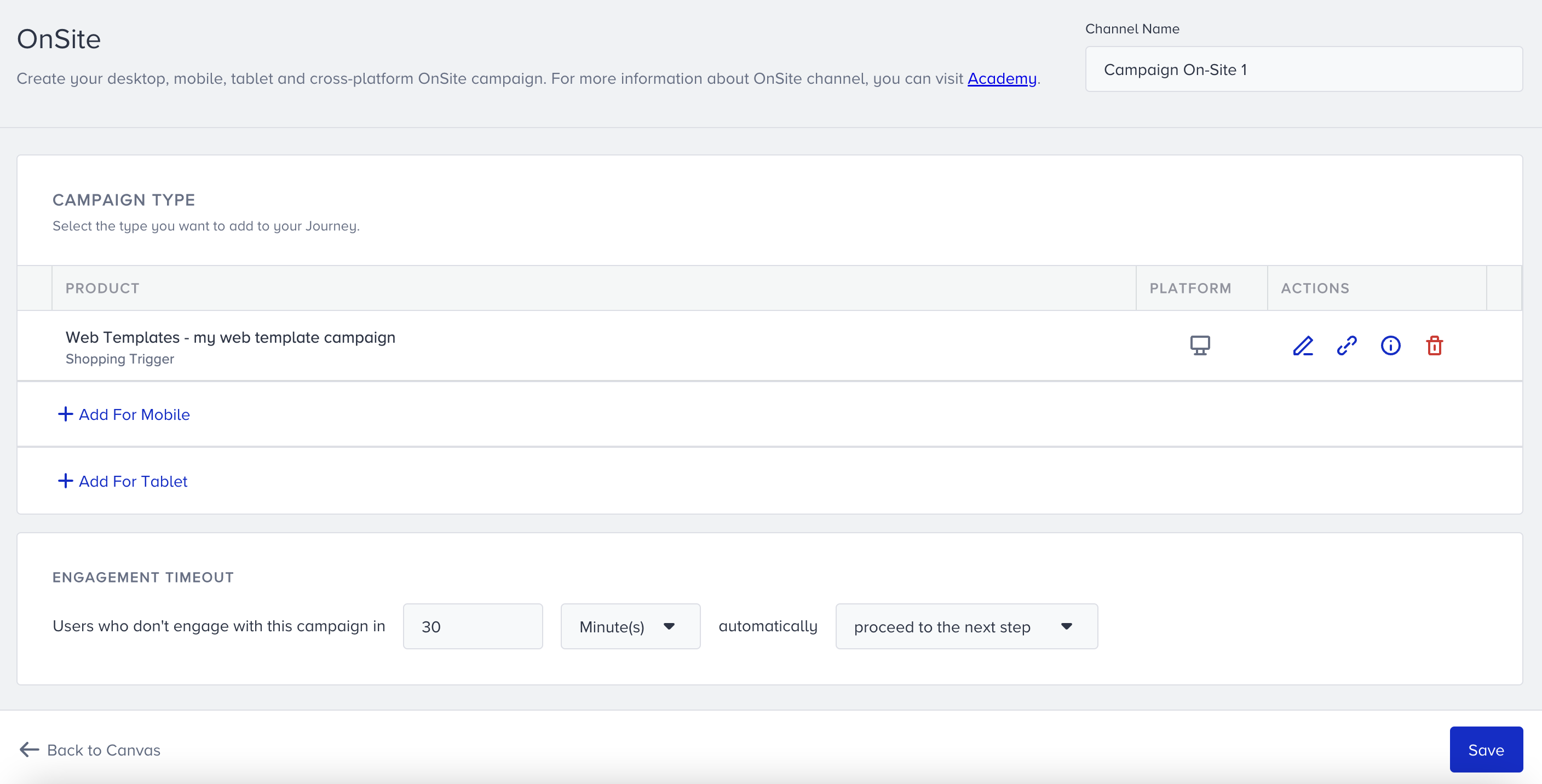
6. Test your campaign
Read more on testing onsite campaigns here. After testing it, you can click the Edit button to edit your campaign if necessary.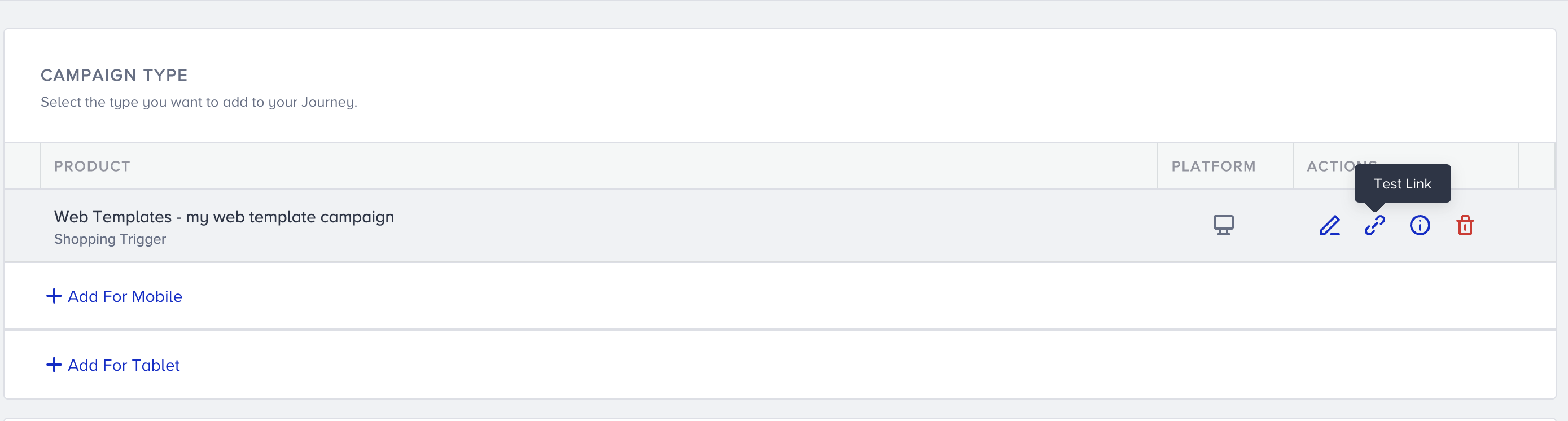
7. Specify time-out
Specify a duration to keep users on the onsite channel.
Select an action you want to take for your users if they do not see the onsite campaign.
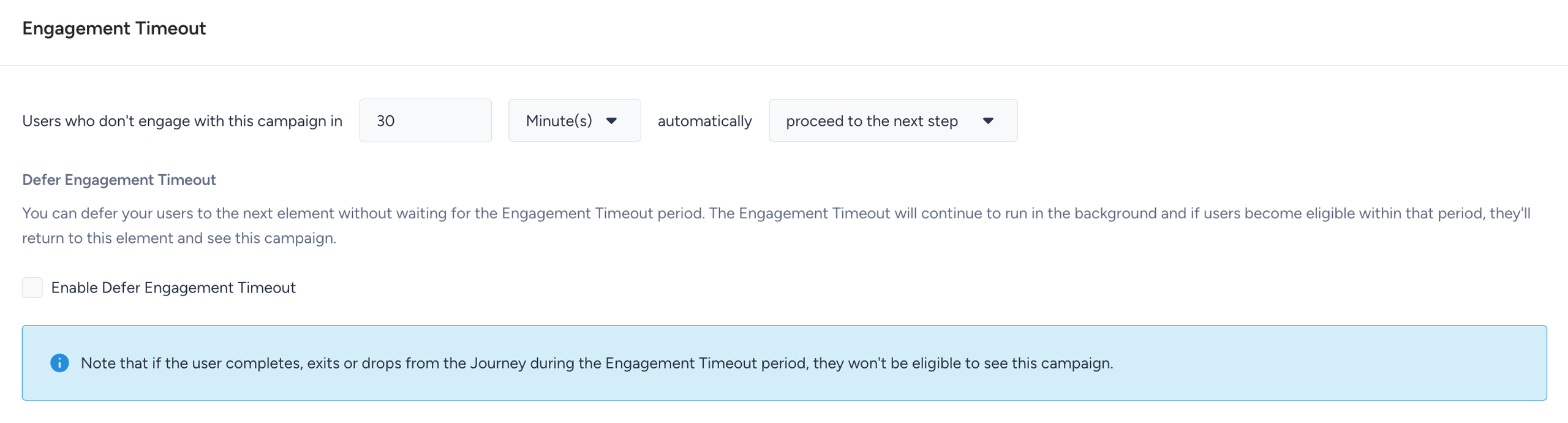
The duration can be a minimum of 30 minutes and a maximum of 2 weeks.
Users can:
Proceed to the next step: If users do not see the campaign in the specified duration, they will proceed to the next element. If there is no next element, they will complete the journey.
Drop from the journey: If users do not see the campaign in the specified duration, they will drop from the journey and be counted as dropped.
You can enable the Defer Engagement Timeout to defer your users to the next element without making them wait on the element. Meanwhile, the Engagement Timeout will keep functioning. If users become eligible within that period, they will return to this element and see the campaign.
Users will not return to other elements in the journey. The user will only see the On-Site element if they are in the engagement period and eligible. They will not receive the same messages again.
If you have multiple consecutive OnSite campaigns in the journey, users will see those campaigns in the correct order within the engagement timeout duration.
When the Defer Engagement Timeout setting is enabled, the users will not view the campaign if:
User exits the journey within the timeout duration.
The journey is changed to passive.
The timeout duration ends and the user is still not eligible.
8. Rename channel name
Channel Name is generated by default based on journey name and channel type. You can rename it at the top right corner to give it a different name..png)
9. Save the On-Site element
After configuring the settings for your on-site element, save your element.
Once you launch your journey on active status, your on-site campaign will be active on your website and displayed to users who come to the onsite channel step in your journey.
When you copy and paste the OnSite channel or duplicate your journey, the copied channel will not have the previously composed content.
When you click the Launch button, you can select the language of the journey. Selected languages apply to On-site campaigns shown by the journey.
Live Actions & User Interactions
Live Actions
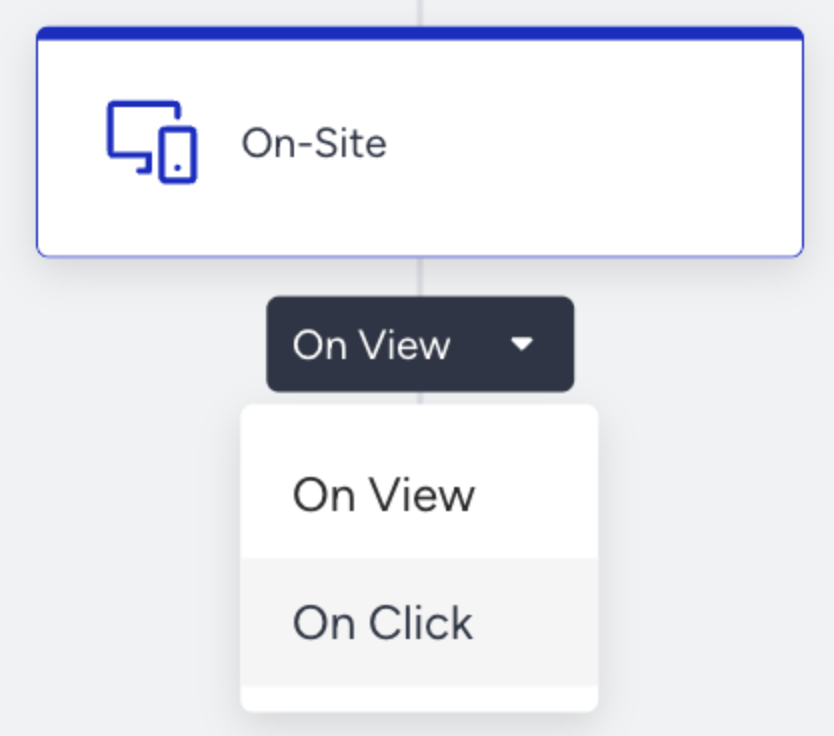
The "On View" action comes right after the on-site element. It is selected by default, and you can change it to the “On Click” action as well.
On View: Users can proceed to the next step by seeing the on-site campaign or proceeding automatically due to the Time Out.
On Click: Unless users click on the On-Site element, they will not proceed to the next element.
Checking User Interactions
After the onsite element, you can take another action via branching your flow according to user interactions on the onsite campaign after a while.