After you complete the integration process, you can start using Google Ads Customer Match in your journeys by following the steps below:
Add Google Ads channel
1. Create a business scenario to send users to a Google Ads audience.
2. Add the Google Ads element to send a user to a specific Google Ads audience or remove them from an audience.
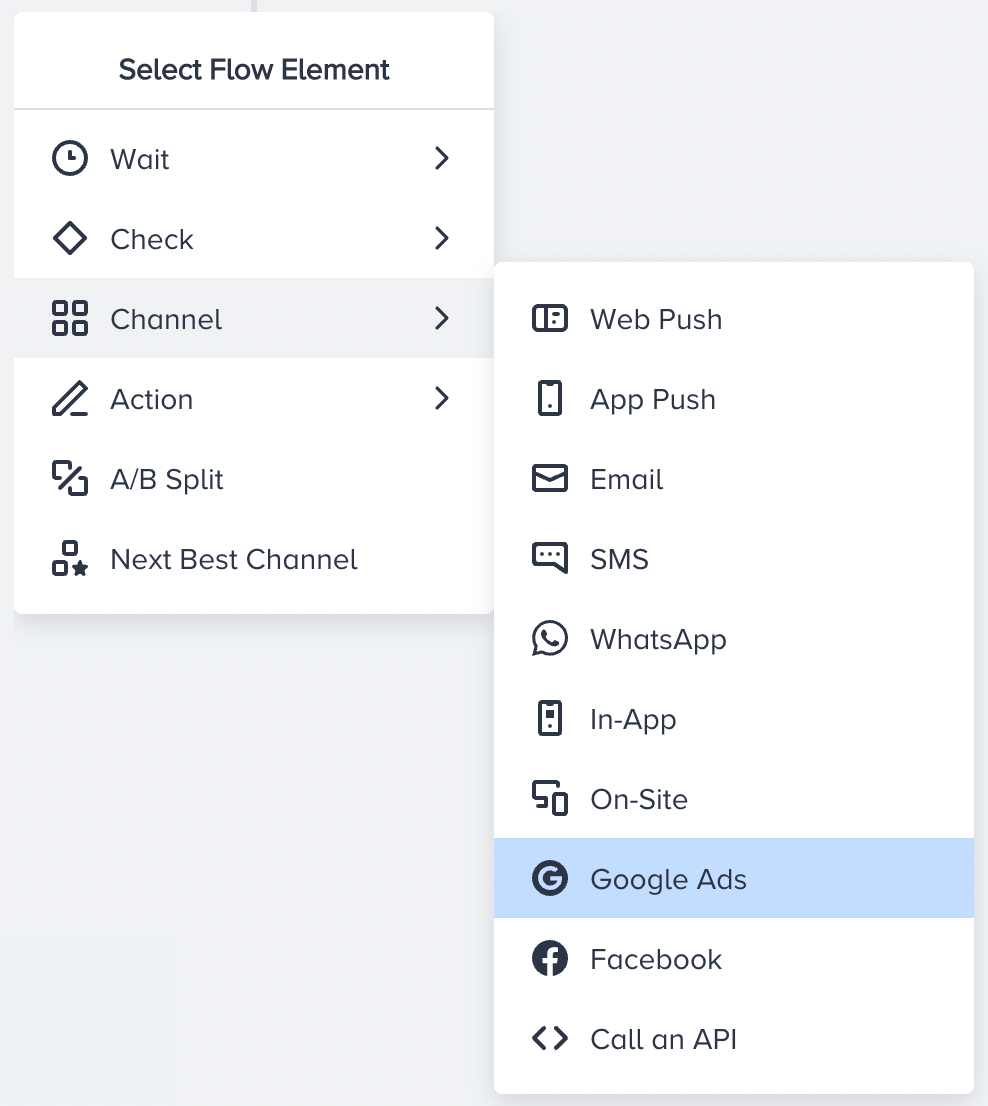
3. Click the Create Google Custom Audience button. If you have created an audience on Google Ads before, you can also select it for your new journey.
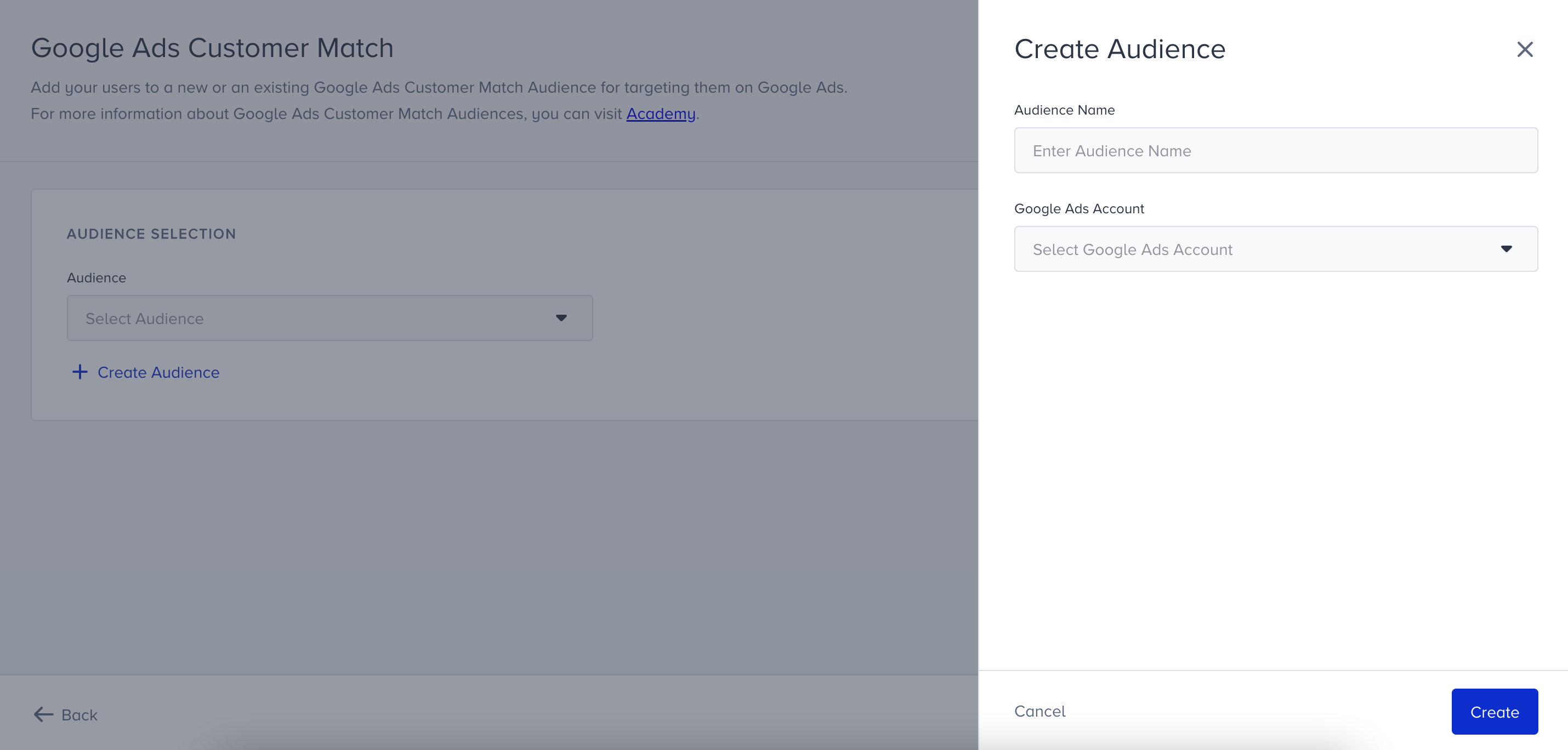
4. Name your Google Ads audience.
5. Select the Google Ads Account you want to send users to.
6. Save your element.
7. Complete your journey flow and launch your journey.
After you launch your journey, the users who reach the Google Ads channel in the journey are passed into the selected Google Ads Audience if they use an email or phone number that matches the one used for accessing their Google account.
Add/Remove Users to/from Google Ads Audience
1. Select the audience you want to add users to or remove users from.
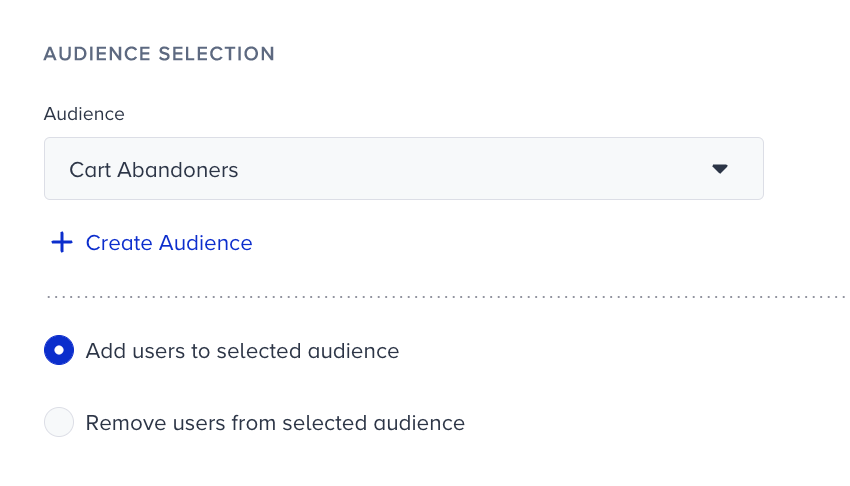
2. Select if you want to "Add users to selected audience" or "Remove users from selected audience".
3. Save your element.
4. Complete your journey flow and launch your journey.
After you launch your journey, users who reach the Google Ads channel are passed to the selected Google Ads Audience if they use an email or phone number that matches the one used to access their Google account.