Channels refer to systems in which the company will integrate the live chat environment. For example, if you want to add a live call option to your website, you can select Web Messenger. Alternatively, if you want to add a conversation channel, you can select WhatsApp.
To add channels to your company on MindBehind Live,
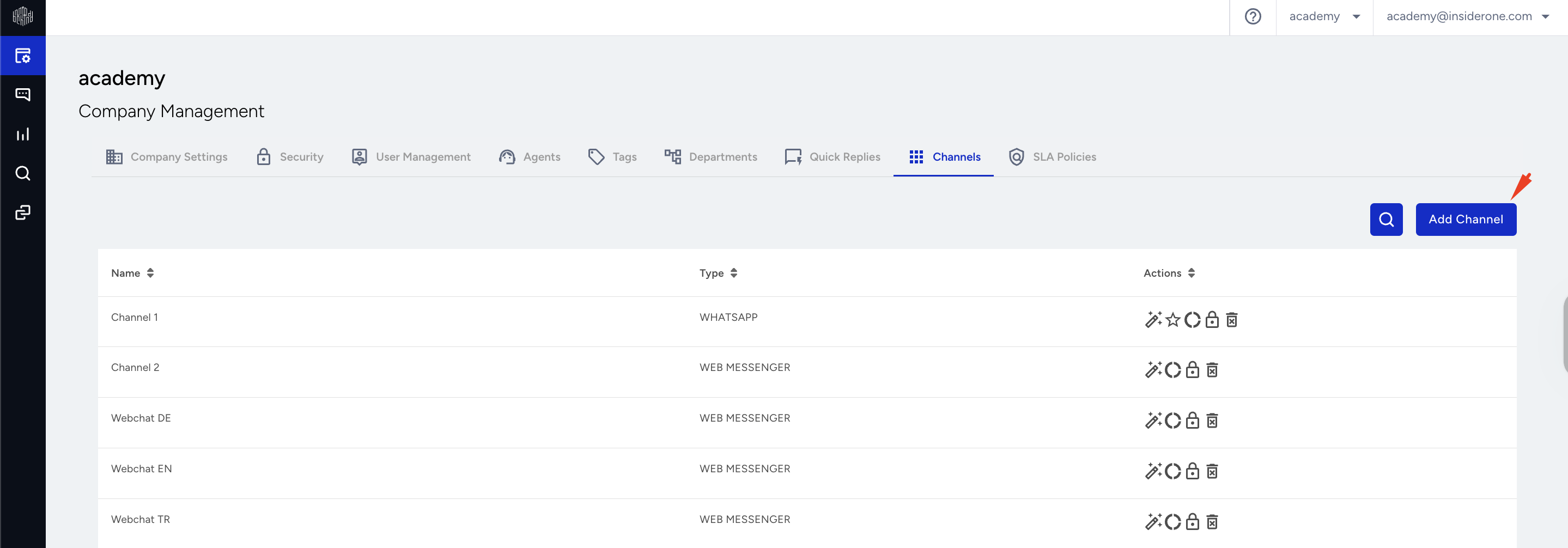
Navigate to MindBehind Live > Company Management > Channels.
To add a channel, click the Add Channel button.
Select the relevant channel on the display.
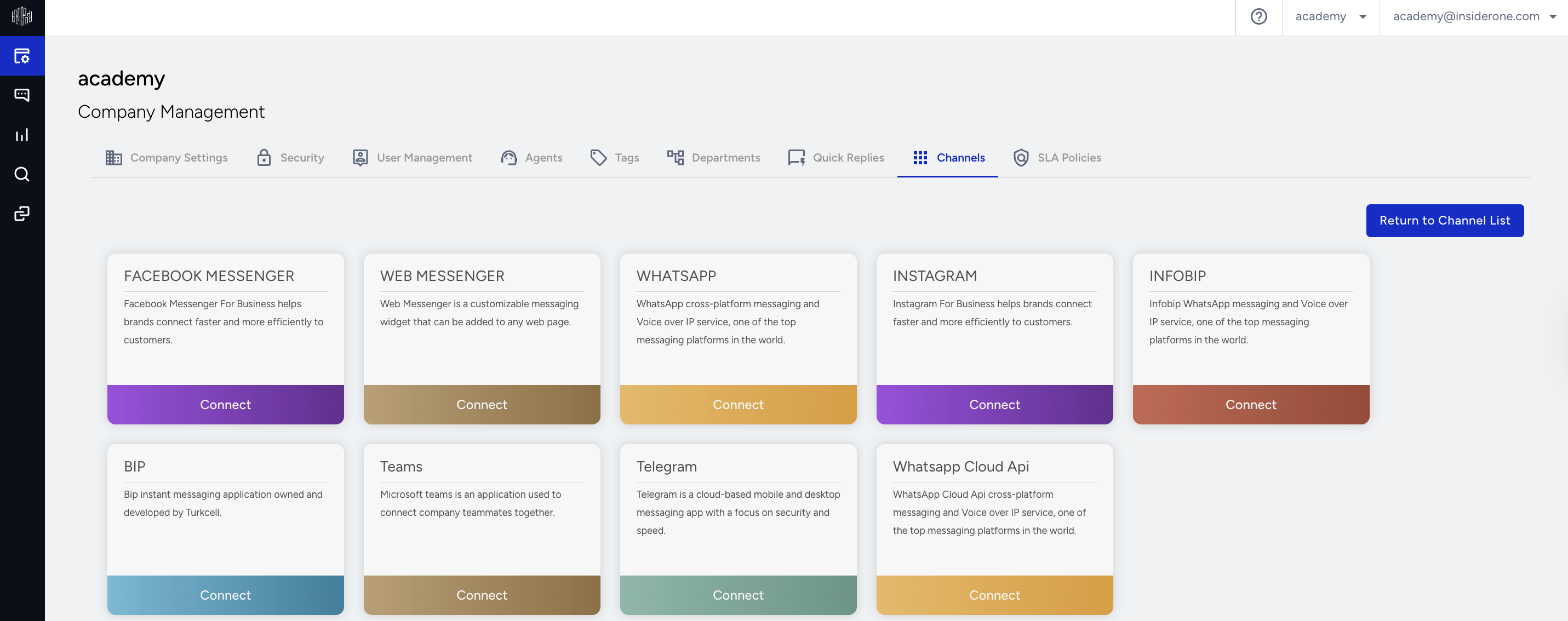
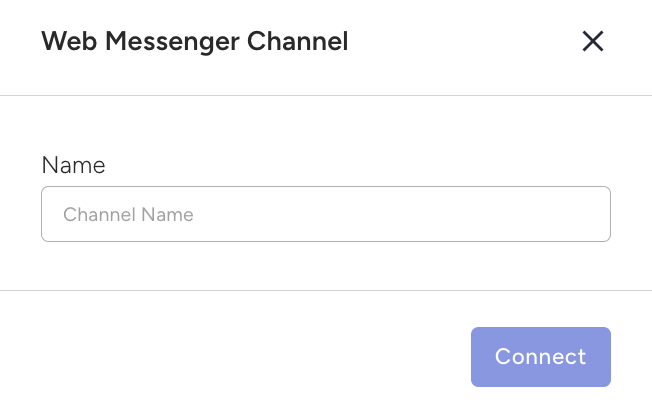
The addition criteria for each channel differ.
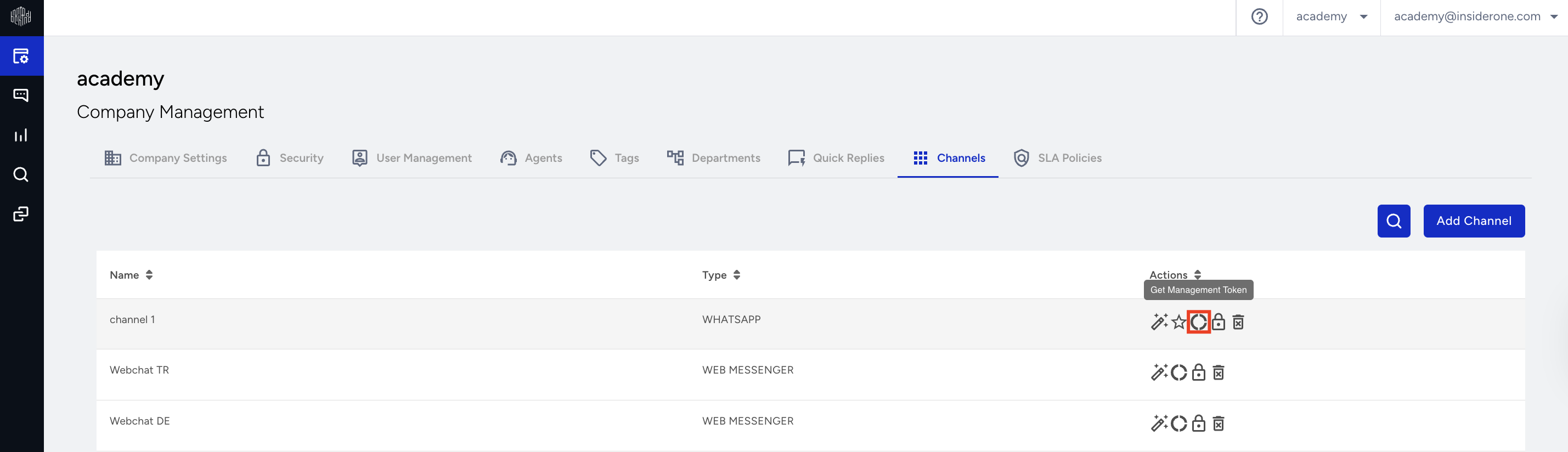
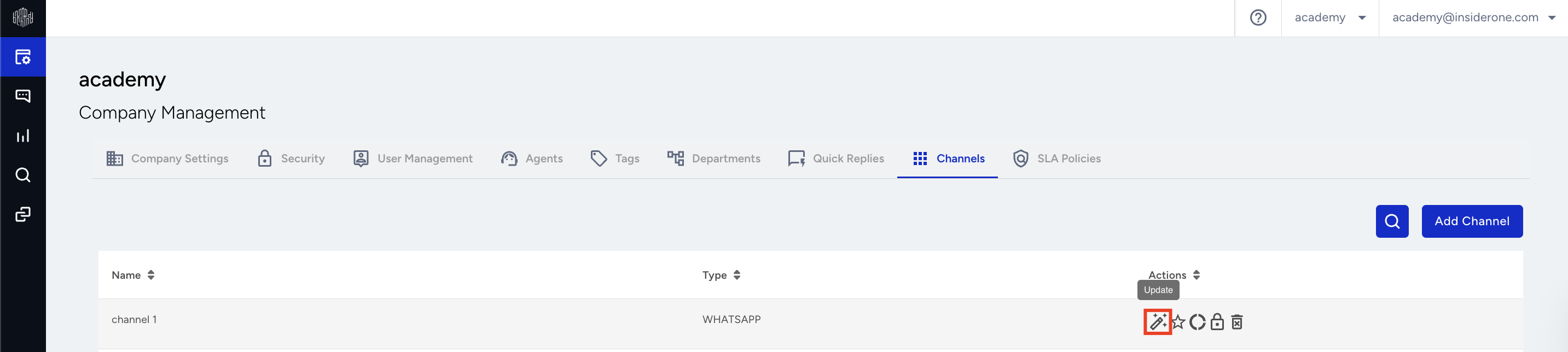
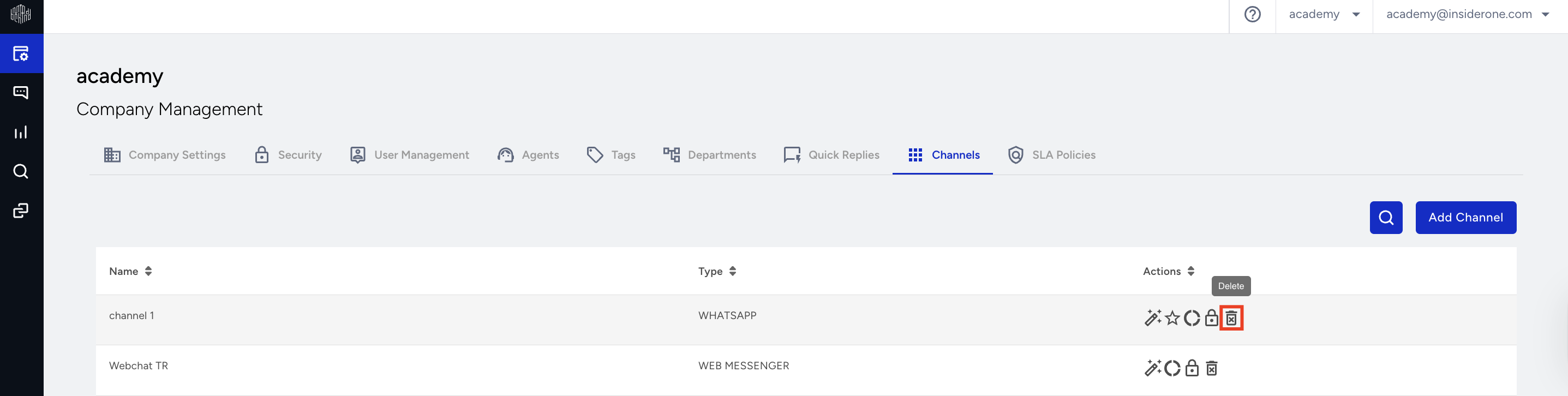
Under Actions, you can manage the channel with the following options:
Click the Get Management Token to retrieve the token required for API usage and channel management.
Click the Update icon to adjust the channel settings.
Click Delete to remove the channel.
When you edit the channel settings, you can configure different options depending on the selected channel. Below are example configurations for different channels:
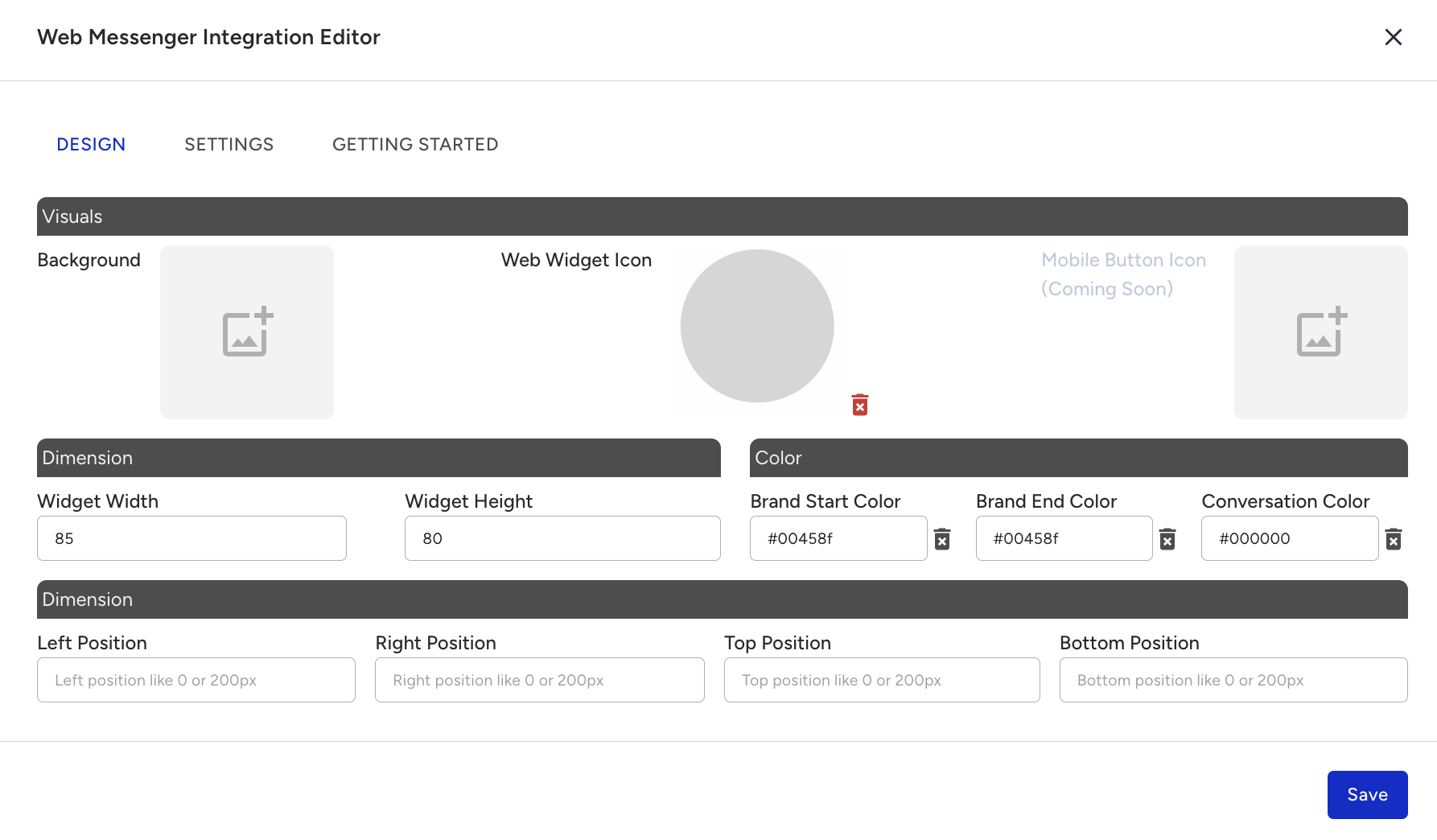
For example, in Web Messenger:
The display has three tabs: Design, Settings, and Getting Started.
The Design tab contains the channel's visuals, dimensions, and position settings.
The Settings tab contains basic settings for account name, logo, authentication methods and codes, customer experience voting, end conversation, and security.
On the Getting Started tab, the corresponding channel script information and preview button are available.
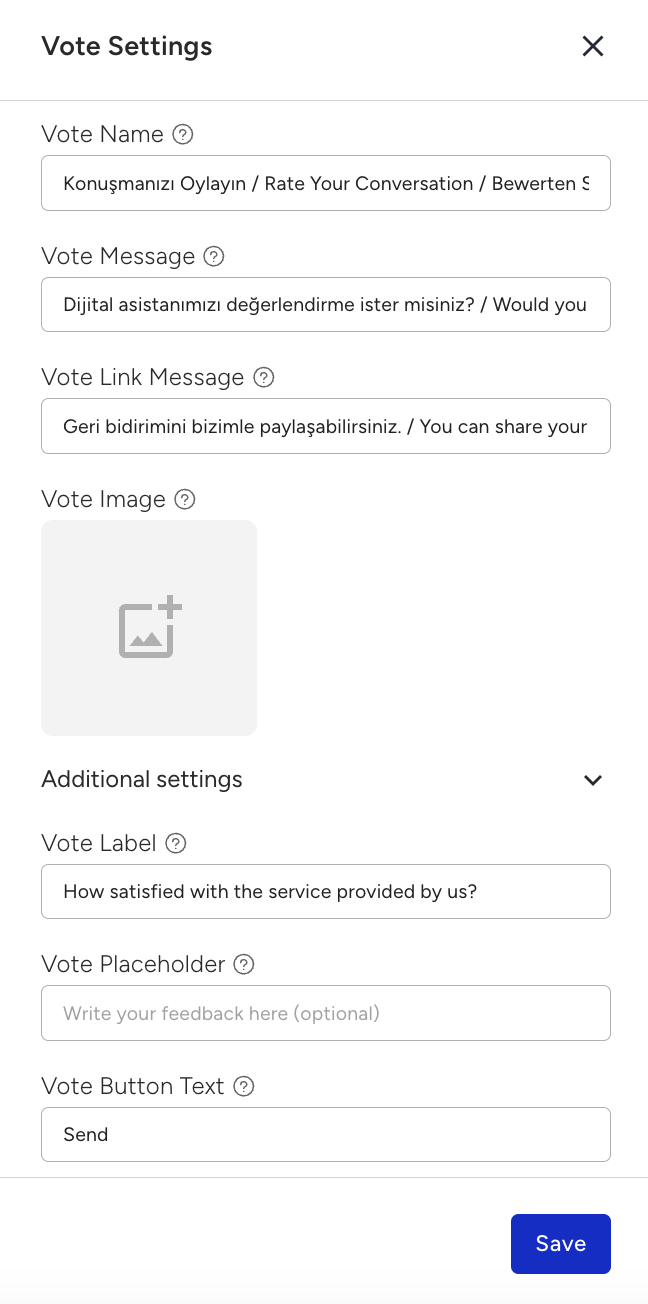
For WhatsApp, a Vote Settings page will appear.