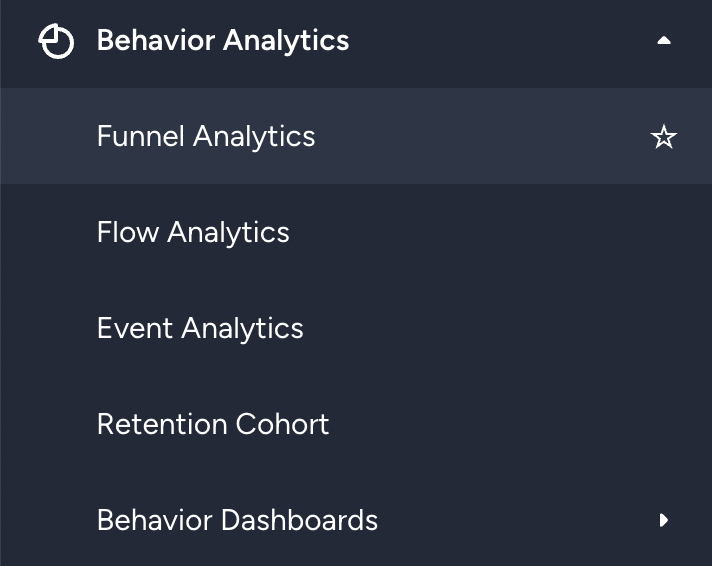
A funnel, or funnel analysis of user drop-off across steps, is a visual representation of the steps users take to complete a specific goal on a website or mobile application. It helps application owners understand where users drop off and identify potential problems preventing them from completing the desired action.
Funnels are typically used in analytics tools to track conversions, such as the number of users who purchase or sign up for a newsletter. Application owners can analyze funnel data, identify areas for improvement, and optimize their application to encourage users to complete the desired action.
With funnels, you can see which users have transitioned between the selected steps and which have not.
You can use the funnels to follow the events across all channels, such as web, application, API, etc., and understand which scenarios cause users to stop using the module. In sequential events, you can see the number of successful users and drop-offs from one step to the next.
The video below briefly explains the funnel analytics.
If this video does not load in your region, you can watch it on our YouTube Channel.
This guide helps you:
Understand the funnel chart
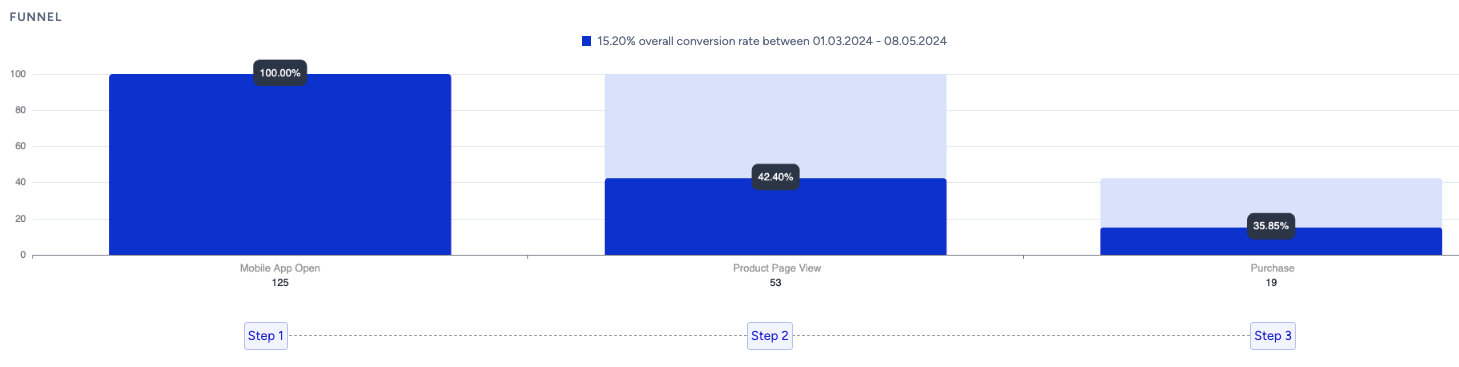 The funnel chart consists of three sections: Completion rate, user count and drop off, and average time between steps.
At the top of the chart, you can see the funnel's completion rate. This rate displays how many of your users who performed the selected event in the first step completed the last step.
The User Count displays the users who have completed the funnel, while the Drop Off displays those who have dropped off at that step. You can also see the number of users in each group.
Below the chart, you can see the average amount of time it takes users to complete the step transitions between the funnel steps you selected. The display here is in Days, Hours, and Minutes.
Create a funnel
You can create a funnel with your events with the following options:
Event selection
Event parameters
Date selection
User filter
Source selection
Funnel options
Event selection
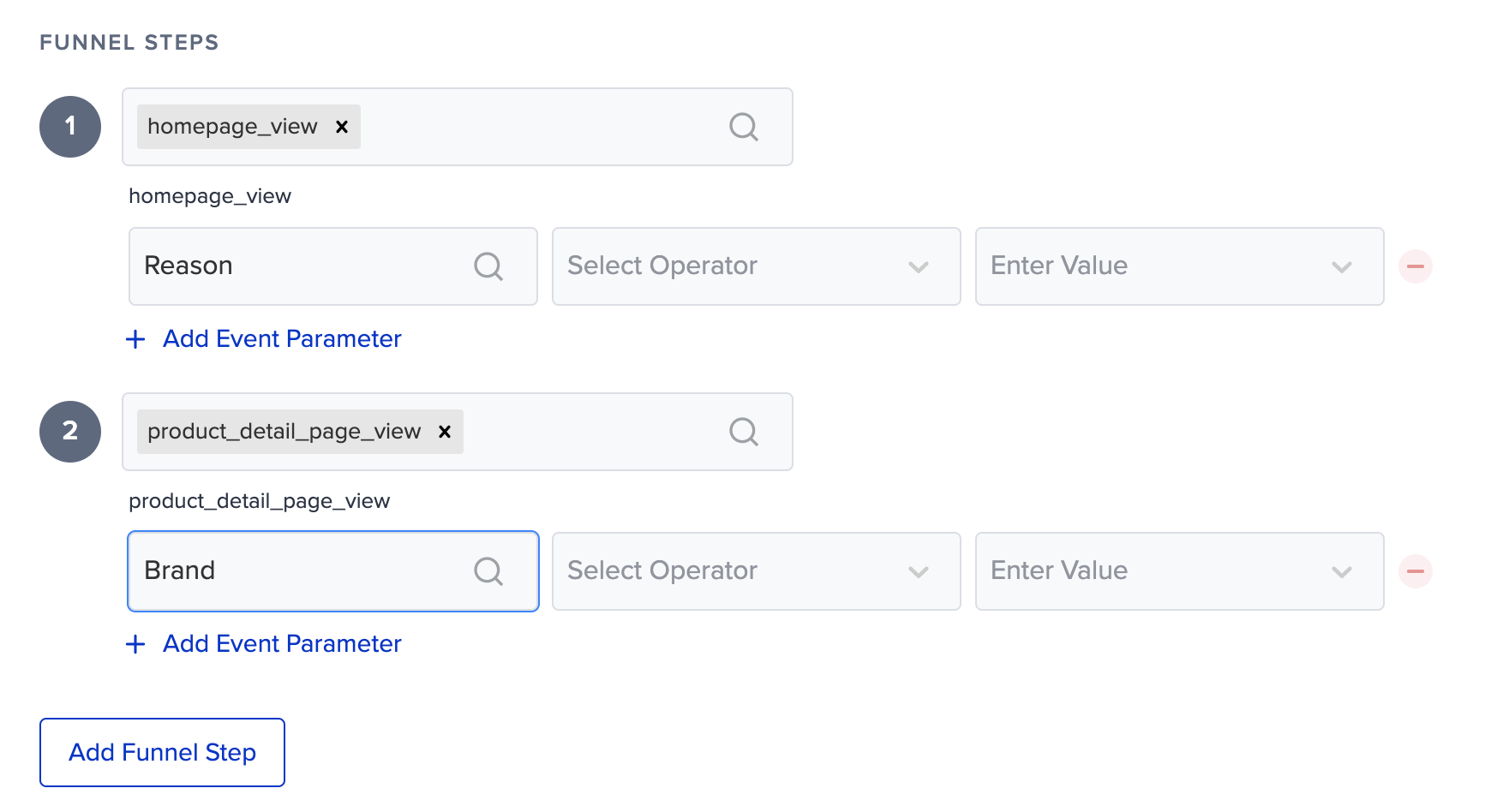
To create a new funnel, you should select at least 2 events. The events you choose in a funnel represent a user's steps to complete a specific goal. With the selected events, you can define the path users must follow to reach the end goal and understand where they drop off the funnel.
Event selection allows you to tailor the funnel to your specific business goals and track the performance of different user flows on your website or application.
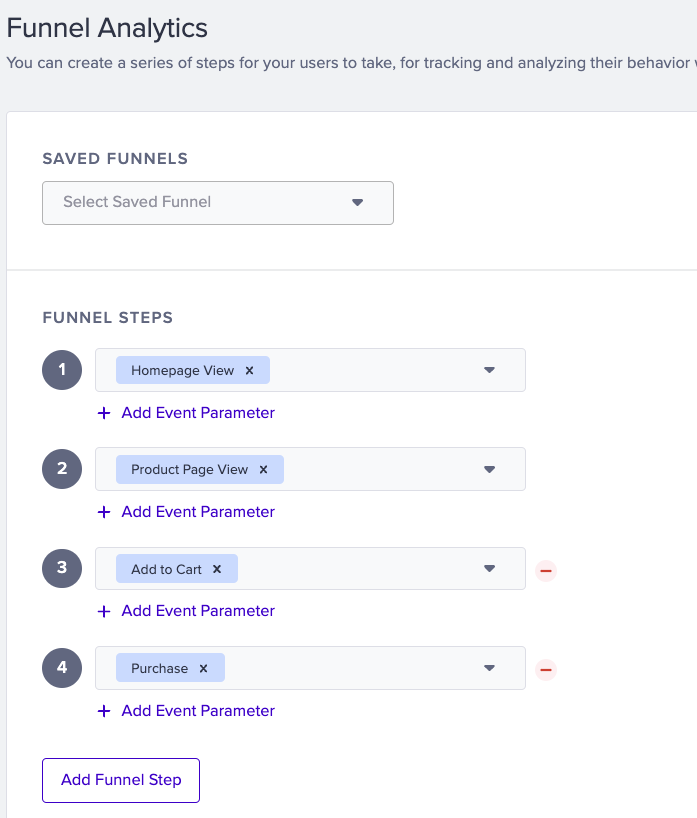
A funnel requires at least 2 events. To add more, you can click the Add Funnel Step button.
Funnel Analytics supports up to 9 steps.
Funnels with 10+ steps may fail to load due to system-level performance safeguards. This is a backend protection mechanism.
You can split complex journeys into multiple funnels to improve drop-off analysis and performance.
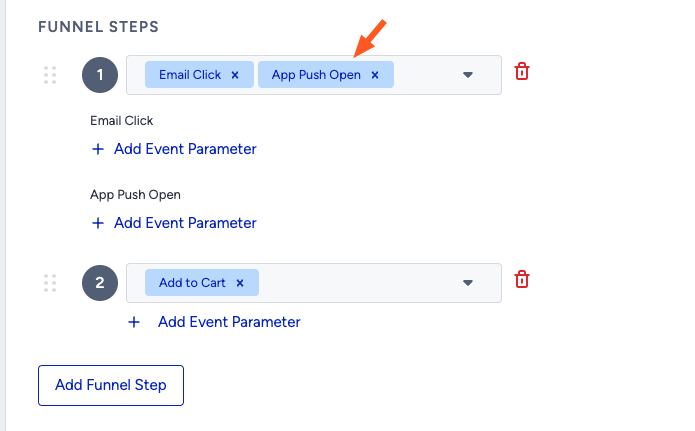
You can also add multiple events in the funnel steps. Multiple events will have the OR function. This means the respective funnel step will check the users who trigger Event 1 OR Event 2 OR the other events, if any.
Event parameters (Optional)
An event parameter is additional information associated with an event. For example, if you have an event called "Purchase" that tracks when a user purchases on your website, you could use event parameters to provide more details about the purchase, such as the item purchased, price, and payment method. Event parameters can help you understand an event's context and details, making it easier to analyze and segment the data. For example, you could use event parameters to segment users by the items they purchased or to compare the performance of different payment methods.
Event parameters are not required to create a funnel. You can use them to add detail to the funnel steps.
Date selection
In the context of a funnel, date selection refers to the ability to specify a date range for the data included in the funnel. This can be useful for evaluating the funnel's performance over a specific period (e.g., in the past week or month).
You can select a date range to filter the funnel to show only events that occurred within that time frame. This can help you understand trends and changes in the funnel over time and make more informed decisions about how to improve its performance.
You can create your funnel for specific date ranges, such as yesterday or last month, or set a custom date range.
Source selection
Your users may use your application through different sources. They may use it on the web, through a mobile application, or through an API. Source selection lets you set your funnel for users from specific sources, such as app users, web users, or API users.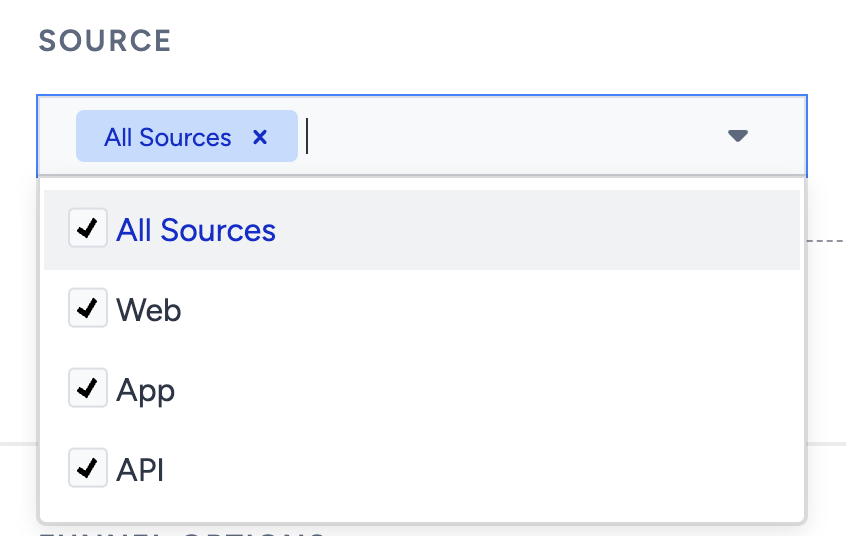
User filters (Optional)
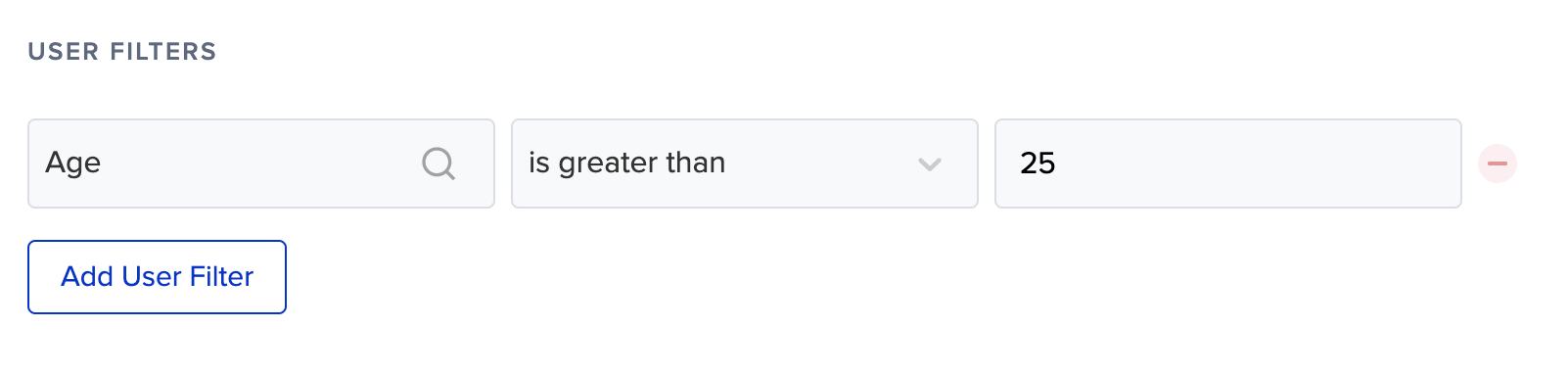
User filtering limits the data in the funnel to a specific group of users. This can be useful if you want to analyze the behavior of a specific subset of users (e.g., users from a particular location, users who have completed a specific action on your website or application, etc.).
You can apply a user filter to a funnel to see how this group of users interacts with the funnel and identify areas for improvement. User filters can help you understand the behavior of different user segments and tailor your website or application to their needs. For example, you can detect users who perform the event from the USA, users who use mobile devices, and users who are over 35 years old. You can also use multiple user filters to apply them to users who meet both selected options. For example, this way, you can see the users who live in the USA and are over 35.
Additional funnel options (Optional)
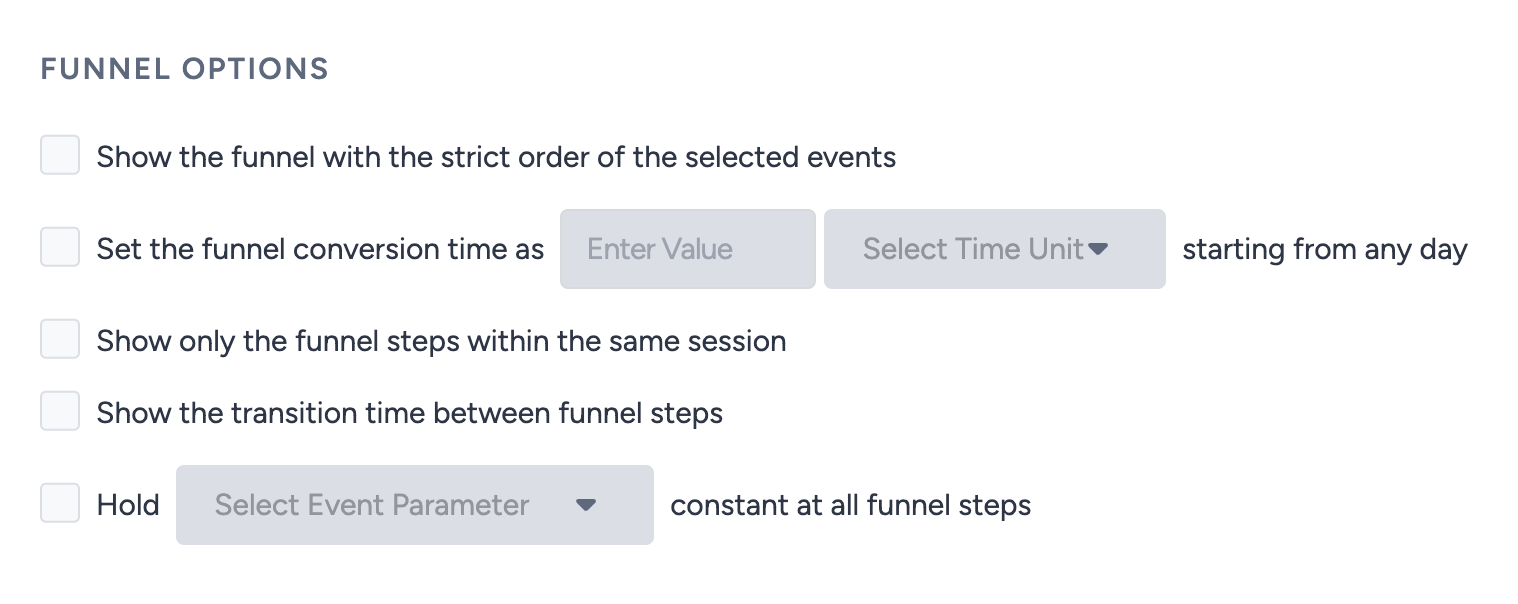
Show the funnel with the strict order of the selected events
This option helps ensure that the events flow in a particular order in the funnel. Without this option, the funnel might also include some users who jump from one step to another.
For example, you create a funnel with Homepage View in step 1 and Product Page View in step 2. A user triggers the homepage view event, then triggers another event, such as the registration page visit event, and afterward triggers the product page view event. With this option off, this user will be considered for the second funnel step, as they triggered the product page view event regardless of any other event in between. With this option on, the user will not be considered for the second funnel step, as they trigger another event between the homepage view and the product page view.
Option | Funnel Step | Number of Users |
|---|---|---|
Off | Homepage View | 1 User |
Product Page View | 1 User | |
On | Homepage View | 1 User |
Product Page View | 0 User |
Set the funnel conversion time as N time units
The funnel measures how long it takes users to transition between steps, in terms of average days, hours, minutes, or seconds. In other words, you can see how long it takes for users to move from the first event to the second event.
This conversion window represents the total elapsed time for the user to complete all the steps in the funnel (i.e., to convert). A shorter window typically leads to fewer users completing the funnel steps, while a longer window tends to result in more conversions.
Show only the funnel steps within the same session
This option helps you analyze funnels based on user actions associated with the same session.
For example, if you create a funnel with Homepage View and Product Page View events, respectively, a user who triggers the Homepage View event today and the Product Page View event tomorrow will be counted in the funnel with this option off. If you enable this option, they will not be in the second step of the funnel, as this option requires the events to be triggered within the same session.
This option will always be on while the "transition time between funnel steps" is on.
Show the transition time between funnel steps
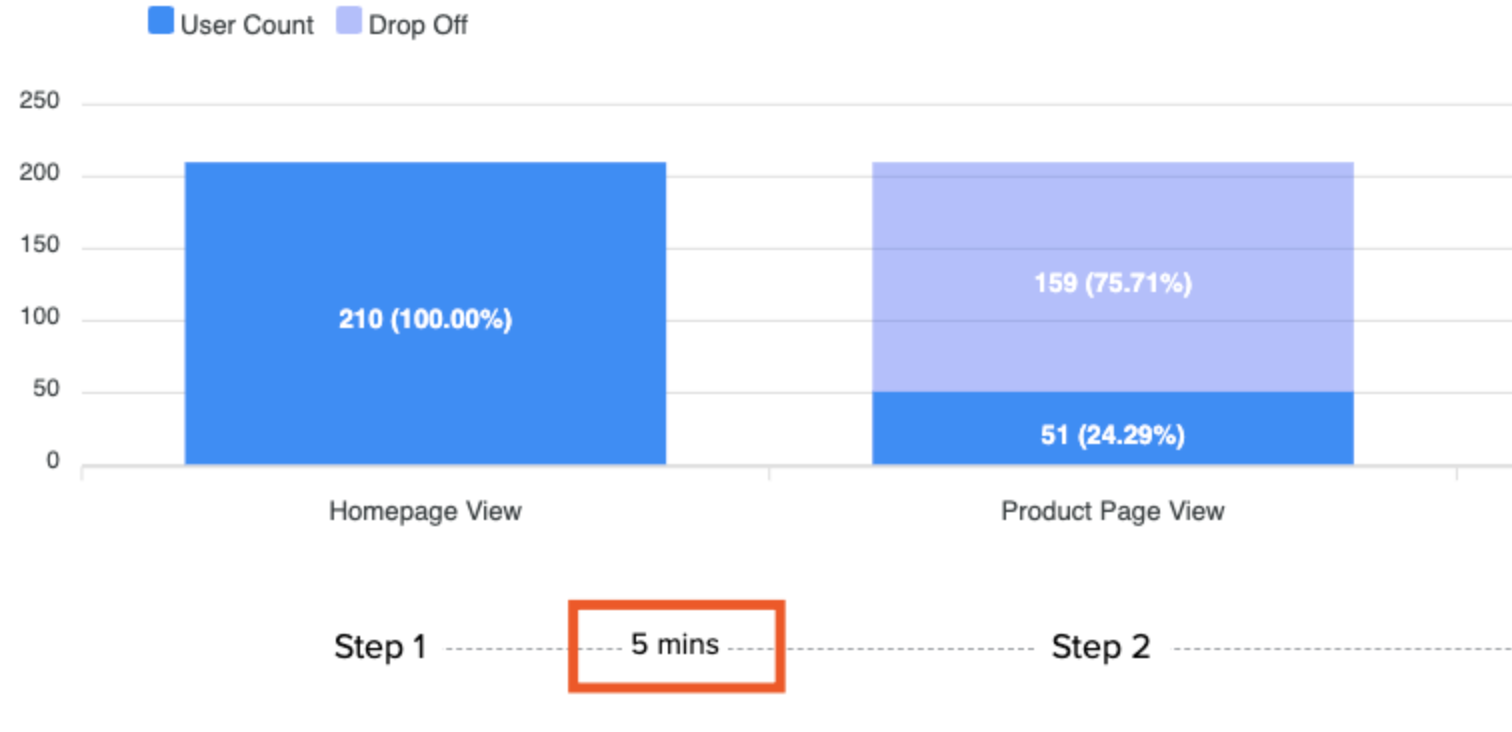
This option displays the average time it takes users to flow from step 1 to the next step(s).
Hold event parameters constant in all funnel steps
An event parameter is associated with an event. With this option on, the respective event parameters are applied to all occurrences in the following steps. For example, if you hold the Brand event parameter constant for your event, only steps with event actions (e.g., purchase) for the specified brand are considered successful conversions. If a user buys from another brand, it will not be counted in the funnel.
Save a funnel
You can save your funnels to quickly access and reuse them later. A saved funnel includes the event and its parameters, as well as any filters or other settings applied to the funnel.
Once you save a funnel, you do not need to reconfigure it each time. This can be useful if you want to regularly track the performance of a specific funnel or if you have multiple teams that need to access the same funnel.
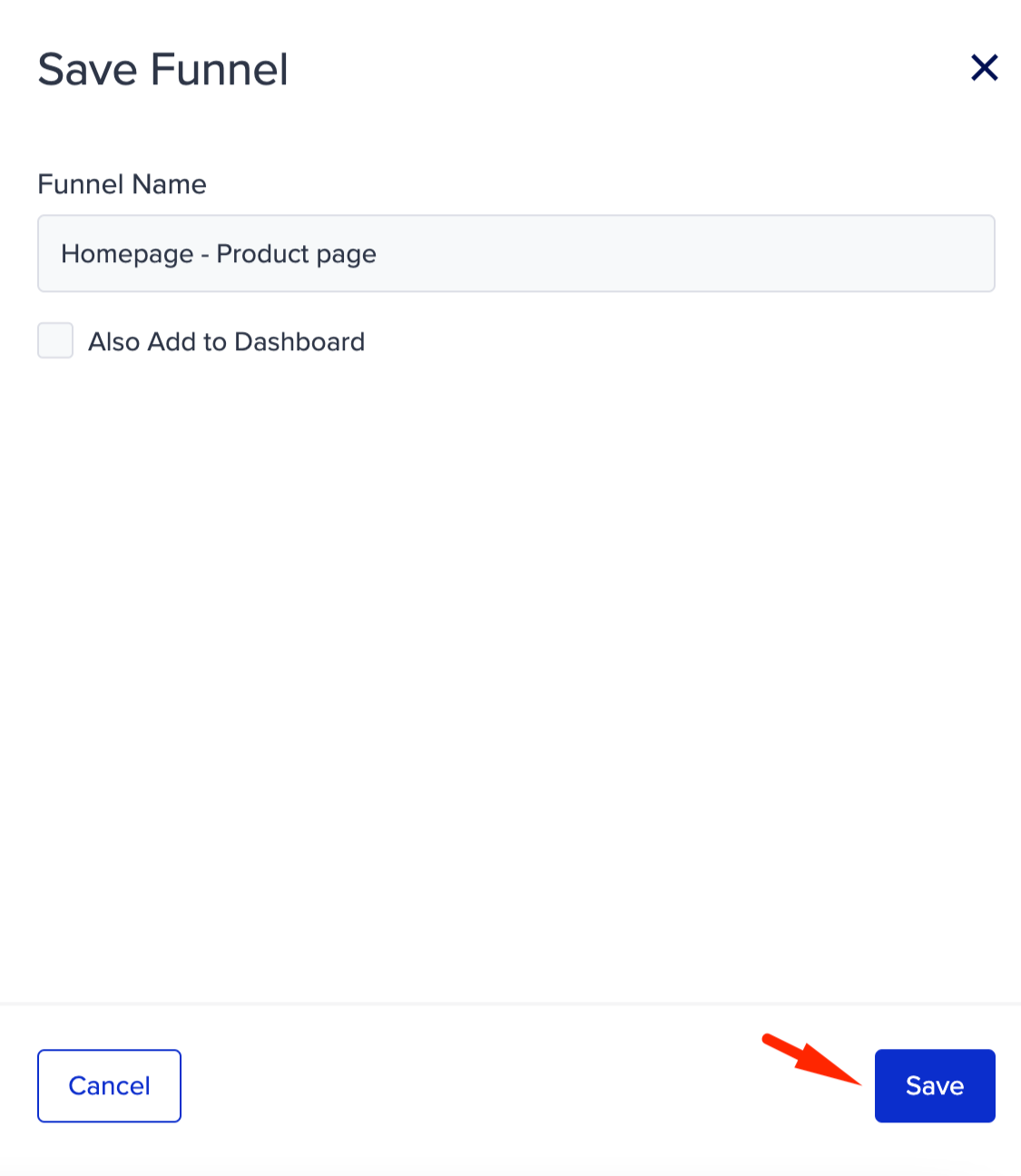
Once you click the Save button, you can save all the input you have entered for the funnel and access it later among the previously saved funnels. This can be useful if you want to keep track of different funnel configurations or if you want to use the same funnel setup for multiple analysis tasks.
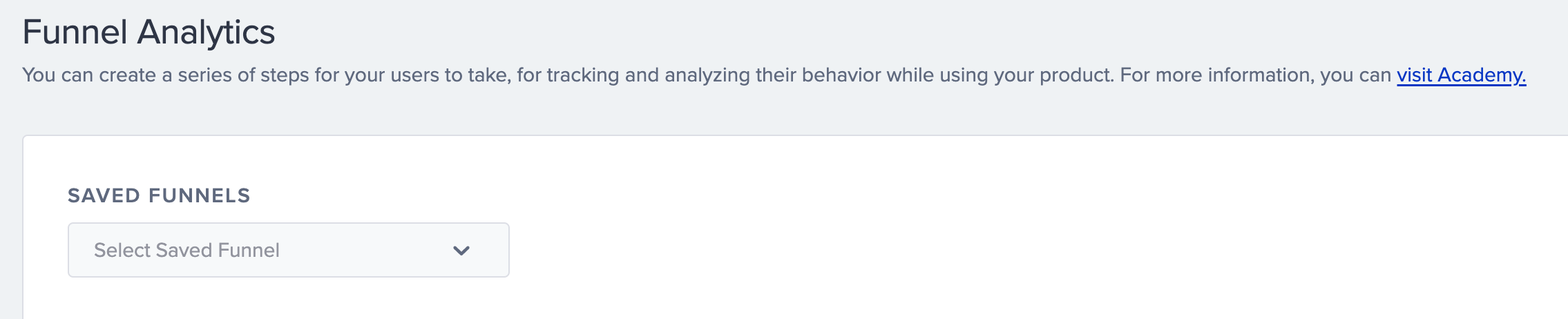
When you select a saved funnel from the dropdown, all the input for that funnel will be automatically filled in the appropriate fields. This can save you time and effort if you want to use a previously saved funnel for your analysis.
Add to dashboard
While saving your funnel, you can also add it to an existing dashboard or create a new one.
Check the "Also Add to Dashboard" box.
Choose from: Select Existing or Create New to save your funnel to.
Select Existing displays the existing behavior dashboards you can select from.
.png)
If you do not want to add this flow to your existing dashboards, or you do not have any existing dashboards, you can also create a new one.
.png)
Type a chart name for your funnel to appear on the dashboard. You can have multiple charts on a single dashboard.
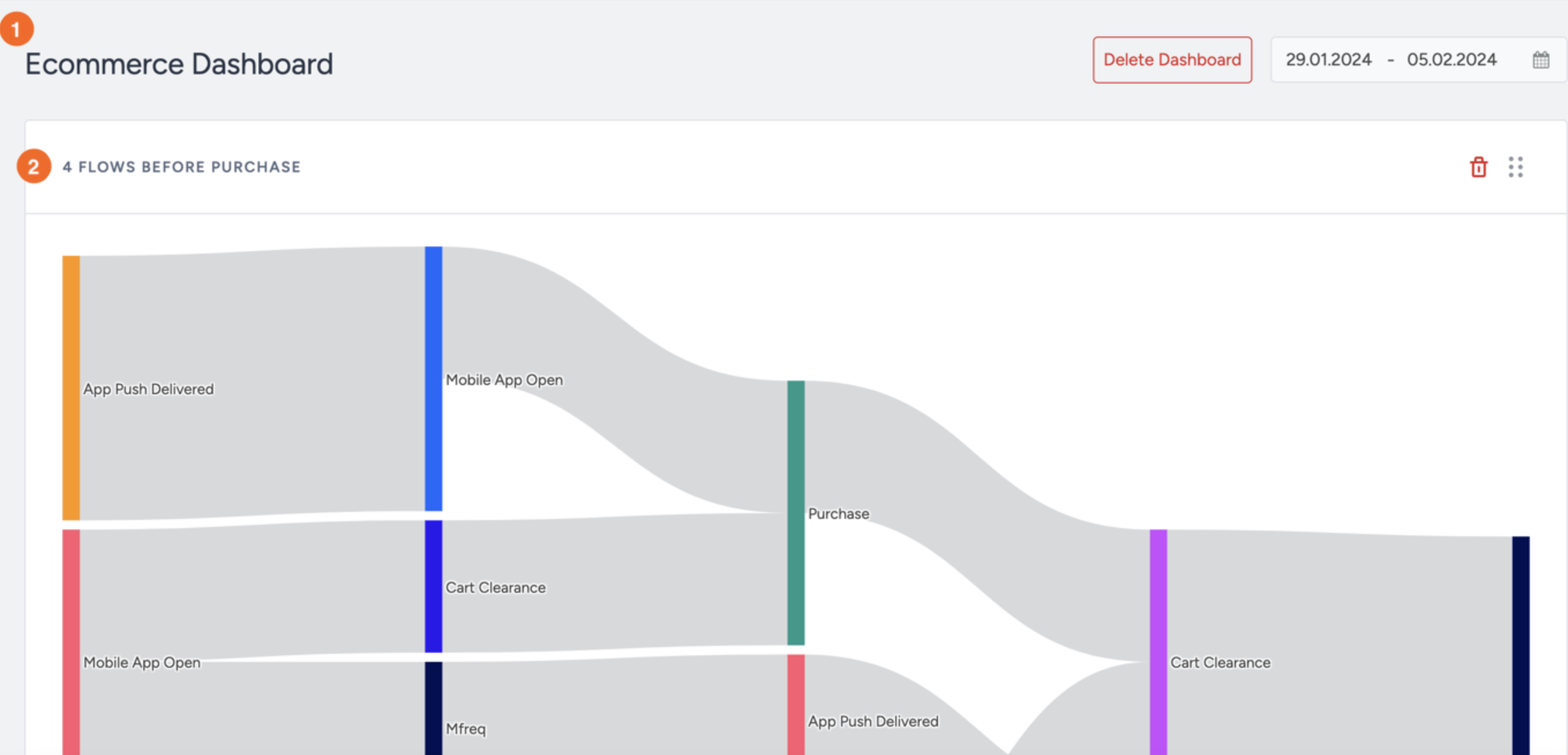
Click the Save button at the bottom of the page to save your funnel and add it to a dashboard.
Once created, your dashboards will be listed under Behavior Analytics > Behavior Dashboards.