Uninstall Analytics helps you understand why some users abandon your app.
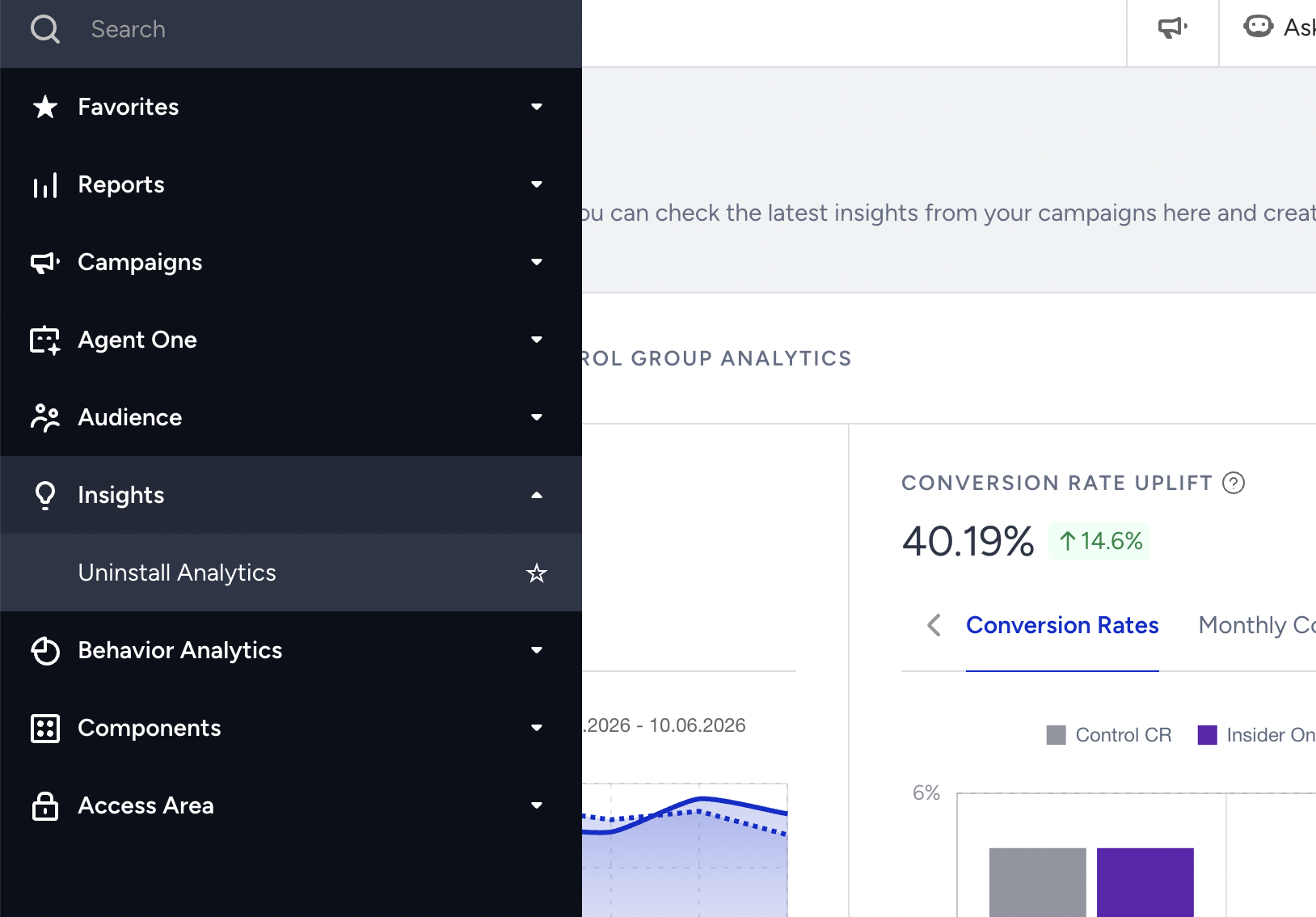
This article explains the following:
An uninstall is detected when a push notification is sent to a registered device token and the push provider indicates that the token is no longer valid. This can occur when the app has been uninstalled, but it may also happen for other reasons, such as token rotation, operating system updates, resetting app data, or restoring a device from a backup.
As a result, this metric should be treated as an indicator rather than a definitive measure of app uninstalls. In some cases, a user may still have the app installed even though they are counted as an uninstall.
How does Uninstall Analytics work?
To understand whether a user uninstalled the app, we automatically send Silent Push notifications (empty push notifications with no content) to all iOS users at midnight. iOS devices handle these notifications by default and do not render an empty push notification.
Even though the Insider SDK correctly blocks the rendering of Silent Push notifications, on Android, other broadcast receivers or push-handling methods implemented in your application can still cause empty notifications to be displayed. Therefore, Silent Push notifications to Android users are only sent automatically if you enable it via the Mobile App Settings.
The uninstall can also be updated through a second mechanism: when a regular App Push campaign is sent and the device token bounces (meaning the push notification cannot be delivered), the uninstall is recorded, and the user is marked as inactive.
If you have push notification handling methods in your application (other than the Insider SDK), it is highly recommended to follow the requirements in this document before enabling Uninstall Tracking for Android.
Uninstall Analytics is device-based and records every uninstall event. If the same user uninstalls the app multiple times, each uninstall is counted as a separate event.
The App Lifecycle segment is user-based and stores only the most recent uninstall date for each user. Any previous uninstall dates are overwritten.
The two features read data at different times. Uninstall Analytics is powered by a daily aggregated dataset generated by a scheduled job that typically runs around 2:00 am in the partner's time zone. In contrast, the App Lifecycle segment queries live data at the time the segment is evaluated.
Install and uninstall default events
In addition to the device-based Uninstall Analytics dashboard, Insider records mobile app installation and uninstall-detection activity as the install and uninstall default events on the user's profile (Android & iOS). Because they are stored as standard events, you can use them in Event Analytics to monitor lifecycle trends over time, and in segments, retention cohorts, and journeys such as uninstall winback.
| Event | Recorded when | Timestamp means | Source |
|---|---|---|---|
| install | Insider processes a new mobile app user. | The moment Insider first recorded the installation. | Mobile app |
| uninstall | Insider detects an invalid push token and marks the user as inactive. | The moment Insider detected the uninstall, not necessarily when the app was removed from the device | Mobile app |
A reinstall is not recorded as a separate default event. When a previously inactive user returns after an uninstall, the new installation can be recorded as an install event and, depending on identity resolution, be merged into the user's existing profile.
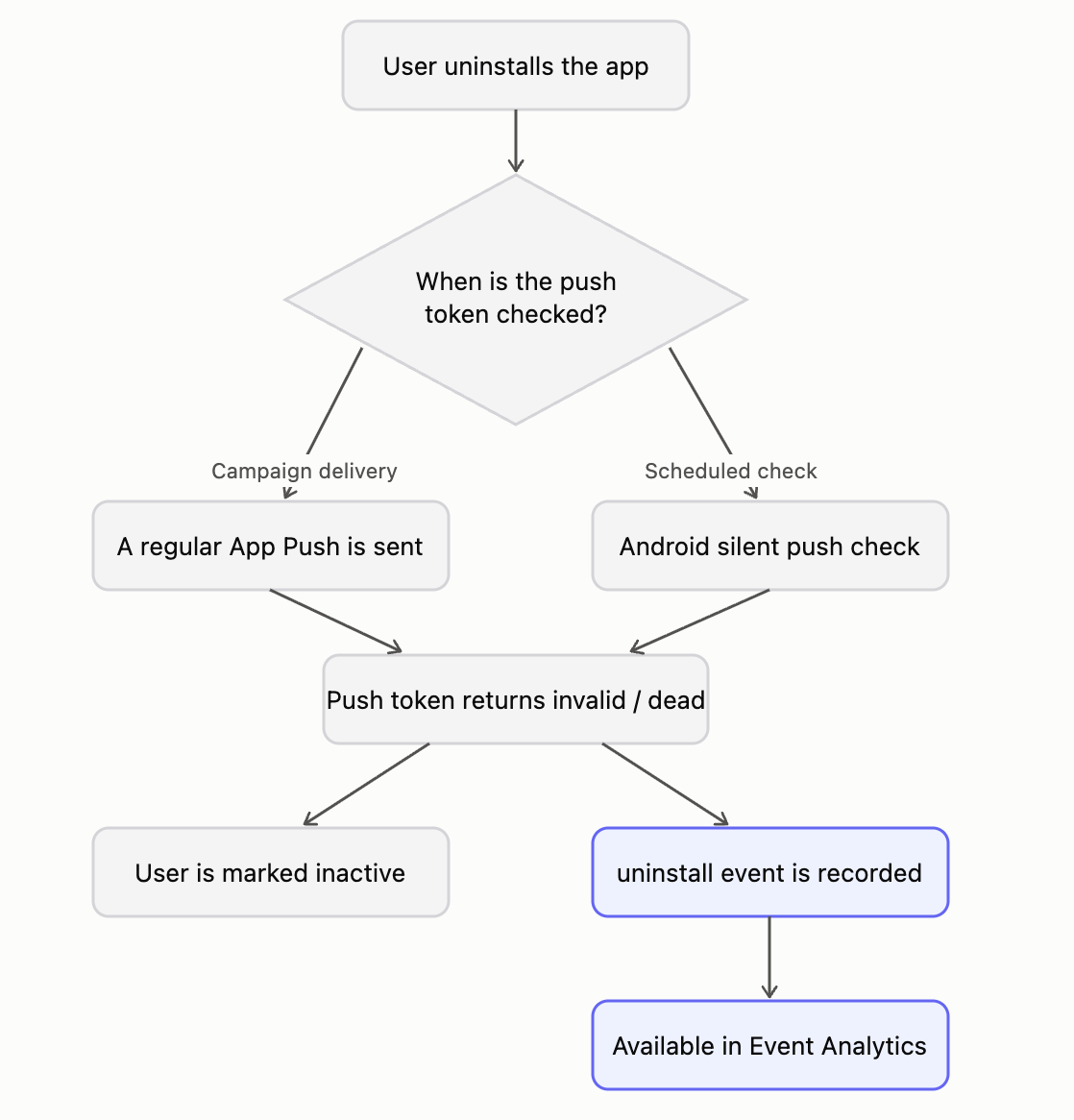
The uninstall event uses the same detection mechanism as Uninstall Analytics: an invalid ("dead") push token returned during a regular App Push delivery, or during the scheduled Android Silent Push check. The flow below shows how an uninstall becomes an uninstall event:
Use the events in Event Analytics
1. Go to Behavior Analytics > Event Analytics.
2. Select Install or Uninstall as the event.
3. If needed, set the source filter to Mobile App.
4. Choose daily, weekly, or monthly granularity and select the relevant date range.
5. Compare the results against app releases, acquisition campaigns, and other key dates.
Users who have uninstalled the app cannot be reached through App Push. To win back uninstalled users, continue the journey through a channel where they are still reachable, such as Email, SMS, or WhatsApp.
Enable/disable Uninstall Analytics for Android
To enable/disable Uninstall Analytics:
- Go to Settings > Mobile App Settings.
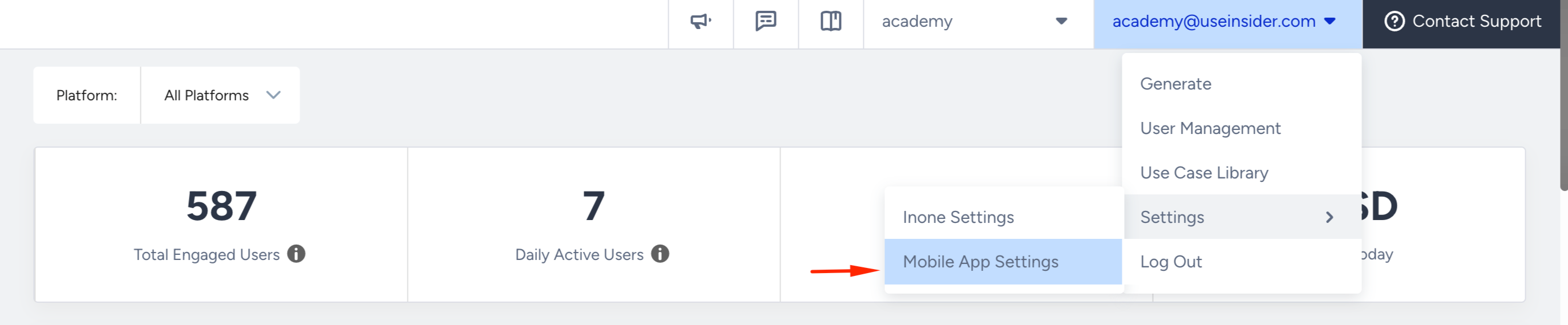
- Navigate to the Delivery and Conversion tab and scroll below to enable the Android Uninstall Tracking. Before enabling the checkbox, make sure your SDK versions are up-to-date and that you are handling the App Push notifications coming from Insider correctly.

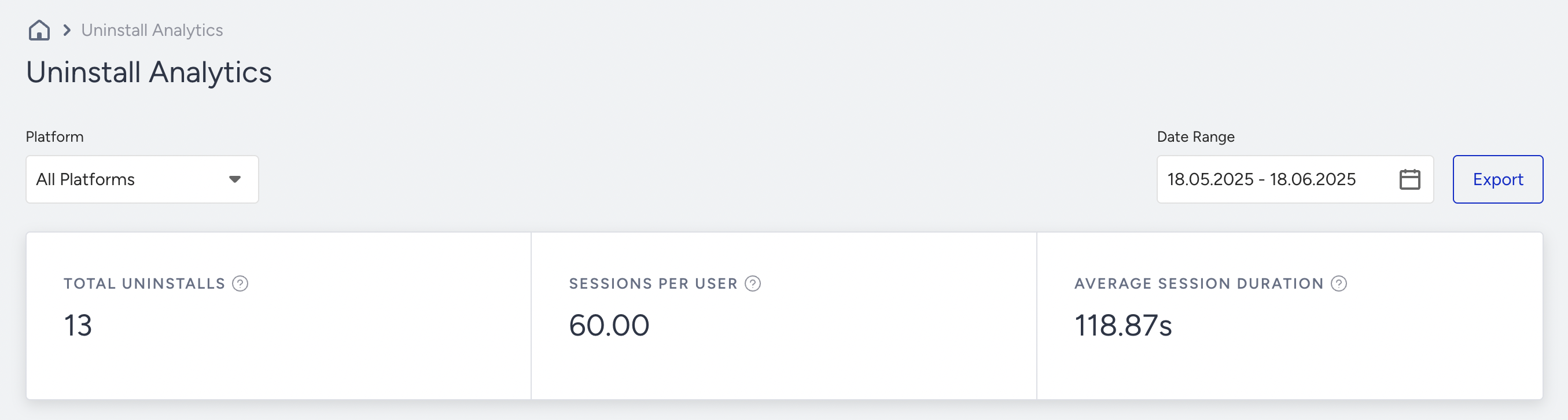
When a device is marked “uninstalled,” Insider uses the user's data to give some insight to you. Here is the data that Insider provides in Uninstall Analytics:
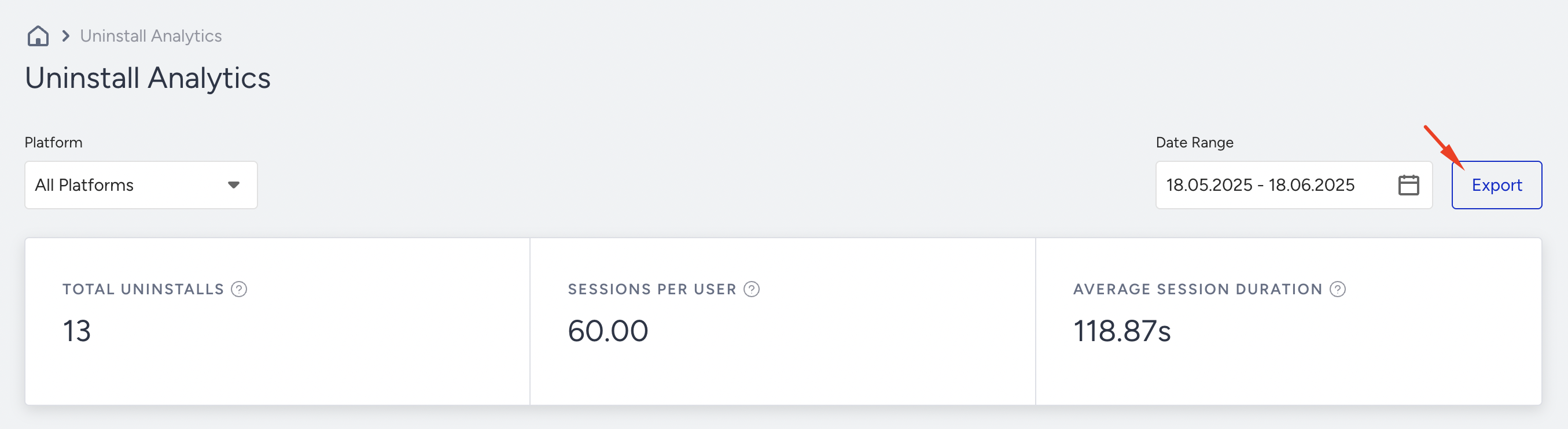
- Total Uninstalls: Total number of devices that uninstalled the app based on the selected period.
- Session Per User: Average number of sessions by the user who uninstalled your app from their iOS and Android devices in the selected period of time.
- Average Session Duration: Average duration of the user’s sessions.
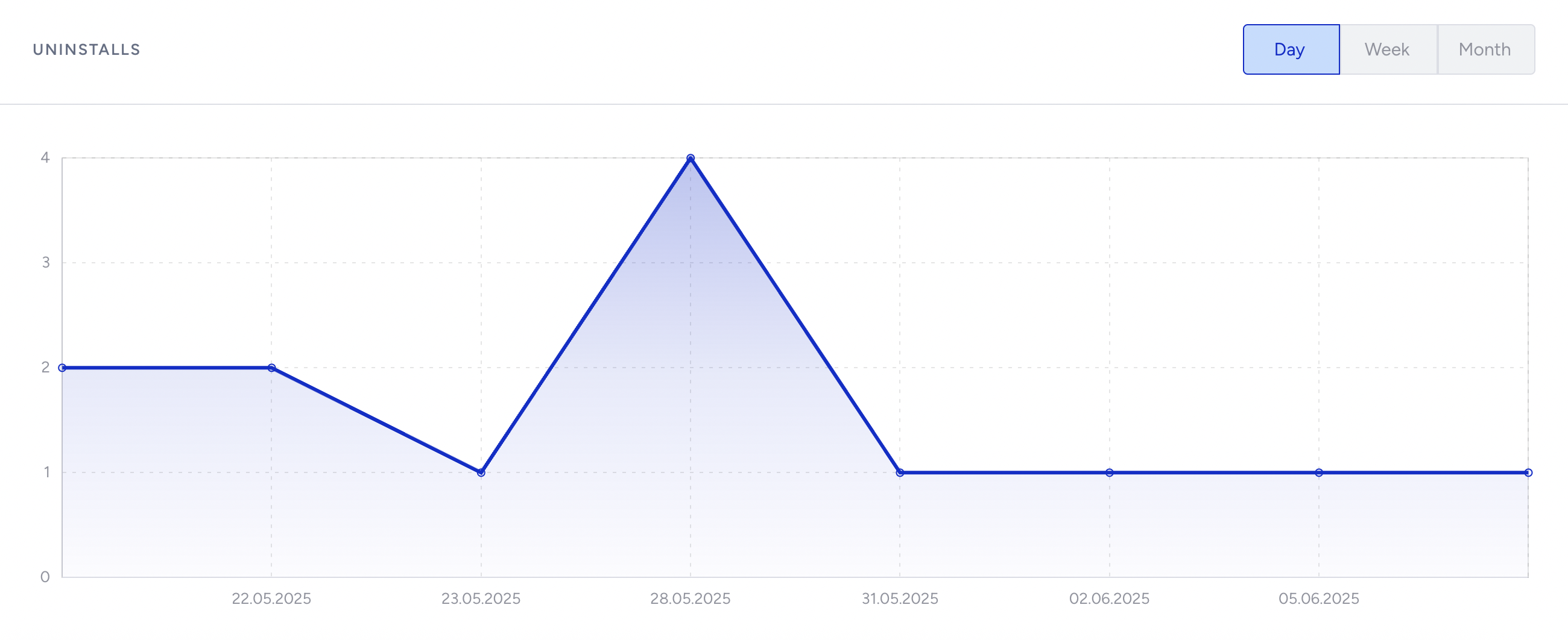
- Uninstalls Graph: Number of uninstalls by day, week, or month.
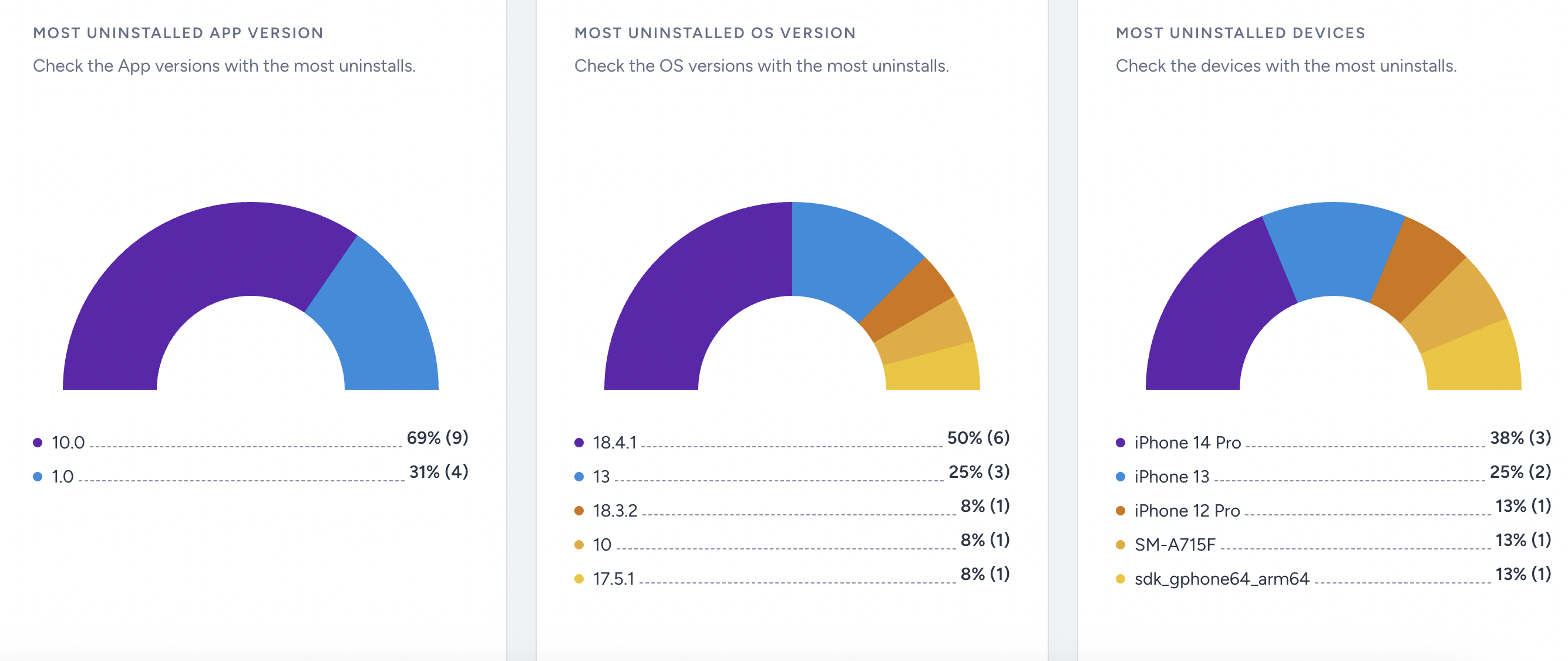
- Uninstalls by App Version: Shows which version you are losing the most users.
- Uninstalls by OS Version: Shows which Android or iOS version the app is uninstalled from the most.
- Most Uninstalled Device: Shows which specific device the app is uninstalled from the most.
Exporting Uninstall Data: Shows details on individual devices that uninstalled the app.
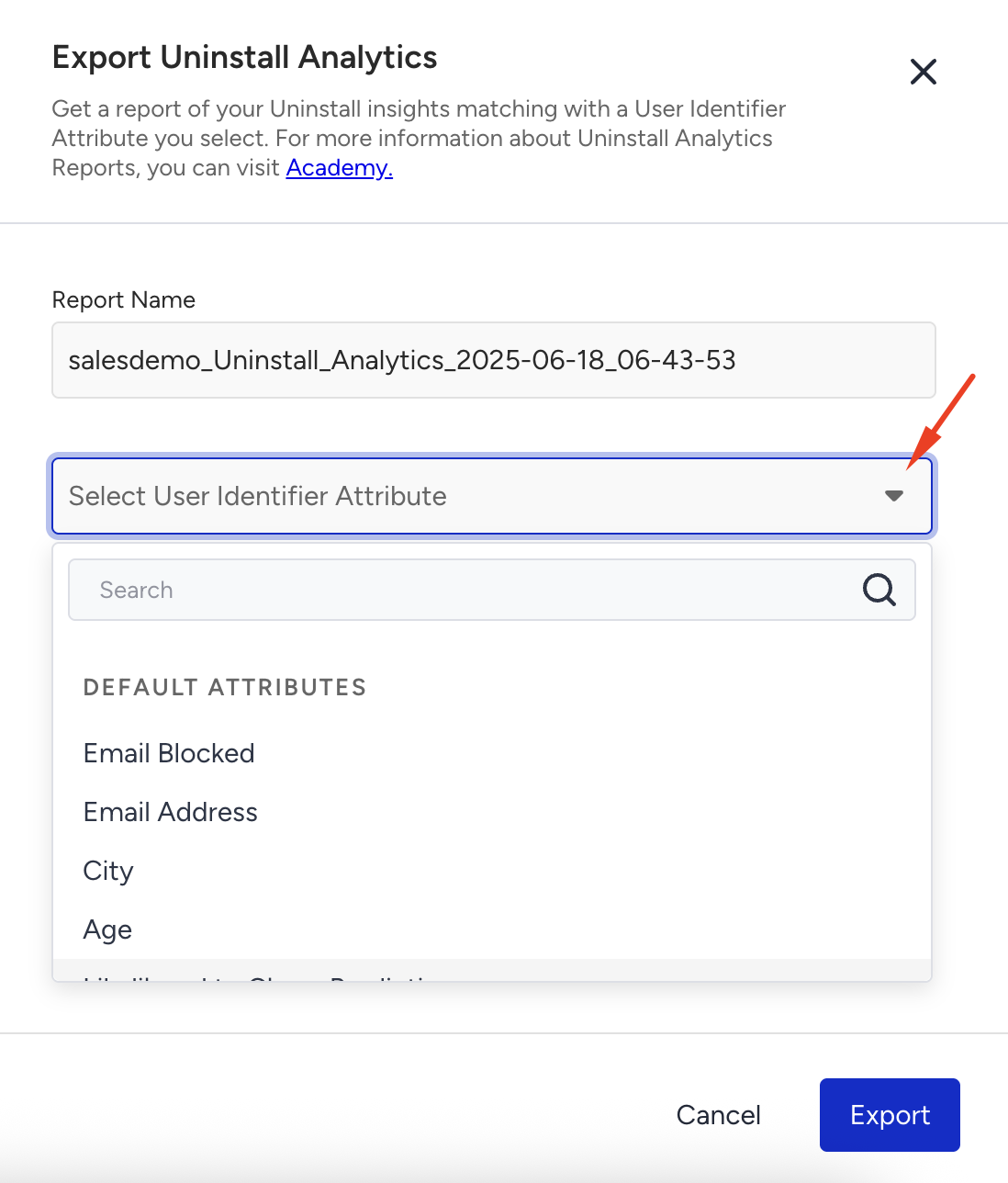
The exported data will first ask for a user identifier. After selecting it, click the Export button.
For further analysis, Insider provides the following data about the devices:
- Primary Identifier (selected before exporting)
- Platform of the Device
- Advertising ID (IDFA)
- Install Date
- Uninstall Date
- Total Session Count
- Average Session Duration
- Device Model
- App Version
- Os Version
Within a very short time of requesting the data export, you will receive an email with an Excel attachment (or, if the export is larger than 25 MB, a link to download the file from Insider's server).
Sample export:
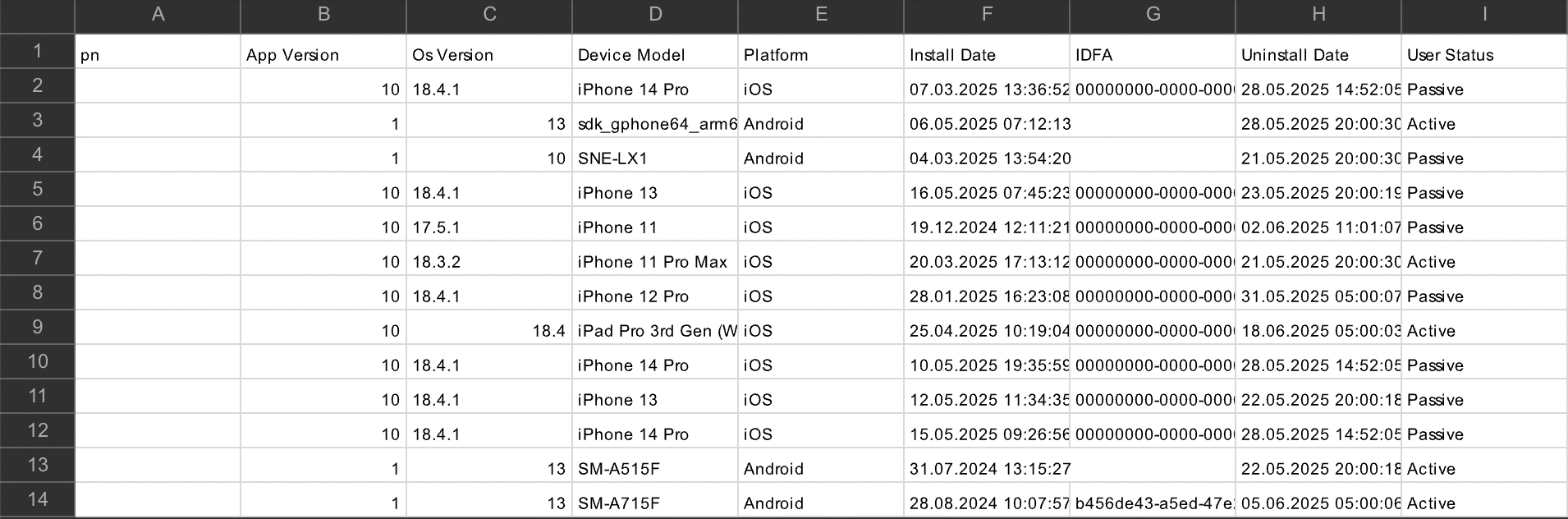
User status in the report indicates if the user has reinstalled the app. The user status indicates the user's status at that moment, but it does not check for any reinstalls. If a user is marked as uninstall, their profile is updated to inactive. If a valid push token is logged for this user, their profile becomes active again. This does not require the app to be uninstalled and installed again; it can happen when the user opens the app without deleting it. Active means "the user has become reachable again", but does not mean "they reinstalled the app".
Limitations
- An uninstall is not a definitive event. It is an indicator derived from an invalid push token. It can be triggered even if the app has not been uninstalled, which means the metric may overreport actual uninstalls.
- Neither Apple nor Google ever confirms that an app has been uninstalled. This signal is not available on either platform.
- An uninstall can only be detected when a push notification is sent to the device. As a result, the uninstall date shown in the panel may differ from the actual date the app was removed.
- The active value in the export indicates that the user has become reachable again. It does not necessarily mean the user has reinstalled the app.
- Uninstall Analytics data is retained for 60 days. Only the most recent two months of data can be viewed or exported.
- On Android, the midnight silent push runs only if it is enabled in Mobile App Settings.
- The numbers shown in Uninstall Analytics, the App Lifecycle segment, and the install/uninstall default events are based on different data models and should not be expected to match. Uninstall Analytics is device-based and reads a daily aggregate; the default events are user-based and stored in the user's event history.
FAQ
For further questions, refer to the FAQ for Uninstall Analytics.