Why can I not remove a specific Google Account from my InOne Integration Settings?
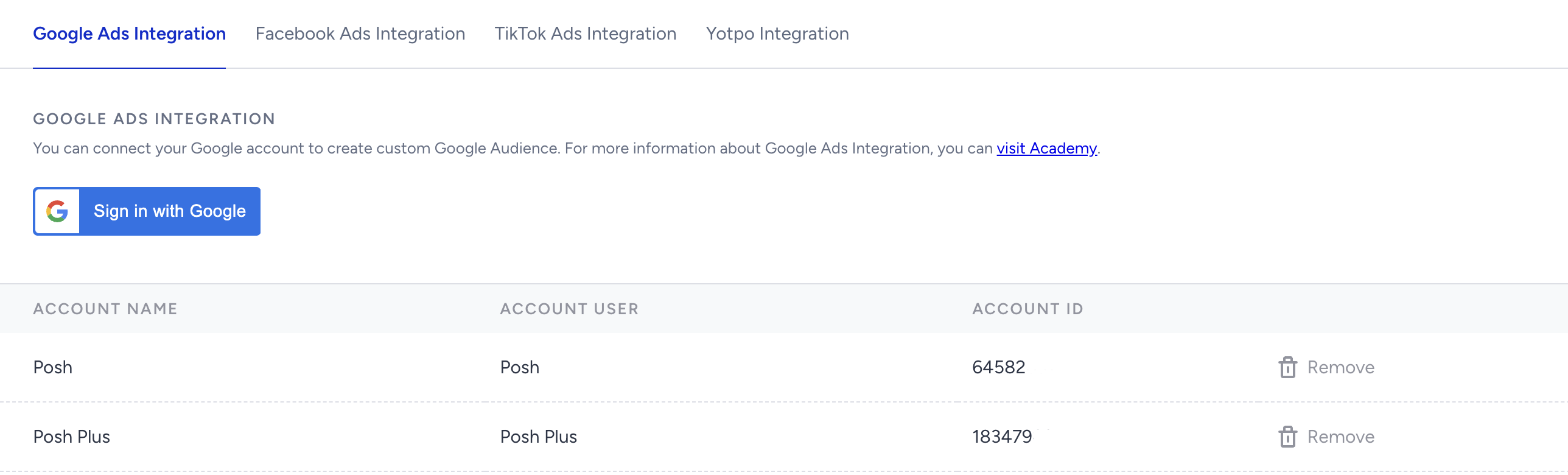 Only the account user can remove the added accounts from the integration settings. You must be logged in to remove an account from the table and have admin access to that Google Ads Account.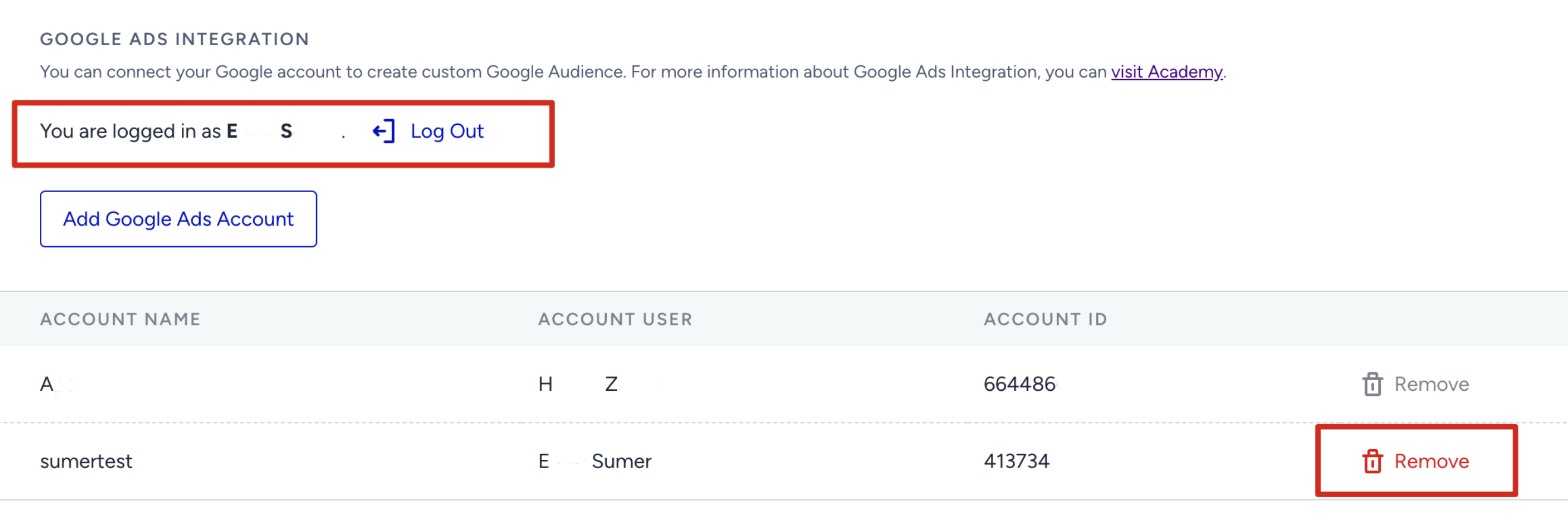
Do Google Ads Audiences need a long time to populate?
The Google Ads element works in real time to populate selected custom audiences. However, it can take up to 48 hours for Google Ads to populate the list.
I cannot link my Google Ads account to the InOne panel, and I see the greyed-out button. What should I do?
If you cannot link your Google Ads account to the InOne panel, the possible reasons might be one of the following:
- You must have an admin access level in your Google Ads account setup to connect your account to the InOne panel. The created user account under Google Ads should also be created by an admin.
- The related Google ad account might have been deactivated or paused for a while and never activated. You have to make the following checkups on their end. Reactivate a cancelled Google Ads accounthas the checkup steps for the Google Ads account status. If the Google Ads account is canceled or deactivated, you need to activate it again to correctly connect it to the InOne panel.
- Account status: Ensure that the customer account you are trying to access is active and enabled. If it is not enabled, you may need to enable the account by following the appropriate steps within the Google Ads UI.
- Permissions and authentication: Make sure the user or API credentials being used to access the customer have the necessary permissions. Check that the user has appropriate access levels and that the API credentials have been granted the required scope and permissions.
- Account access and authorization: If you are accessing a customer account managed by a Google Ads manager account or part of a multi-account hierarchy, ensure that the account is properly linked and authorized within the hierarchy. Check that the manager account has the appropriate access and permissions to the client account.
- Contact Google Ads support: If you have followed the above steps and are still experiencing the "customer_not_enabled" error, it is advisable to contact the Google Ads support team. They can help investigate the issue further, provide specific guidance, and assist with enabling the customer account if necessary.
- Make sure that you satisfy the conditions mentioned under Requirements for using Google Remarketing.
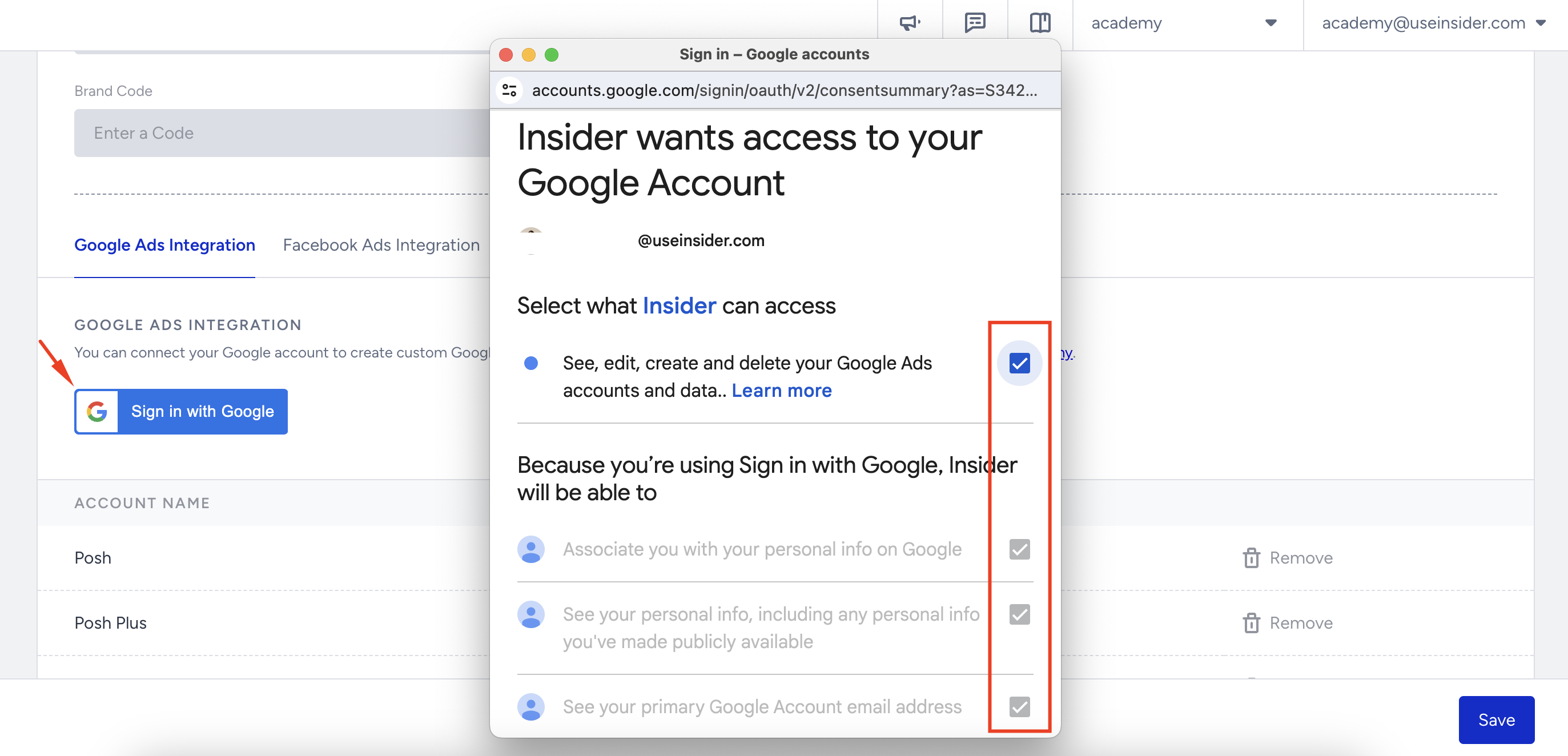
- Make sure the Accessibility checkboxes are checked on the permissions-granting pop-up after you sign in with Google.
Can I send the user’s attributes or events to the audiences?
Google does not allow this for privacy reasons. However, you can see what segments are passed to Ad audiences by segmenting users in Check Condition and Starter Elements.
Can I utilize Google Merchant Center with the Google Ads channel?
Merchant Center Ads couldn’t be fed from Google Ads Custom Audiences. It has its own ad management structure.
How do I know if users have matched after passing users to Google Ads?
Google does not provide this information for privacy reasons.
How long will it take for my audiences to sync in Google?
It can take anywhere between 6 and 12 hours for an audience to be synced into Google.
Why is the audience size shown as zero, even though I have sent users?
The user list size will show as zero until it has at least 1,000 members. After that, it will be rounded to the two most significant digits.
Why aren't my ads being served, even though I have users in my audience?
An audience must contain at least 5,000 users to ensure that ads start serving.
Why does the number of users in my Dynamic Segment not match the number of users shown next to Audience on my Google Ads dashboard?
If the number of users in your Dynamic Segment does not match the number of users shown next to Audience on your Google Ads dashboard, there might be several reasons for this:
- The user list size will be zero until the list has at least 1,000 members. After that, the size will be rounded to the two most significant digits.
- Not all users have a Google account. This is the most likely reason for the discrepancy in size. For example, we might send a user with a non-Gmail email to the audience, and if that user does not have their email associated with a Gmail account, then Google filters out this user.Since Insider One does not have the association information beforehand, it does not filter out non-Gmail users.
- Some email addresses might be invalid or outdated. Google cannot match invalid or outdated email addresses to Google accounts.
- Some email addresses might be suppressed. Google suppresses email addresses for various reasons, such as if the user has opted out of targeted advertising or if the address has been associated with fraudulent activity.
- You might have uploaded your email list in a format that Google does not support. Google has specific formatting requirements for email lists uploaded to Customer Match.
- Ads will compare each hashed string on your customer list with the hashed string for a Google account's email address or phone number. If there's a match, Google adds the corresponding Google account to your Customer Match segments.
- Google rounds the number of users for privacy reasons.You can create a support ticket for Google, asking why the users are not matched with the audience you expected.
How can I check the historical logs of the created audience?
To see the historical logs of the created audience on your Google Ads account, click on the audience named with the “insider” prefix. You can see it under the Segment Members section.
Why does the segment not get deleted from the Google Ads Remarketing account when I pause the segment?
The segment is not deleted when paused because pausing a segment simply disables its active status, allowing it to be reactivated later if needed.
Why can’t I make changes to External Platform Integrations in InOne?
To make any changes to External Platform Integrations, you must have either Administrator or Editor with PII access in InOne. Refer to User Roles for more information.