The GCS data export feature, also known as GCS export or syncing Insider One event data to Google Cloud Storage, lets you export large volumes of Insider One event data directly to your Google Cloud Storage bucket.
Prerequisites for integration
The designation of the GCS bucket where you intend to store your data.
Google Cloud service account credentials with the necessary permissions.
Create a service account
To create your GCS service account,
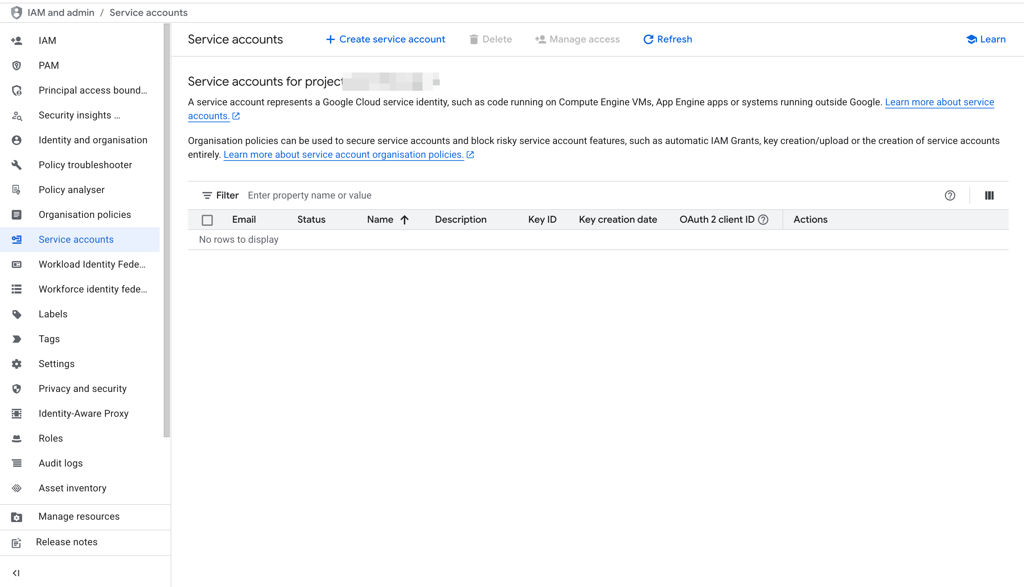
Go to the Google Cloud Console and navigate to IAM & Admin > Service Accounts.
Click Create Service Account.
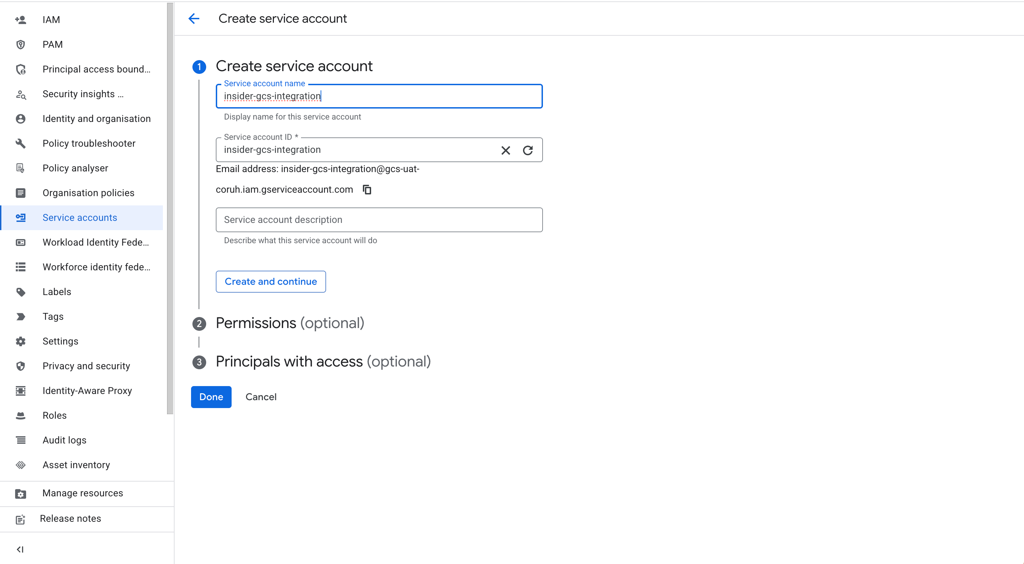
Assign a name and description, and click Create and Continue.
4. Give the Storage Admin role as permission and click Done.
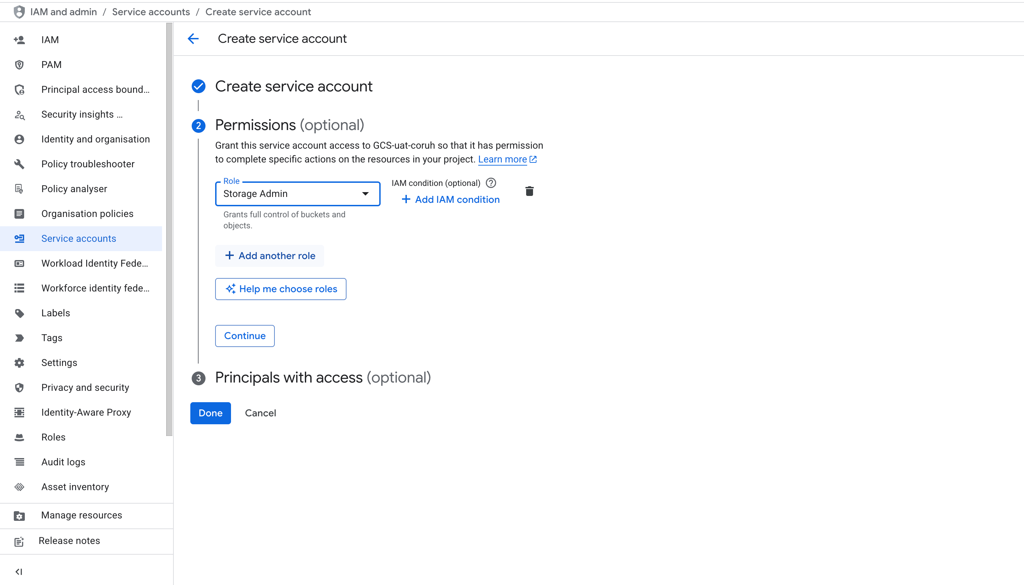
You can assign only the Storage Object Creator role. However, in this case, we cannot delete the test file created during integration authentication. You can delete that test file from storage after authentication.
The roles you assign must include permission to create objects in the bucket you will use to retrieve the data.
Set up the Google Cloud Storage integration
Navigate to the InOne > Components > Integrations > External Platform Integrations and create a Google Cloud Storage Integration.
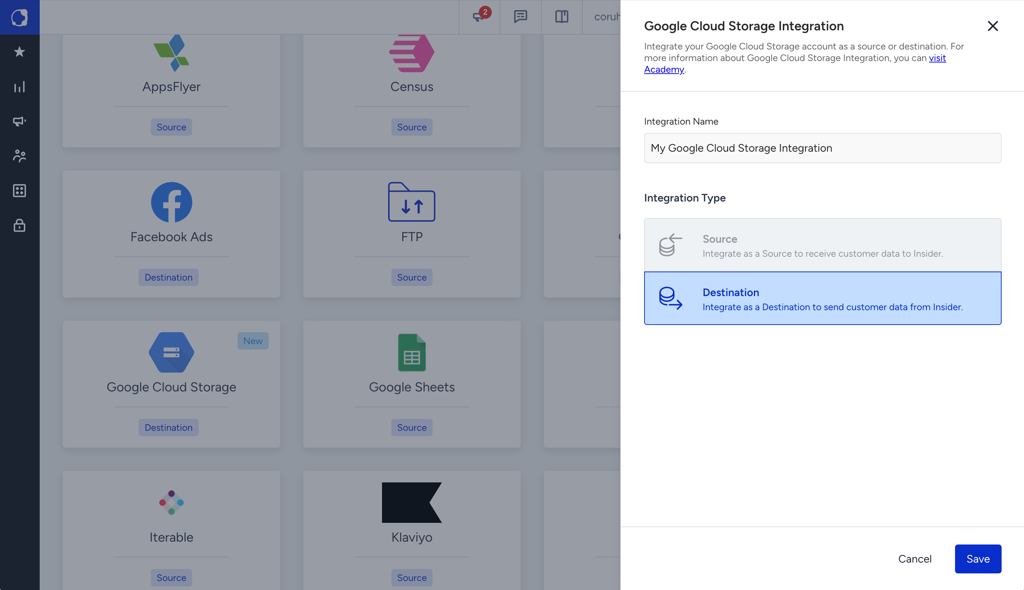
After you click Save, you should enter:
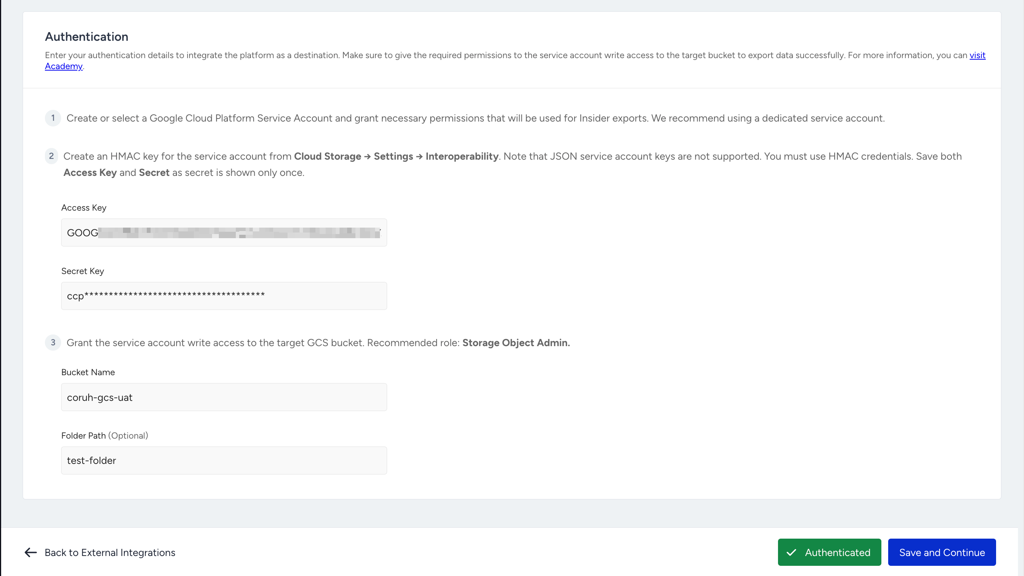
HMAC Access ID and Secret Key: To receive these:
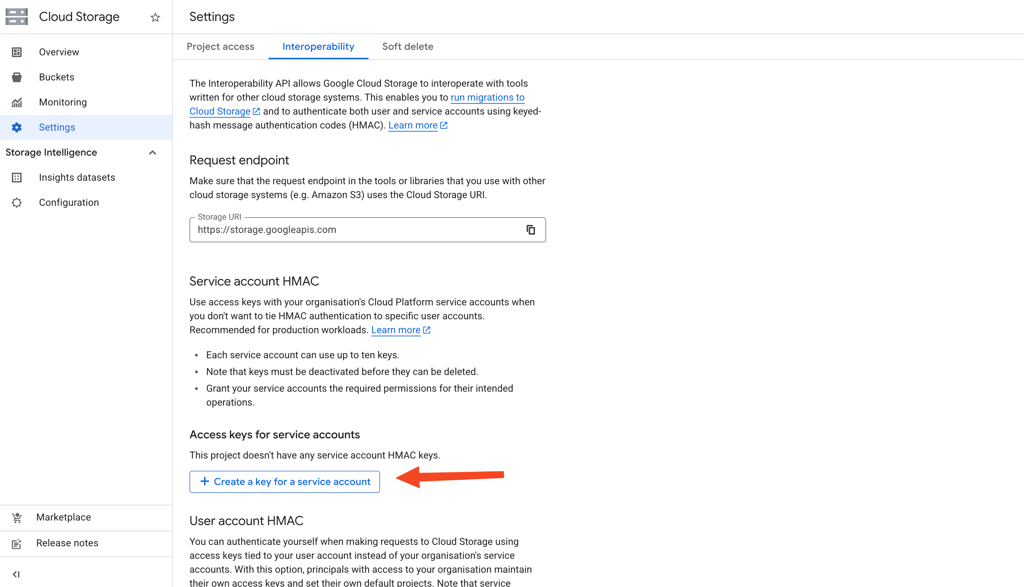
Go to Cloud Storage > Settings > Interoperability, then click Create a key for a service account.
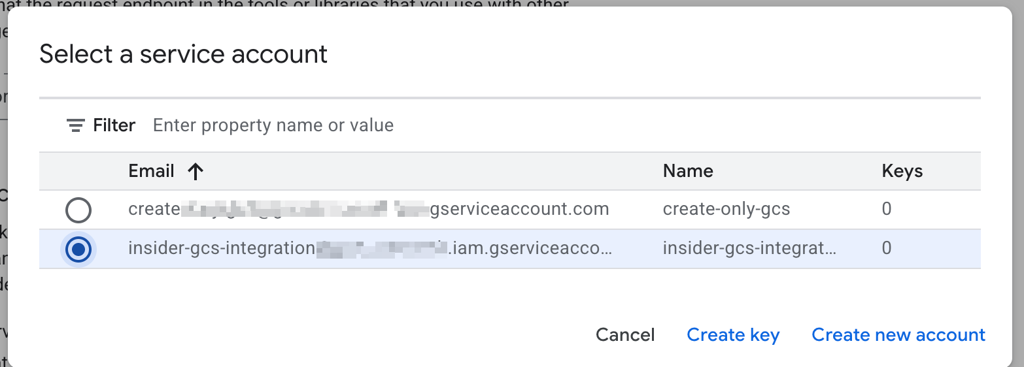
Select the service account that you will use for the integration.
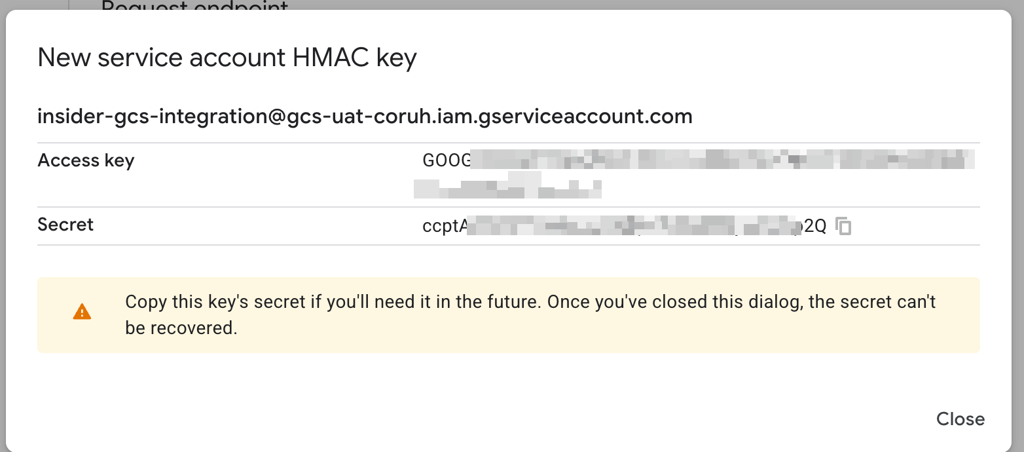
Copy the Access Key and Secret.
Bucket Name: The name of your Google Cloud Storage bucket.
Folder Name: (Optional) Specific folder or path within the bucket where data will be organized.
Click Verify Authentication to validate the credentials.
If there is any problem, you will see a message on top of the page that explains the details of the authentication validation error.
After the credentials are validated, click Save and Continue.
In the Configure step, select one or more Events in the tabs to trigger your integration.
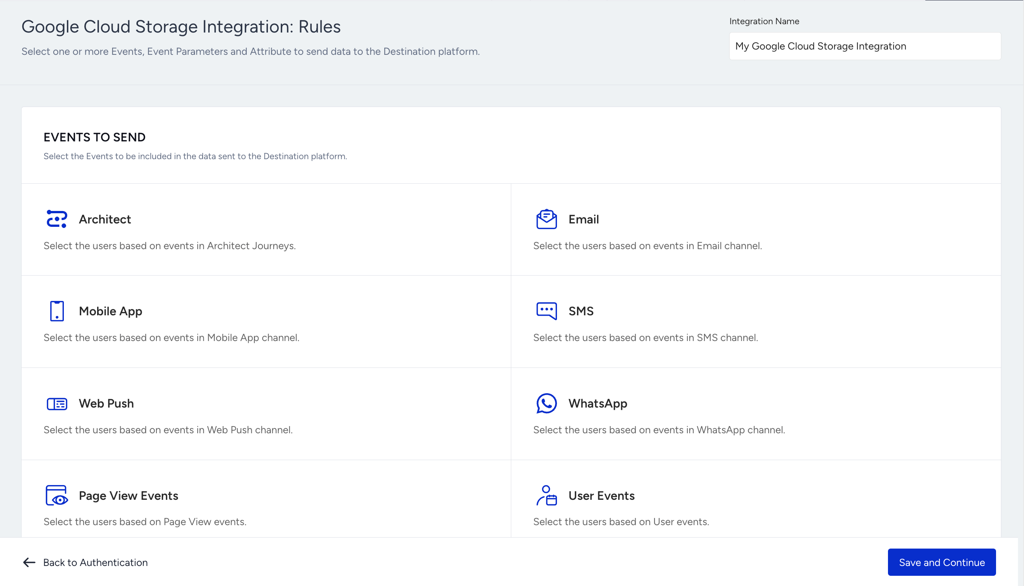
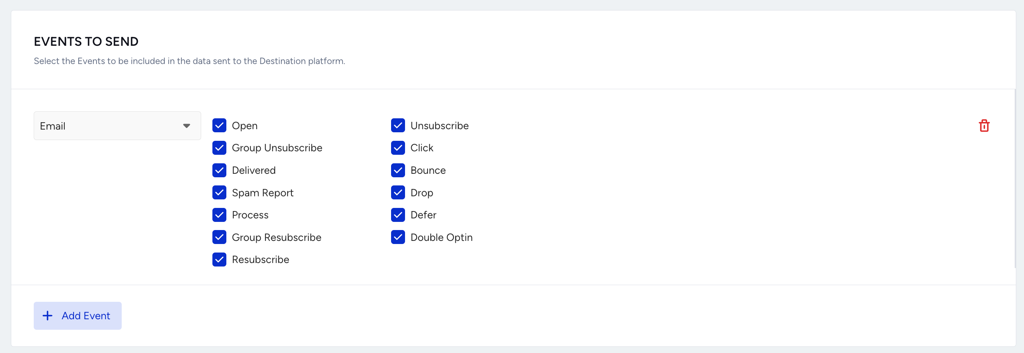
After you select the first event type to trigger data collection, you can see the events by type and select or deselect the ones you want to collect. You can also add other event types in the same section.
The Event Parameter section will be enabled after you select an event. You can select your events' parameters through the dropdown that you want to send to your storage.
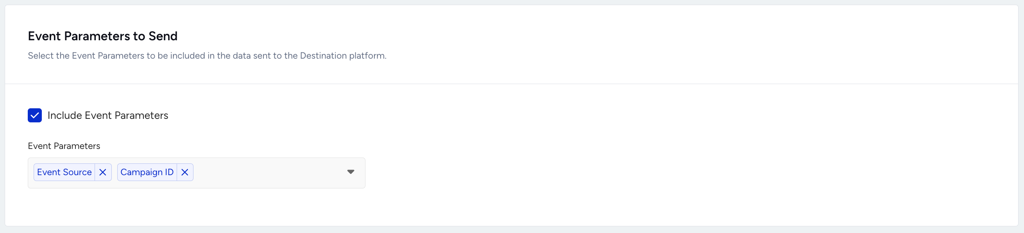
To select the journey event’s name parameter, you need to use journey_campaign_name as the event parameter's key.
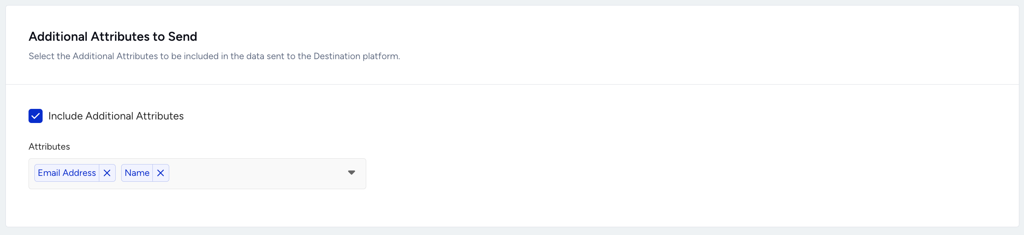
You can select the additional attributes to be included in the data sent to the storage. If you want to include additional attributes while sending the event data, you can add them here.
For example, if you are sending an email open event, you can also select the email address to which it is to be sent. This way, you can understand which email address opened which email campaign.
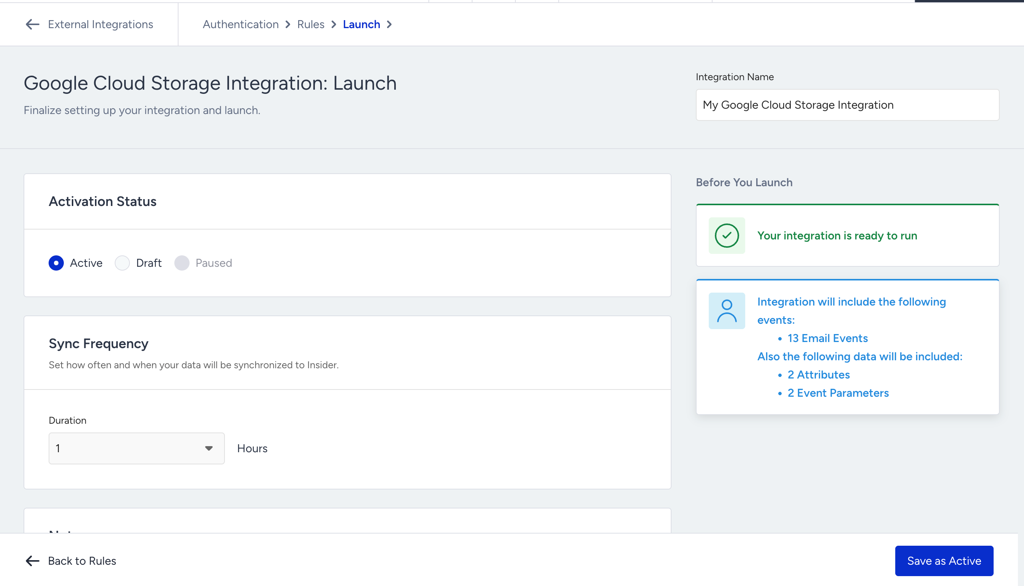
You can adjust your sync frequency and activate your campaign in the Launch step. Once the campaign is activated, after the first sync, you will see a CSV file in your specified bucket.
For an additional layer of security, you can restrict your Google Cloud Storage bucket to accept requests only from Insider One’s egress IPs. This ensures that Insider One’s credentials can be used only from approved Insider networks. Even if the service account key is exposed, it cannot be used from any other network.
Refer to Insider One IP Allowlist for Destinations for the list of IPs to allowlist.
If an anonymous user has an event on Insider One, you will see it in the csv.
If a user is created and then deleted within the sync period, you should still be able to see that user in the csv.
When creating a new Google Cloud Storage integration or editing the current one, we perform an automated test to verify the integration works correctly by placing a test file in the specified bucket.
If the provided credentials lack permissions to delete objects, the test file cannot be removed and will remain in the bucket after the test.
This is a one-time occurrence during the activation of the Google Cloud Storage integration. You can manually delete the test file if needed.
If your Google Cloud Storage integration encounters a Credential Error, the integration will stop immediately and no new data will be delivered while the error persists. It’s also important to note that after you resolve the error, the file names sent to storage may change, as they will follow the current timestamp sequence from the moment the integration resumes.
Integration details
This section outlines the integration type, file format, and export logic used to deliver event data.
Integration Type
Event Export. This integration involves exporting event data.
File Format
{account_name}{export_type}{integration_id}{start_date}{end_date}.csv
{account_name}: The name of the account in the InOne panel used for the integration.
{export_type}: Indicates the type of export (e.g., events).
{integration_id}: Integration id
{start_date}: Start date of the exported data range.
{end_date}: End date of the exported data range.
start_date and end_date → Unix timestamp. These mark the boundaries of the UCD entry-time window the file covers, they are not aligned to clock hours, and they are not based on event timestamps.
The exported file will be in CSV (Comma-Separated Values) format.
Here is an example CSV file:
Column order can change in exported CSVs
The column order in an exported CSV can change each time you save the integration. When processing exported files, reference columns by their header names rather than their positions or indexes. Processes that rely on a fixed column order might fail if the order changes.
Export Periods
Specify the intervals at which data will be exported.
You can choose export periods of 1, 2, 4, 6, 12, or 24 hours based on your reporting or analysis needs.
The Raw Export logs events based on their actual timestamp, regardless of when they are recorded in the User Content Database (UCD). In contrast, the Google Cloud Storage Export captures events within specific intervals, like the past hour, according to their UCD entry time. For example, the event counts displayed on the Metadata Analytics page represent all transmissions sent to UCD. Sending the same event 100 times results in only one entry in the database, but shows a transmission count of 100 on the page, while Raw Export will show only 1.
The Google Cloud Storage Export file will likewise contain 1 row, since both export the stored record.
If an event was timestamped three days ago but sent today, it will appear in Google Cloud Storage Export, like the last hour, based on the current transmission timeframe.
You can create up to 5 total destination integrations across Amazon S3 Export, Google Cloud Storage (GCS) and Microsoft Azure Blob. This is a shared, dynamic limit. For example, you may use all 5 for S3, or split between S3, GCS and Azure as needed. If you reach the total limit, you must remove an existing integration before adding a new one.
Export windows are anchored to the integration's last successful run, not to clock hours. If the integration falls behind (for example after being paused or after a credential error is resolved), the next runs produce multiple catch-up files, one per missed window, until the integration is up to date.
Pause the GCS integration
To pause your Google Cloud Storage integration, follow these steps:
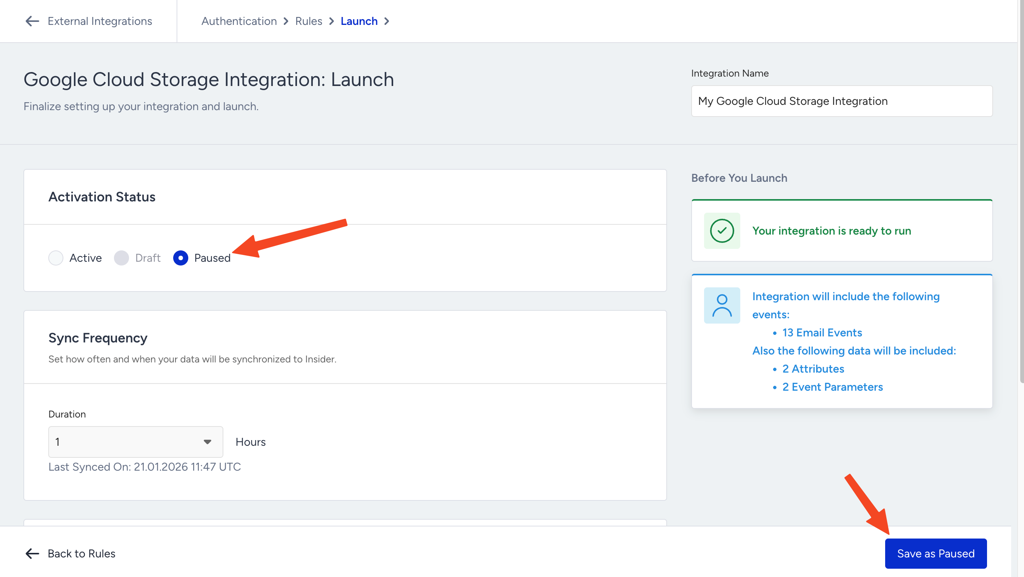
Go to your GCS integration’s Launch step on InOne.
Select Activation Status as Paused and Save as Paused.
FAQ
Q: Does this integration support historical data export?
A: No. Historical data export is not supported. Only data generated after activation will be exported at the selected frequency.
Q: Why don't the metrics in my export CSV files match the metrics I see in the UI (e.g., User Profiles > Channel Interactions) or statistics APIs (e.g., Get App Push Statistics)?
A: A one-to-one match is not expected, for two reasons:
Different time basis. Each export file covers a window based on when events were recorded in the User Content Database (UCD entry time), not on the event's own timestamp. An event that happened three days ago but was sent to Insider One today will appear in today's export file. The UI and statistics APIs, in contrast, filter by the event's actual timestamp.
The timestamp column inside the CSV still shows the event's actual time; only, which file an event lands in is decided by UCD entry time.
Stored rows vs. transmission counts. The export contains the rows stored in the database: sending the same event 100 times results in a single stored row and, therefore, a single row in the CSV. UI analytics, such as Metadata Analytics or campaign statistics, count transmissions (100).
To validate counts on an event-time basis, use the export options that filter by actual event timestamp instead, such as Raw Export.