You might have issues with delivering your app push notifications for several reasons. You can troubleshoot the delivery issue on different levels:
- Panel setup
- User-level troubleshooting
- Campaign-level troubleshooting
- Campaign reports
- Campaign's control group
Panel Setup
You can check the following steps in your panel setup to ensure you have configured your settings correctly.
- The required credentials should be added to Settings > Mobile App Settings > Push Notification Settings.
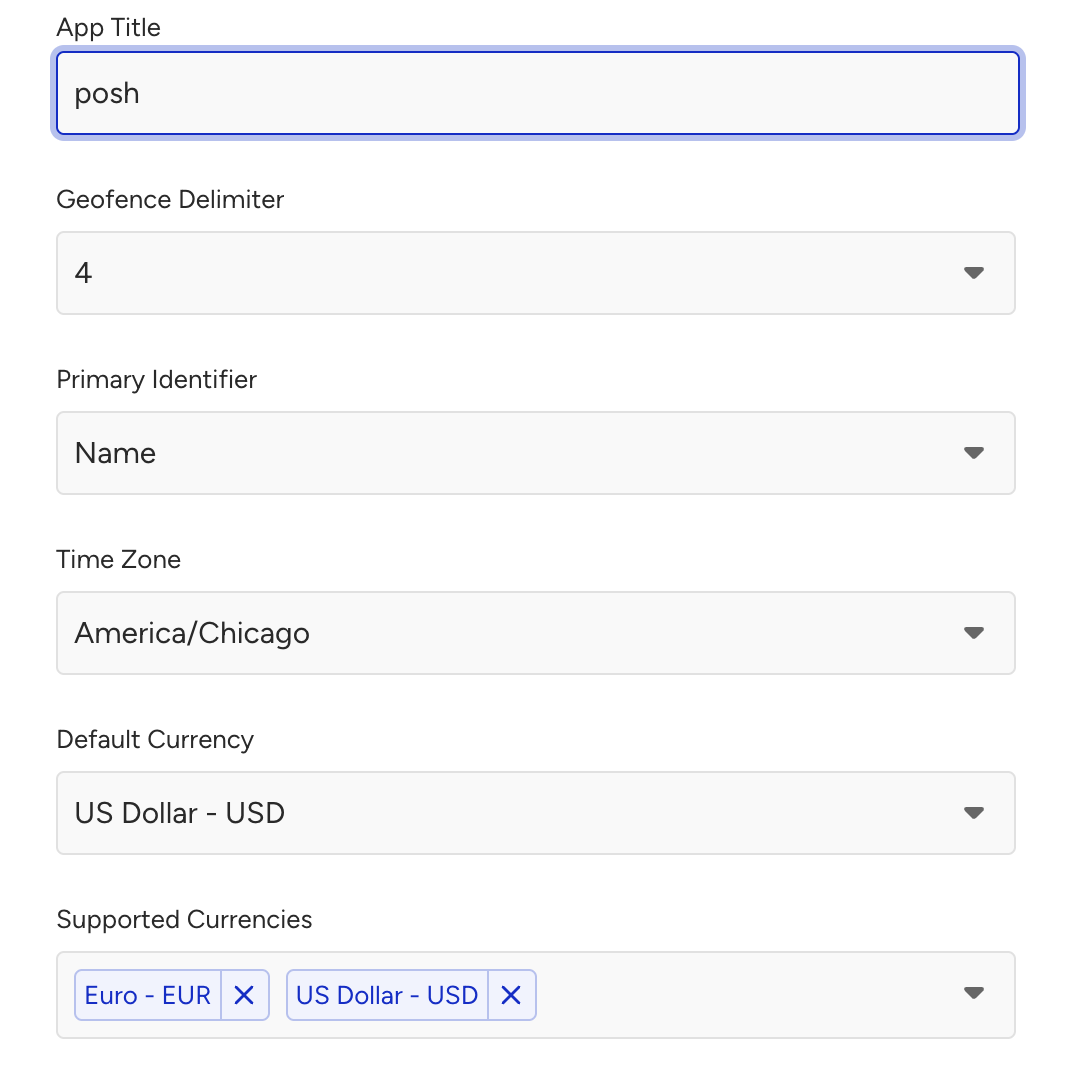
- You should select the application title and time zone on the General tab.
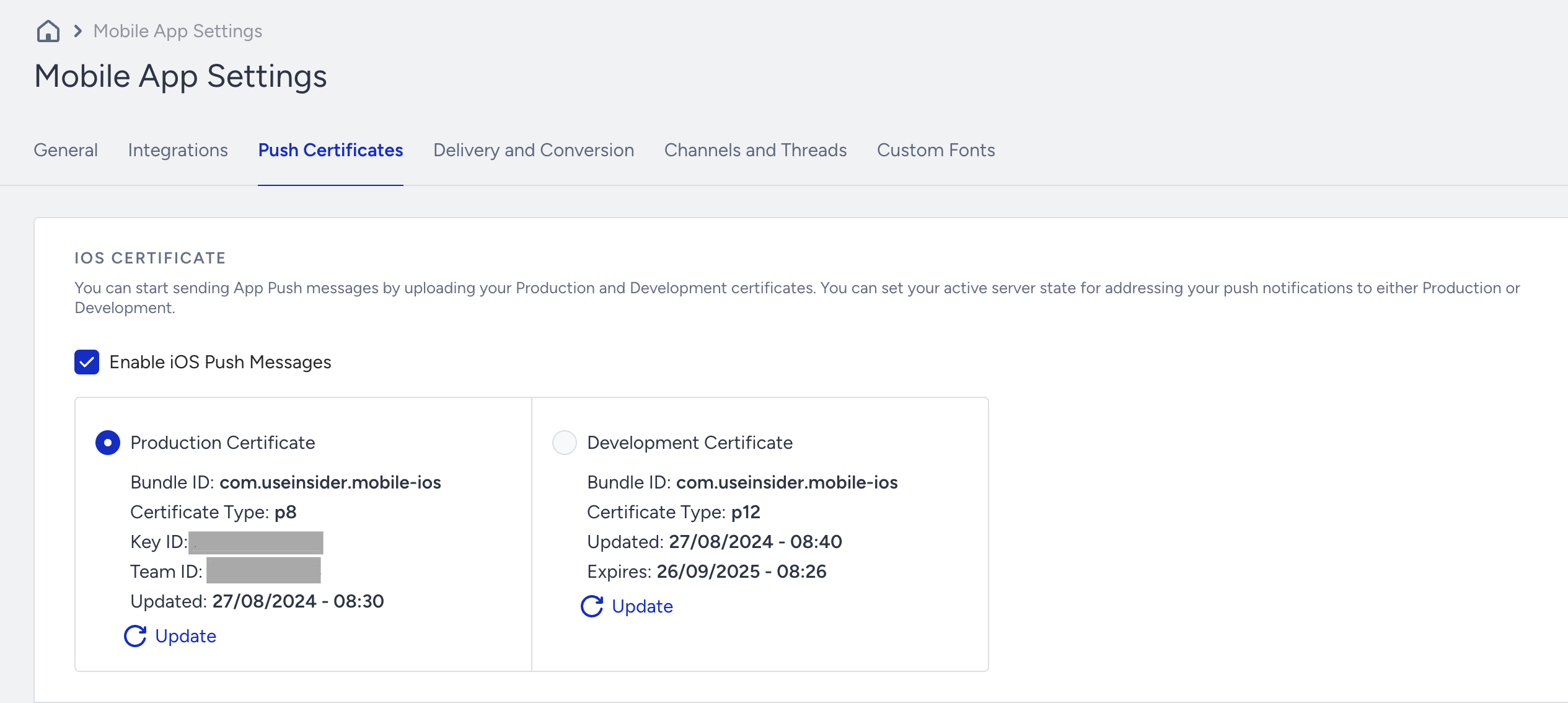
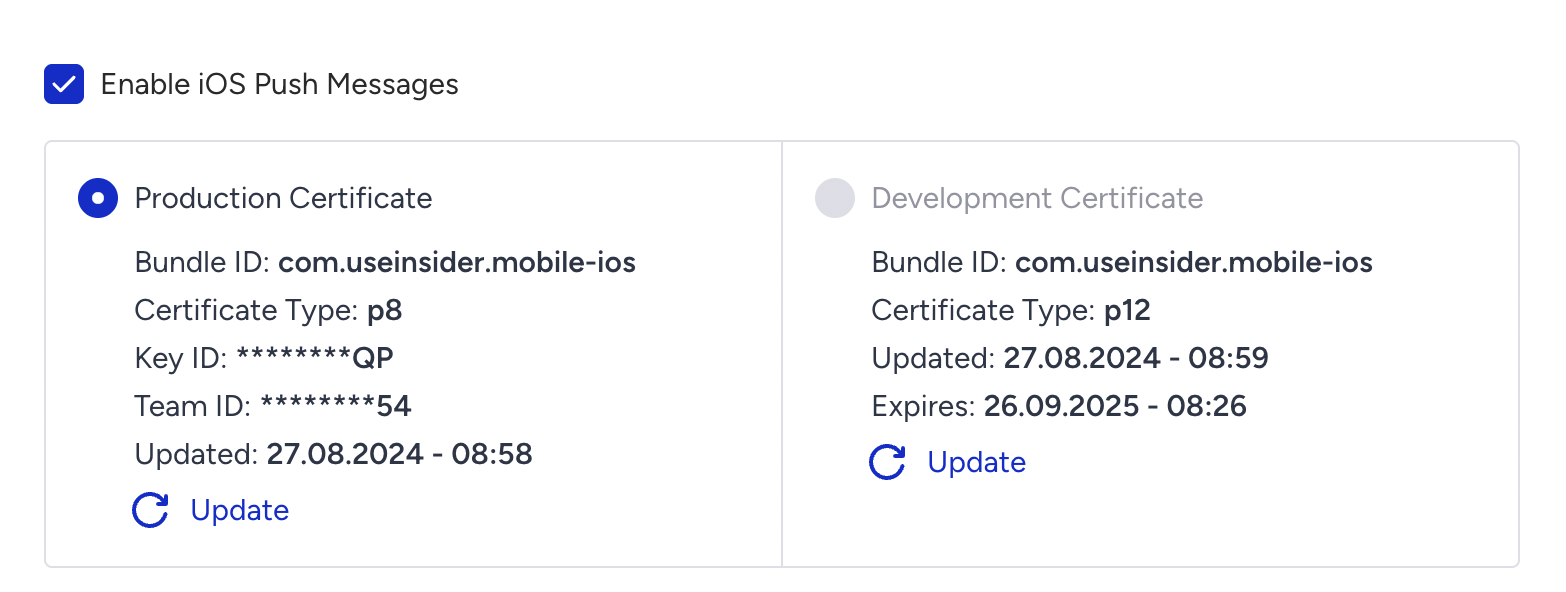
- You should create the push certificates and upload them to the panel.
- The iOS push certificates should not expire. If they are, no push will be delivered.
- The iOS Bundle IDs in the Push Certificate should match the package names of the iOS devices, with Development and Production States accordingly. If these do not match, users will not receive any push notifications.
- You should check the iOS panel server state on Settings > Mobile App Settings > Push Certificates. The application build type and the server state should match. You can see the build type for specific devices in the test device list by the keyword near the Apple logo. Users who downloaded the app from the App Store or Play Store are considered production devices, and the server state of the production panel should be set as production.
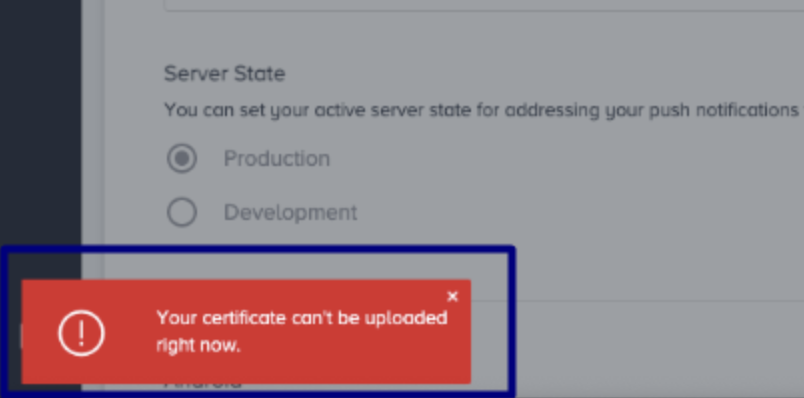
- If you get the following error when updating the push certificates, you may have missed a step during push certificate creation. Make sure to complete the steps correctly in the p8 and p12 push certificates.
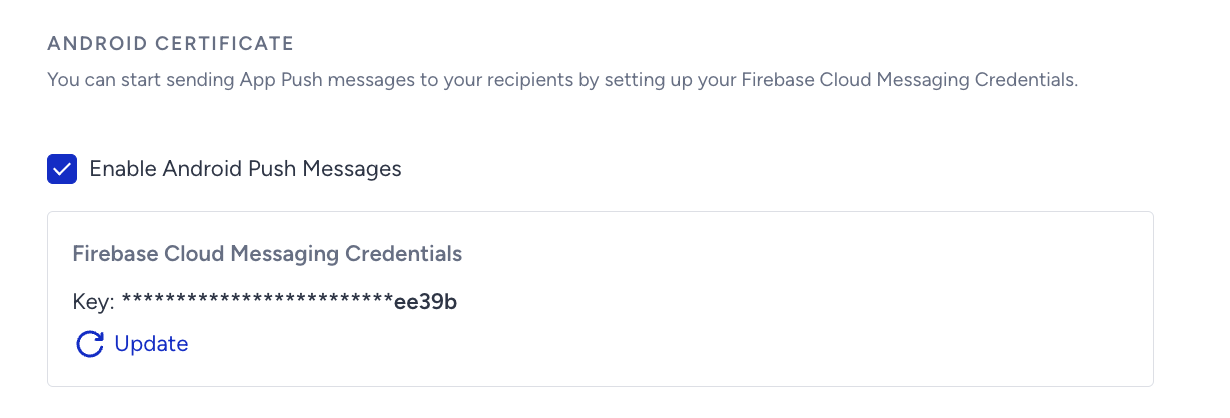
- Android Push Messages from the panel should be enabled, and the Firebase Cloud Messaging API Key should be added. You can confirm it through Settings > Mobile App Settings > Push Certificates > Android Certificate.
- If the app push is not sent at the time, you should set the time zone correctly in Mobile App Settings.

User-Level Troubleshooting
Follow the steps below to determine whether your user cannot receive app push notifications.
- You should add your device as a test device and send a test push notification to your device. After the test push is sent, the system will provide a test push report. You can check this test push report and the respective error on the FAQ about the Test Devices page to understand why you are not receiving the app push.
- You should check your user on the User Profiles to ensure the push opt-in is true to be reachable on the app push channel and the GDPR opt-in is true. Also, the user must have an available, valid token.
- If you send a test push to your device successfully but not a campaign, you can check your device model. If you have more than one device registered to your user, the system sends the app push to the last active device. Make sure you are receiving the test push on the correct device.
Campaign-Level Troubleshooting
If a user is receiving push notifications regularly but not certain campaigns, you can check the following settings.
- You can check Mobile App Settings > Delivery and Conversion > Global Frequency Capping to understand whether your push notification is capped due to the message limit.
- You can check the User Profiles to understand if the user meets the segment criteria in the campaign. You can see the related events and attributes on the user profile. You can also export your mobile app segments to analyze them. If a segment does not work, it may mean the events and attribute integration have not been completed correctly. In this case, you can check the test lab to check the data integration.
Campaign Reports
Your campaign reports might show delivered app pushes, but you may not have received them, or there may be no open logs. In this case, your development team should check the push handling methods if you have more than one vendor integrated (e.g., Firebase or any other vendors).
Control Group on the Campaign
If a user receives an app push with empty content in a campaign that includes a control group, your development team should review the push handling methods. This is particularly important if you have integrated more than one vendor (e.g., Firebase or other providers).