The ability of a website or mobile app to keep visitors coming back over time is referred to as user retention. It gauges how effectively a digital platform keeps its user base and encourages users to utilize the platform or service frequently. A successful and engaging platform will generally have a high user retention rate, whereas a service that fails to offer value to its users will likely have a poor user retention rate.
Retention is an engagement analysis feature that breaks down users' event behavior across all channels, such as web, application, API, etc, starting from their first visit and analyzing through time.
The video below briefly explains the retention cohorts.
If this video does not load in your region, you can watch it on our YouTube Channel.
Read cohort
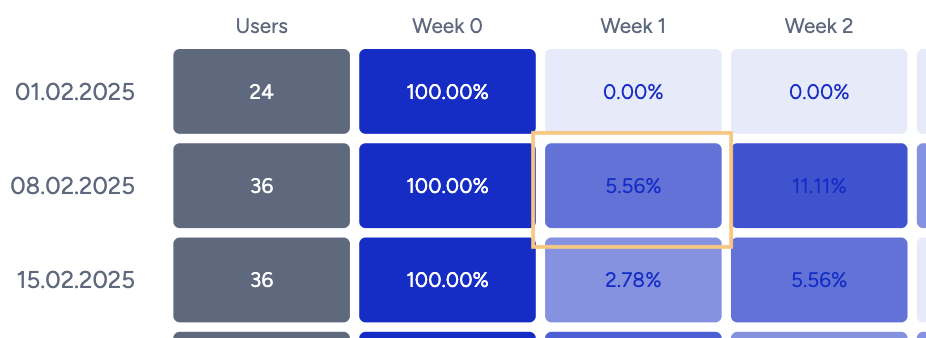
Even though retention cohorts are quite commonly used in analytics solutions, not many marketers know how to utilize them properly. Let’s study an example cohort analysis with the product page view event.
You can view the percentage of users in each cohort and also the total number of users. When the “123” toggle is selected, the cohort table will display metric values (i.e., total user counts). When the “%” toggle is selected, the table will show percentage values instead.
.png)
First row interpretation
Users: The entered Users count in the first column shows the total number of users who entered each cohort.
Week 0: This will be the starting point. Let's take 100% of users who triggered the product page view event in that first week and assume it is 10,000 users.
Week 1: 4.00% of users triggered the product page view event again in Week 1, from those who performed the product page view event in Week 0. This means 400 users are retained in Week 1.
Week 2: 2.62% of users triggered the product page view event again in Week 2, after those who triggered the same event product page view in Week 1 and 0 consecutively. This means 262 users are retained in Week 2.
Second row interpretation
Users in the second row are users who triggered the “product page view” event in the 2nd week.
.png)
These users are not the same as those who were in the group of users marked in green below.
Let's take another example case with two users.
User A: Triggered the product page view event on the first week (01/07/2024) again on the 2nd week (08/07/2024).
User B: Triggered the product page view event only on the 2nd week (08/07/2024).
Differences:
The ones marked in the green box (4.00%) are users who triggered the product page view event in the previous week and did it again. These users are inclusive of the one below (marked as Week 0, on the 2nd row). This will be User A only.
The ones marked in the yellow box (week 0 on the 2nd row) are users who triggered the product page view event that week. These users will include User A and User B.
Create a user retention report
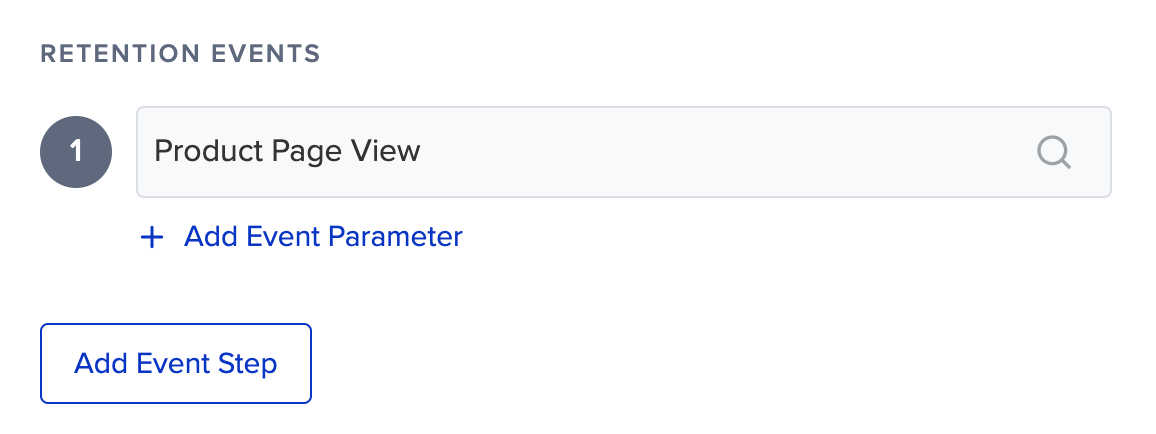
To create a user retention report, you should first select the event you want to analyze. At this stage, you can add event parameters to the selected event and generate your charts according to these parameters. You can also select more than one event for retention analysis. Each event will have its analysis and appear as a separate segment in the chart.
Then, you should select a date range. You can create the retention analysis within periods such as one day, the last 30 days, last year, or within the date range you specify.
Your title goes here
Retention cohorts are created based on the user’s first-touch date on the platform, not on the occurrence time of the selected event. This means the selected date range defines when a cohort can be created, not when the event occurs. Users who triggered the event within the selected range but were identified before that range will not be included in the cohort.
Users can use your services from different sources, such as the web or mobile, or you can pass your users' data from your other sources through an API. Source selection enables you to set your retention analysis from specific sources.
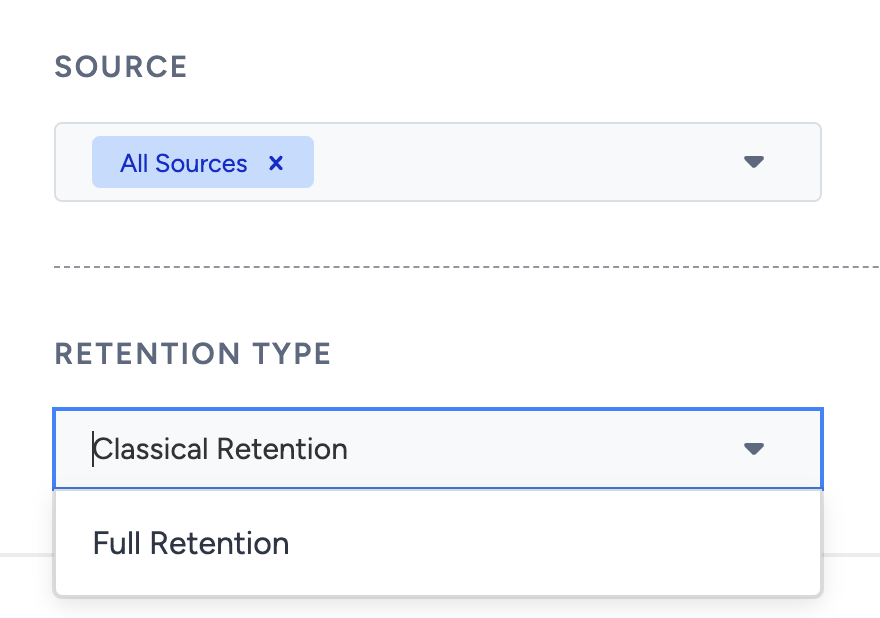
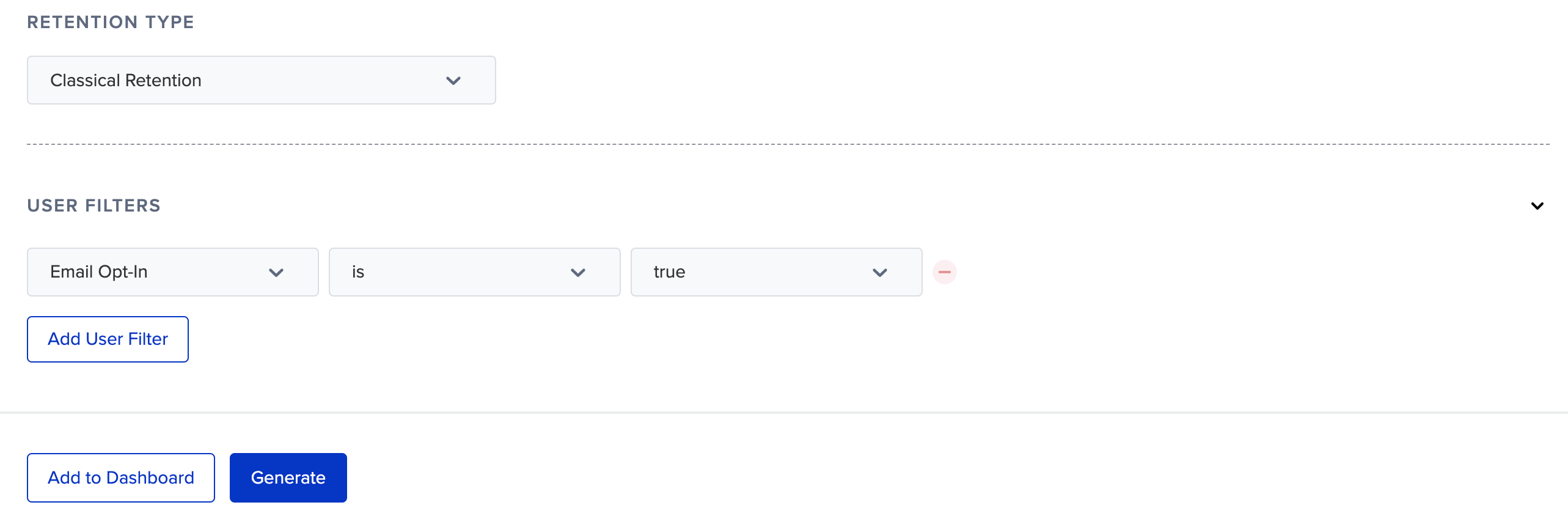
You can select a calculation method: Full or Classical.
Full Retention: Considers the users who have not skipped a day or broken the retention cycle.
Imagine an app with 100 new users every day for 5 consecutive days during the first week of the month (Week 0). That is a total of 500 users. On Saturday, the 6th day of the month, 60 users return. During the subsequent week (Week 1), we see that 30 unique users come back on the 9th day and 40 users on the 13th day. We will count this as 70 unique users returning for the week. In the third week (Week 2), 20 users return on the 21st day. That makes 20 users the total of the week. Therefore, Week 1 retention is 70/500 or 14%, while Week 2 retention is 20/500 or 4%.
You can consider the users who have not skipped a day or broken the retention cycle. For example, suppose a user visits your platform on Day 2, Day 3, Day 4, and Day 6 in a week. In that case, this user is considered a fully retained user only until Day 4 (included), as they had consecutive visits without interruption.
Day 1 | Day 2 | Day 3 | Day 4 | Day 5 | Day 6 | Day 7 | |
|---|---|---|---|---|---|---|---|
Session | No | Yes | Yes | Yes | No | Yes | No |
Retained | No | Yes | Yes | Yes | No | No | No |
Classical Retention (Day N Retention: Considers the percentage of new users who come back to your platform any day regardless of any other visit or session on the following days. For example, if a user visits your platform on Day 6, they are considered as retained for Day 6.
The following table also illustrates a user's visits and whether they are retained or not. They visit on Day 1, 2, 3, and 5, and Day 4 is not counted as a retained day. However, when they come back on Day 5, we will recount them back (comparing to full retention, where it will not be counted anymore).
Day 1 | Day 2 | Day 3 | Day 4 | Day 5 | Day 6 | Day 7 | |
|---|---|---|---|---|---|---|---|
Session | Yes | Yes | Yes | No | Yes | No | No |
Retained | Yes | Yes | Yes | No | Yes | No | No |
Finally, you can set your report for different user segments with user filters as an option.
Add your cohorts to a dashboard
Before or after generating your cohorts, you can also add them to an existing dashboard, or create a new one to add it.
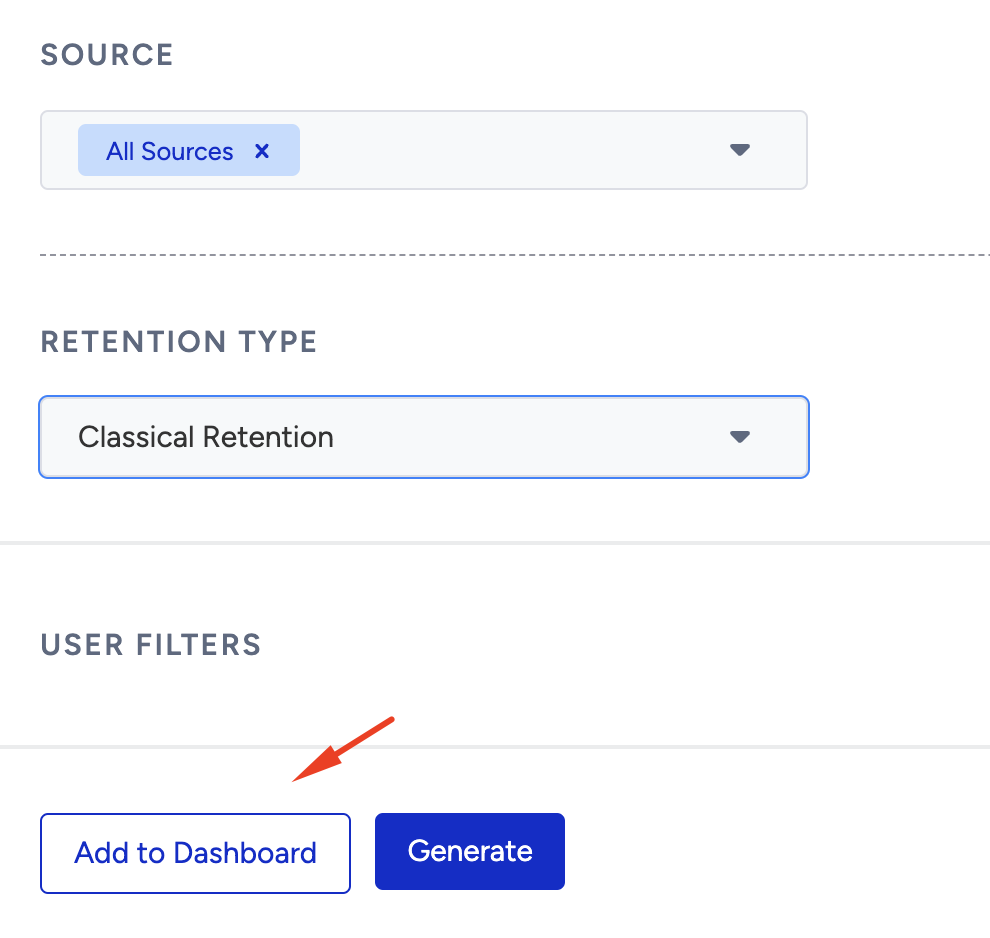
1. Click the Add to Dashboard button. A window will appear in the right hand side of the screen.
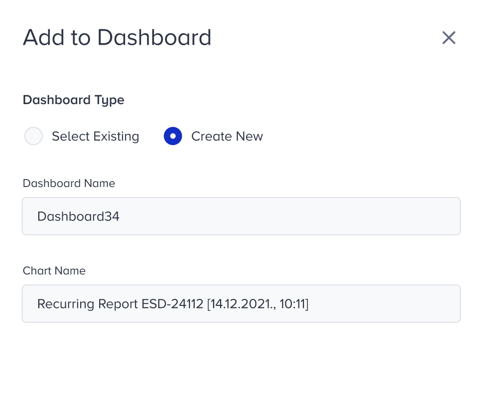
2. Choose dashboard from: Select Existing or Create New to add your flow to.
Select Existing displays the existing behavior dashboards you can select from..png)
If you do not want to add your cohorts to your existing dashboards, or you do not have any existing dashboard, you can also create a new one.
3. The example below displays a dashboard named User Retention with a chart named Homepage View. You can have multiple charts under one dashboard.
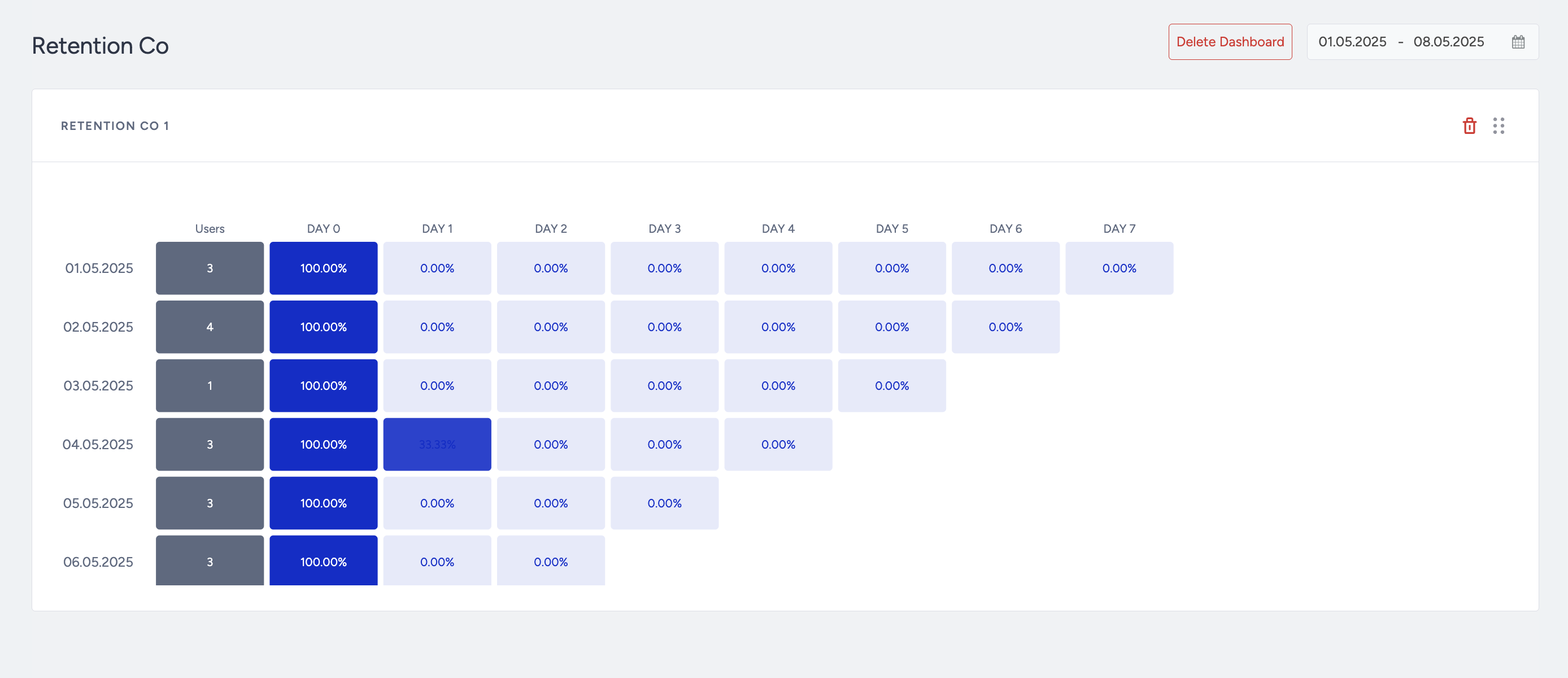
You can choose more than one event on the retention cohort. In the custom dashboards, you can display only the first event selected. That's why make sure to have the event you want to save under the first event before saving your dashboard.
4. Click the Add button on the bottom of the page to add your cohorts to the selected dashboard.
Once created, your dashboards will be listed under Behavior Analytics > Behavior Dashboards.