You cannot make any changes to External Platform Integrations without having either an Administrator or an Editor with PII access in InOne. Refer to User Roles for further information.
You can configure the Insider One Connector for HubSpot to allow data to be sent to Insider One with ease via Insider One's InOne panel.
With this guide, you can find answers to the following questions:
- What are the use cases for HubSpot integration??
- What should I do before HubSpot configuration?
- How can I set up HubSpot?
- How can I authenticate the Connector for HubSpot from Insider One's InOne panel?
Use Cases
By utilizing the HubSpot and Insider One connectivity capabilities, you can quickly send HubSpot data to Insider One and use all of Insider One's features. The HubSpot connector enables you to sync selected user data from a Contact list.
During configuration, you can also set filters to decide which data should be synced. For example:
- You can get users whose emails do not contain “@yourbrandname.com”
- If you want to keep phone numbers with a country code and HubSpot has phone numbers registered without a country code, you can only migrate those with a country code.
After having set up the data connection, you can enable such use cases:
- You can sync the data you collect with HubSpot with Insider One and include it in an Architect journey. For example, you can send a personalized SMS or email to users who do not return your sales calls. By placing content such as a poll in the content, you can schedule the new call for a date chosen by the user.
What should I do before configuration?
Before configuring the connector, you should decide and define the following points clearly:
- You need to select the identifier(s) to be used. Insider One supports email, phone_number, uuid identifiers by default. You can use a custom user identifier, too.
- You need to provide a mapping for the attributes you want to retrieve from HubSpot and sync to Insider One. You can refer to the table below:
| Column Name on HubSpot Table | Attribute Key on Insider One's InOne | Identifier | Attribute Type on Insider One | Attribute Type |
|---|---|---|---|---|
| Yes | Default Attribute | String | ||
| department | department | No | Custom Attribute | String |
How can I set up HubSpot?
To connect Insider One with the HubSpot API, you will need to create an “App” within HubSpot:
- Log in to the HubSpot Developer Portal.
- Follow the HubSpot documentation to create an application.
- In the Auth tab, you will see Client ID and Client Secret. Note these to use in the connector setup later on.

- You can see the redirect URL that creates the link between your Insider One and HubSpot on the page where the Client ID and Client Secret are entered.
- Redirect URL: https://insider.cyclr.com/connector/callback
- It’s not necessary to set Scopes at this point - see the next section for details on this.
- The default scopes of < crm.objects.contacts.read > & < crm.objects.contacts.write > will be requested by the Insider One Connector if you leave the input empty.
How can I authenticate the Connector from Insider One's InOne panel?
- First, you need to generate the UCD API Key. This key will be automatically used during the connector setup within Insider One's InOne panel.
- Navigate to Components > Integrations > External Integrations.
- Click on the HubSpot platform.
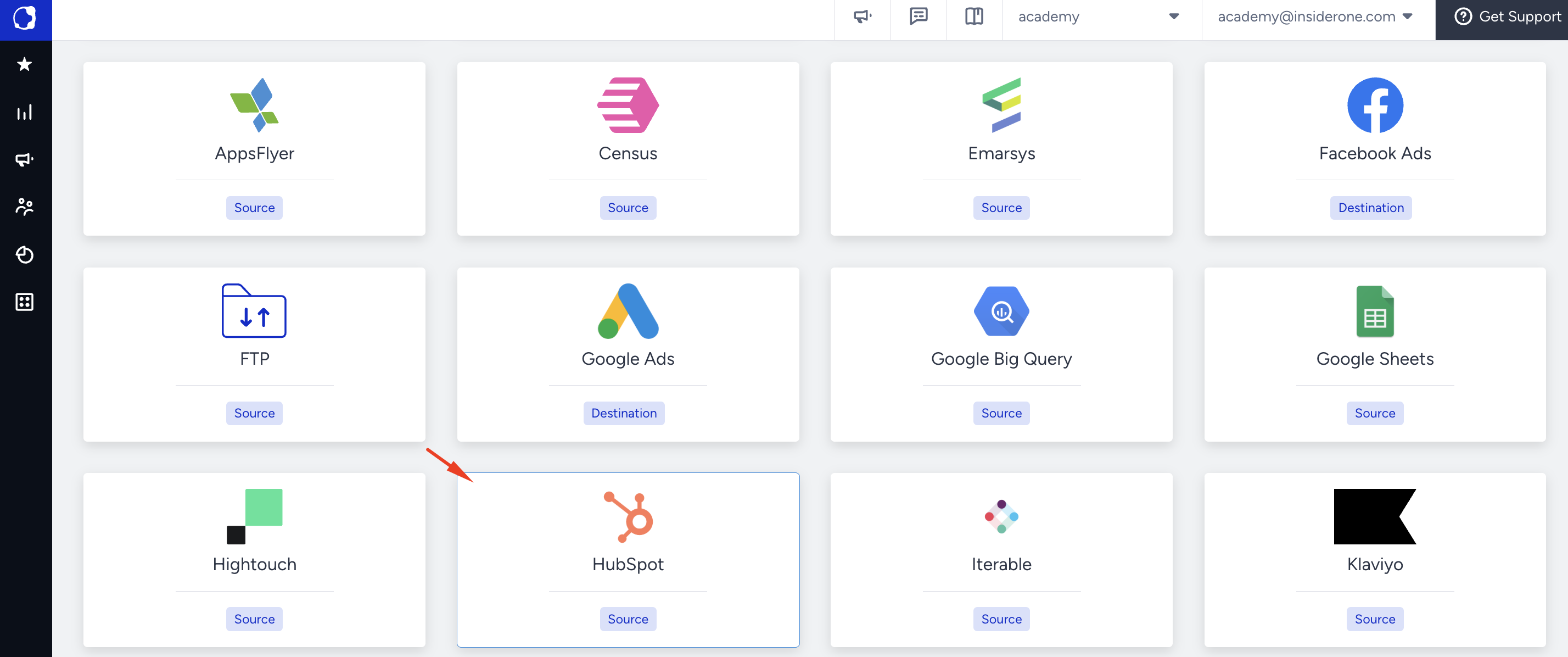
- Click the Integrate button for the desired connector template.
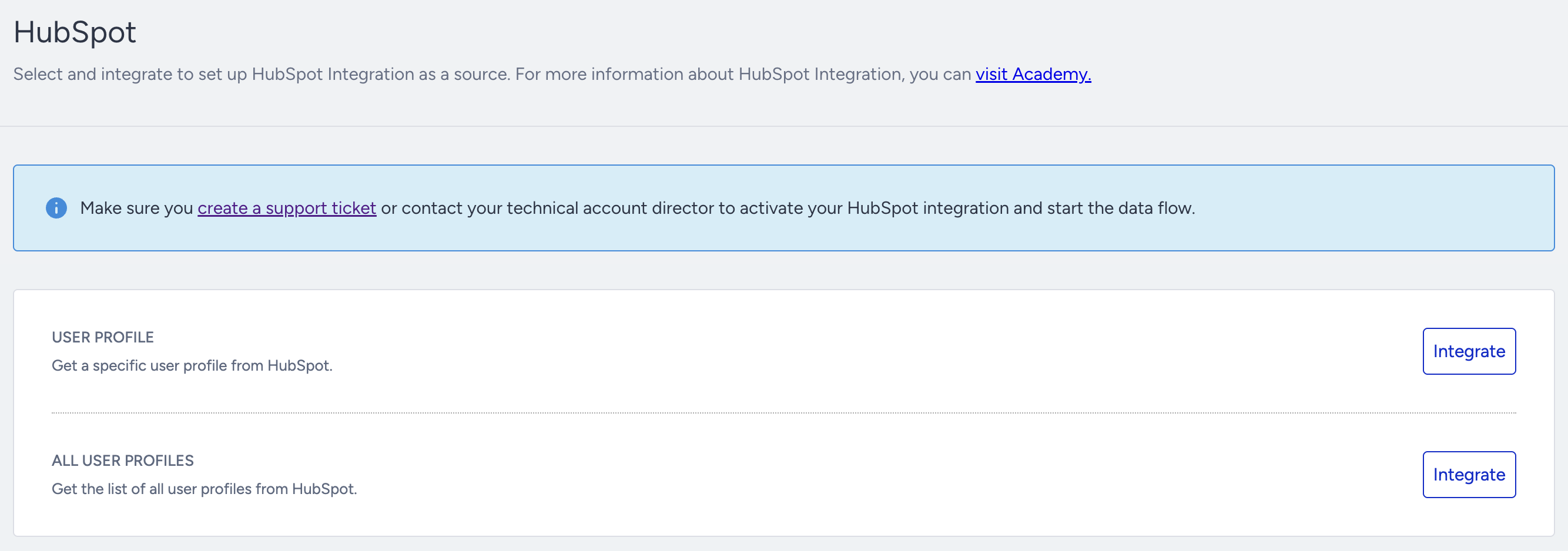
- Fill in the necessary fields shown. Remember, we suggested you note them down when setting up your HubSpot account.
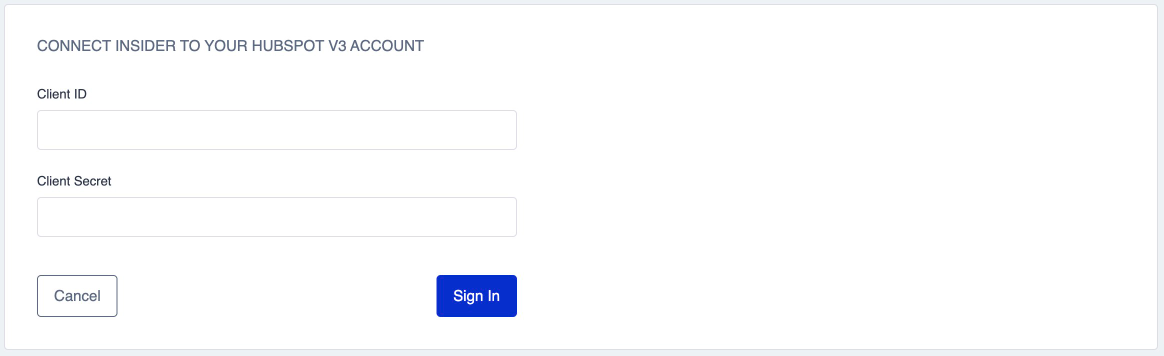
- After filling in the fields, click Next and log in to the HubSpot account to authenticate the connector. Note that you can do this only once.
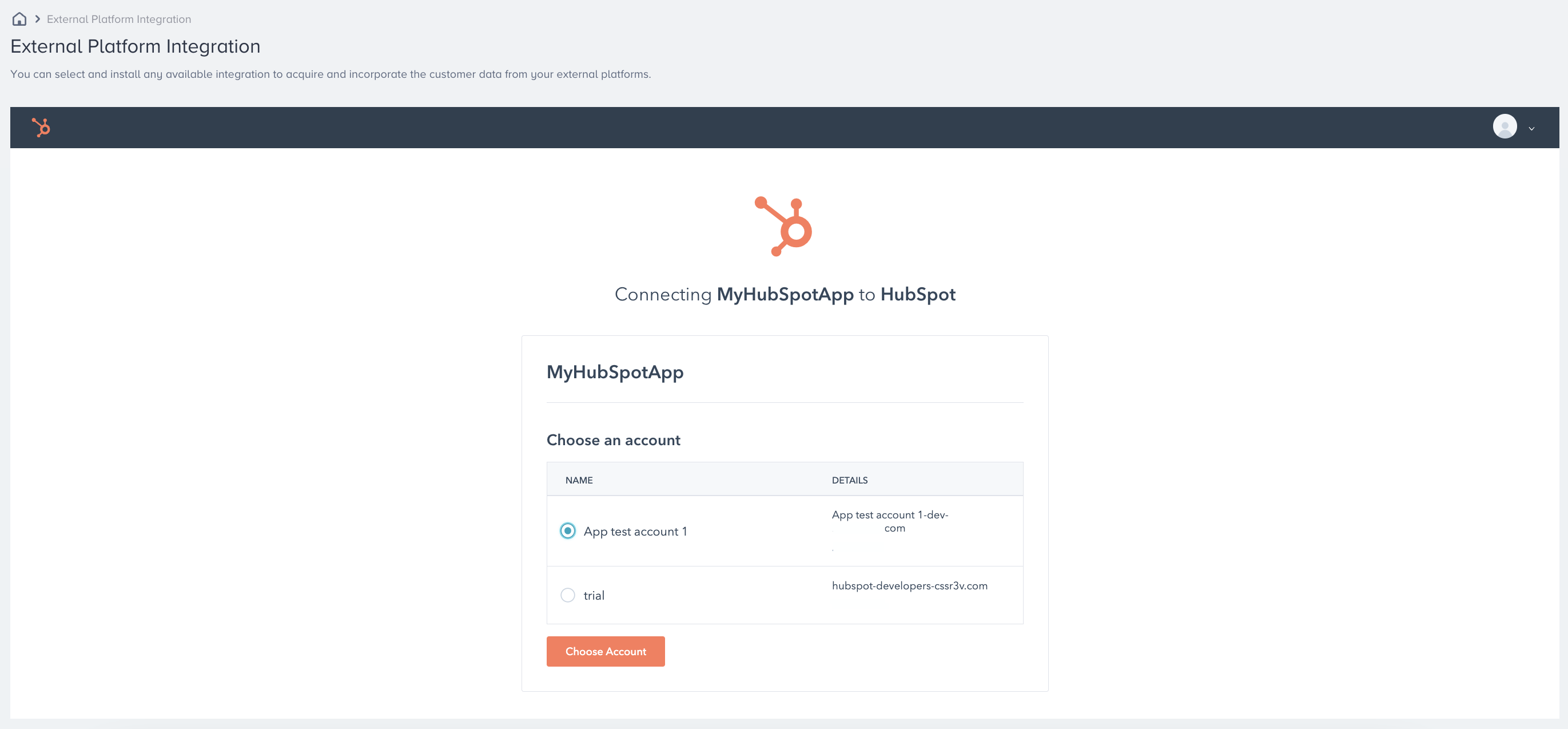
- By default, all users will be asked to give consent to the following permissions/scopes:
- < crm.objects.contacts.read,crm.objects.deals.read > and < crm.objects.companies.read >, and where appropriate (these are optional scopes), you will be asked to give consent to content reports and ecommerce forms.
- You will then be prompted to log in, select your HubSpot, and authorize access to the connector.
Finalizing the Setup
After the authentication, Insider One will complete the connector field mappings according to the schema you provided. Once the mapping is complete, Insider One will start the connector.