You cannot make any changes to External Platform Integrations without having either an Administrator or an Editor with PII access in InOne. Refer to User Roles for further information.
Leveraging the Insider One and Google Sheets integration capabilities, you can easily send the data from Google Sheets to Insider One and utilize it with Insider’s extensive capabilities.
You must register Insider One on Google as your own Project to receive the OAuth Client ID and Client Secret values to enable Insider One to authenticate with Google. You can refer to Google's article for further information.
With this guide, you can find answers to the following questions:
- What are the use cases for Google Sheets and Insider One integration??
- What should I do before the Google Sheets configuration?
- How can I register my application on Google?
- How can I enable Google APIs?
- How can I authenticate the Connector for Google Sheets from Insider One's InOne panel?
Use Cases
Using the Google Sheet connector enables you to sync selected or all rows from a specific sheet.
During configuration, you can also set some filters to decide which data should be synced. For example;
- You can sync up the leads whose emails do not contain “@yourbrandname.com”.
- Assume you have 300 rows of data in a sheet, and you can sync only the rows you choose.
After having set up the data connection, you can enable such use cases:
- You can also keep the data in Google Sheets as a segment on Insider One by synchronizing it. In this way, you can create special campaigns for that segment and analyze the segment.
- You can include users in the journey by synchronizing the data collected to Google Sheets with lead collection. In line with the user's past characteristics, they can be included in the journey and become more active.
What should I do before Google Sheets configuration?
Before configuring the connector, you should decide and define the following points clearly:
- You need to select the identifier(s) to be used. Insider supports email, phone_number, and uuid identifiers by default. You can use a custom user identifier, too.
- You need to provide mapping for the attributes you would like to get from Google Sheets and sync to Insider One. You can refer to the table below:
| Column Name on Google Sheets Table | Attribute Key on Insider One's InOne | Identifier | Attribute Type on Insider One | Attribute Type |
|---|---|---|---|---|
| Yes | Default Attribute | String | ||
| department | department | No | Custom Attribute | String |
How can I register my application on Google?
To register your application on Google, you need to have a project first.
Create a project
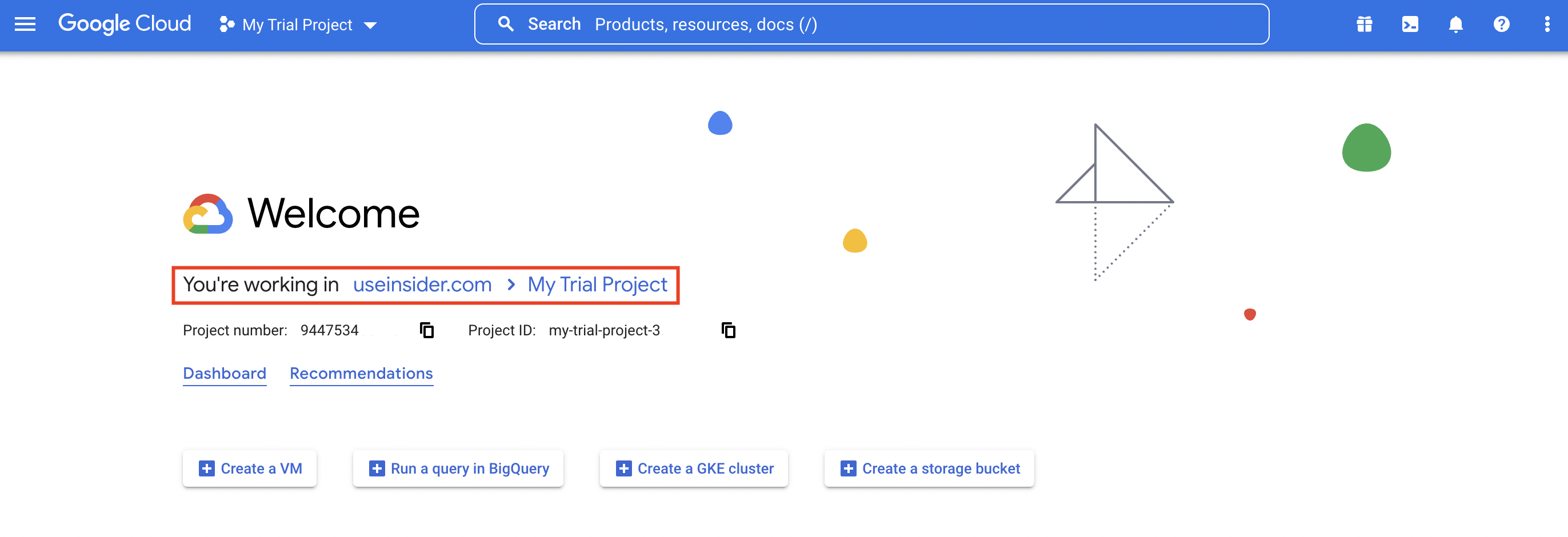
To create a project on Google Cloud, you need to sign up for a Google account or log in to your existing account if you have one. Then, go to the Google Developers’ Console to create your Project and enable the relevant Google APIs.
- To view your existing projects, click your organization name at the top to open a pop-up.
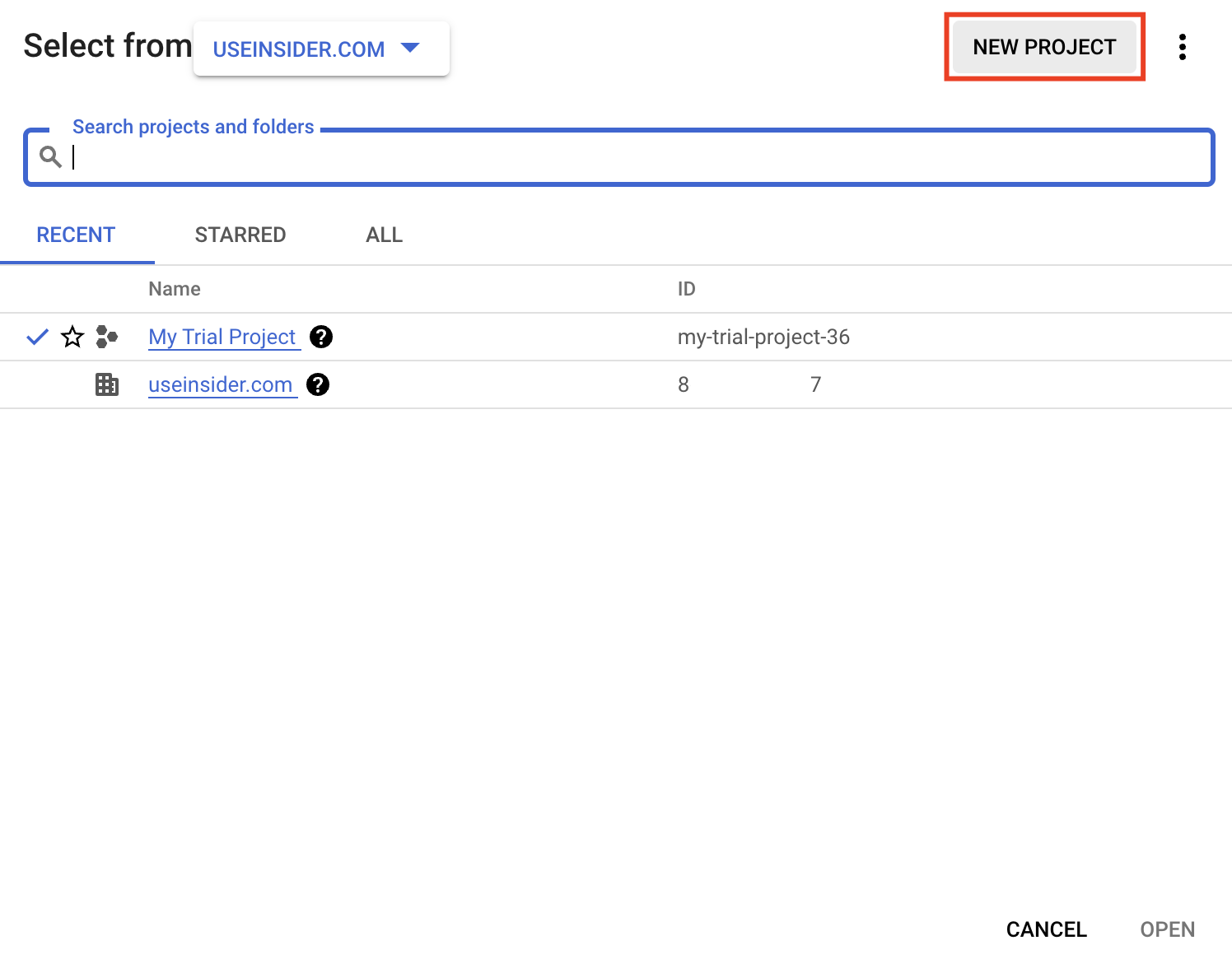
- Take the option to create a New Project in the top right.
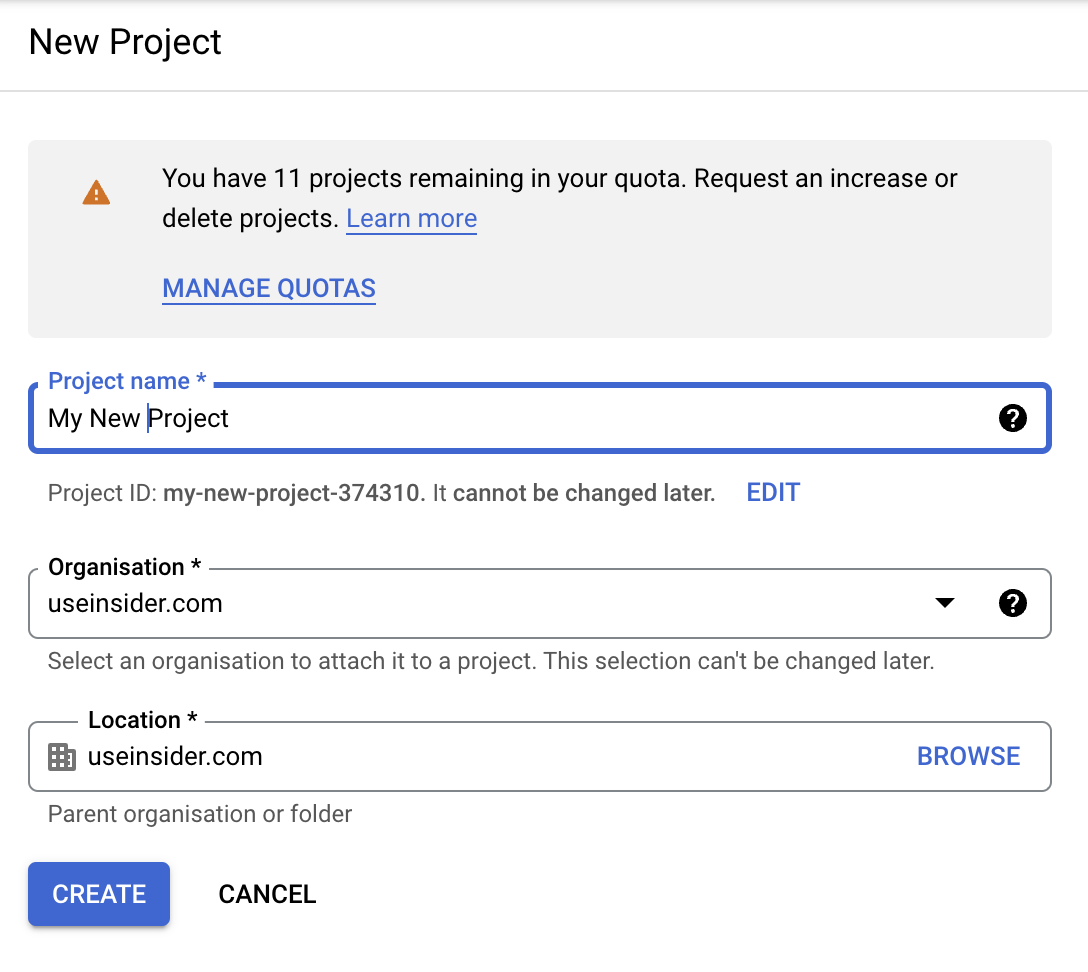
- Enter a name for your Project, it can be the name of your product if you want, and optionally you can set the Project ID to something other than the suggested value. Click on the Create button.
Set up application details
To set up application details,
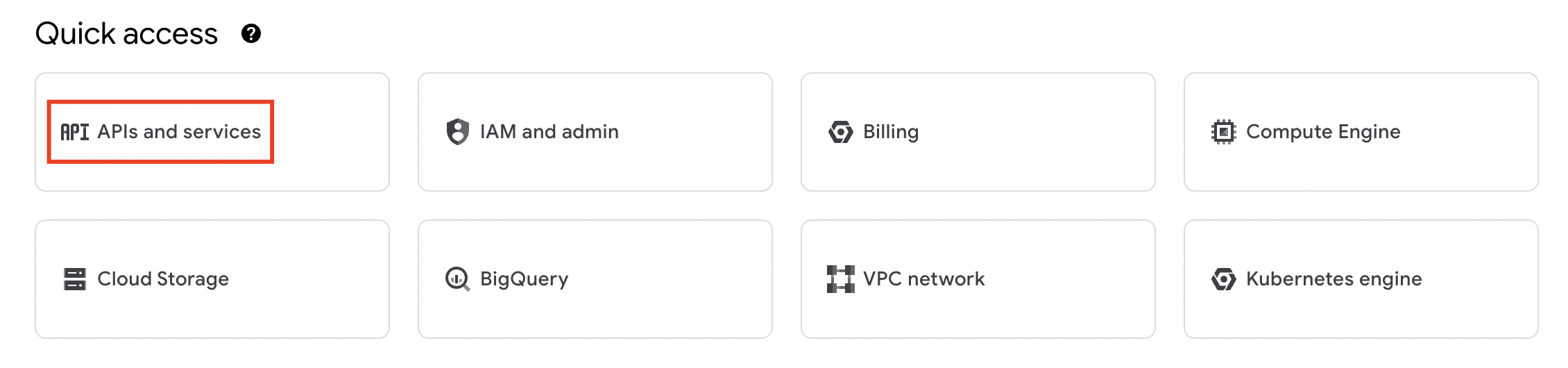
- Navigate to APIs & Services Dashboard.
- Choose the OAuth consent screen on the left. Values you enter here will be shown to your users when they authenticate an Insider One Google Connector.
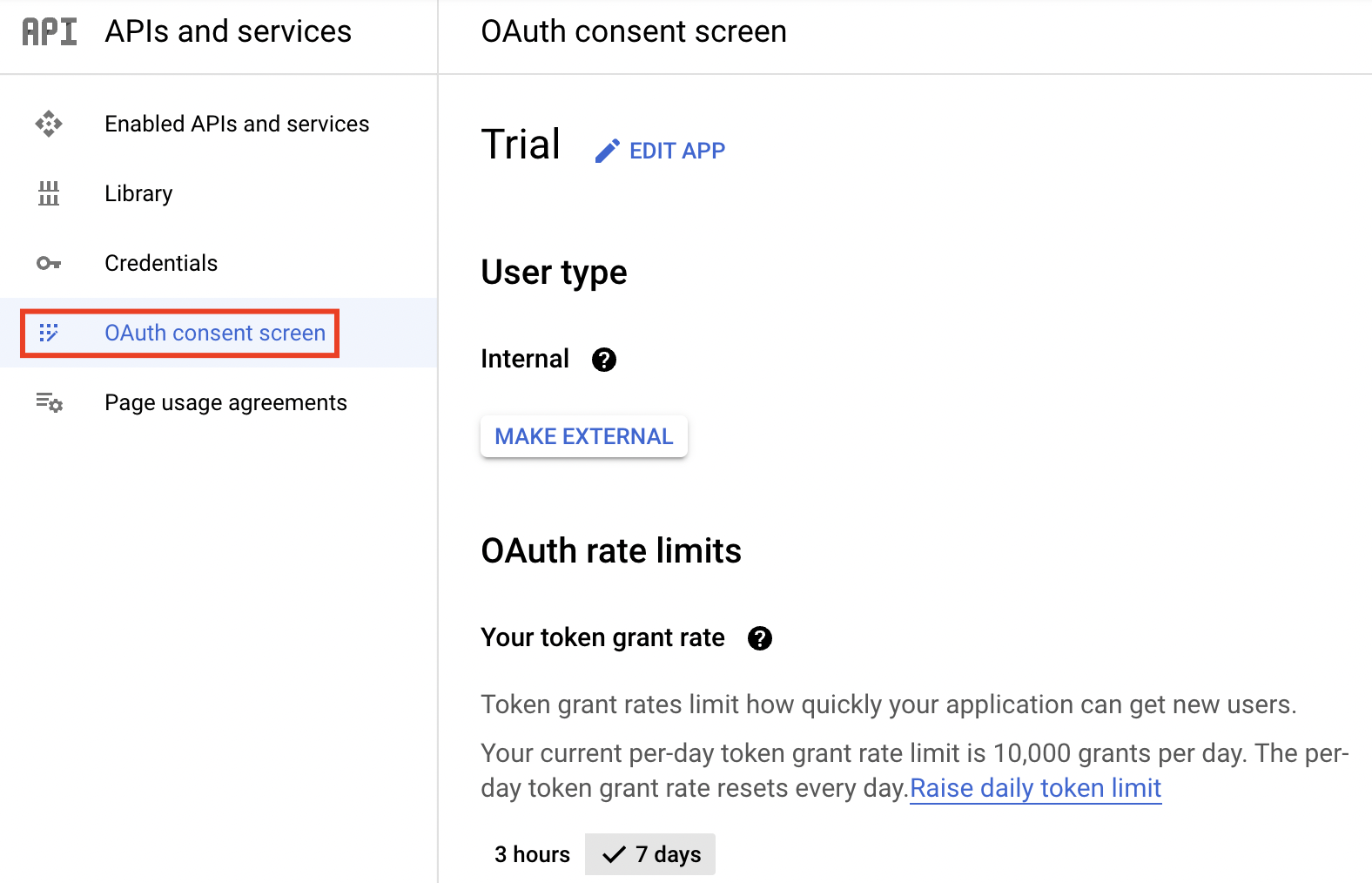
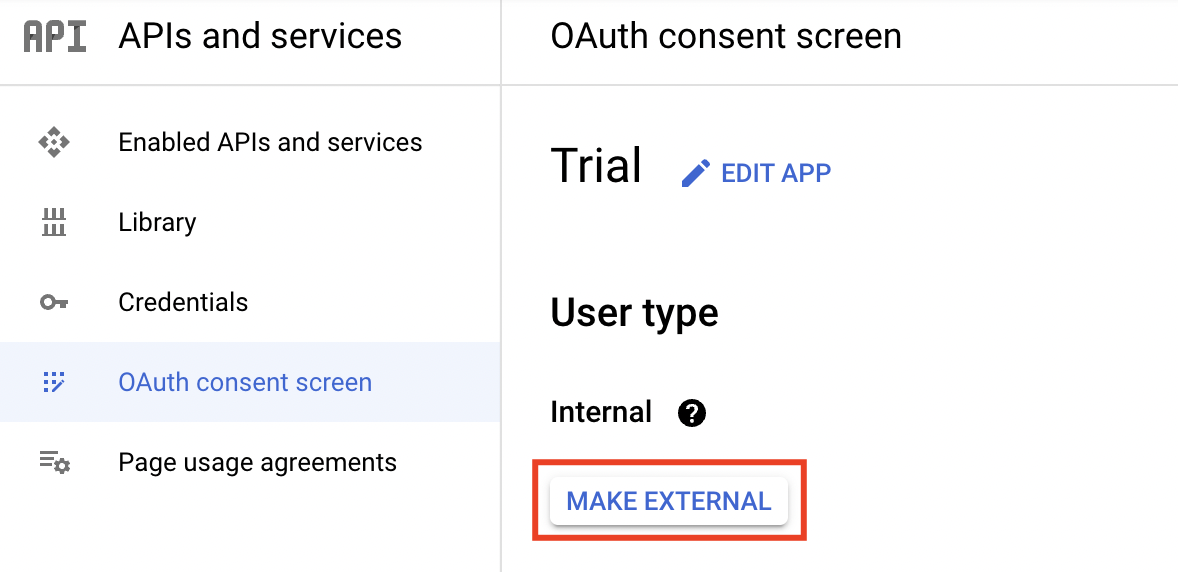
- Set Application Type to External.
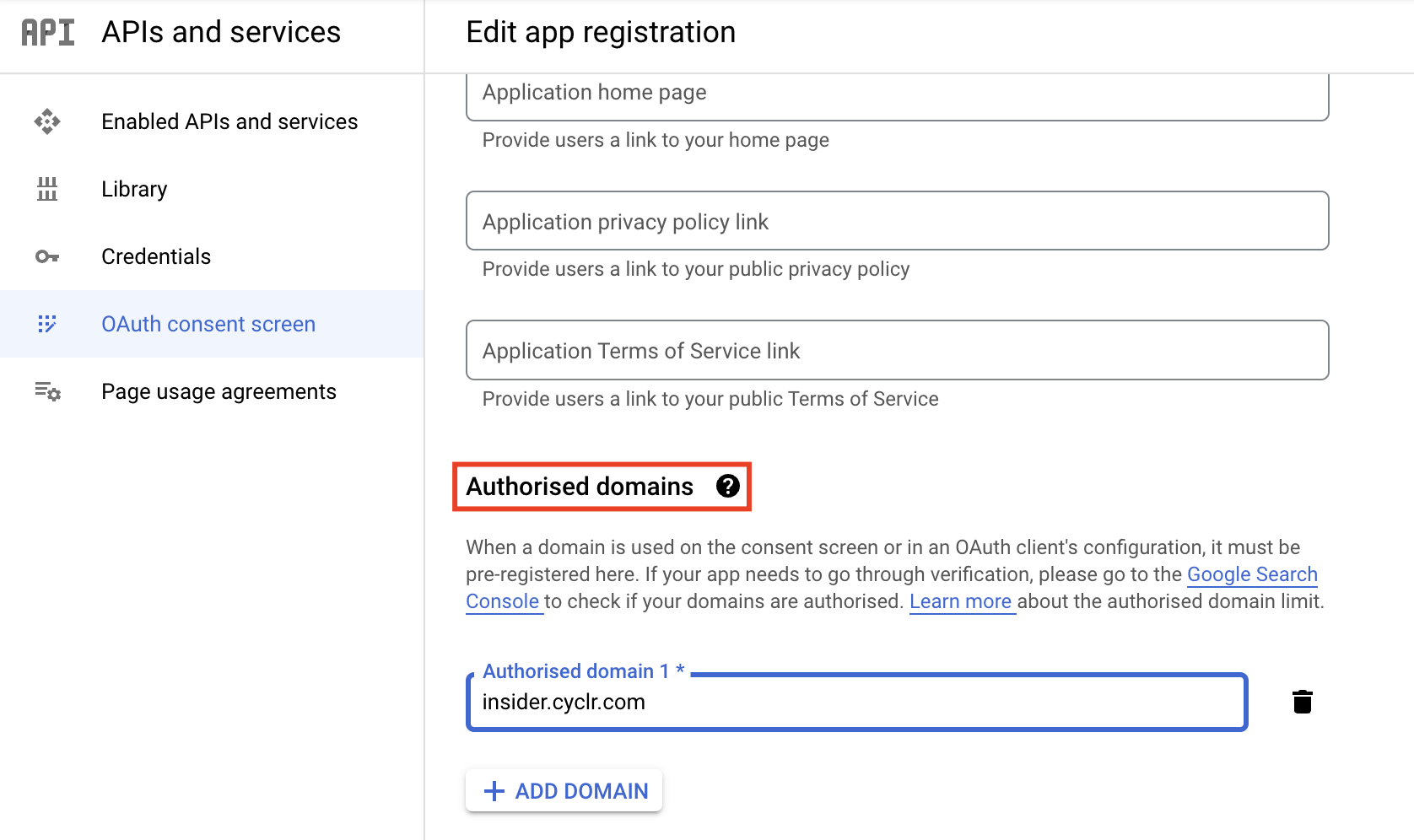
- Click on the Edit App option to enter a suitable name for your application, such as “My Product Integrations”, upload a logo, and set an appropriate email address for your users to get in touch through when needed.
- Under Authorised domains, add your Service Domain as < insider.cyclr.com >, and click Save and Continue.
 If you receive an error for that, remove the subdomain part and leave only the Top Level Domain. For example, change insider.cyclr.com to < cyclr.com >.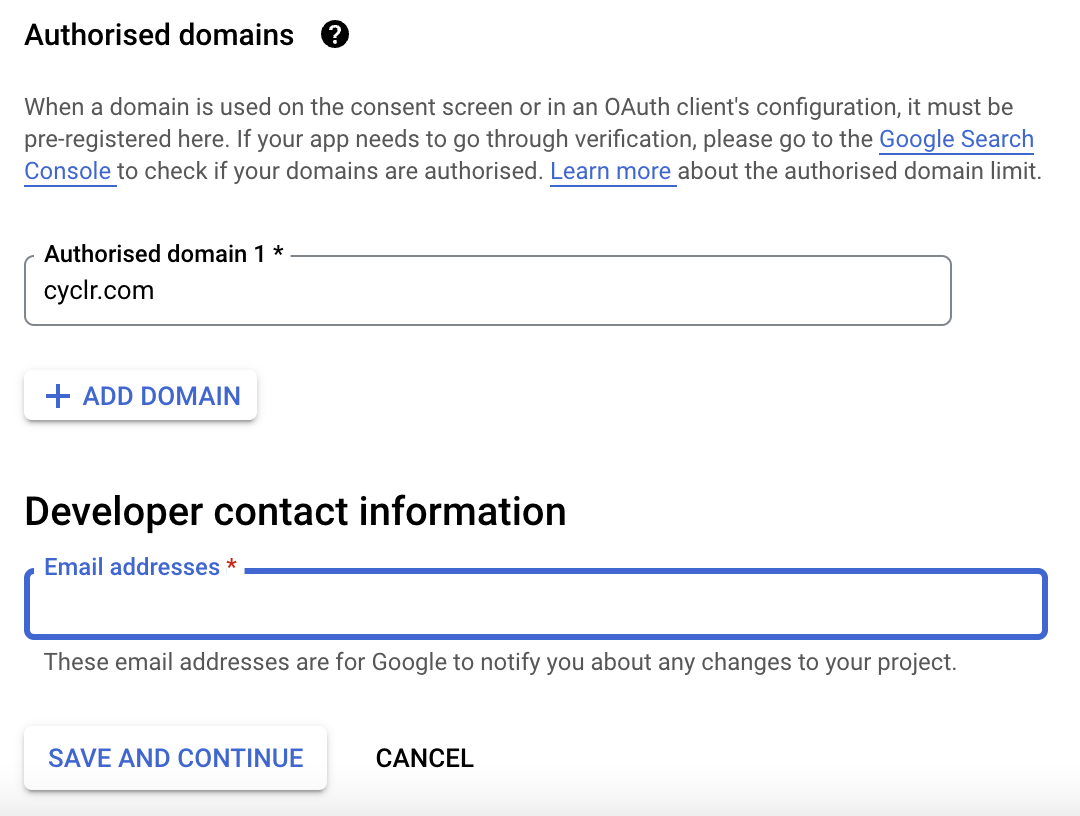
- On the next page, you can leave the default Scopes. Click Save and Continue to proceed. You can also share optional information on the respective page.
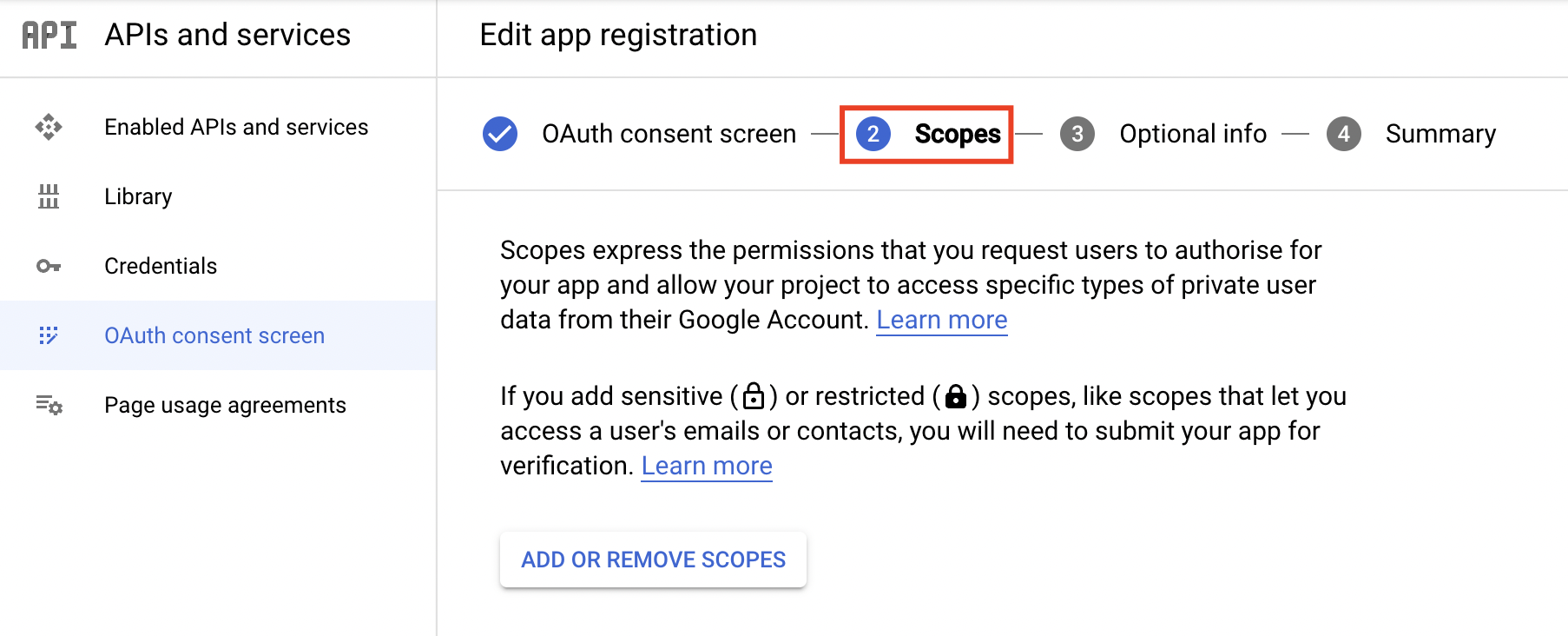
Create Google Credentials
To create your Google Credentials,
- Go to the APIs & Services dashboard and select the Credentials section. Click on the Click Credentials button.
.png)
- Select the OAuth client ID option from the dropdown menu.
.png)
- Choose Web Application as the application type.
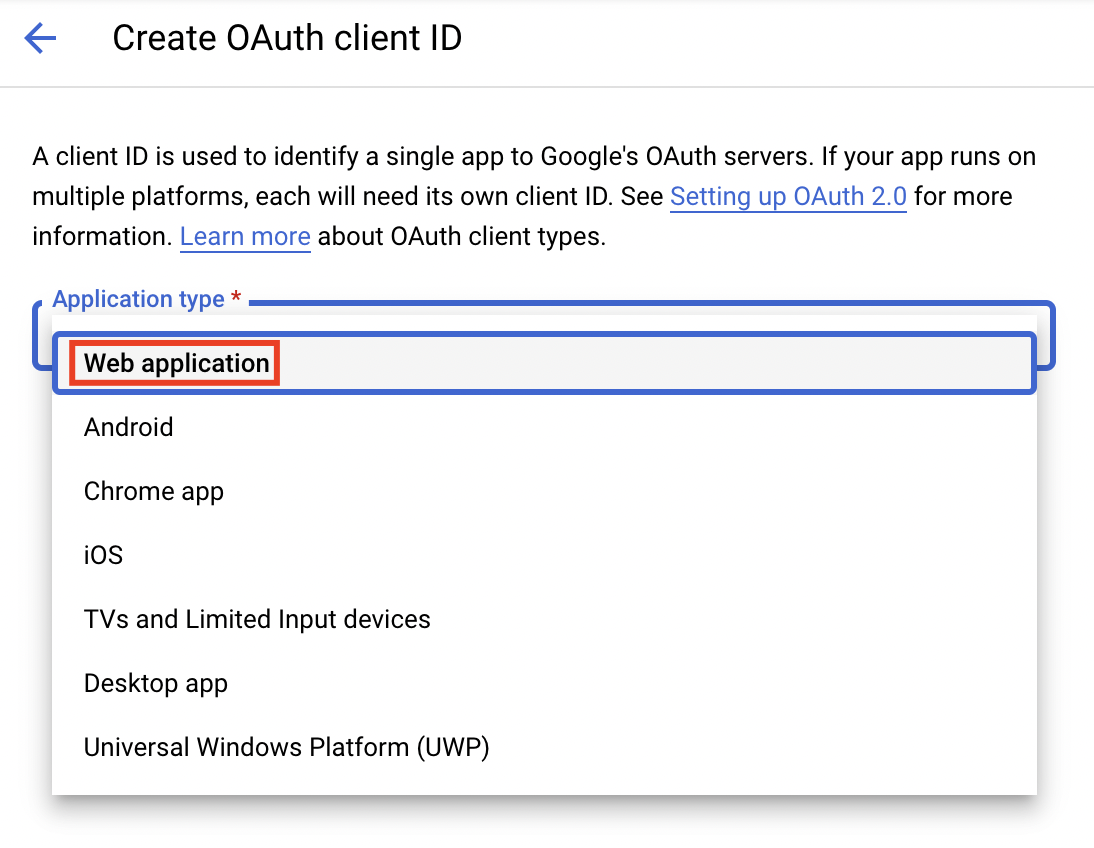
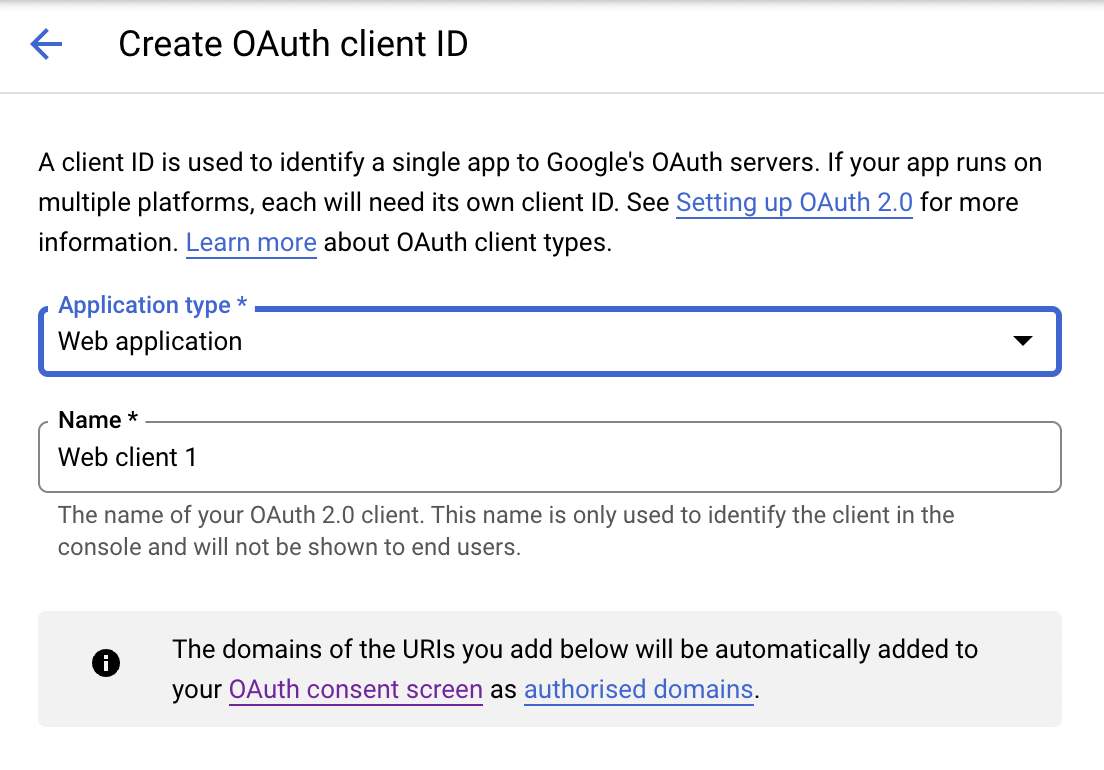
- Enter a Name for the OAuth 2.0 client ID. This name is only used to identify the client in the console and end users will not see it.
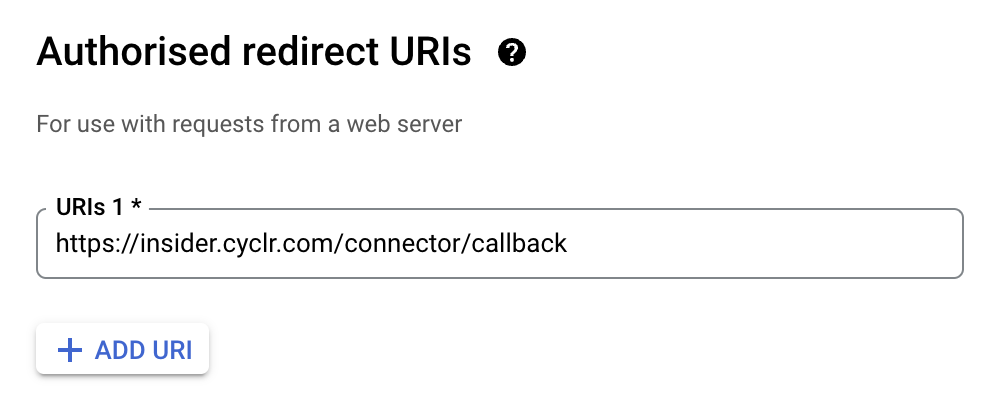
- Under Authorised redirect URIs, add < https://insider.cyclr.com/connector/callback >
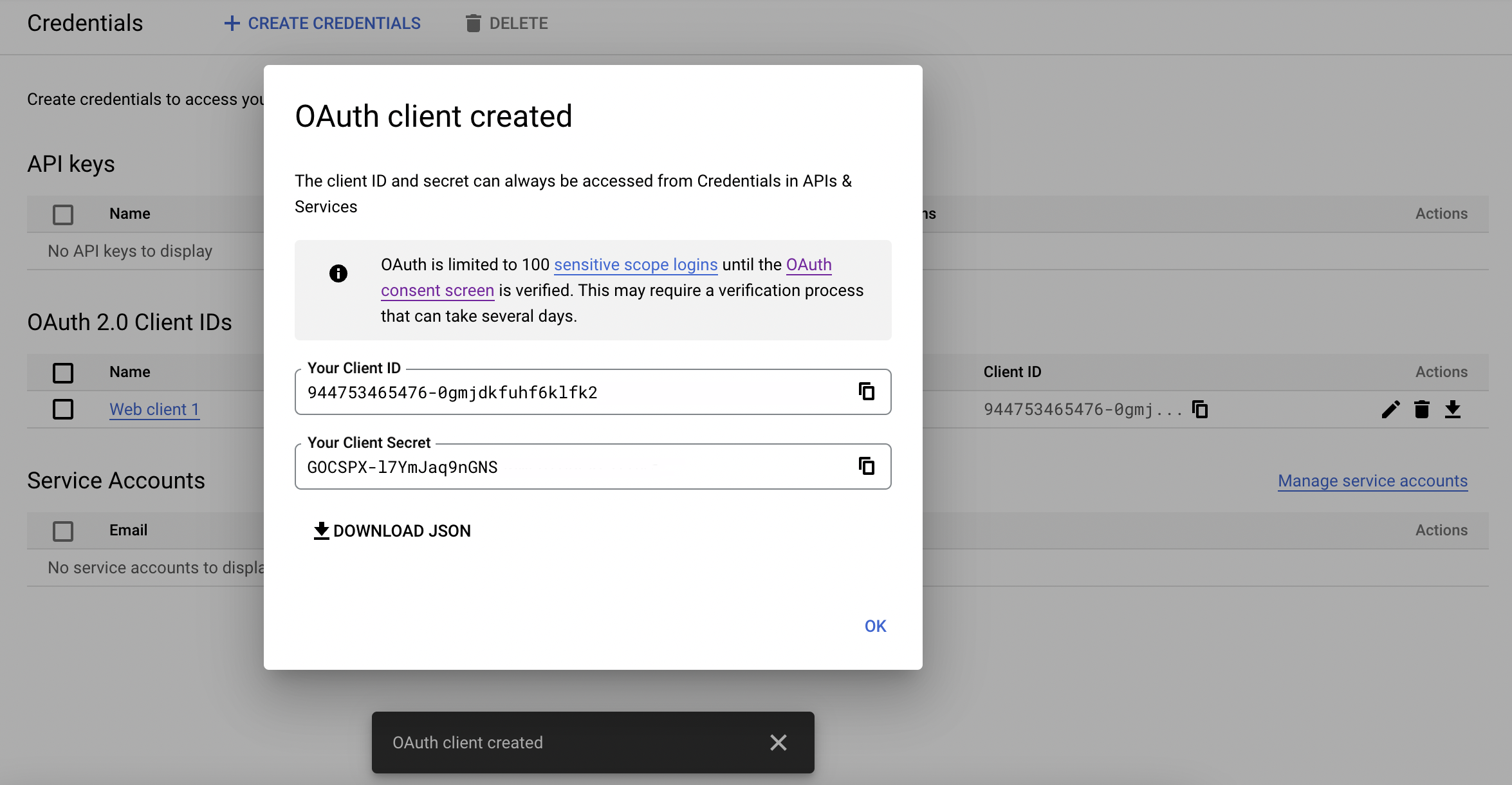
- Click the Create button. Then, you’ll see your Google Project’s OAuth client ID and client secret which you should note for later use.
How can I enable Google APIs?
Google’s services, such as Sheets, Gmail, Calendar, etc., are offered as separate APIs, which you must individually enable within the Google API Console for your project.
Which APIs you enable depends on which Cyclr Connectors you wish to work with, and some Connectors require more than one Google API to be enabled for them to be fully functional.
For example, the Google Sheets Connector requires you to enable the Google Sheets API and the Google Drive API. If you only enable the Google Sheets API, Cyclr will be able to work with data within a Spreadsheet, but it won’t have access to list the available Spreadsheets to choose from.
For each API you require, you can follow these steps:
- From the Google API Console, go to APIs & Services.
- On the Dashboard, click the +Enable APIs and Services button at the top.
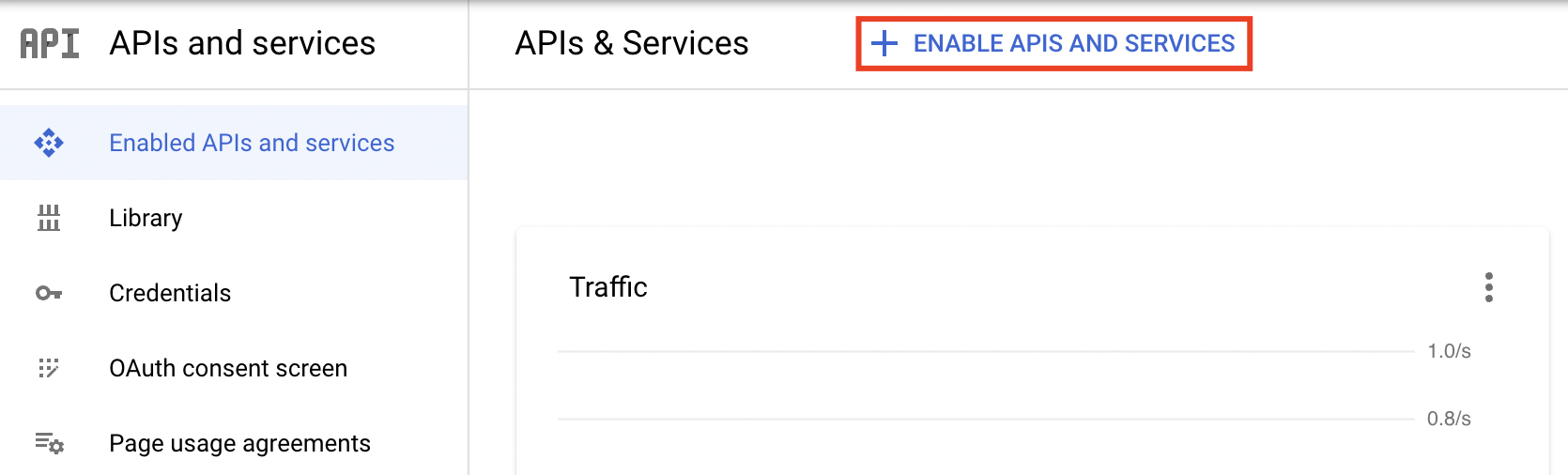
- Either enter part of the name of a Google API or scroll to find Sheets.
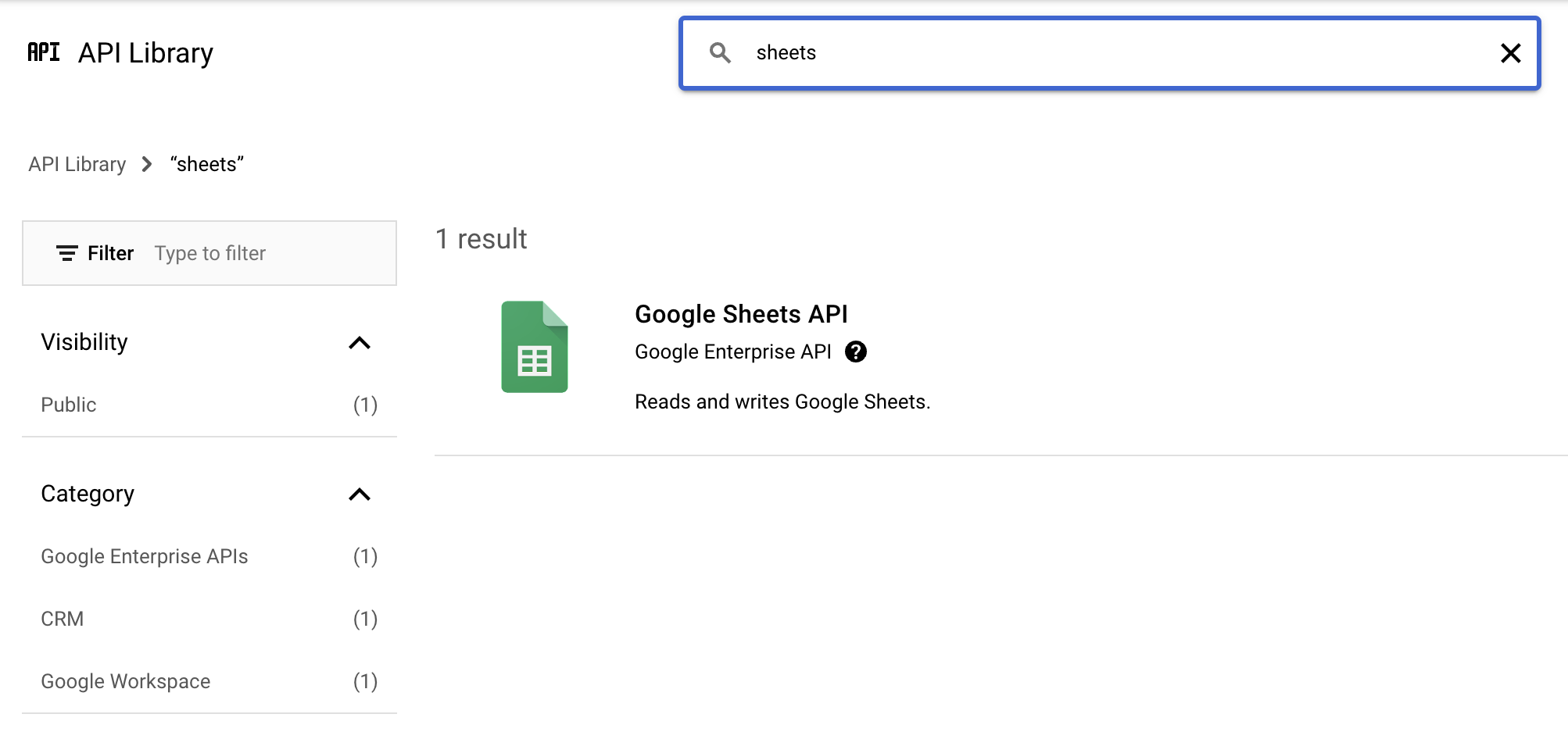
- Click the API’s large button when shown. On the next page click on the Enable button.
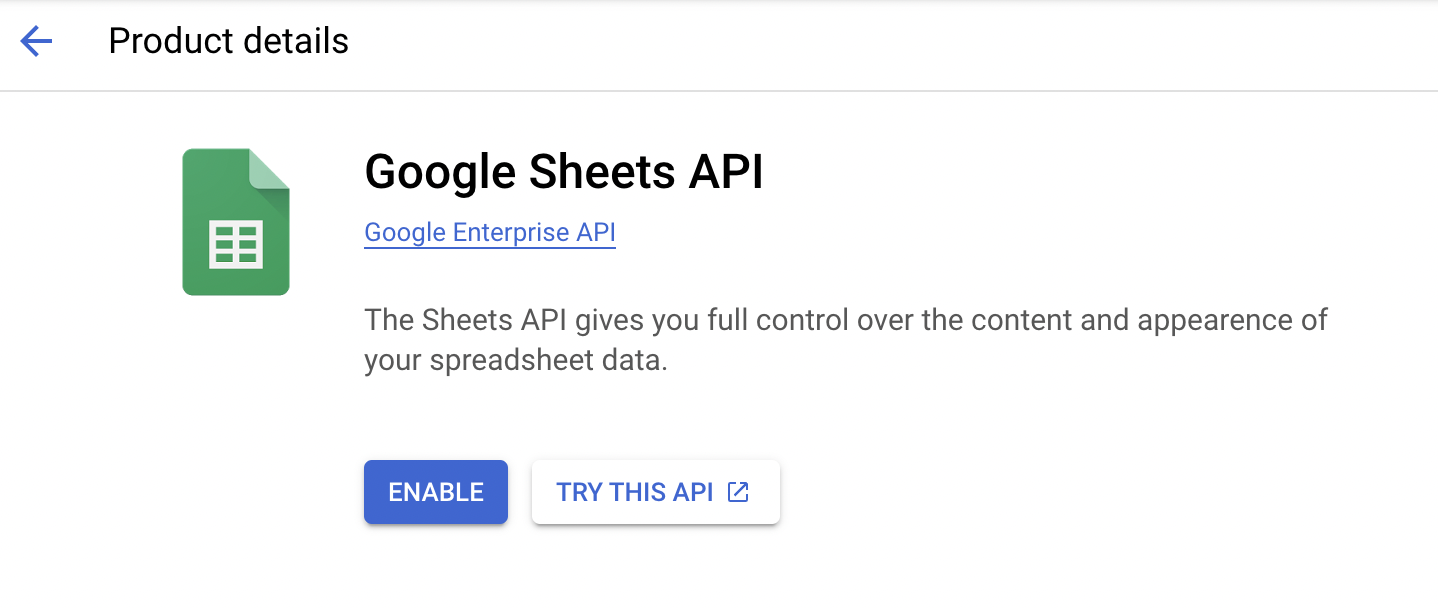
- Return to the APIs & Services page. Below are Insider One Connectors that require multiple Google APIs to be fully functional:
- Google Sheets - Google Sheets API and Google Drive API
How can I authenticate the Connector from Insider One's InOne panel?
- Navigate to Components > Integrations > External Integrations.
.png)
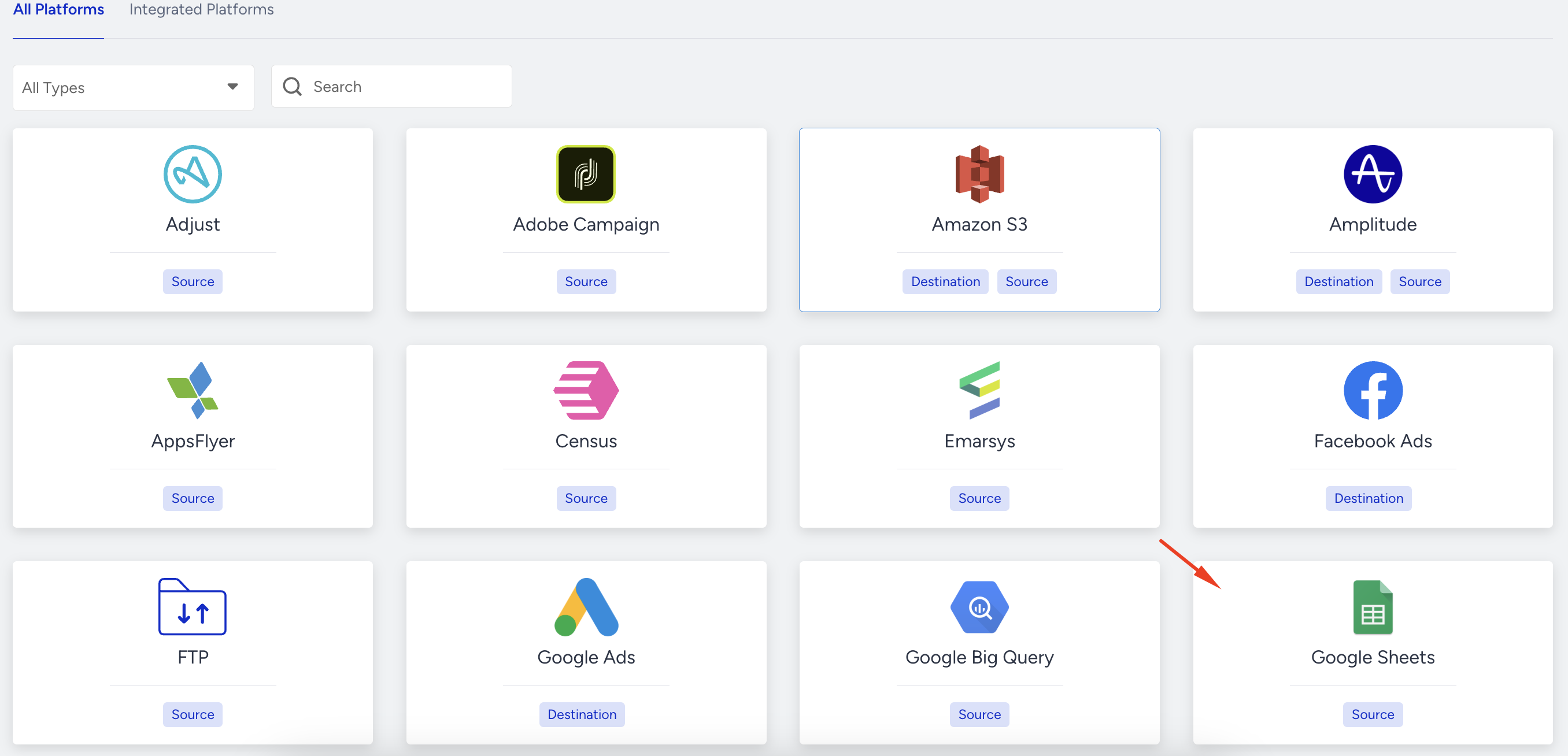
- Select the Google Sheets platform to view methods in the Google Sheets category.
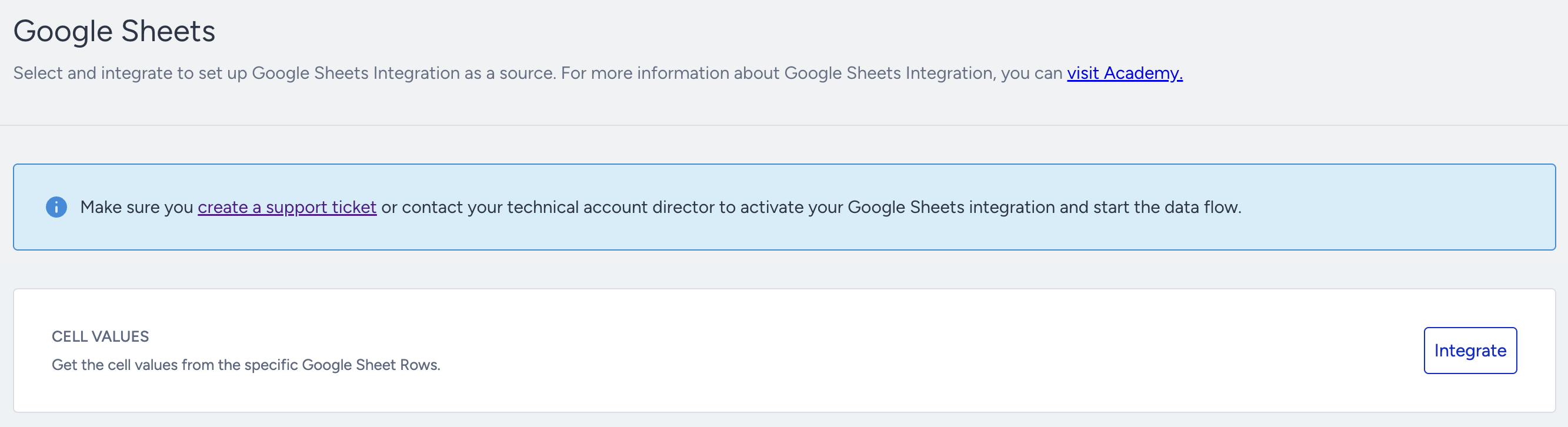
- Click the Integrate button against the method.
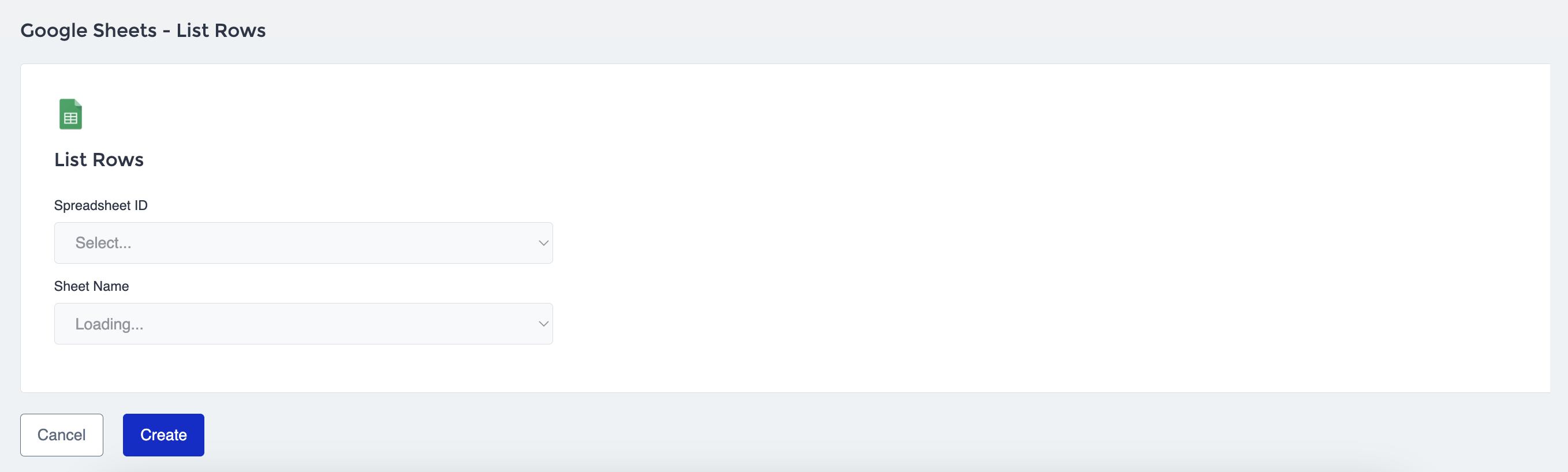
- Select the Spreadsheet ID and Sheet Name from the dropdown, and click the Create button.
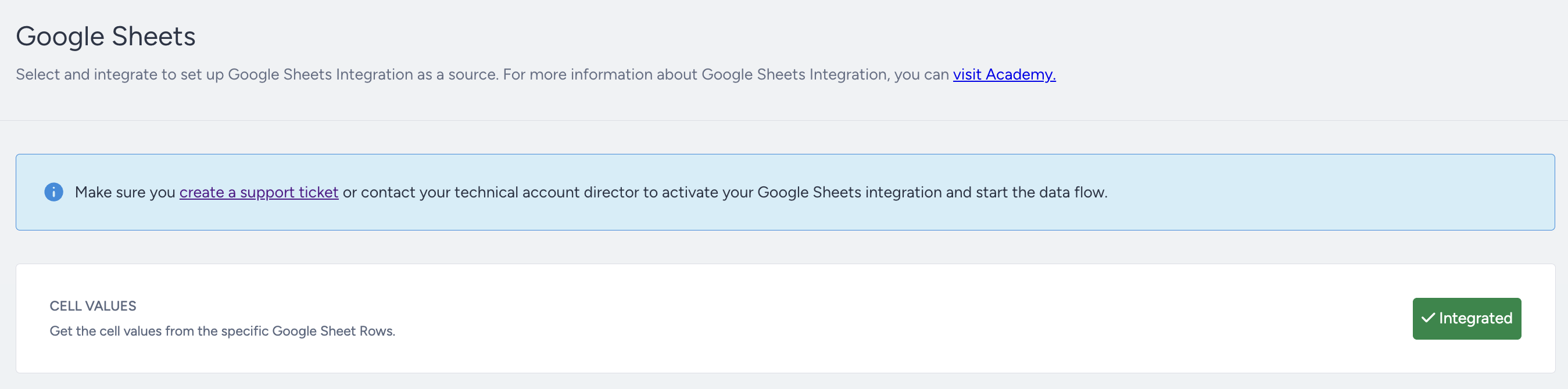
- Then, Insider One will be connected.
Finalizing the Setup
Once the mapping is complete, Insider One will start the connector.