Suggested reading:
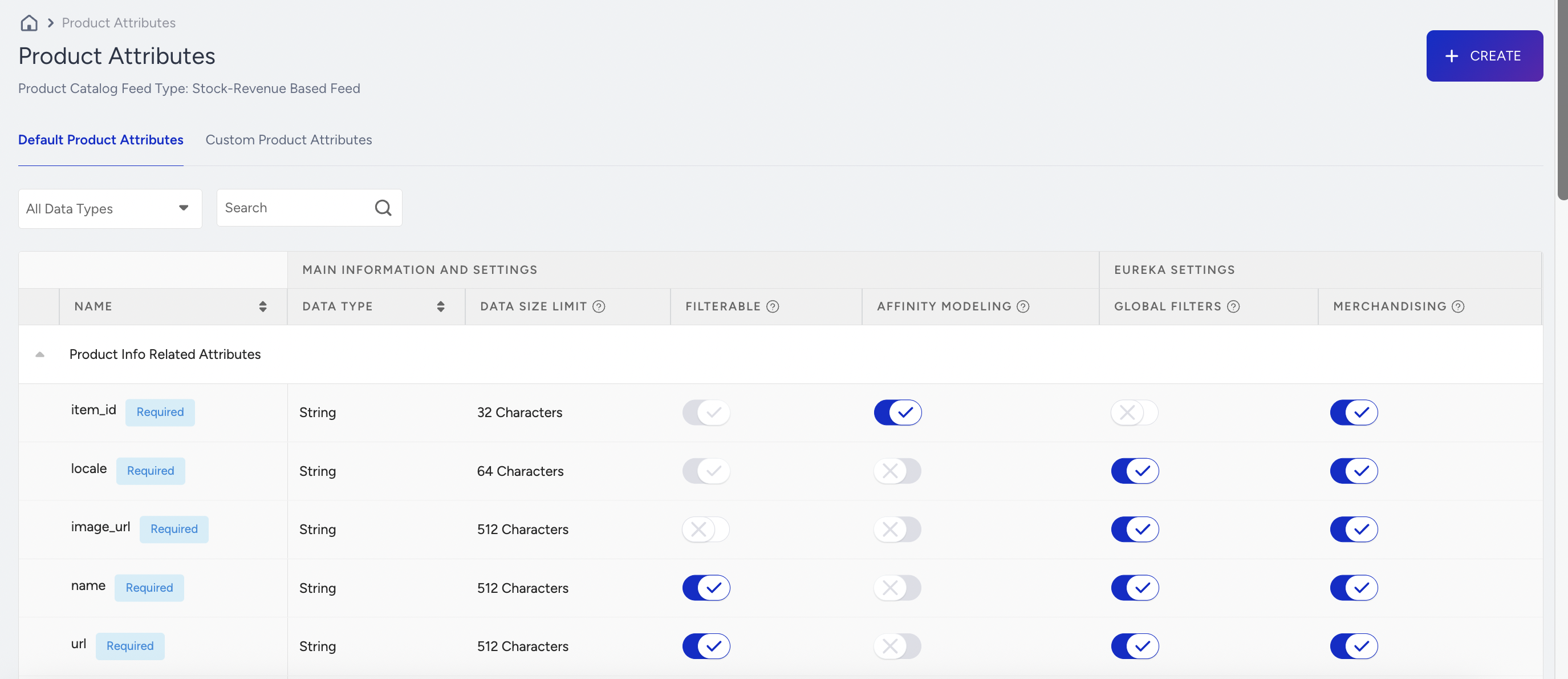
The Product Attributes page visualizes the default attributes, enables you to mark attributes as filterable, and uses personalized affinity for both default and custom attributes. You can also create custom array attributes.
In this article, you will find answers to the following questions:
How can I configure product attribute settings for Smart Recommender?
How can I configure product attribute settings for the Attribute Affinity Segment?
To reach the Product Attributes page, navigate to Product Catalog Management > Product Attributes.
Visualize product attributes and details
The Product Attributes page provides a comprehensive list of both default and custom attributes. It also includes information on attribute names, data size limits, data types, and whether they are required or optional.
When you visit the Product Attributes page, you land on the Default Attributes tab by default. It shows all available default attributes that you can use.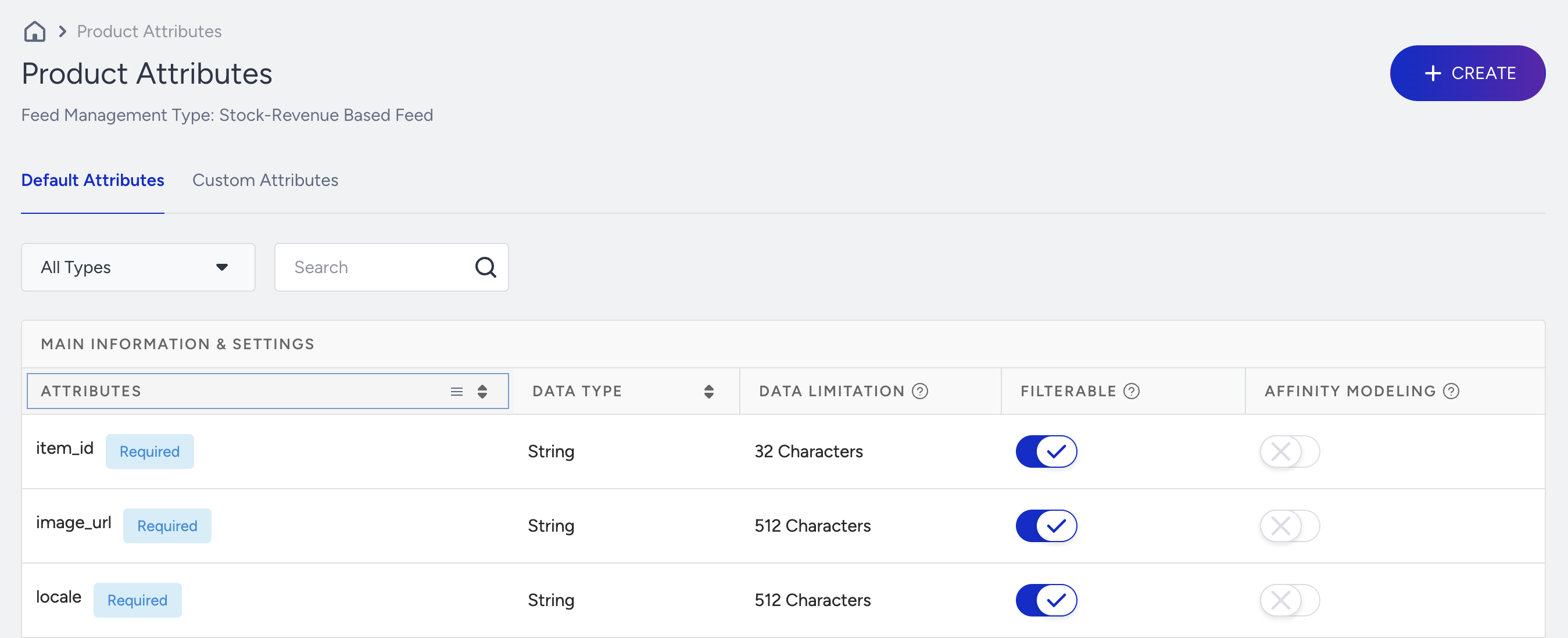
When you switch to the Custom Attribute tab, the data type, limitation, filterable status, and affinity modeling status are listed here. In addition, you can see how many attributes you can create and how many you have already.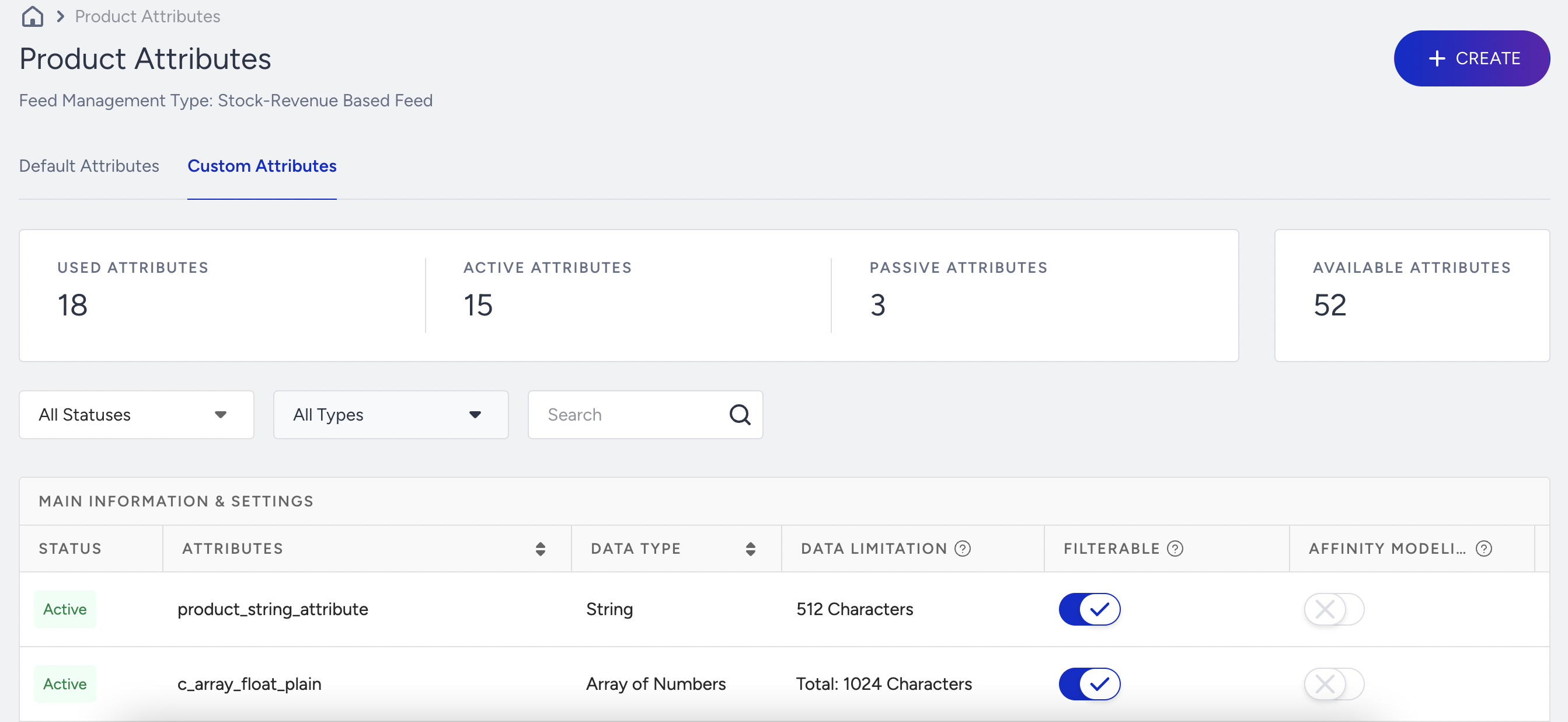
Configure product attribute settings for different products
Product attributes have different configuration settings depending on the product type and various submodules within the products.
Smart Recommender Strategies
Smart Recommender allows you to specify which product attributes should be utilized for filtering recommendations by marking them as "Filterable".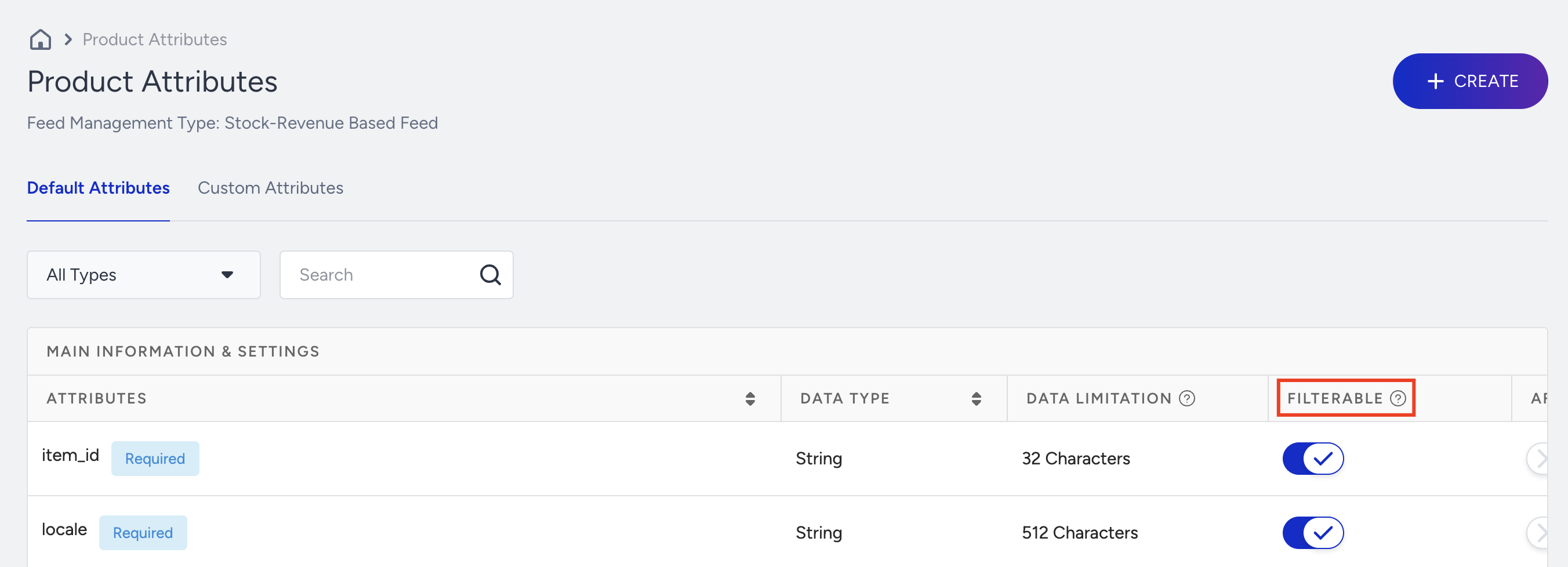
Only filterable attributes are visible on the Recommendation Filters under the Attribute dropdown.
Attribute Affinity Segment settings
Insider's segmentation system enables you to choose which product attributes to use in affinity-based segmentation, thereby identifying segments of users with an affinity towards specific categories, products, or custom attributes based on their previous product interactions. In addition to segmentation, attribute affinity is also used for hyper-personalization in the recommendation results.
You can select up to five product attributes, and you can change your selection provided the number of attributes remains within the limit of three.
Eureka settings
In Eureka, you can specify which attributes are accessible in Global Filters and Merchandising.
You need to configure a product attribute at the attribute level to utilize it for the specified Eureka settings. This applies to both default and custom attributes that are required for specific Eureka settings.
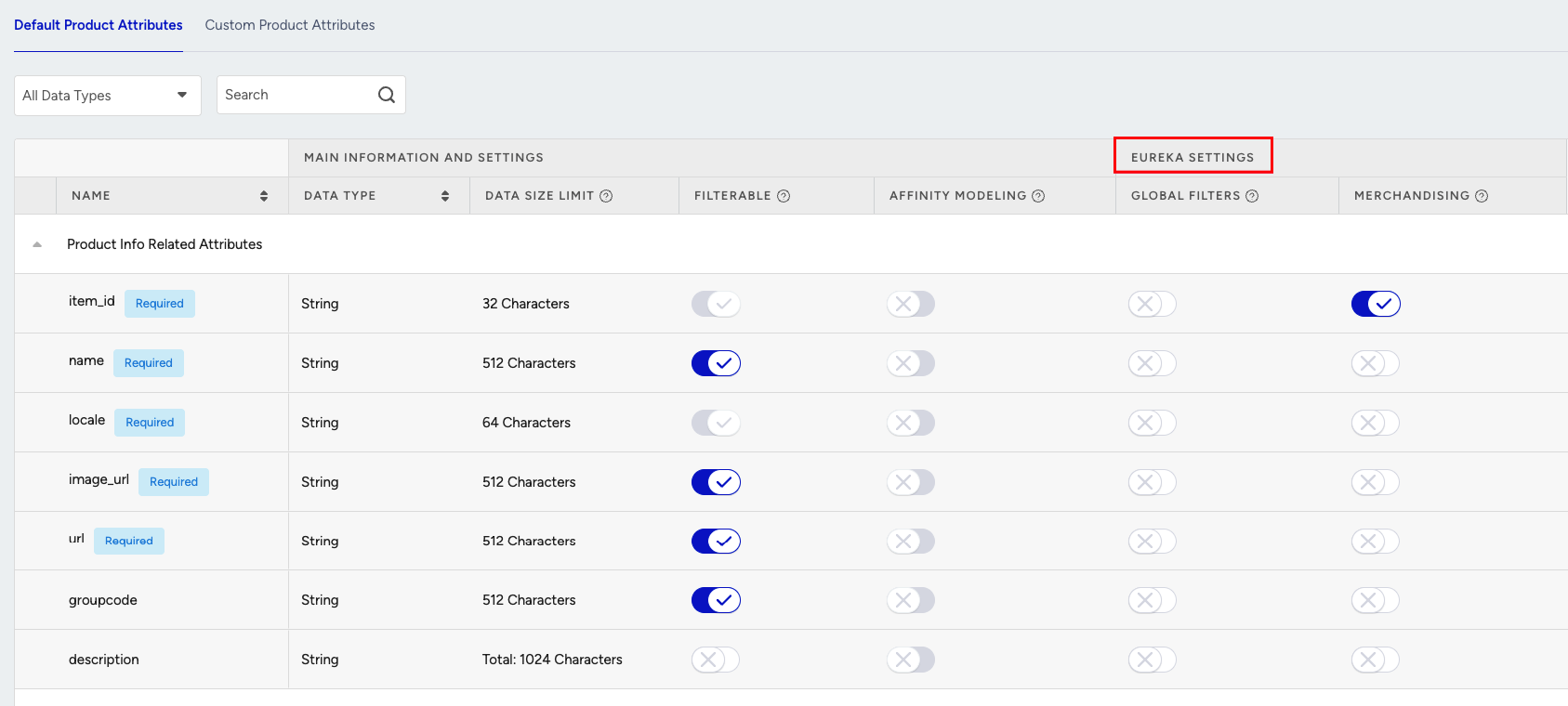
You don’t need to configure a product attribute for facets, sorting, searchable attributes in Search Settings. All attributes can be utilized for them.
Global Filters settings
You can configure Global Filters using product attributes to enhance the search experience in Eureka.
To use a product attribute in Global Filters:
Go to the Product Attributes page and enable the Global Filters toggle for the relevant attribute.
Once enabled, wait for the next indexing cycle to complete. After indexing is complete, the attribute will appear in the Value dropdown menu.
After the attribute is indexed and visible:
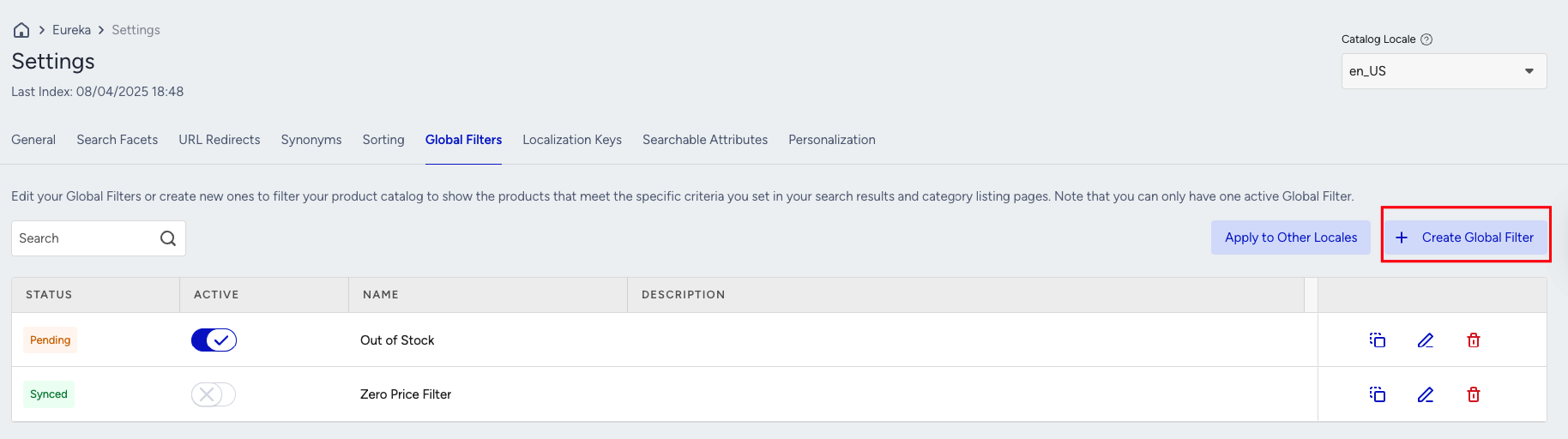
Navigate to Eureka > Settings > Global Filters.
Click Create Global Filter to begin configuration.
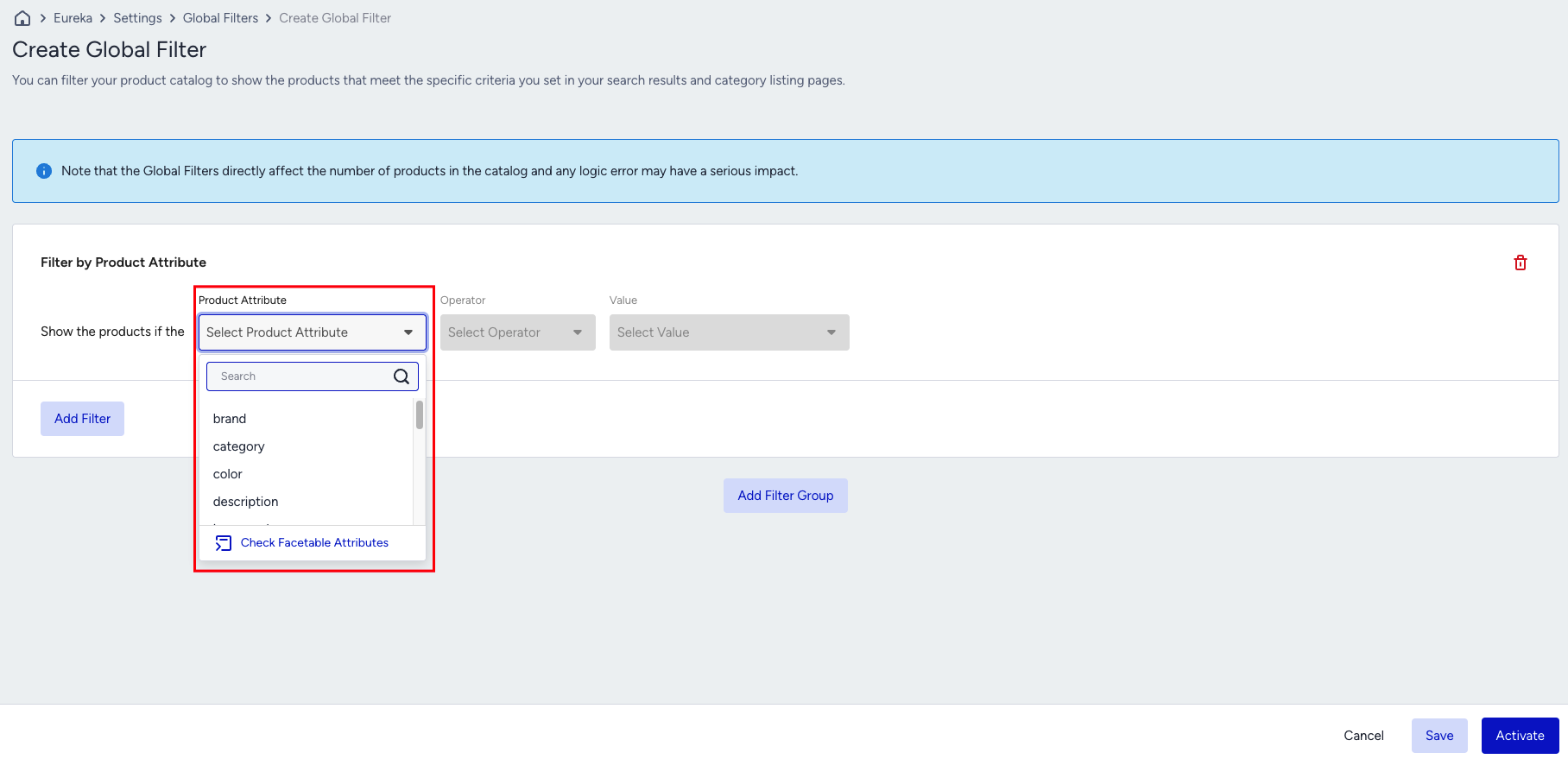
When you click the Create Global Filter button, the product attribute you previously enabled will appear in the dropdown menu. To complete the setup, select the attribute, choose the appropriate operator and value, and then save the configuration to update your Global Filters list.
Merchandising settings
Eureka enables you to establish merchandising rules based on product attributes, thereby influencing the search ranking experience.
To use a product attribute in merchandising configurations:
Go to the Product Attributes page and enable the Merchandising toggle for the relevant attribute.
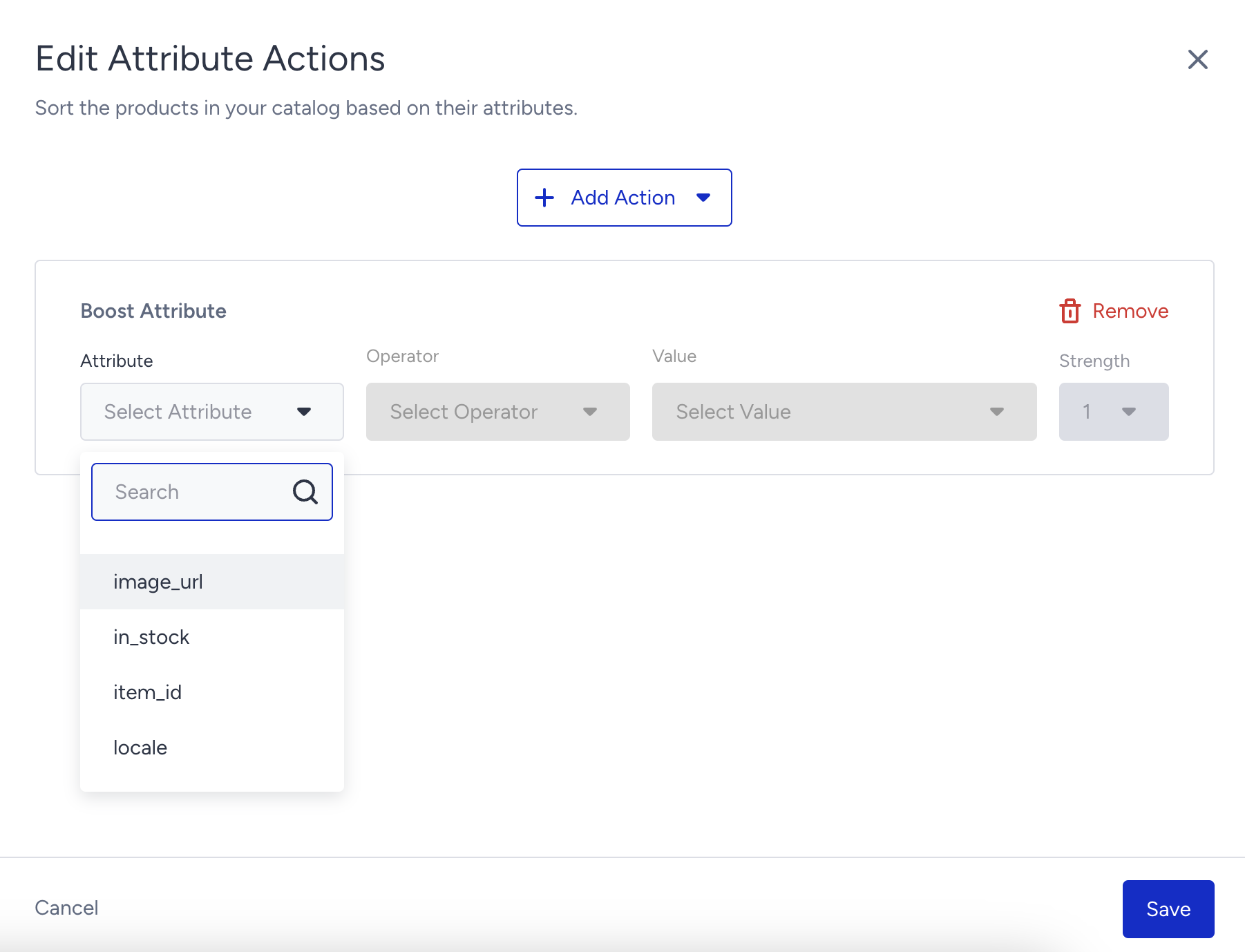
Navigate to Merchandising Rules, then click the Add Attribute Action button.
The product attributes you enabled will now appear in the dropdown list for selection.
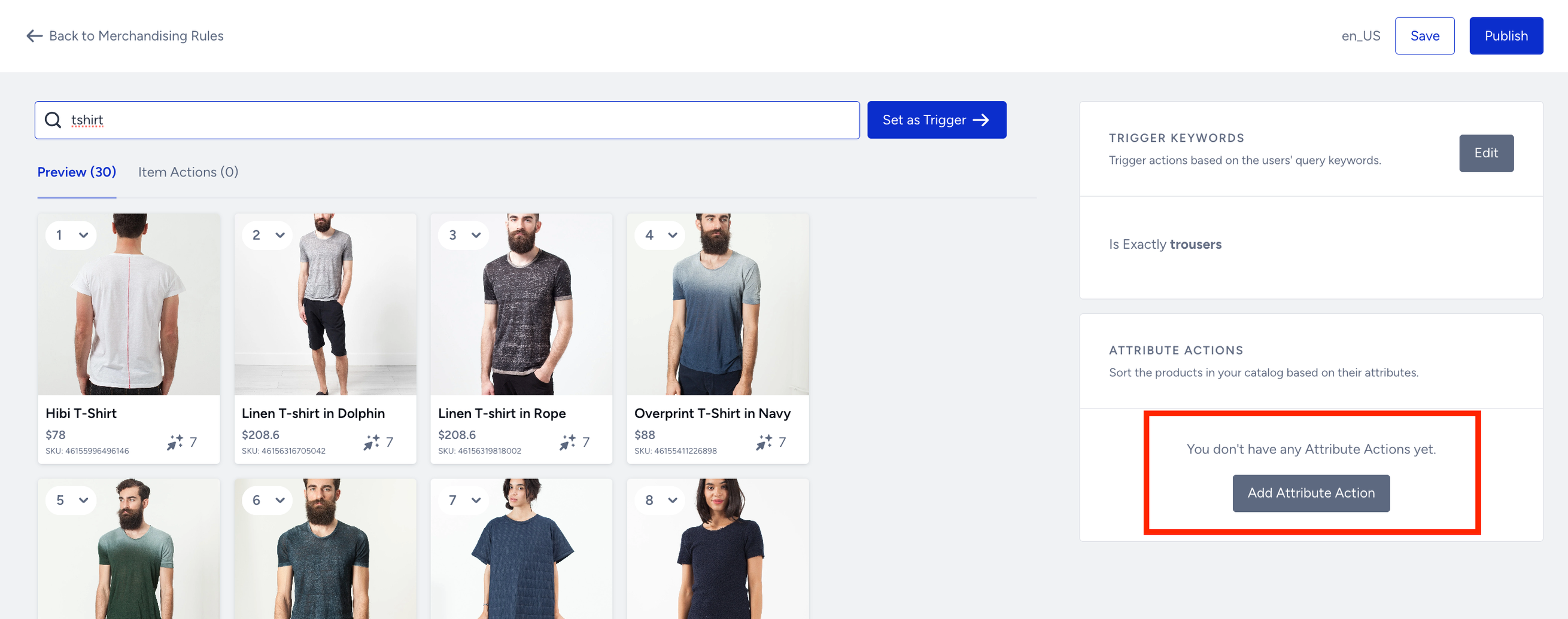
To finalize the creation of a Merchandising Attribute Actions Rule, select the newly enabled attribute, define its operator and value, assign a strength, and save the configuration as a new rule for the selected trigger or set of triggers.