The Drag & Drop Editor enables you to use product catalog blocks (Cart Items, Purchased Items, and Browsed Items) in your Architect emails. These blocks bring product information directly into your emails and can be utilized with Cart Abandonment, Browse Abandonment, Post-Purchase, and other use cases.
Product catalog blocks allow you to quickly build dynamic, personalized emails. You can use them to enrich your emails with product catalog information or to create essential abandonment and post-purchase emails. You can create new email templates using these blocks or add them to your existing emails.
Product catalog blocks are available exclusively in Architect Email campaigns. They are unavailable in standalone Email campaigns.
This article explains the following concepts:
Prerequisites
Before product catalog blocks can populate with real user data:
Enable Cart/Browsed/Purchased Items from Event Parameters: Contact the Insider One team to enable this feature for your account.
Data source configuration: Once enabled, you can configure which platforms (web, mobile, app) contribute to the item data. The system will only consider the selected sources when displaying items, but data collection from all sources continues regardless.
Product catalog integration: Ensure your product catalog is properly integrated with Insider One, including product images, names, prices, URLs, and categories.
Template compatibility
Email templates that contain Cart Items, Browsed Items, or Purchased Items blocks are available only in Architect Email campaigns. They cannot be used in standalone Email campaigns.
Transactional email templates are only available in the standalone Email product, not in Architect.
You can save a design with product catalog blocks as a template and reuse it across other Architect journeys via the Template Library ("Save as a Template" button at the top of the editor).
Add product catalog blocks
To add product catalog blocks:
Click the Email channel element in your Architect journey to go to the inner page.
Select the Drag & Drop Editor.
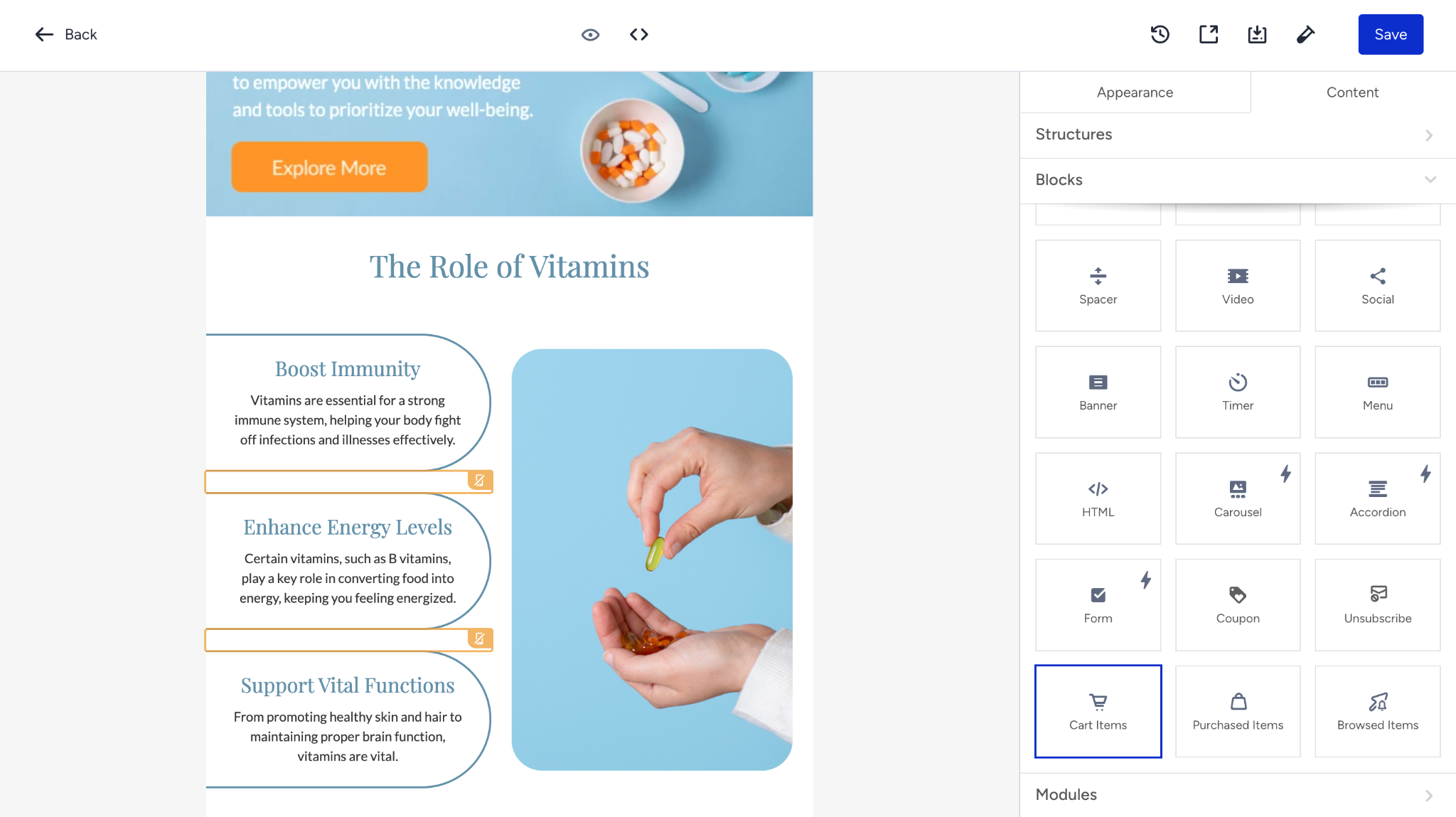
Drag and drop one of the product catalog blocks (Cart Items, Browsed Items, or Purchased Items) onto the editor canvas.
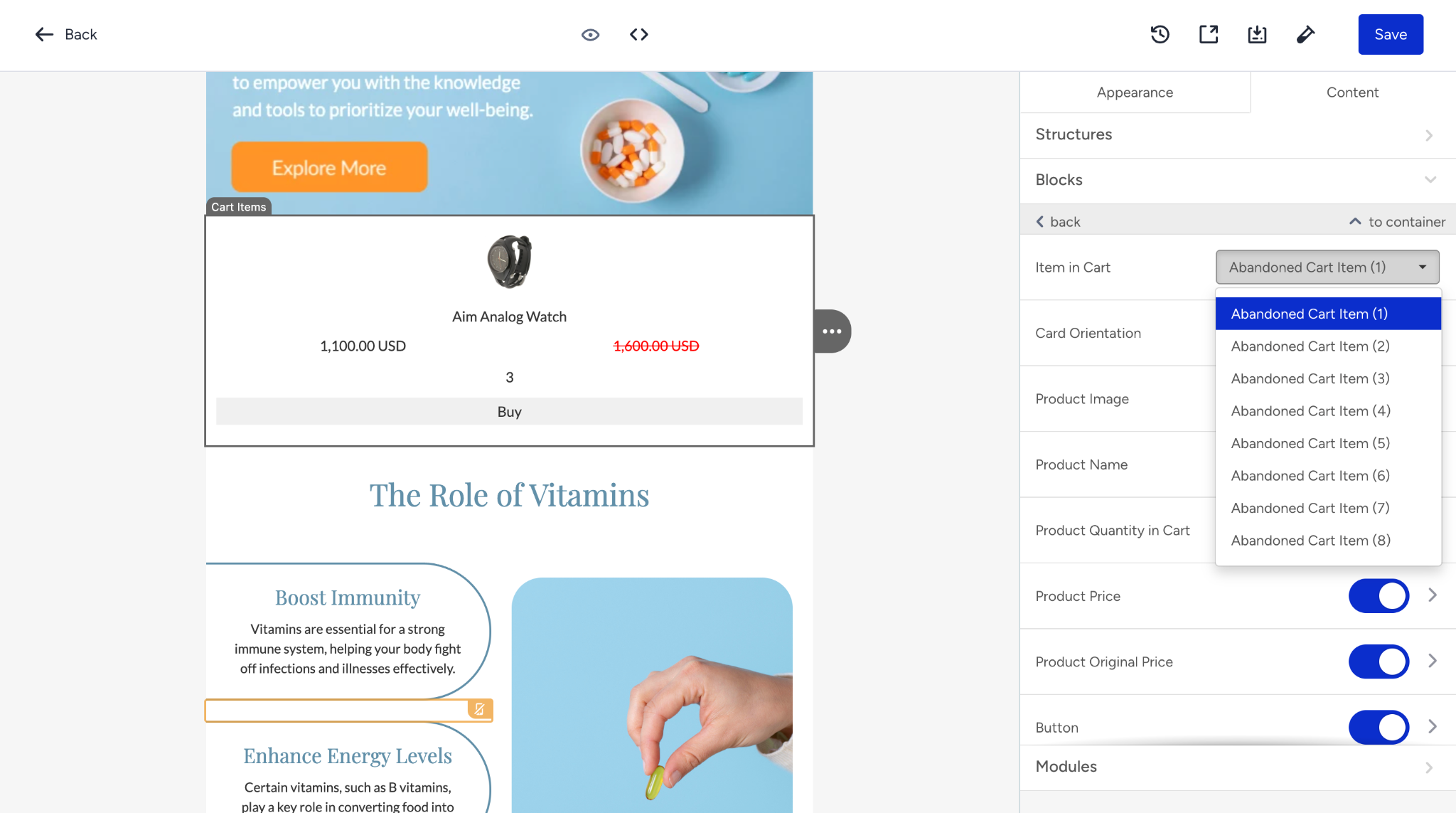
Select which product item you want to display in this block. Insider One keeps the last 8 purchased, browsed, and cart items in the database, so you can select one (Item 1 through Item 8) in every new block.
Make sure you add the correct Display Conditions, as your customers may not have as many items as you add in your content under their profiles.
Card orientation
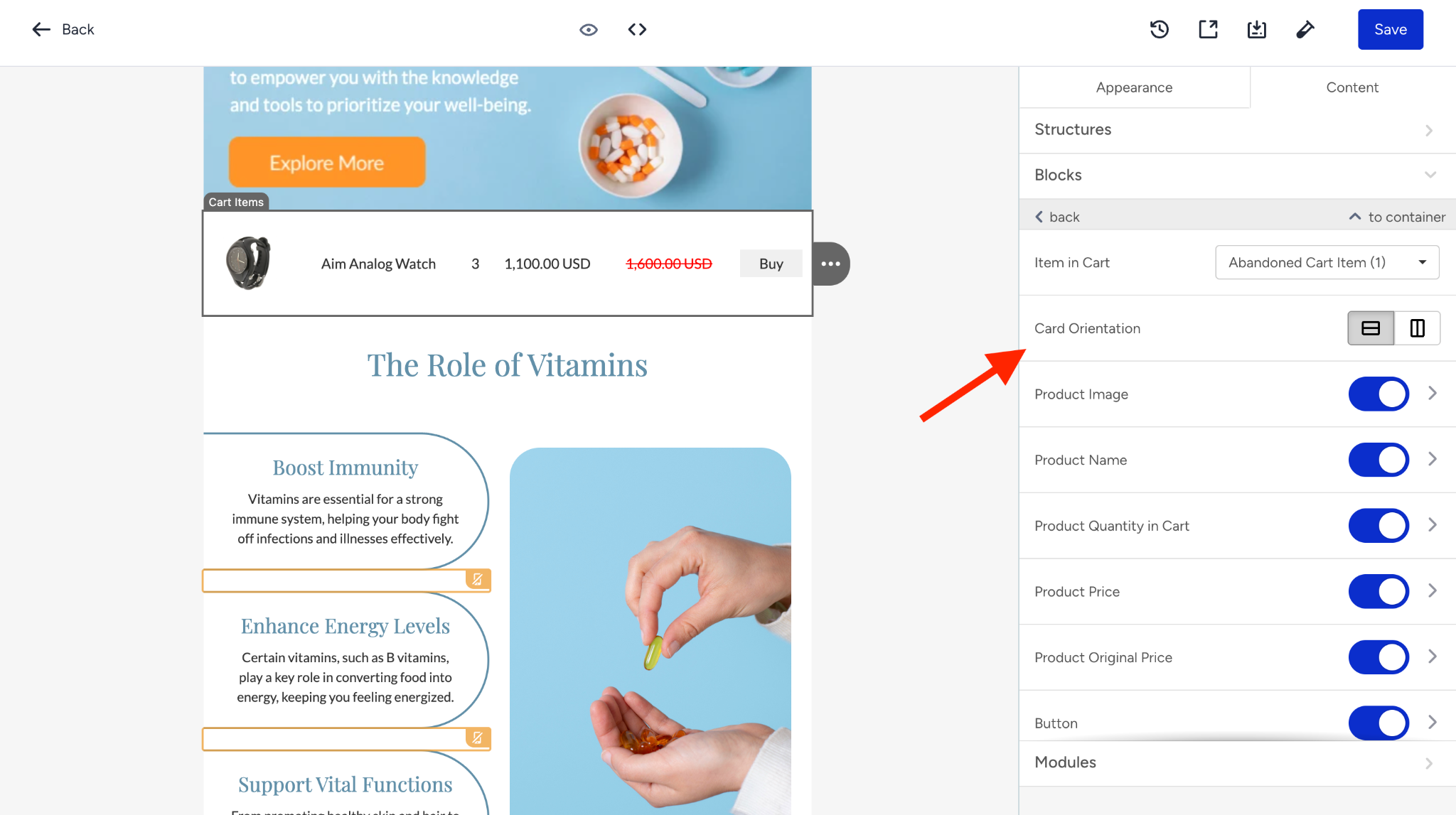
Select the Card Orientation to style your product cards. The orientation determines how the product information is arranged within each block:
Vertical: Product image on top, details stacked below.
Horizontal: Product image on one side, details on the other.
Product attributes
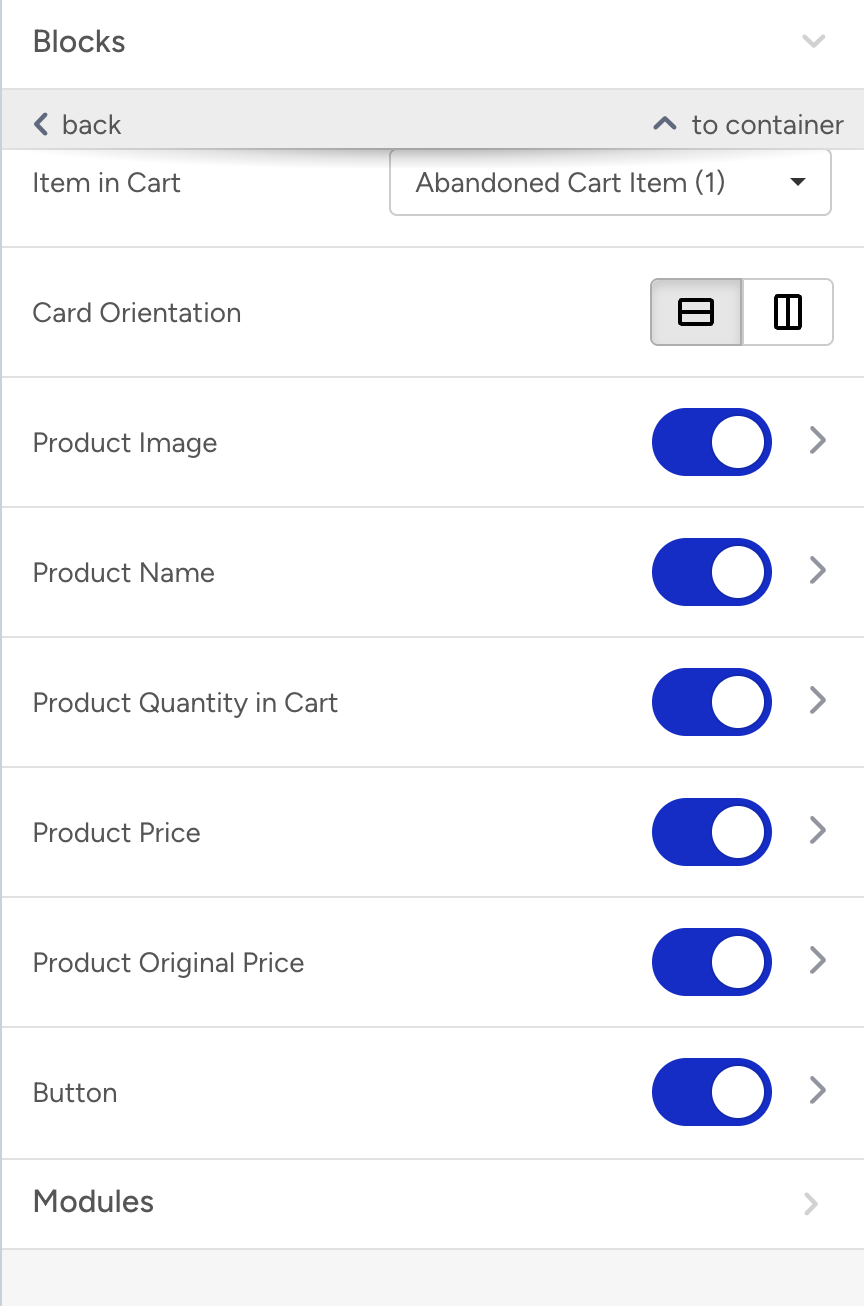
You can toggle on/off and style the following product attributes within each product catalog block:
Attribute | Description |
|---|---|
Product Image | The main product image from your catalog. You can change the image size. |
Product Name | The product title. Supports text trimming. |
Product Quantity in the Cart | The number of units of this item in the user's cart. (Available for Cart Items only.) |
Product Price | The current (discounted) price. You can select "Hide if same as discounted" to hide when there is no active discount. |
Product Original Price | The original (undiscounted) price. Shown only when a discount exists. |
Button | A CTA button that links to the product page. |
Click on any attribute to access its styling options (font, size, color, alignment, etc.).
Currency symbol
The Currency symbol option allows you to customize the currency symbol displayed in your Product Catalog Blocks (Cart, Browsed, and Purchased) within the Drag & Drop Editor.
Use this to display a specific currency symbol (e.g., $, €, ₺) in your email content.
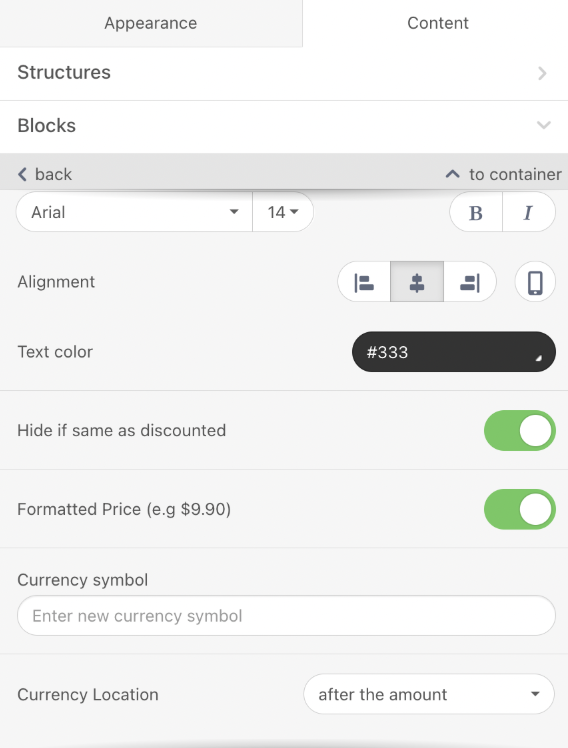
When you enter a currency symbol here, it replaces whatever currency information is passed from the system. The selected symbol will be shown to all end users. Use this only when the currency is fixed for all your recipients.
If you use the Not Converted Price format to show user-based pricing, we recommend against using this setting, as it may display incorrect or misleading currency symbols.
Text trimming
The Text Trimming feature under Product Name allows you to display product names in a concise, single-line format by automatically trimming excess text and appending "..." at the end.
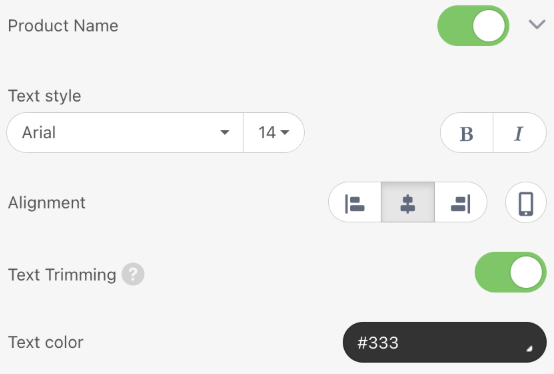
Text Trimming is enabled by default for all product catalog blocks, ensuring that long product names are automatically shortened to fit within the designated space without compromising the email design.
You can disable this feature if you want to show full product names, depending on your design requirements.
Display conditions
Display conditions are critical when using product catalog blocks. Not all customers will have the same number of items in their cart, browsing history, or purchase history. Without proper display conditions, blocks linked to items that don't exist for a user will render as empty, breaking the email layout.
Set display conditions
Select the structure (row) containing the product catalog block in your template.
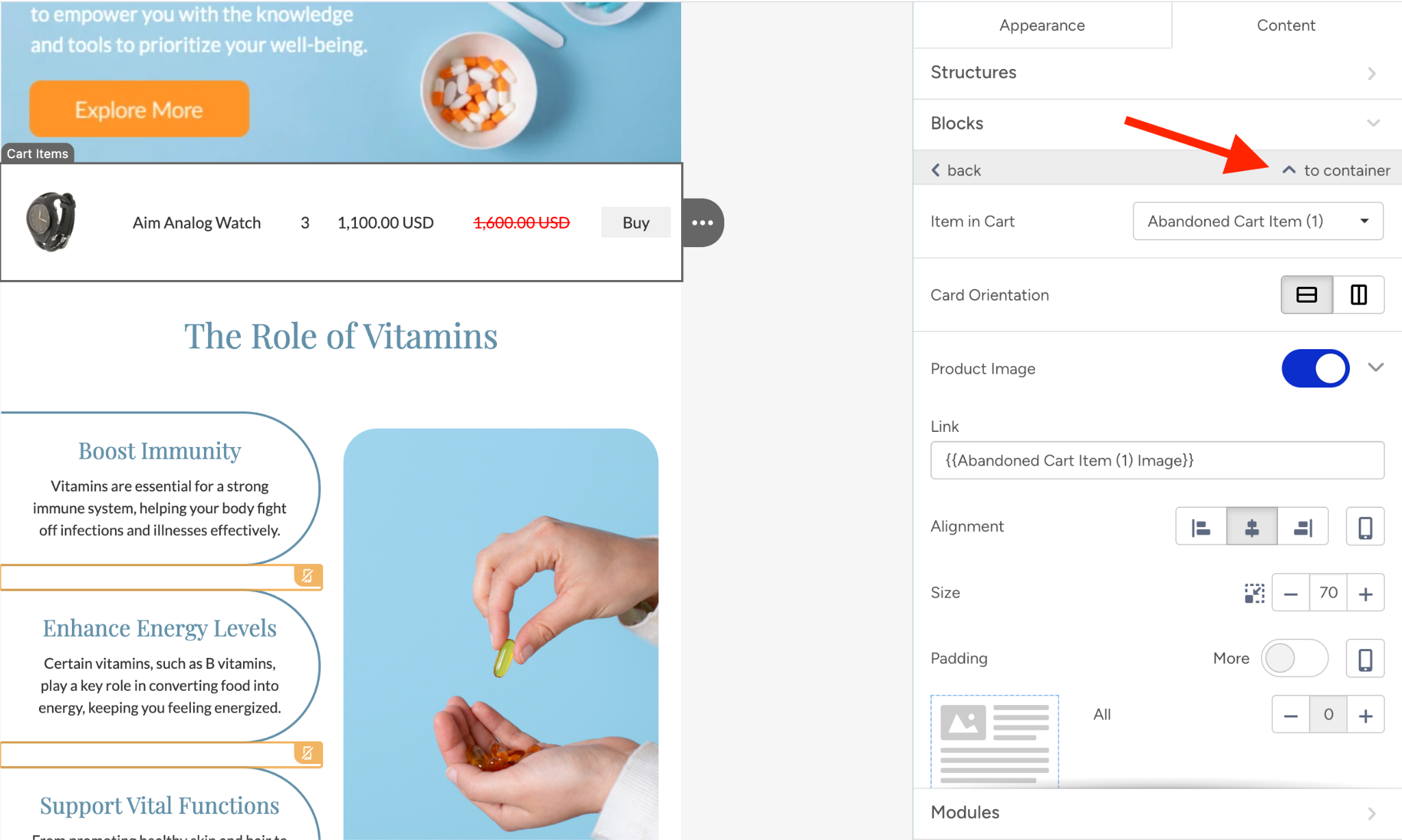
The settings bar will appear on the right side.
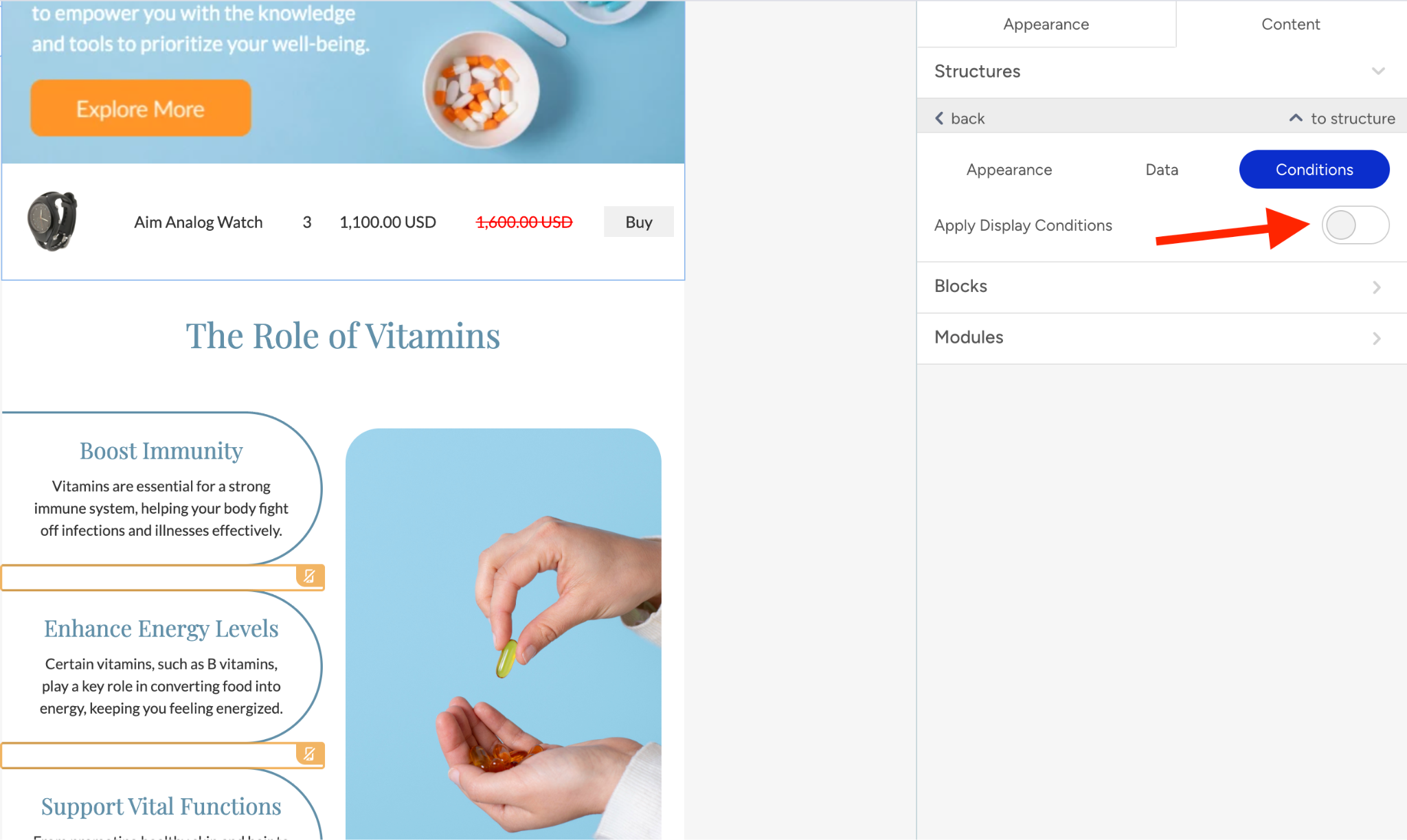
Select the Display Condition option and choose Demographics/Cart Items/ Browsed Items or Custom as the Category.
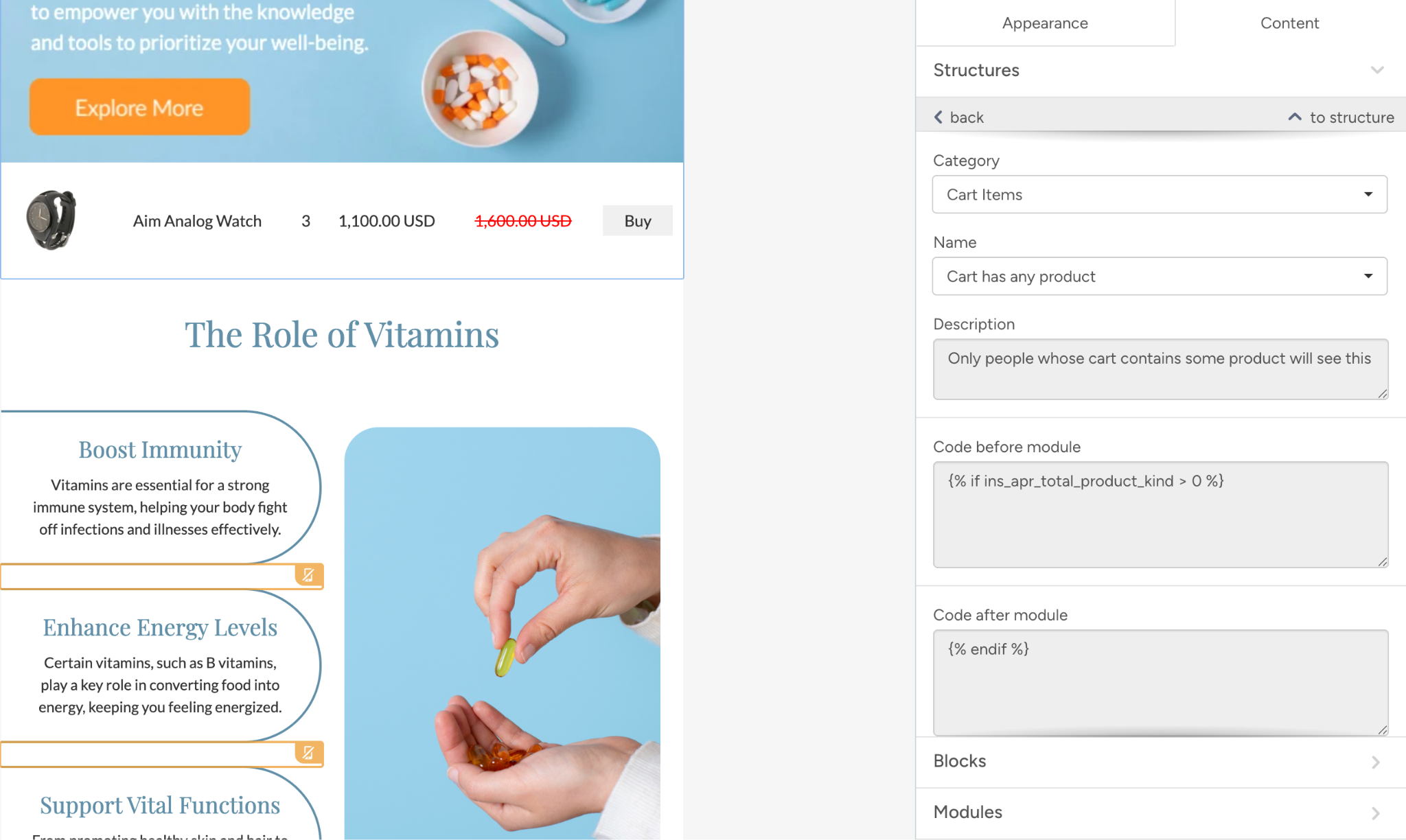
Enter the display condition syntax under Code before module and Code after module sections.
Display condition syntax
Use the following syntax for each block type:
Block Type | Condition Syntax |
|---|---|
Cart Items | {% if ins_apr_total_product_kind > 0 %} |
Browsed Items | {% if browsed_item_total_product_count > 0 %} |
Wishlist Items | {% if ins_wapr_total_product_kind > 0 %} |
For all conditions, close with: {% endif %}
Granular item-level conditions
To show blocks conditionally based on the exact number of items a user has, use incremental conditions:
Item Block | Condition |
|---|---|
Item 1 | {% if ins_apr_total_product_kind >= 1 %} |
Item 2 | {% if ins_apr_total_product_kind >= 2 %} |
Item 3 | {% if ins_apr_total_product_kind >= 3 %} |
Item 4 (and so on...) | {% if ins_apr_total_product_kind >= 4 %} |
When you select Cart Abandonment or Browse Abandonment templates from the "Select Template" popup, predefined display conditions are already applied to each row of the email template.
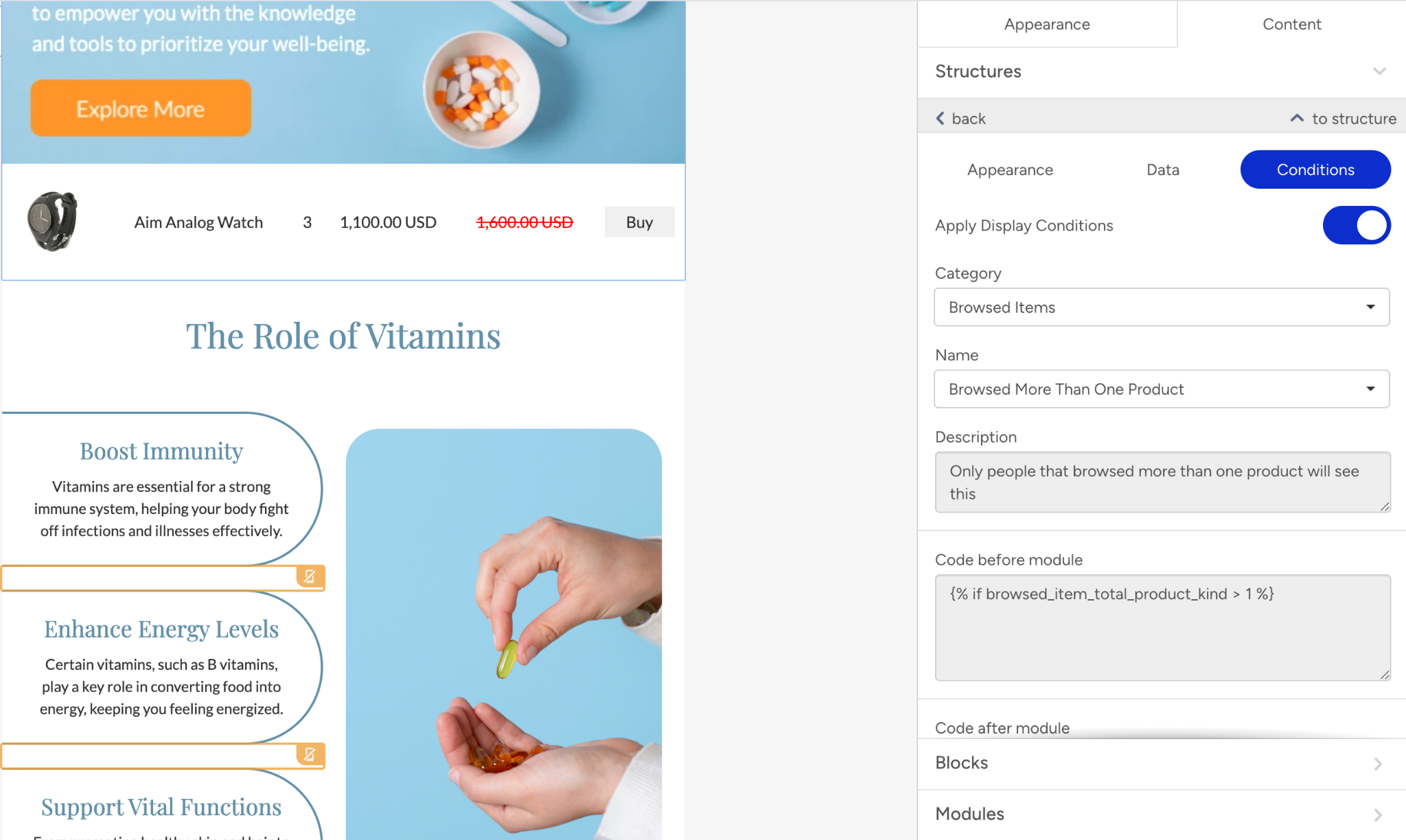
Syntax rules
You cannot use the not operator (!) in display conditions. Use {% if field == false %} instead of {% if !field %}.
Each {% %} statement should contain only one field name.
Single equal operator (=) is not supported for attributes of number type. Use == instead.
Only UTF-8 quotation marks are supported.
There must be a space between the operator and the value.
Personalize content with dynamic attributes
In addition to using the prebuilt product catalog blocks, you can insert product data as dynamic content into any text, image, or button block in your email.
Add dynamic content
Place the mouse cursor where you want to insert dynamic content.
Click the Dynamic Content button in the toolbar above the template.
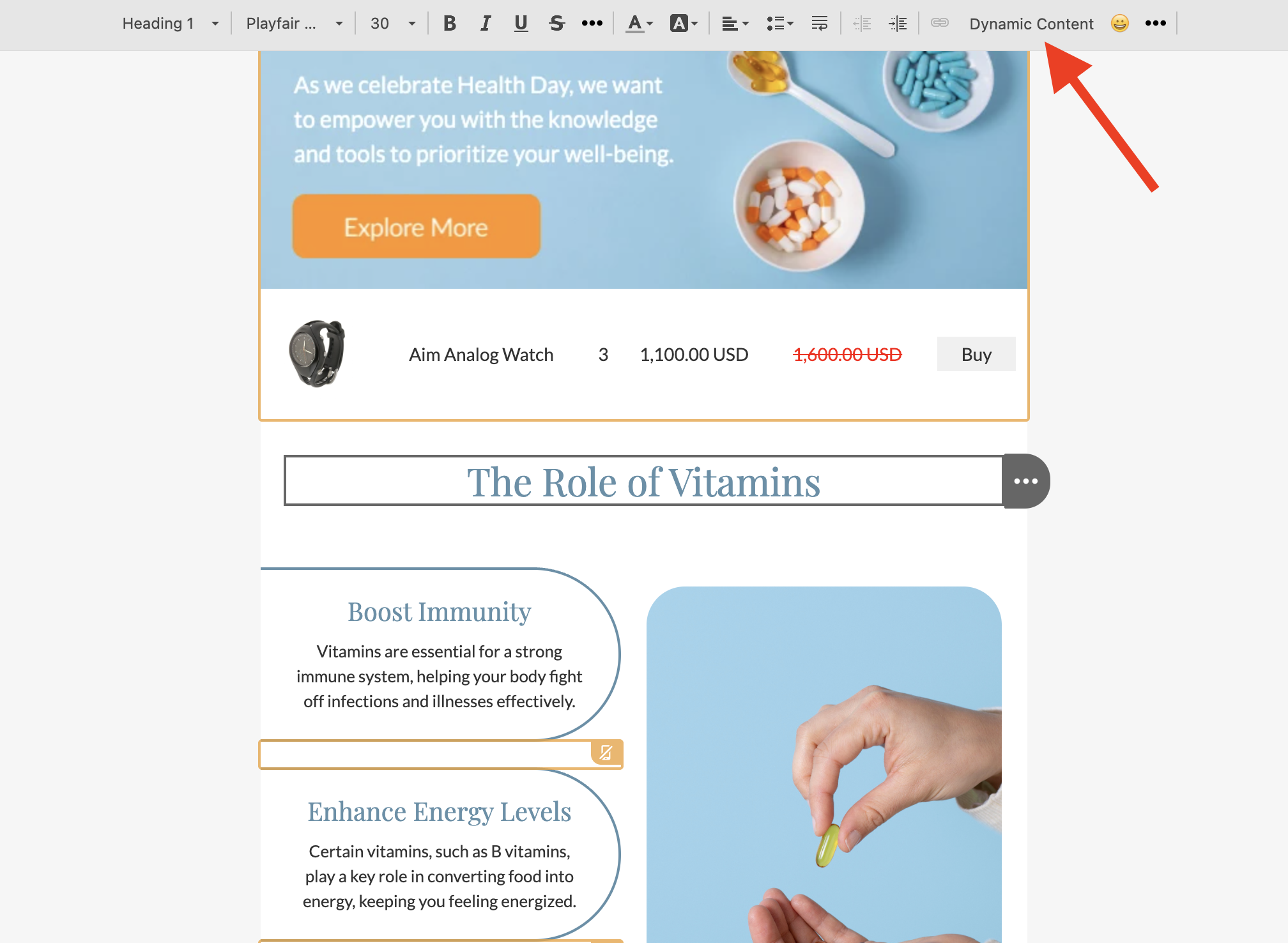
Select the content type (Cart Items, Browsed Items, Purchased Items, etc.).
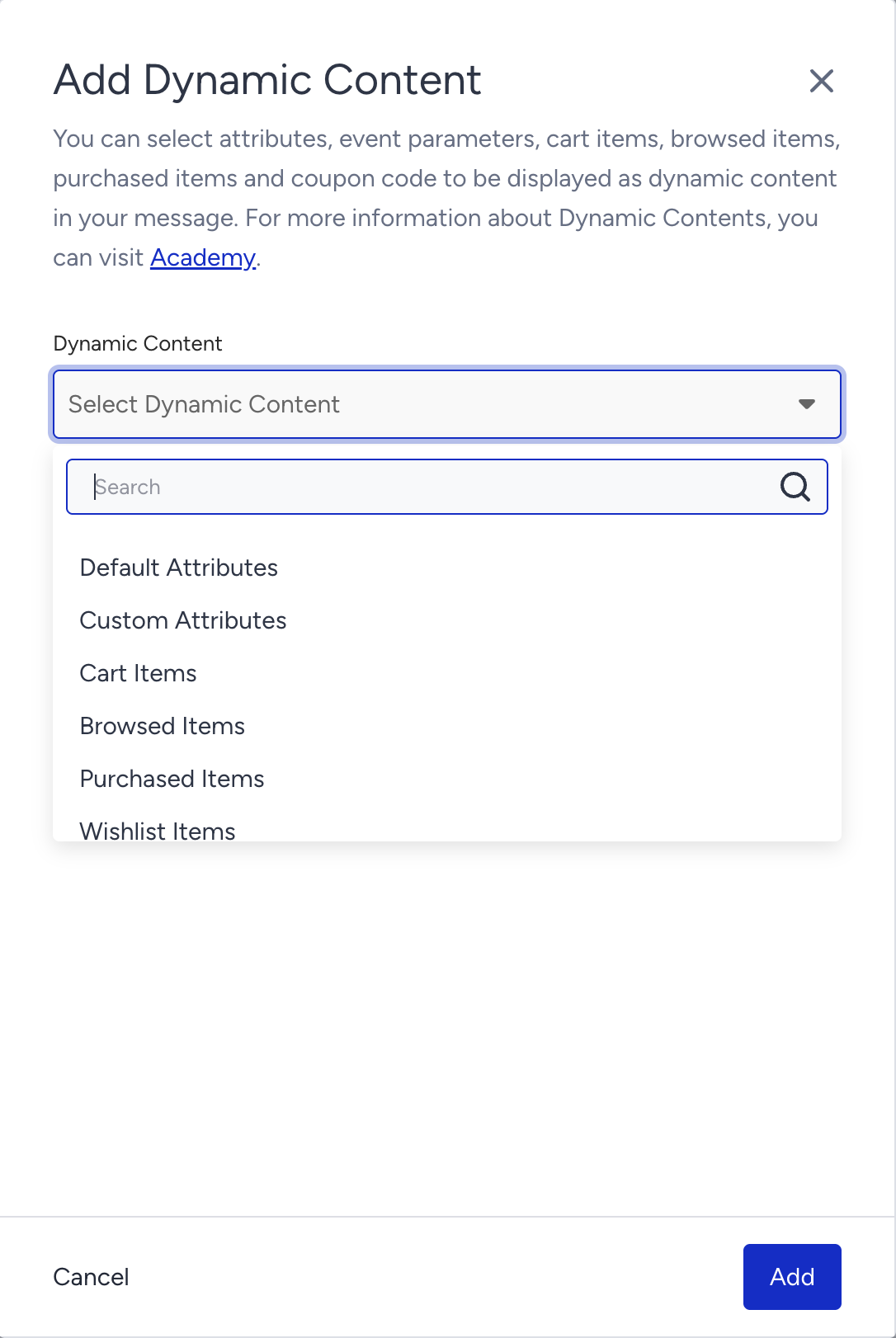
The relevant attributes and event parameters will be listed in the dropdown.
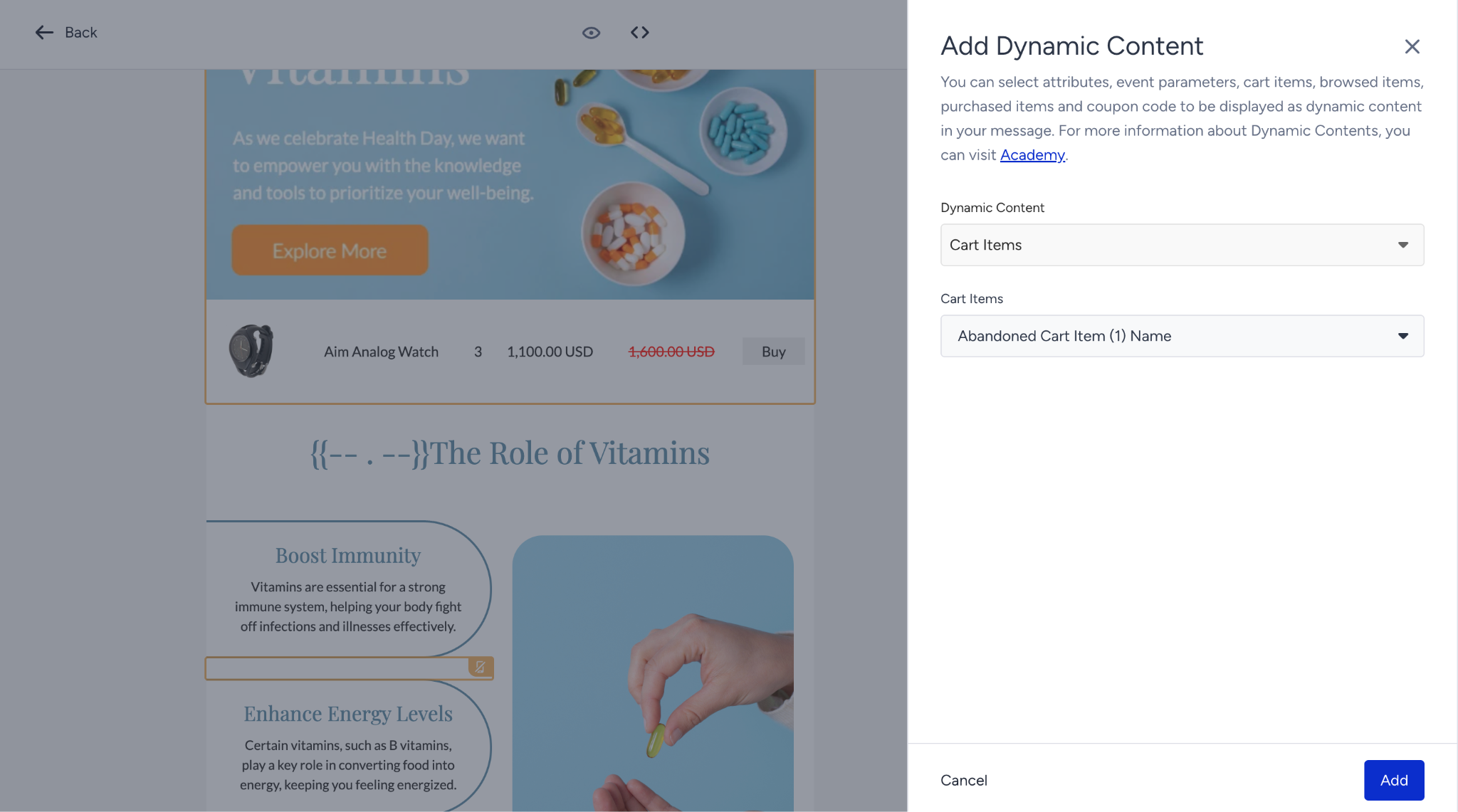
Available dynamic content keys
Cart items
Key | Description |
|---|---|
Abandoned Cart Item Name (1–8) | Product name |
Abandoned Cart Item URL (1–8) | Product page link |
Abandoned Cart Item Image (1–8) | Product image URL |
Abandoned Cart Item ID (1–8) | Product ID |
Abandoned Cart Item Price (1–8) | Price based on currency settings |
Abandoned Cart Item Not Converted Price (1–8) | Price in the original website/app currency |
Abandoned Cart Item Formatted Price (1–8) | Price with 2 decimal places |
Abandoned Cart Item Original Price (1–8) | Undiscounted price |
Abandoned Cart Item Original Formatted Price (1–8) | Undiscounted price with 2 decimal places |
Abandoned Cart Item Quantity (1–8) | Quantity of the item |
Abandoned Cart Item Category (1–8) | Item category |
Total Cart Amount | Total cart value |
Total Cart Item Count | Total number of items in cart |
Total Cart Item Kind | Number of unique product types in cart |
Browsed items
Key | Description |
|---|---|
Browsed Item Name (1–8) | Product name |
Browsed Item URL (1–8) | Product page link |
Browsed Item Image (1–8) | Product image URL |
Browsed Item ID (1–8) | Product ID |
Browsed Item Price (1–8) | Price based on currency settings |
Browsed Item Original Price (1–8) | Undiscounted price |
Purchased items
Key | Description |
|---|---|
Purchased Item Name (1–8) | Product name |
Purchased Item URL (1–8) | Product page link |
Purchased Item Image (1–8) | Product image URL |
Purchased Item ID (1–8) | Product ID |
Purchased Item Price (1–8) | Price based on currency settings |
Purchased Item Original Price (1–8) | Undiscounted price |
Purchased Item Quantity (1–8) | Quantity purchased |
Fallback values
When using dynamic content keys manually, add fallback values using the pipe (|) syntax to prevent empty fields:
{{Abandoned Cart Item Name 1|Your item}}
If the user's data is missing, the fallback value ("Your item") will be displayed instead.
Purchased Items are available in the merge tag dropdown only if the "Content from Event Parameters" toggle is activated for your account.
Example use case: Cart abandonment
Cart abandonment is one of the most popular marketing use cases, targeting users who added products to their cart but did not complete their purchase. Product catalog blocks provide flexibility and speed for creating dynamic cart abandonment email content.
Steps to create a cart abandonment email:
Create a new Architect journey with an appropriate entry trigger (e.g., cart event).
Add an Email channel element to the canvas.
Open the Drag & Drop Editor.
Drag the Cart Items block into the template for each product you want to display (e.g., Item 1, Item 2, Item 3).
Set Card Orientation and customize product attributes for each block.
Add Display Conditions to each structure/row to ensure items only render when the user has that many items in their cart:
Row with Item 1: {% if ins_apr_total_product_kind >= 1 %}
Row with Item 2: {% if ins_apr_total_product_kind >= 2 %}
Row with Item 3: {% if ins_apr_total_product_kind >= 3 %}
Save the template and test with real user profiles.
Best practices
Always add Display Conditions to every structure containing a product catalog block to prevent empty product cards from rendering.
Use pre-built product catalog blocks for a fast, consistent layout. Only use manual dynamic content insertion if you need a fully customized design.
Test with real user data by using the "Send as Test" feature with an email address tied to a user profile that has cart/browsed/purchased data.
Limit the number of items displayed, showing 3–4 items typically provides the best balance of engagement and email performance.
Preview on mobile. Always check your product catalog block layout on mobile using the preview feature to ensure proper rendering.
Be careful with the currency symbol. Only use the custom currency symbol setting when all your recipients use the same currency. Avoid using it with the Not Converted Price format.
Use Cart/Browse Abandonment templates from the Template Library as a starting point. They come with predefined display conditions already configured.