---
title: "Email Anchor Links"
slug: "new-editor-email-anchor-links"
description: "Anchor links are the hyperlinks in an email. When a user clicks a hyperlink, it redirects them to another part of the email rather than opening a separate window."
tags: ["anchor links", "email anchor"]
updated: 2026-01-13T08:39:52Z
published: 2026-01-13T08:39:52Z
canonical: "academy.insiderone.com/new-editor-email-anchor-links"
---
> ## Documentation Index
> Fetch the complete documentation index at: https://academy.insiderone.com/llms.txt
> Use this file to discover all available pages before exploring further.
# Email Anchor Links
Anchor links are the hyperlinks in an email. When a user clicks a hyperlink, it redirects them to another part of the email rather than opening a separate window. Anchor links can be helpful for long messages, so you might use them in your email newsletters instead of sales emails.
## How can I add anchor links to my email?
You can create anchor links with two different methods:
- [Anchor link toggle](/docs/new-editor-email-anchor-links#anchor-link-toggle)
- [HTML blocks](/docs/new-editor-email-anchor-links#html-blocks)
### Anchor link toggle
This method helps you add an anchor link to your email without writing any code.
1. Create your email design.
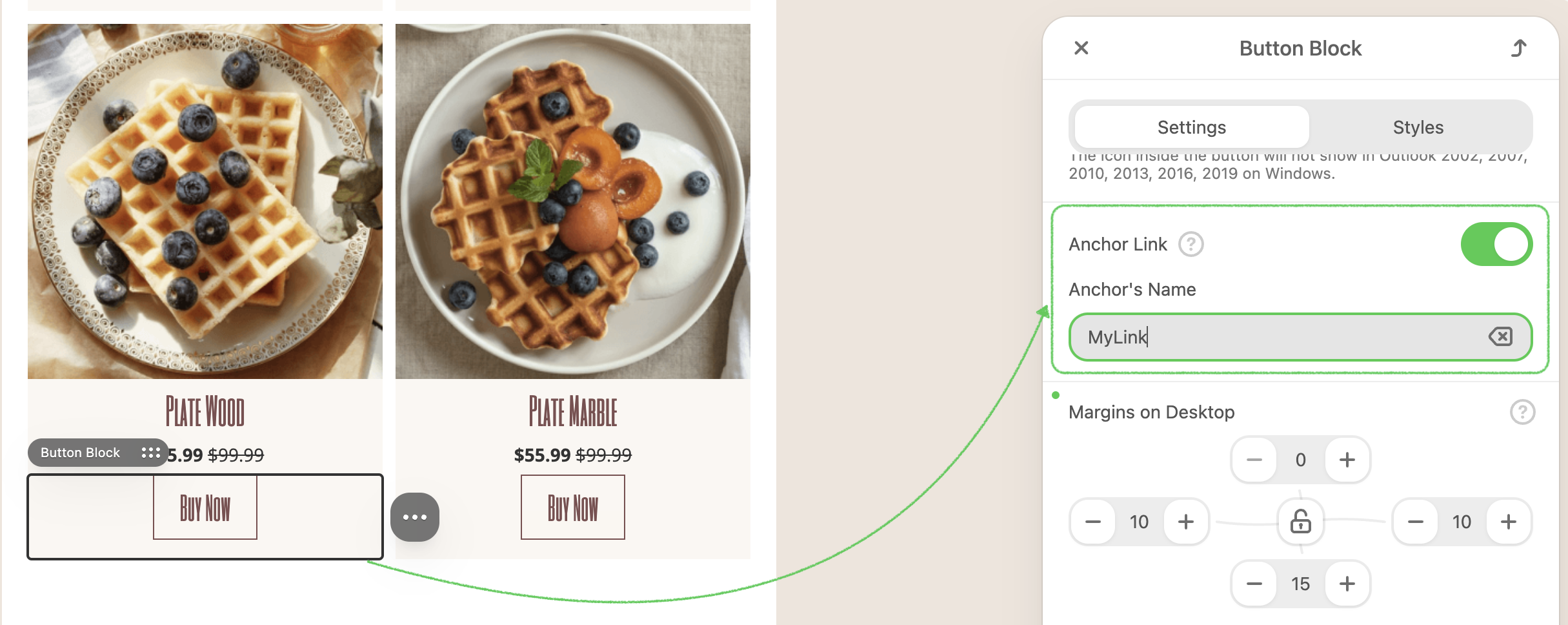
2. Select a target element that your link will be referring to. On the right panel, turn on the option **Anchor Link** and give the anchor a name.
3. Select an element that will redirect a user to the target destination. It can be a button, an image, or a menu element.
4. Go to the right panel, and in the field **Link** open the list with anchor links. Select the link’s name you created earlier.
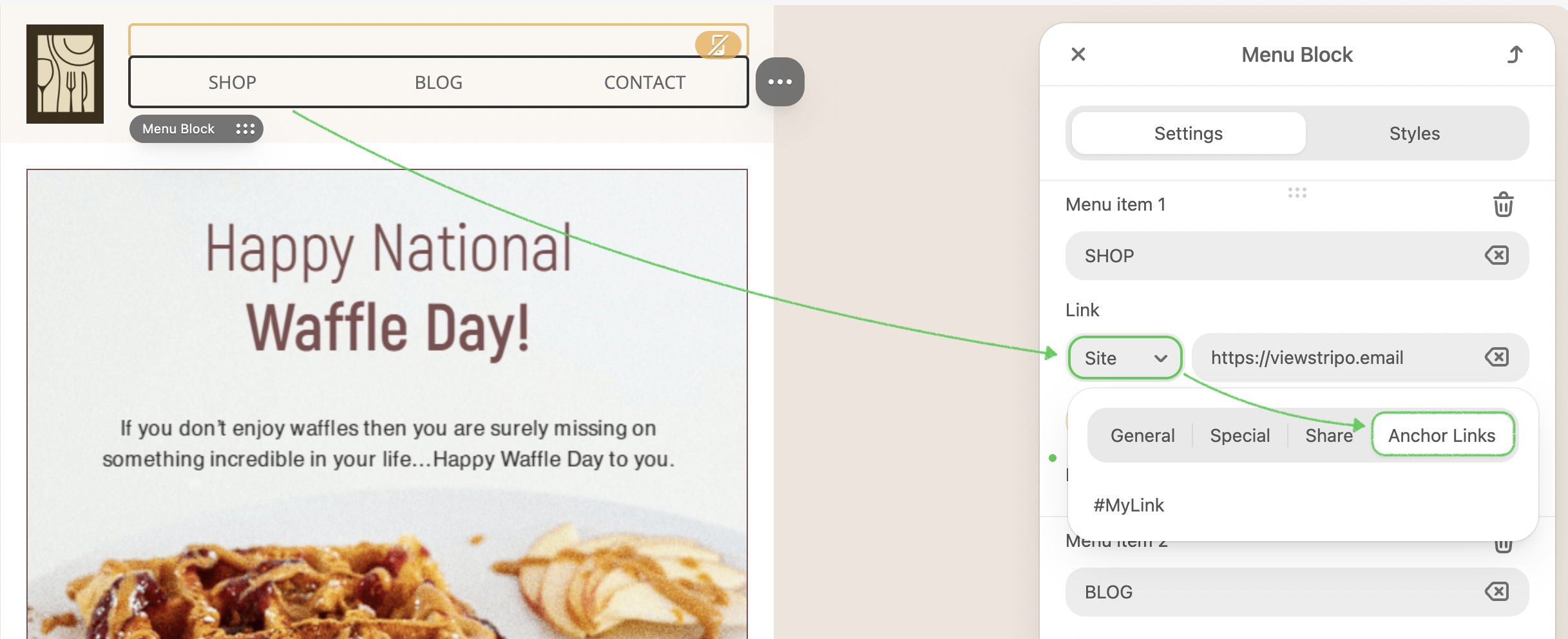
You have now created your anchor text and anchor link! You can proceed with designing your email as usual.
### HTML Blocks
To use the HTML blocks, you need a basic understanding of the HTML structure of your anchor links. An anchor link consists of two fragments: the URL and the actual anchor tag it navigates to.
1. Create your email design.
2. Drop the 1-column structure in your email template. Drop a basic HTML block.

3. Click the **Insert elements with custom code** to open the code editor. To create the anchor, paste the following HTML code in the custom HTML code block:
.png)
You can rename the value in quotes however you want. An easy-to-remember one-word name is recommended as you will link it to the anchor tag.
Now, you have created your anchor text and the link pointing to it.
## What email clients support anchor links?
Anchor links are not supported by all email clients. That's why itis recommended to keep this in mind when deciding whether to add a table of contents to your newsletters. Below, you can see a list of some of the most popular email clients and if they support anchor links.
| Email Client | Anchor link supported |
| --- | --- |
| Gmail (Web) | Yes |
| Gmail (Android App) | Yes |
| Inbox by Gmail (Android App) | Yes |
| Gmail (iOS App) | No |
| Apple Mail (iOS) | No |
| Yahoo! Mail (Web) | Yes |
| Outlook.com (Web) | Yes |
| Outlook (Android App) | No |
| Outlook (Desktop) | Yes |
| Outlook for MAC | No |
| Samsung Email App (Android) | Yes |
| Windows Mail (Windows 10) | Yes |