User information is sent to Insider One from multiple sources, including mobile apps, websites, internal systems, and third-party tools. This data is the foundation of nearly all Insider capabilities, such as:
Creating and updating audiences
Personalizing messages and experiences
Measuring conversions and campaign performance
Because these features rely on continuous data flow, any interruption, even for a short period, can cause serious issues. When data stops arriving, audiences may fail to update, campaigns may underperform, and reports may become inaccurate or misleading.
Insider One’s alert mechanism automatically detects if a key event or attribute has suddenly stopped arriving.
What is a Missing Data Error?
A Missing Data error occurs when Insider One stops receiving events or attributes that you have identified as critical.
To detect these issues proactively, you can define Missing Data rules that specify:
Which data is important (events or attributes)
Which source it should come from (Web, App, etc.)
How frequently it should arrive (for example, every 2 days, 7 days, or 12 days)
If Insider One does not receive the specified data within the defined timeframe, a Missing Data error is triggered and an alert is sent.
Example
You create a Missing Data rule with the following configuration:
Selected data: Phone Number
Data sources: Web and App
Expected timeframe: 2 days
If Insider One does not receive any Phone Number attribute from either Web or App within 2 days, a Missing Data error is created.
After the initial alert, the system continues monitoring the same rule. If the issue persists, Insider One will send follow-up alerts at the same interval until the data flow is restored.
Why Missing Data Monitoring matters
Missing Data Monitoring gives you early visibility into data flow issues. So, you can address the issue immediately at its source.
This helps you maintain:
Stable campaign performance
Accurate and reliable audience targeting
Consistent, trustworthy analytics
By surfacing issues early, Missing Data Monitoring helps keep your data foundation healthy, ensuring all personalization and marketing workflows operate as expected.
Define Rules
To receive Missing Data alerts, you must first define Missing Data rules.
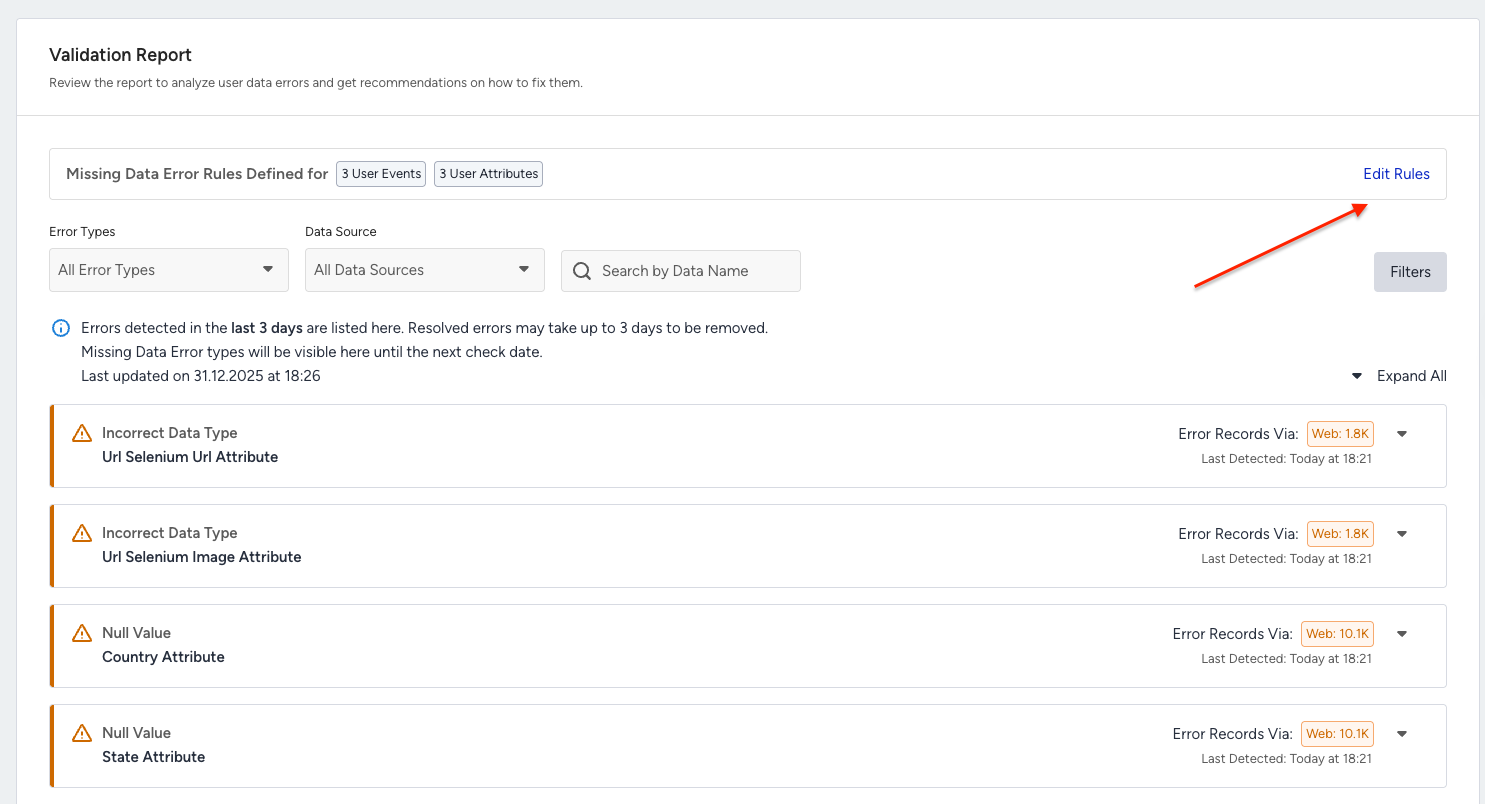
In the Validation Report step, click Define Rules to start creating your Missing Data rules.
You can add up to 20 user data rule sets.
Note that you can track events or attributes, but not event parameters.
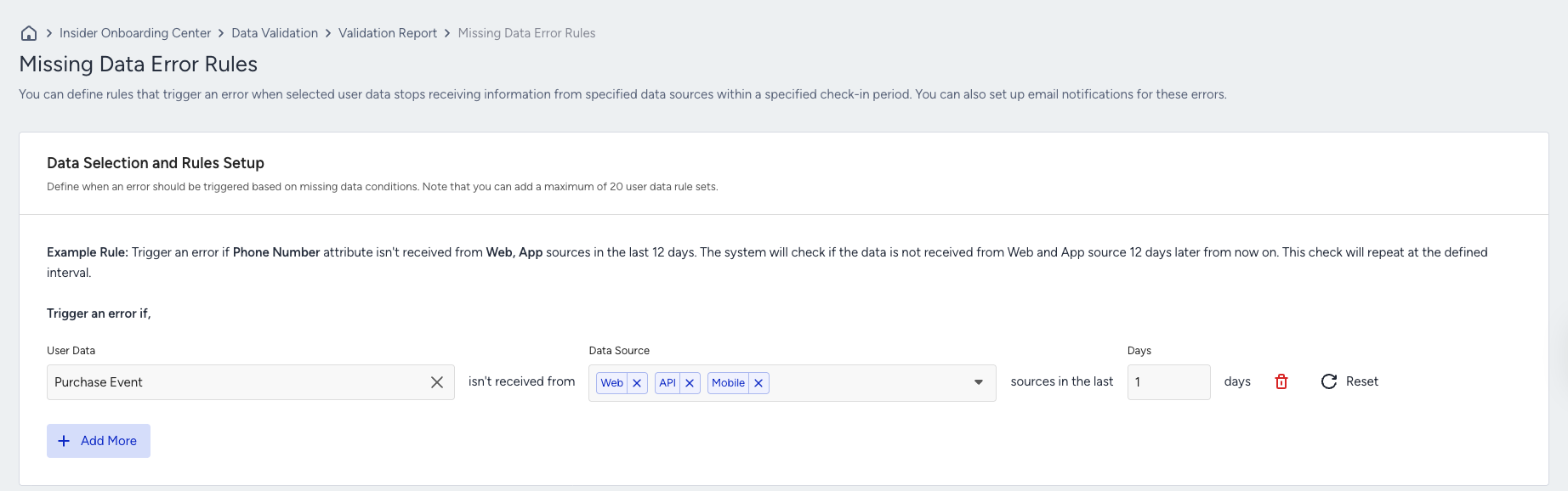
1. Select User Data
On the Data Selection and Rules Setup page, choose the events or attributes you want to monitor.
When making your selection, consider the following:
Which data points are most critical to your business operations
Which data loss would cause serious issues if Insider stopped receiving it
Which data directly impacts campaigns, audience segmentation, or reporting
Select only data that is truly essential.
2. Select Data Source
Next, define the data sources from which you expect the selected data to be received.
For example, if the Gamification Lost event is sent only from Web, select Web as the data source.
Ensure that the selected source is fully integrated and actively sending data. Selecting a source that is not yet integrated or inactive may trigger false or unnecessary Missing Data alerts.
3. Select Time Range
Finally, define the expected timeframe within which the selected data should be received.
When choosing the timeframe, consider:
How frequently the event or attribute is normally sent to Insider
How long the data can stop flowing before it becomes a real issue
Once you complete all three fields (data, source, timeframe), your rule is ready. If Insider One detects missing data based on your configuration, an error card will appear in the Validation Report.
Email Notification Setup
You can enable email notifications to receive alerts whenever a Missing Data error occurs. We strongly recommend enabling this option so you can detect and resolve data issues before they impact your campaigns, audience targeting, or reporting accuracy.
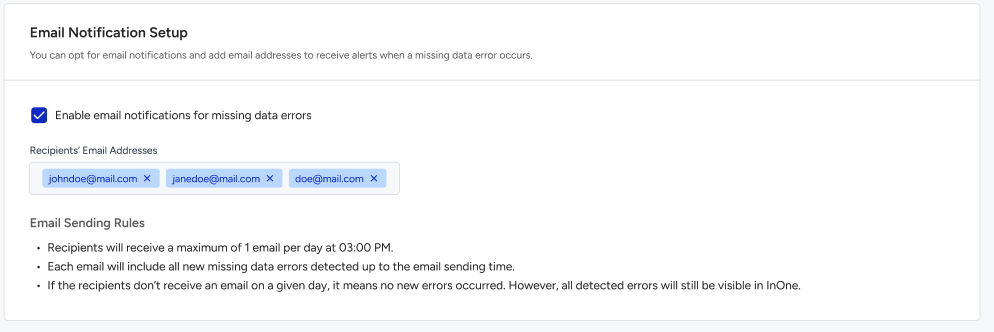
You can add up to 5 email addresses to receive these notifications.
Viewing Missing Data Errors
When Insider One detects missing data based on your configured rules:
An Error Card appears in the Validation Report
Clicking on the error card opens detailed information about the issue
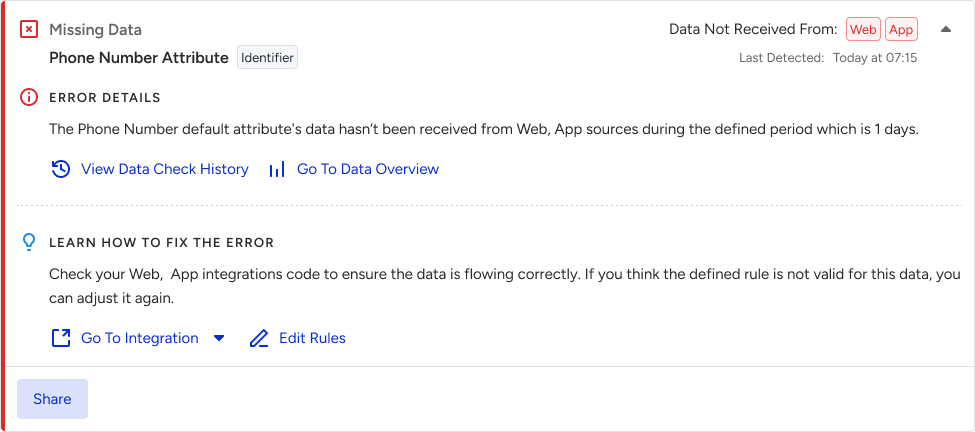
This allows you to quickly identify which data point is affected and take corrective action.
Data Overview
By clicking the Go To Data Overview button on the error card, you are redirected to a detailed overview page for the affected data.
From this page, you can:
See how many events or attributes were received
Review the breakdown by data source (Web, App, etc.)
Identify gaps or inconsistencies in data flow
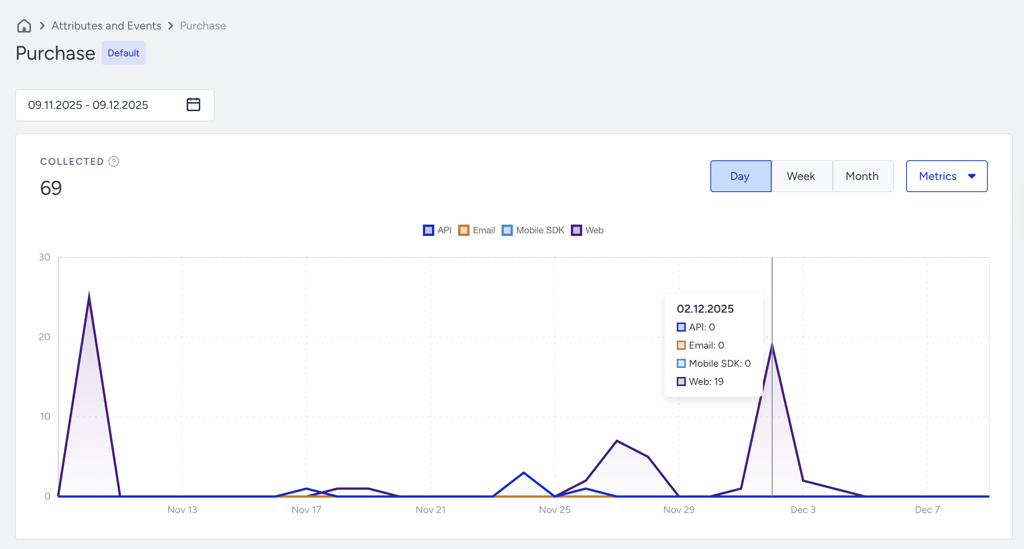
This view helps pinpoint the source of the issue more efficiently.
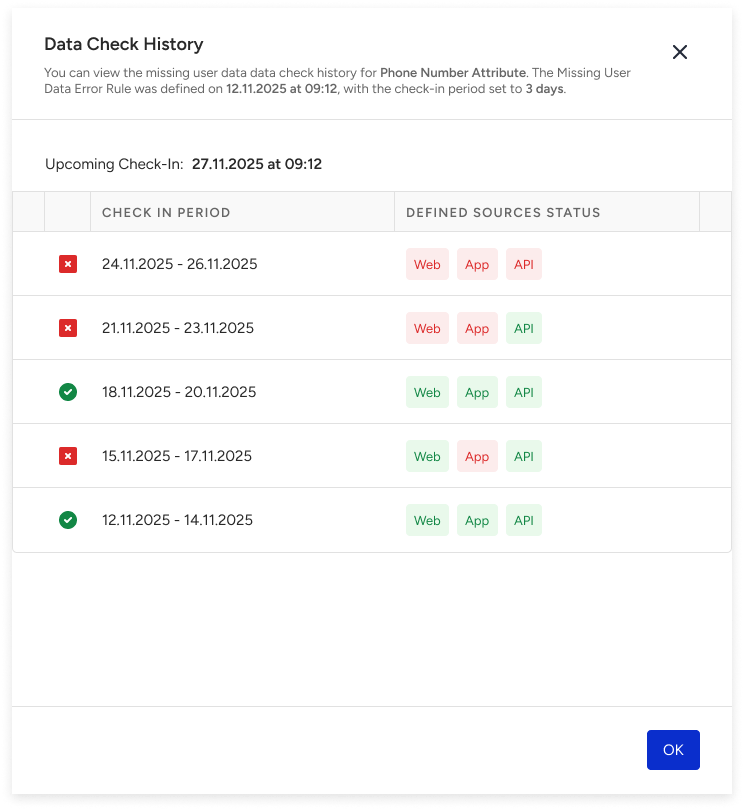
Data Check History
If you click the View Data Check History button, you can review the historical tracking of the selected data point.
This section shows:
Which data was received
From which sources
During which time periods