All native apps must use WebView to open a web page that contains the channel's script. You can open the web page on your side by calling the script provided in the channel settings.
This guide explains how to integrate the MindBehind SDK into your mobile app's WebView. You can follow the steps below to embed the script provided by MindBehind into your app.
Prerequisites
Before proceeding, ensure that you have the following:
Access to your mobile app's source code.
A MindBehind channel script, which will be provided to you.
Integrate the MindBehind SDK
1. Go to Companies on MindBehind Flow.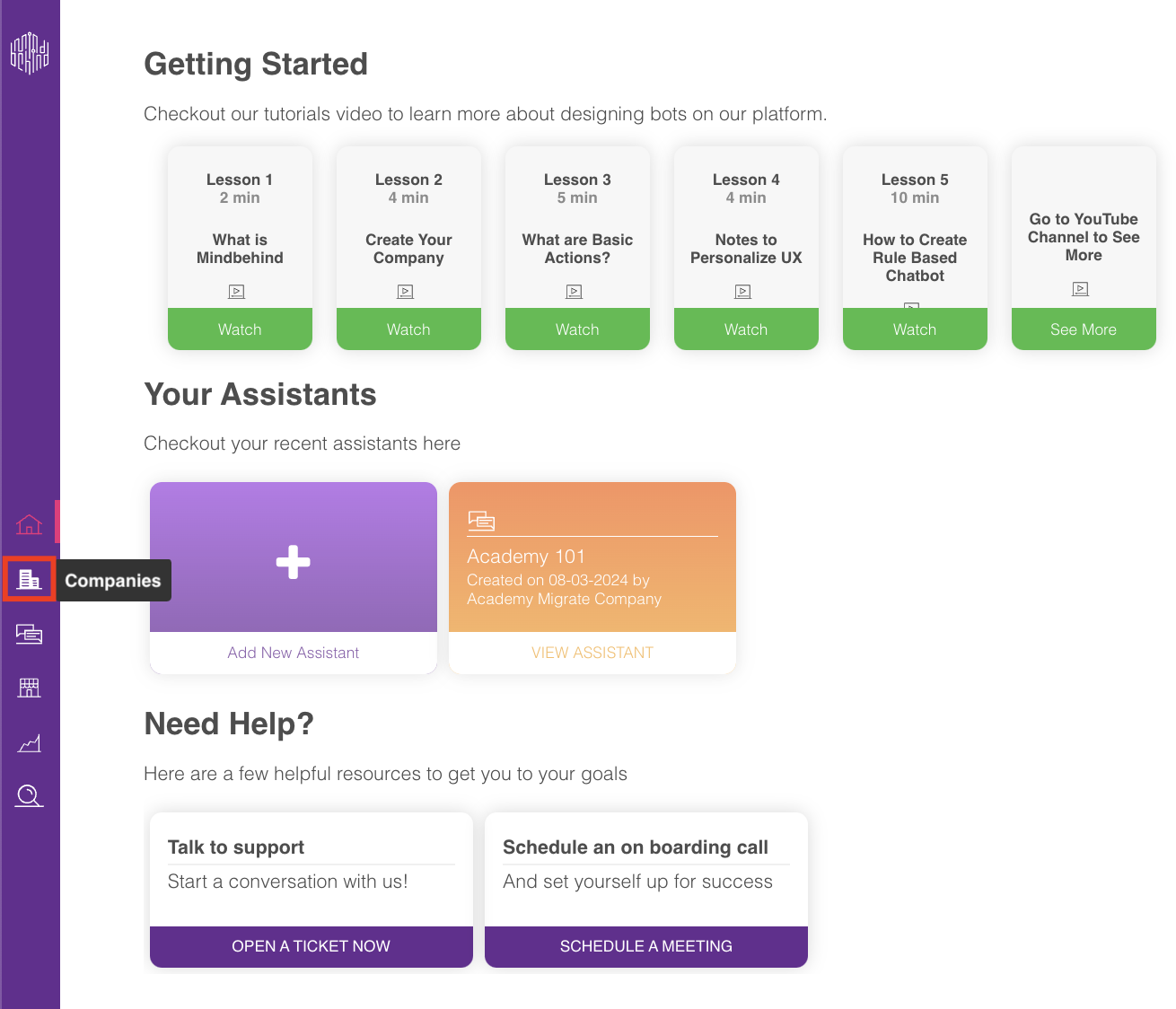
2. Select the Channels tab to see the list of channels. 
3. Click the Update button of the Web Messenger channel you want the script for. 
4. Click the Getting Started tab. 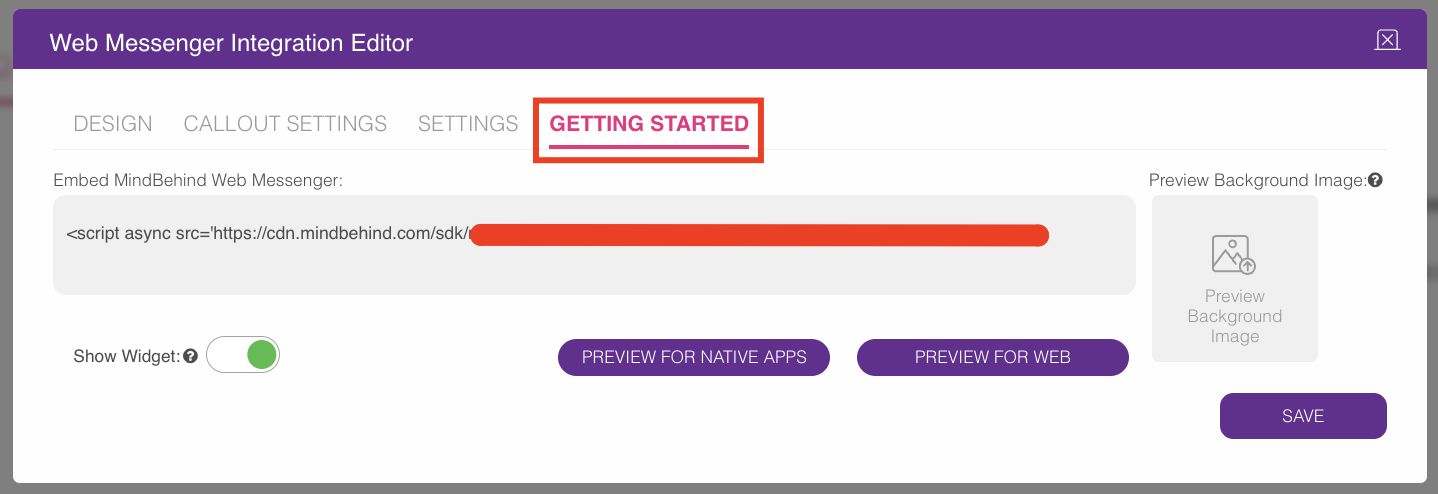
5. Copy the script available. 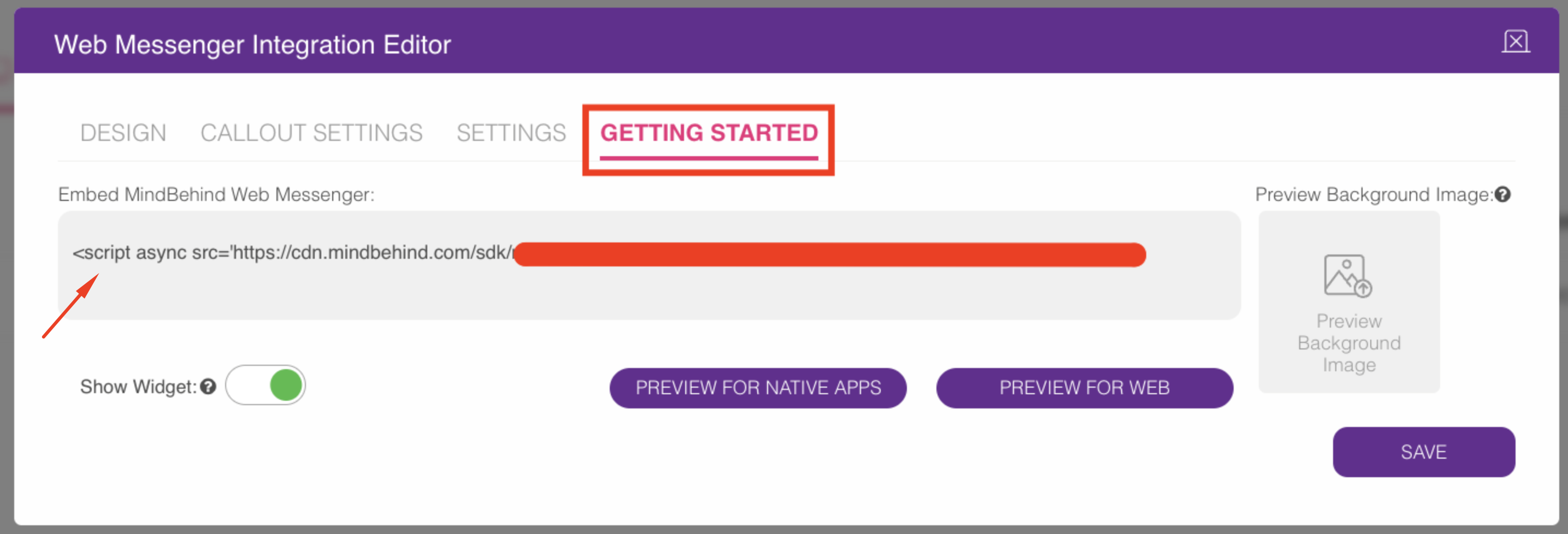
<script async src='<https://cdn.mindbehind.com/sdk/mindbehind-sdk.js?auto=true&key=YOUR_CHANNEL_ID&api=test>'></script>
6. To add the script to your mobile app, open your mobile app's source code in your preferred code editor.
7. Decide where you want to place the script. You can include it in any HTML file that will be loaded into the web view of your mobile app.
8. Copy the provided script and paste it into the chosen HTML file at the desired location.
9. Ensure that your mobile app's webview is configured to load external scripts. This step may vary depending on the framework or platform you are using. Refer to the documentation of your chosen framework or platform for guidance on configuring the web view.
10. After integrating the script, build and run your mobile app to test the implementation. Ensure that the web view loads without any errors and that the MindBehind SDK functionality is working as expected.
Congratulations! You have successfully integrated the MindBehind SDK into your mobile app's webview. Your app can now leverage the capabilities provided by MindBehind for enhanced user engagement and analytics.
If you need further assistance or have any questions, you can refer to the documents below.
Refer to File Upload in Web View if the file upload in Web View is not working.
Refer to Android Web View Keyboard Covering Up Input if the keyboard covers the input field.
Refer to How to not reload web view when resuming app again? if you want to not reload the web view to keep the conversation session.
You can call the script provided in the channel settings to access the web page.
Refer to How to Integrate Web Messenger for more information.
Alternatively, you can directly use the test URL: https://app.mindbehind.com/chatbot-test?channelId={{channelId}}
You can use WebView to set parameters to window objects to pass parameters to the bot.
Refer to How to Send Parameters from MindBehind for further details.
Additionally, you can add some global JavaScript code that can manipulate the UI of the Web Messenger.
Refer to How to Customize Web Messenger for further details.