On Meta channels such as Instagram and Facebook Messenger, conversations are often asynchronous. Users may start a conversation, pause their interaction, and return hours later expecting the conversation to continue naturally.
To support this behavior, MindBehind applies session-handling logic to keep conversations fluid and uninterrupted while users remain engaged. This approach prevents active discussions from being cut off mid-flow and ensures a more natural, human-like chat experience, especially during support and discovery journeys.
Navigate to the 24-hour Windows report
To access the 24-hour Windows report, navigate to MindBehind Live > Analytics and click the Explore button for the 24-hour Windows report.
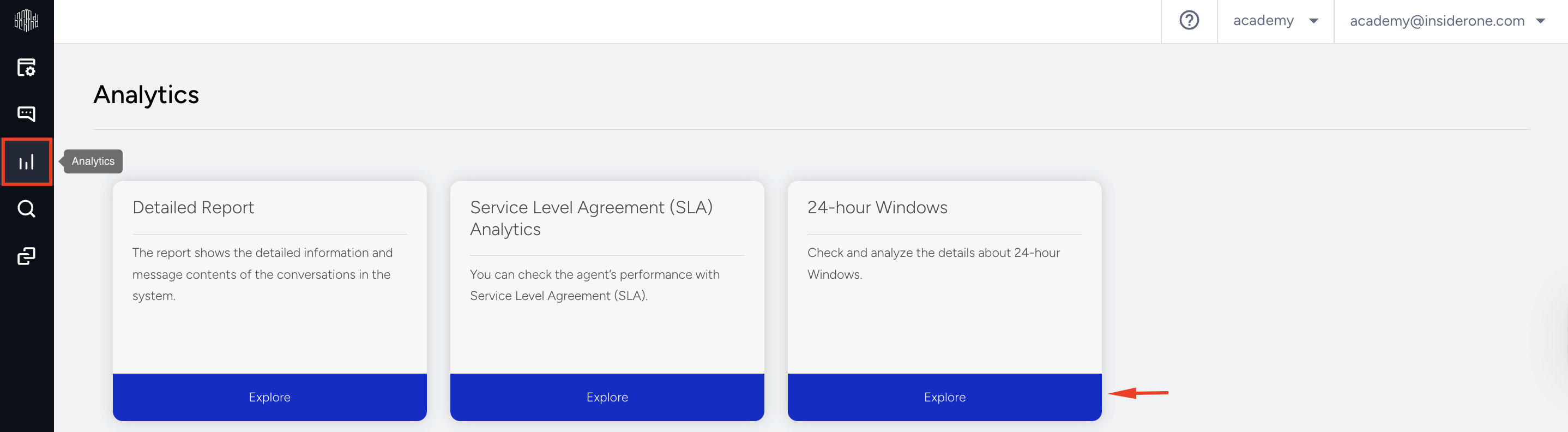
How Session Continuity Works
Conversations remain active for a rolling 24-hour period as long as the user continues to engage. This means that:
Conversations are not interrupted during ongoing interactions
Users can continue chatting without restarting the conversation
Support and shopping journeys feel continuous and uninterrupted
From the user’s perspective, the conversation simply continues.
Commercial Tracking and Reporting
While the user experience is optimized for continuity, commercial tracking remains aligned with Meta’s 24-hour conversation window model. Window-based counting is still applied for analytics and billing, ensuring transparency and consistency across all Meta channels.
This report helps you understand how continuous user interactions are mapped to 24-hour windows—without compromising visibility or control.
How 24-Hour Windows Analytics Works
The 24-Hour Windows analytics page provides transparency into your conversation traffic and usage across all channels.
Since these platforms utilize a rolling 24-hour session logic, this report helps you understand exactly how your interactions translate into billable units, ensuring you have full visibility into your consumption.
Conversations vs. Windows
To fully utilize this report, it is essential to understand the distinction between a "Conversation" and a "Window."
Conversation: A continuous interaction with a user. It represents the entire support case, regardless of how long it takes to resolve.
24-Hour Window: The standard unit of measurement for billing and Meta compliance.
A standard conversation usually consumes 1 Window.
However, if a conversation remains active and extends beyond 24 hours (due to continuous user engagement), it will generate a new 24-Hour Window.
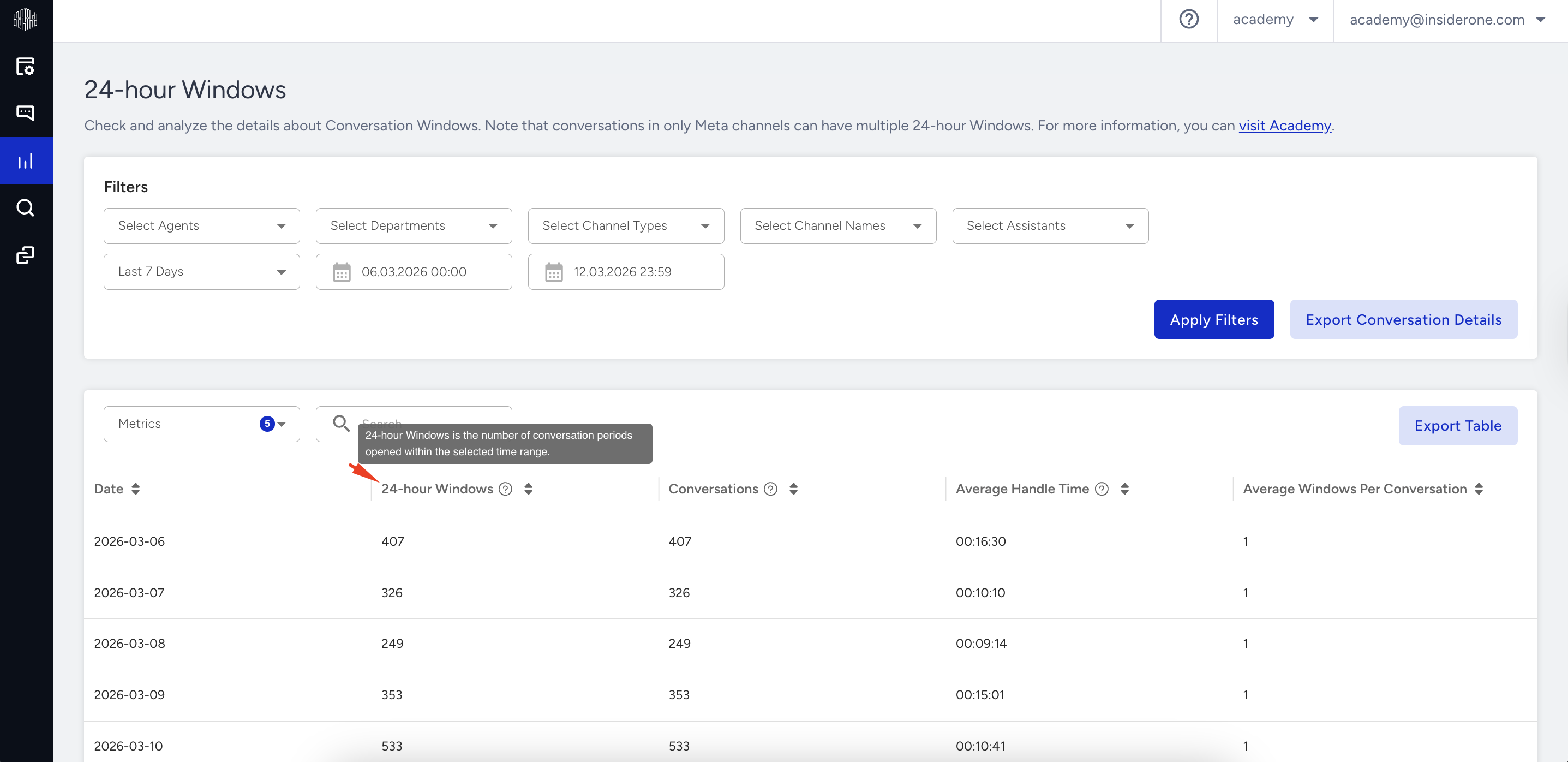
Dashboard Metrics
Refer to the table below for the breakdown of the metrics visible in the data table.
Metric | Definition |
|---|---|
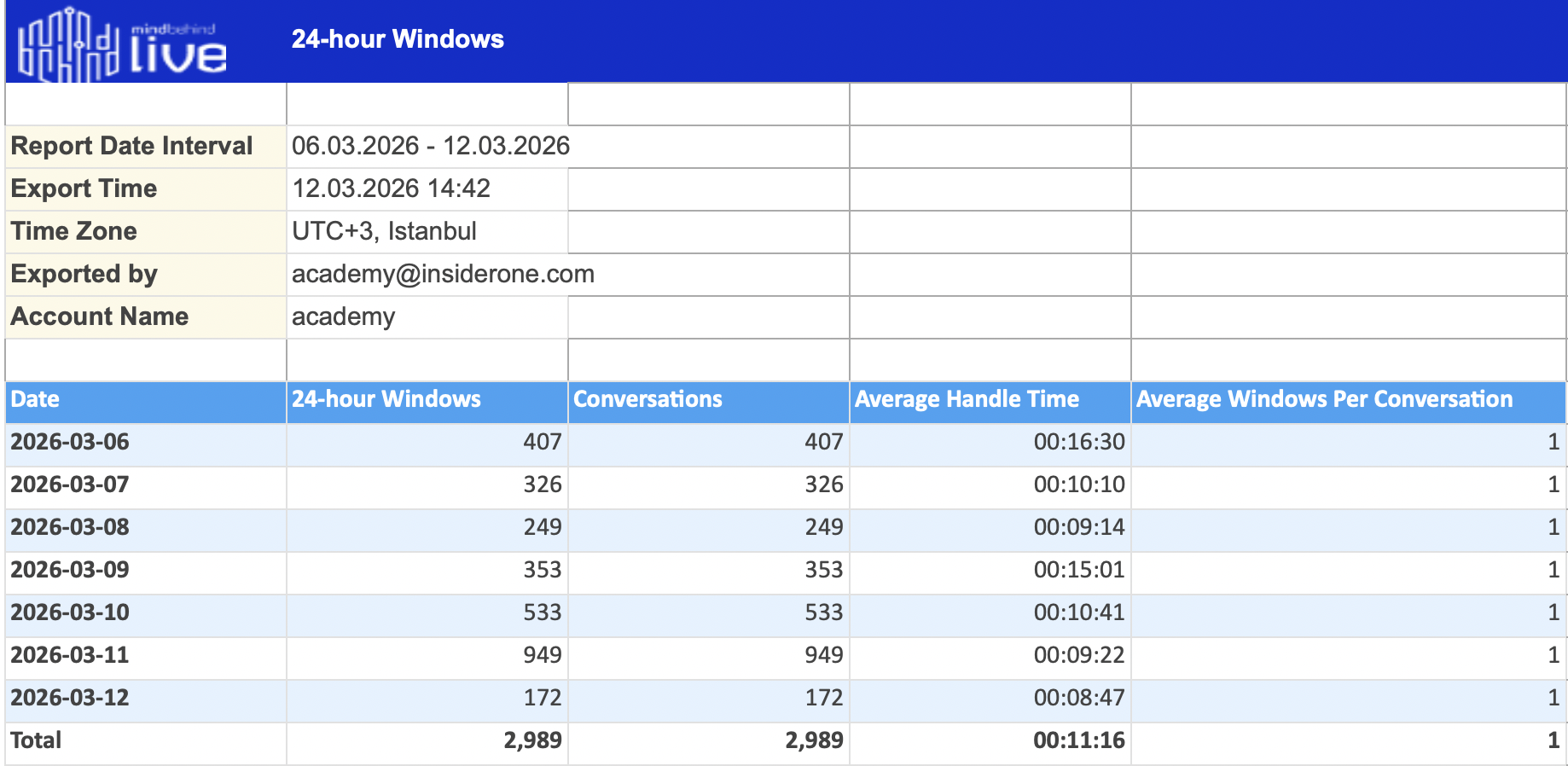
24-hour Windows | The total number of 24-hour sessions consumed on the selected date. |
Conversations | The total number of unique conversation threads that ended on the selected date. |
Average Handle Time | The average duration required to resolve conversations on the selected date. |
Avg. Windows per Conversation | The average number of 24-hour windows consumed by a single conversation.
|
Interpret your data
You can use the "Avg. Windows Per Conversation" column to identify operational inefficiencies.
Scenario A: The Ideal Flow
Conversations: 100
24-hour Windows: 100
Avg. Windows: 1.0
Analysis: Your team is resolving issues efficiently. No conversation is dragging on longer than necessary.
Scenario B: Long-Running Sessions
Date: 2025-12-18
Conversations: 3
24-hour Windows: 5
Avg. Windows: 1.667
Analysis: On this day, 3 conversations consumed 5 windows. This means conversations remained open and active for longer than 24 hours, triggering additional windows.
Recommended Action: Check these specific conversations. Are they legitimate long-term support cases, or did an agent forget to close the conversation?
Filter and export data
Filters: Use the top bar to drill down by Agent, Department, or Channel Name to see which specific teams are generating long-running conversations.
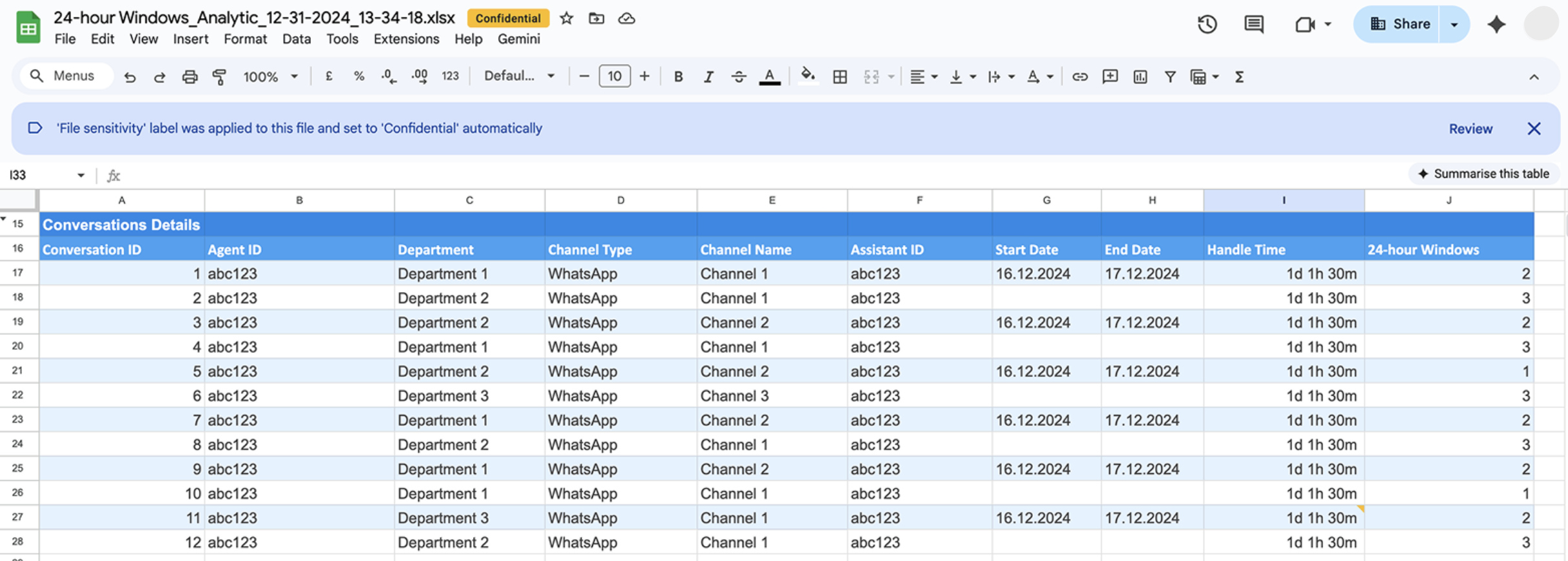
Export Conversation Report: This button downloads the comprehensive raw data file. It is designed for deep dives and detailed auditing. It allows you to see exactly how many 24-Hour Windows were consumed for each unique Conversation ID, providing a granular breakdown of usage.
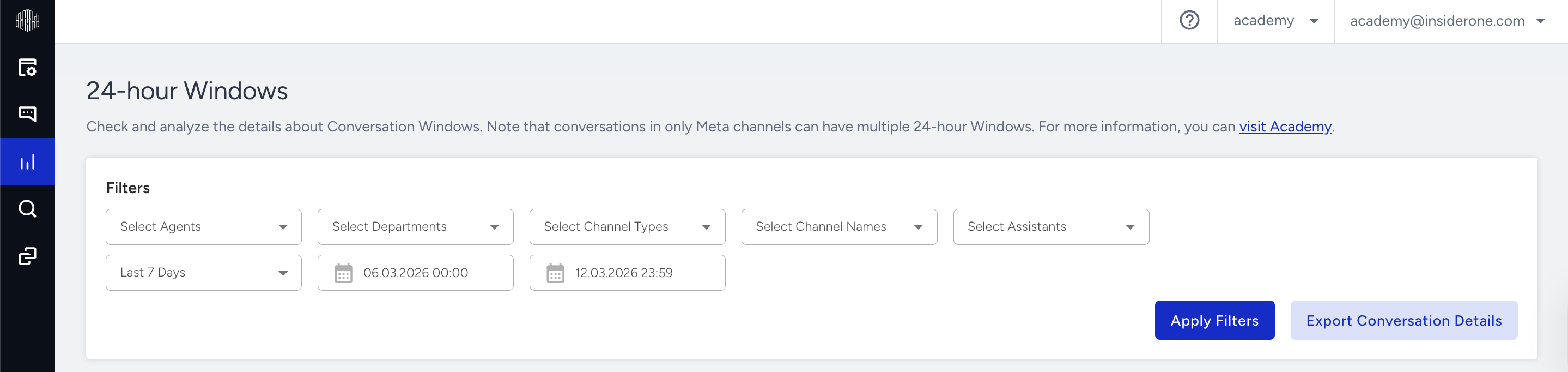
Export Table: This button downloads only the summary data currently visible on your screen/interface. It is ideal for quick reporting and for saving the specific view or filters you are currently using. It includes only the columns and rows displayed in the panel's table. It does not include the detailed raw data.
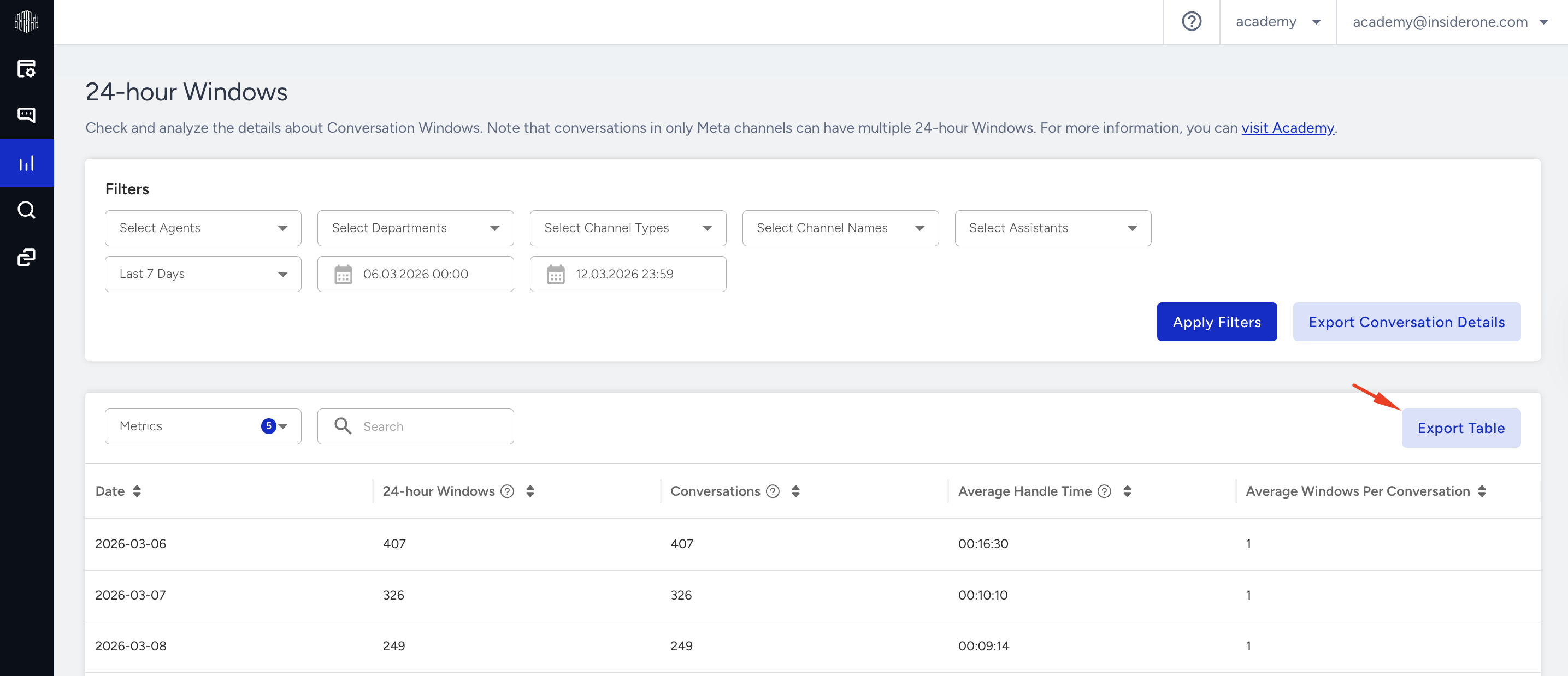
The exported file will look like the visuals below.
Frequently Asked Questions (FAQ)
Q: Why don't conversations close automatically after 24 hours anymore?
A: To comply with Meta (WhatsApp) policies and improve the end-user experience, we have moved to a "rolling window" system. This prevents active conversations from being abruptly cut off in the middle of a sentence, resulting in a smoother support experience.
Q: How can I prevent accidental overages?
A: We strongly recommend configuring Department Timeouts or Assistant Timeouts. This ensures that if a user stops replying, the system closes the conversation before it rolls over into a new 24-hour window.