This guide aims to explain how to connect Microsoft LUIS. You can follow the steps below to connect Microsoft LUIS.
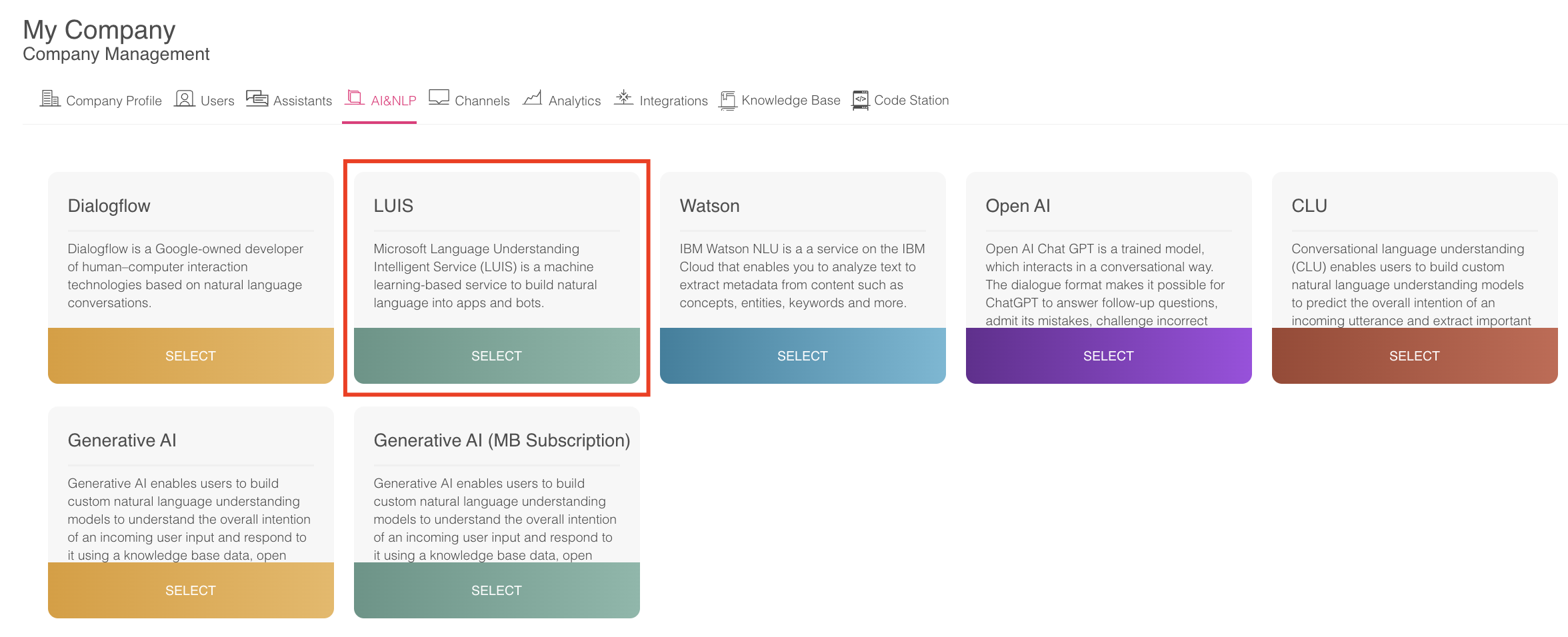
Navigate to Company Management > AI & NLP on MindBehind and click the Select button for the Luis integration.
In the open pop-up, click the Configurations tab and fill in the following fields.
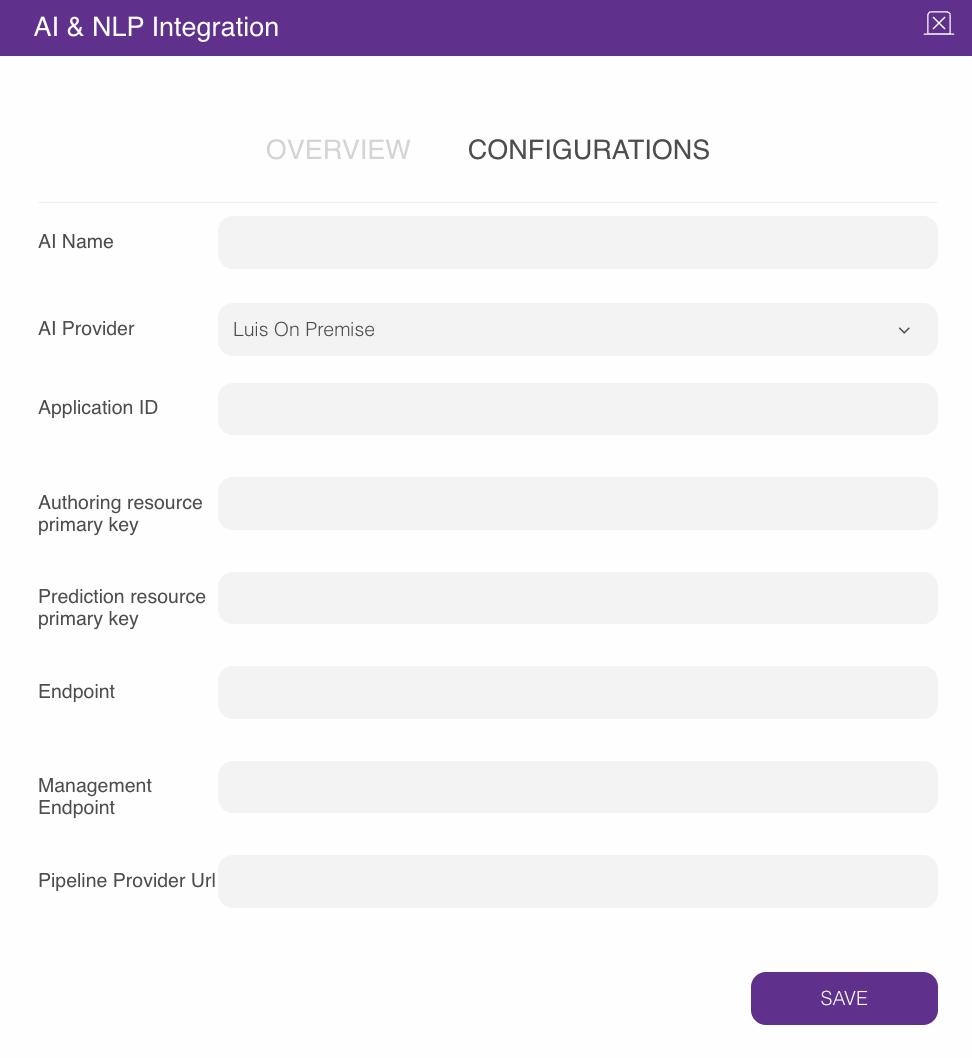
To fill in the related fields, token number, and primary key, you should access the Luis Panel and create an account. If you already have one, log in with your account.
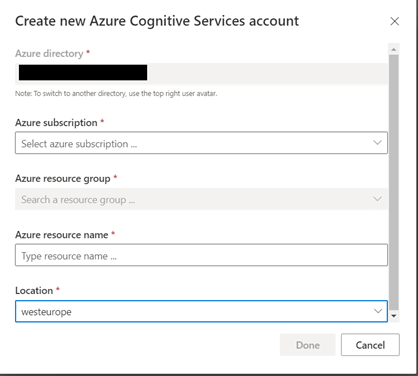
After creating an account, you should choose an authoring resource. You can create a new authoring resource. If you have authoring resources, fill out the Azure Cognitive Service account section.
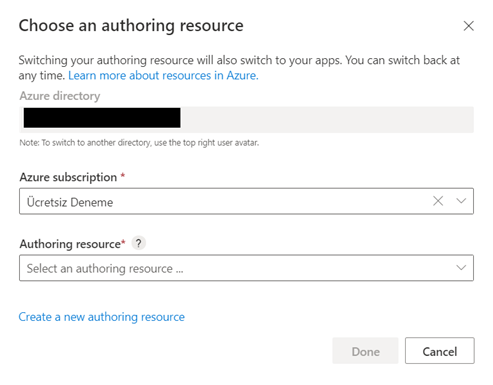
You can use the portal to create a new authoring resource group.
Select the Authoring option.
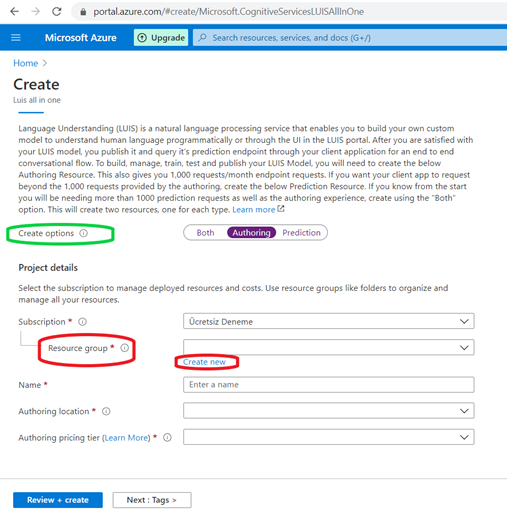
For the Resource group option, click the Create New button.
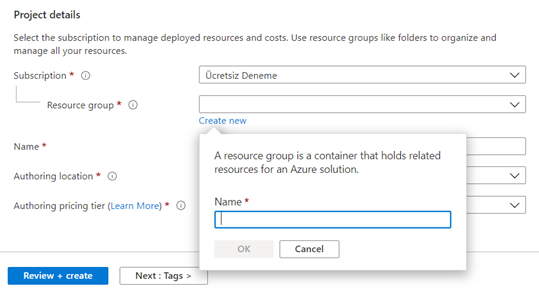
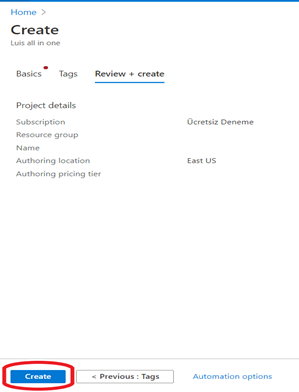
After creating the new resource group, set your Authoring location. After filling in the following fields, click Review+create and click the Create button.
Now, you can create a new “Azure Cognitive Service account” on the LUIS page. Fill in the following fields.
To create a new assistant, go to the My Apps tab and click the New app button.
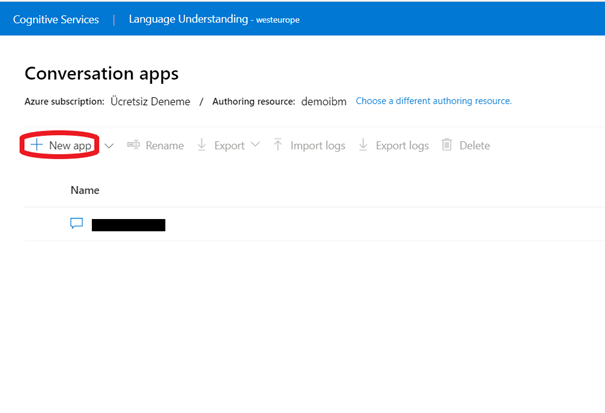
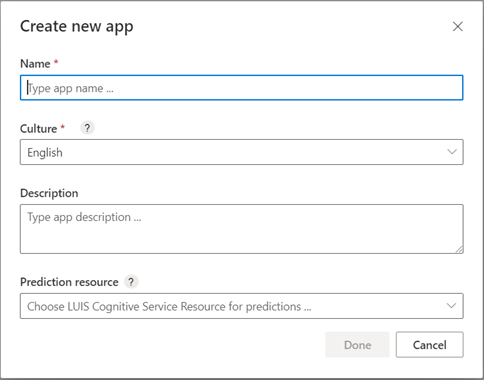
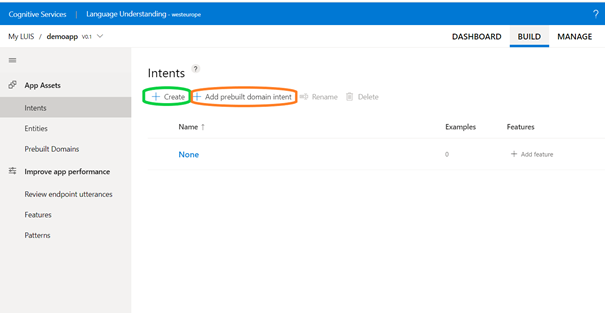
After filling in the related fields, click on your new assistant to create new intent or add prebuilt domain intent.
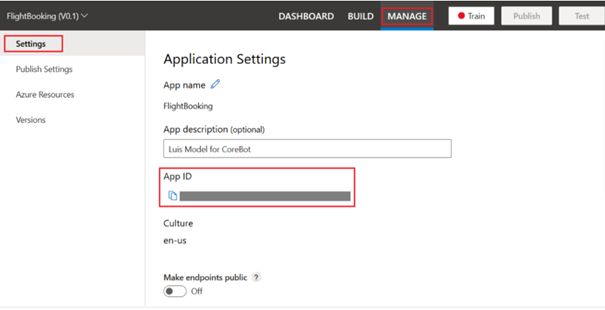
After creating and naming your project, click the Manage button on the redirected page and go to Settings.
You will see AppID under the Application Settings. This will be used for the Application ID in the MindBehind AI-Integration pop-up.
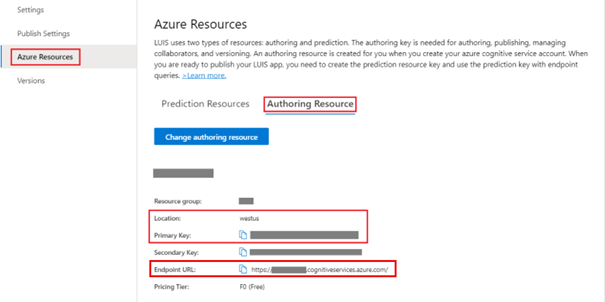
Click on the Azure Resources. The Primary Key is located under the Authoring Resource. This will also be used for the “Primary Key” in the pop-up. In addition, the Endpoint URL will be used for the “Endpoint” field on the pop-up.
Now, it is all done. You can successfully add Windows LUIS.