In a global ecommerce environment, customers expect experiences that reflect their language, currency, delivery expectations, and product availability. Smart Recommender supports these expectations by allowing you to structure your Product Catalog and campaigns using locales and stores, enabling precise control over regional and sub-regional variations.
By configuring Locales and Stores correctly, you ensure that users are presented with the most relevant products in the appropriate context across all channels.
By the end of this guide, you will be able to clearly understand:
How do I configure Locales and Stores in my Product Catalog?
How do Locales and Stores affect campaigns and Product Catalog feeds?
This guide will help you design a scalable catalog structure that supports localization, personalization, and accurate product availability across all markets.
What is a Locale vs. a Store?
Locale
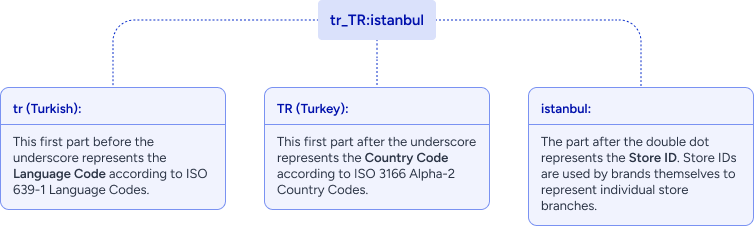
A locale is a combination of language and country pair, following the ISO standard (e.g., en_US, fr_FR, tr_TR). It determines:
Language of your product names and descriptions
Country information for your product catalog
Think “Language + Country Pair”
Store
A store sits under a locale and represents a specific warehouse, retail branch, delivery hub, or virtual storefront within that locale.
Stores let you show only what’s available at that location.
Prices, availability, and discounts can differ by store.
Campaigns can be personalized to target a single store.
Think “Inventory Point or Fulfillment Region”
Business | Locale | Store | Purpose |
|---|---|---|---|
FreshNFast Grocery (Turkiye) | tr_TR | tr_TR:Istanbul, tr_TR:Ankara | Serve localized stock and pricing per city |
SneakerRush (EMEA) | en_GB, fr_FR, de_DE | No stores | Language-only personalization |
StylePoint (Middle East) | en_AE | en_AE:Dubai_Mall, en_AE:AbuDhabi_Store | Regional clothing trends and stock split |
ElectroZen (US) | en_US | en_US:East_Coast, en_US:West_Coast | Separate warehouses, price zones |
BooksBay (Canada) | en_CA, fr_CA | en_CA:Montreal, fr_CA:Montreal | Bilingual locale setup + store-specific campaigns |
Locales manage regional language/currency preferences. Stores allow inventory segmentation within the same locale.
Configure Locale and Store in the Product Catalog
Navigate to Components > Product Catalog Management > Catalog Settings > Catalog Locales. Here you can view, create, and manage all locales and stores for your business.
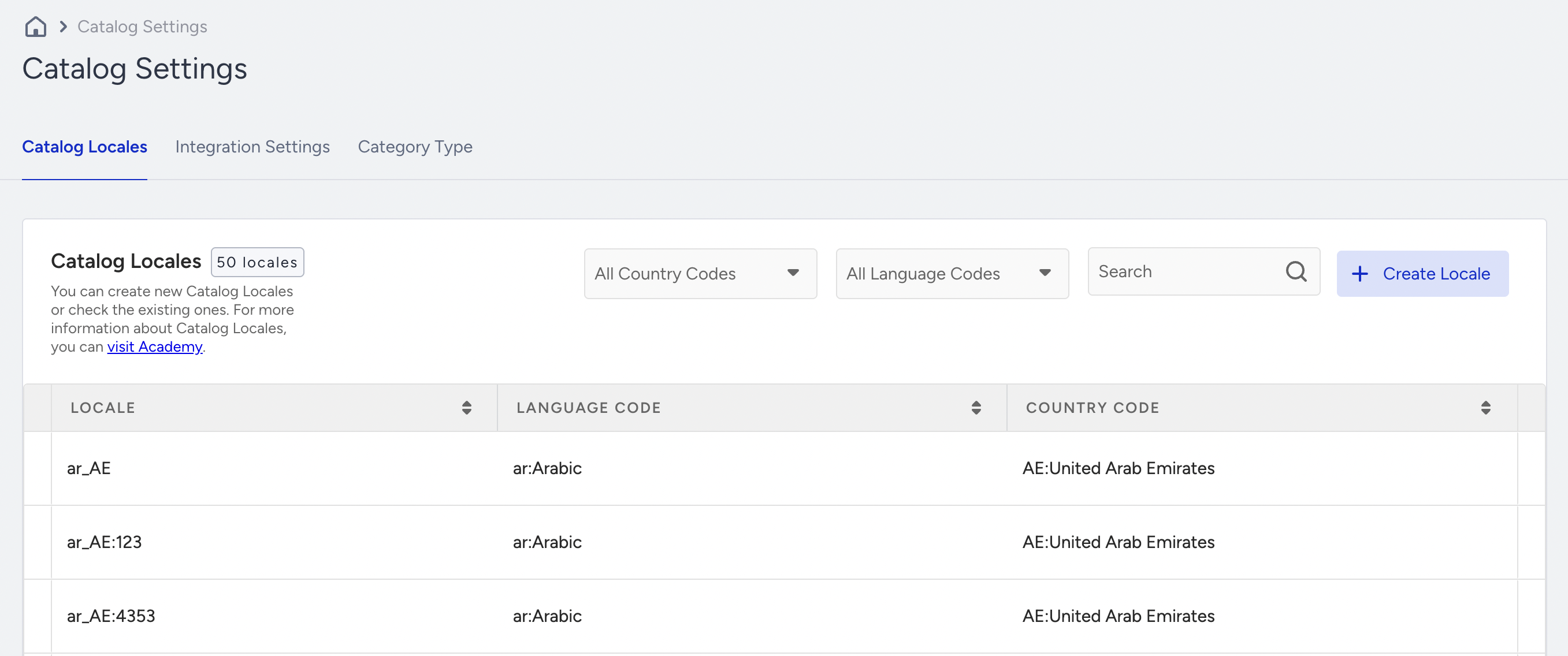
Click the Create button. Define your Locale and Store.
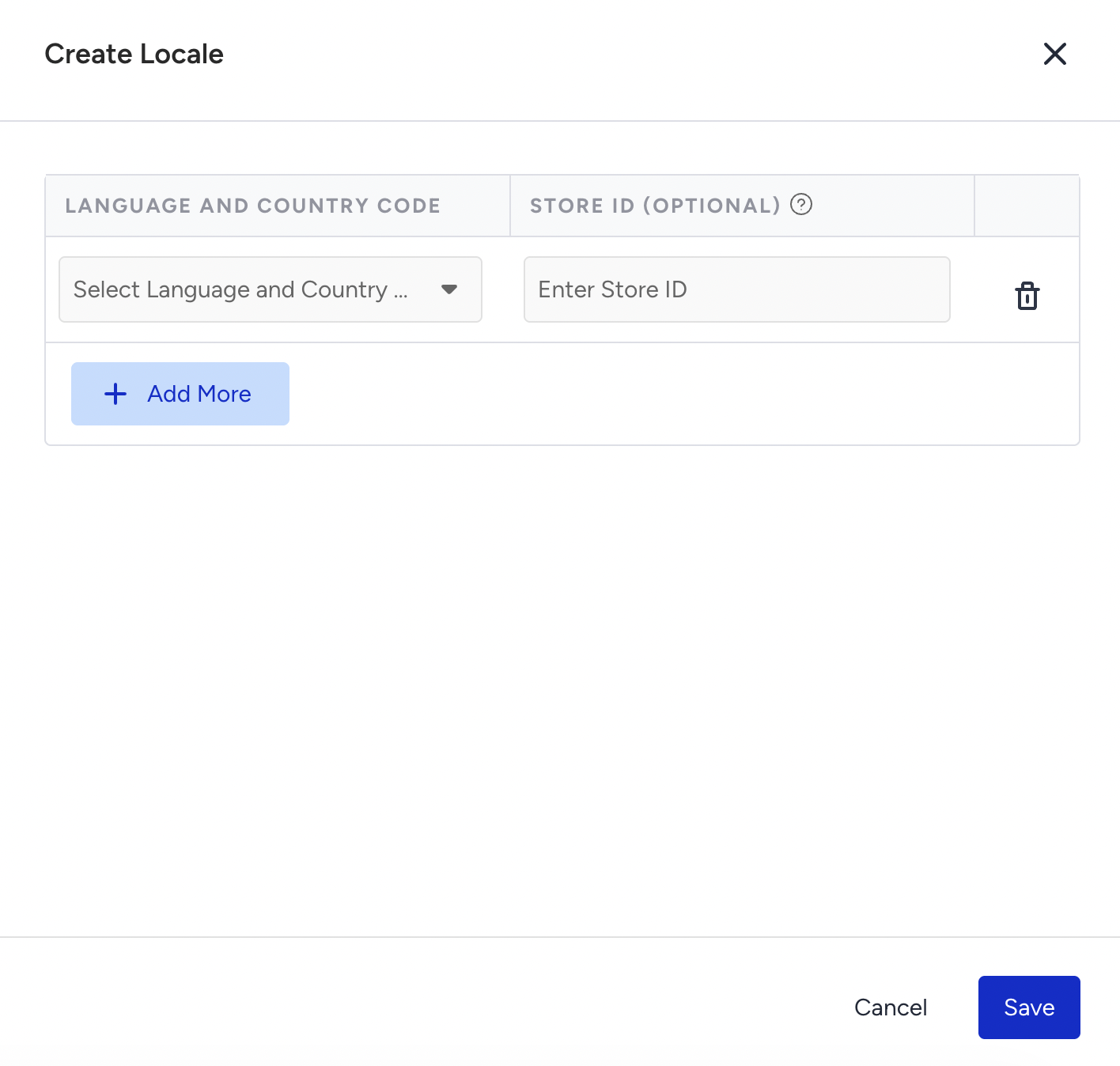
If you want to add a new locale only, select an unused ISO code (e.g., it_IT). Leave the Store field empty.
If you want to add a locale and store together, select an ISO locale (e.g., tr_TR) and type a store name (e.g., Istanbul)
If you want to add a new store under an existing locale, pick a locale (e.g., en_US) and define a new store (e.g., NYC_Downtown)
Each new store under a locale behaves like a sub-catalog. You can control which products appear, at what prices, and when.
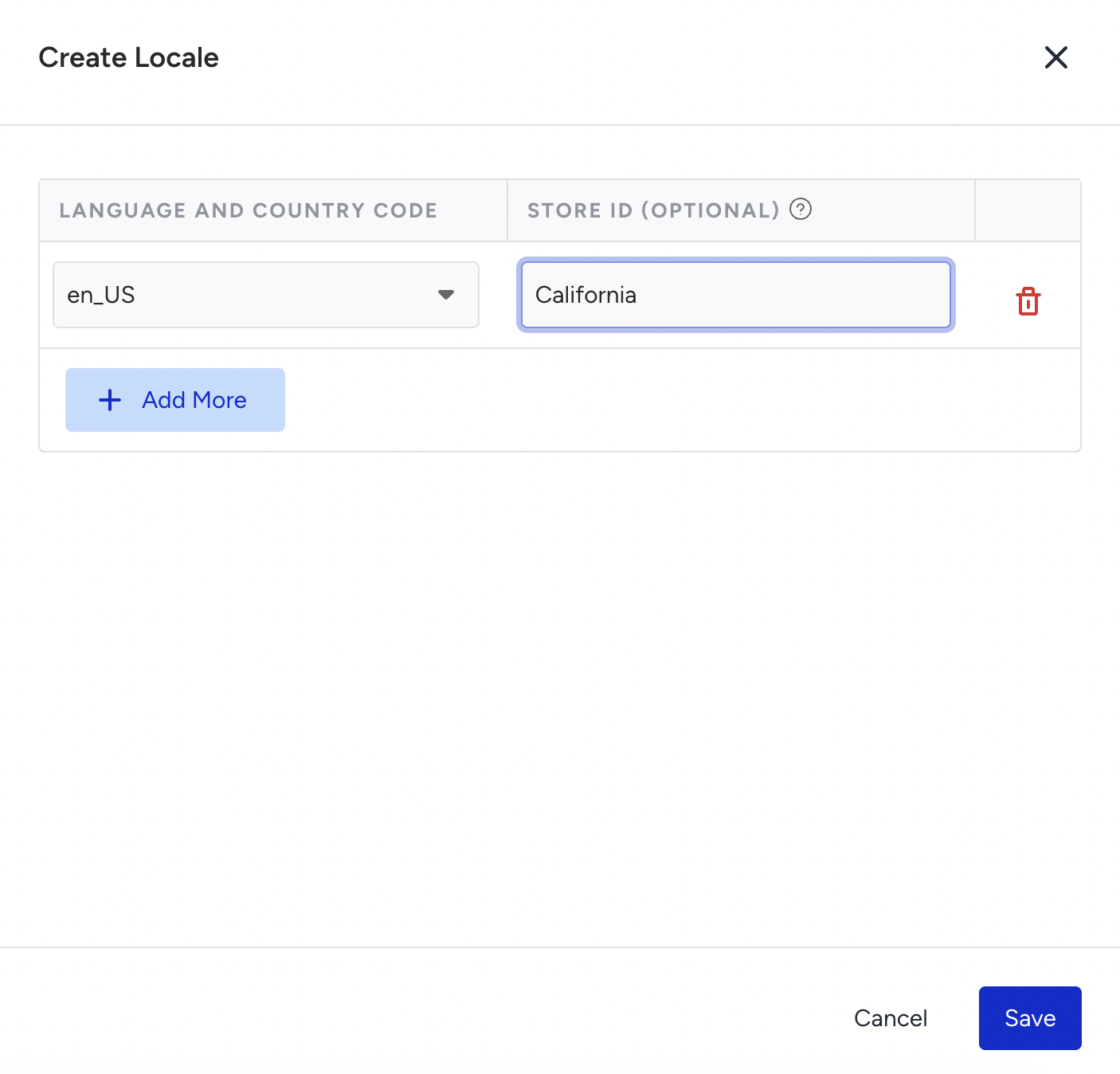
Click the Save button. Your configuration is now available for product feed mapping, campaign creation, and analytics.
You can also refer to the video below to better understand what the locale is, how to create it, and how it works in Smart Recommender and Eureka:
If this video does not load in your region, you can watch it on our YouTube Channel.
How do Locales and Stores affect campaigns and Product Catalog feeds?
Your locale and store structure are central to feed processing, recommendation logic, and campaign targeting.
Product Catalog
Your locales and stores must align with your catalog configuration.
Integration | Requirement |
|---|---|
Clickstream | The getlocale system rule must exactly match an existing locale (e.g., tr_TR). |
Catalog API | The payload’s locale must match a defined locale/store. |
XML Feeds | XML files should be mapped in the XML integration. |
Product Catalog integrations without locale definition will not be ingested.
Campaigns
When launching campaigns, you can:
Target the entire locale (e.g., tr_TR)
Target a specific store (e.g., tr_TR:Ankara)
Only locales/stores with valid, synced catalogs will be validated for launching campaigns.
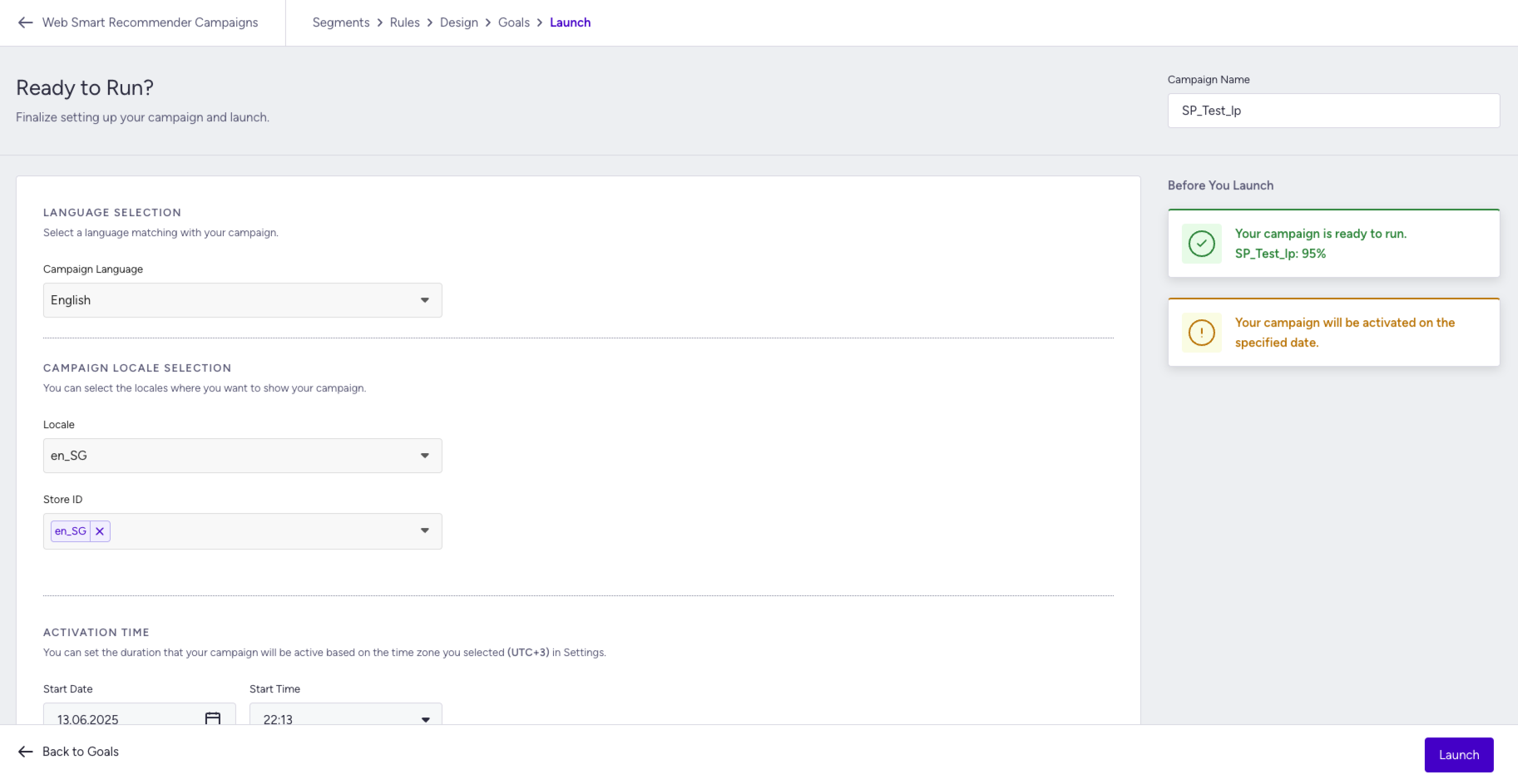
Run campaigns per region or store
Using locales and stores, you can build high-conversion campaigns tailored to specific geographies. On your campaign’s Launch step, you can define the language and the locale/store of your campaign to target a specific locale/store.
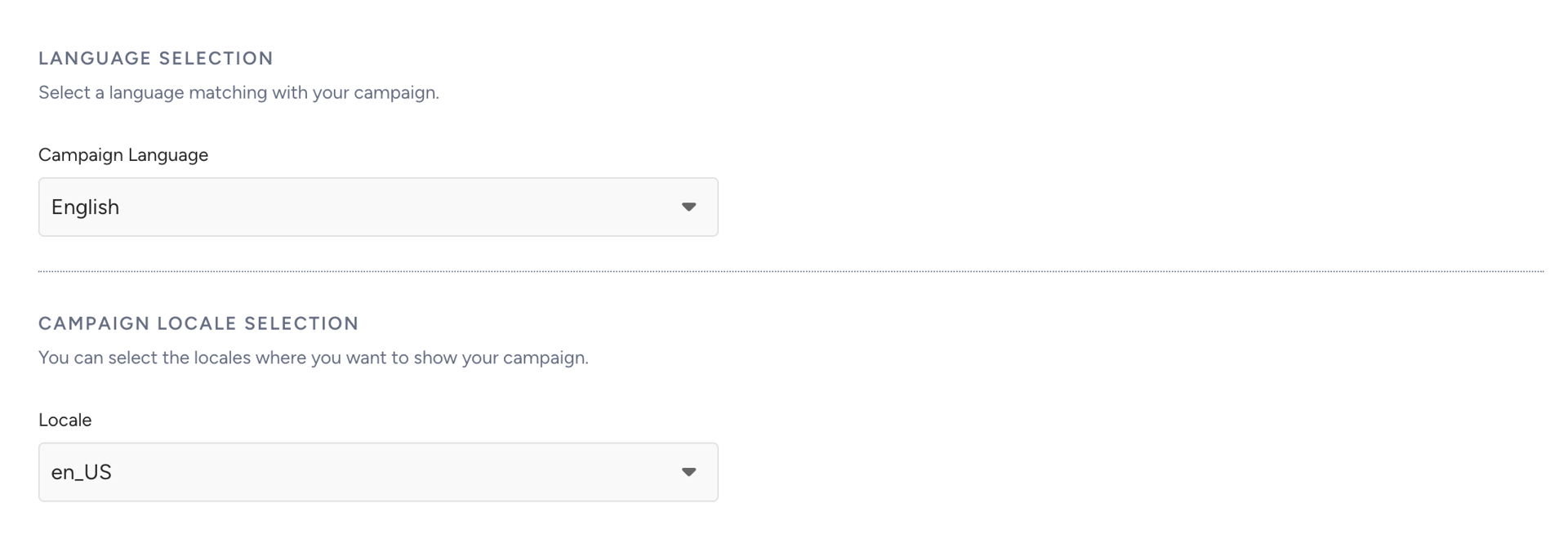
Example 1: City-Specific Flash Sale
Business: FastFash
Locale: tr_TR
Store: Istanbul_Outlet
Campaign: End-of-season outlet sale targeting Istanbul
Campaign targets only shoppers under tr_TR:Istanbul_Outlet and recommends discounted stock.
Example 2: National Language Campaign
Business: HomeDecoria
Locale: fr_CA
Campaign: French-only banner promoting kitchen furniture
Campaign targets all fr_CA users, regardless of store.
Best Practices
Use ISO Standard Codes: Ensure all locales follow the ISO standard format (for example, en_US, de_DE). This is required for compatibility across Insider One systems.
Match the getLocale System Output: Smart Recommender relies on the system rule getLocale to identify a user’s current locale. If your Product Catalog uses en_US but the system returns en_GB, recommendations will not function correctly.
Always ensure that your locale and store codes exactly match the values returned by getLocale.
Segment Inventory by Store: If inventory varies by region or fulfillment location, map your product feeds to individual stores. This prevents users from seeing products that are unavailable in their selected location and helps maintain a consistent user experience.
Run Geo-Specific Campaigns: Leverage Locales and Stores to tailor campaigns by geography. You can apply different creatives, discounts, and product filters for scenarios such as:
Cold versus warm regions
Urban versus rural areas
Outlet stores versus full-price stores
Applying these best practices helps ensure accurate recommendations, localized experiences, and higher customer satisfaction across regions.
Limitations
Insider One enforces the following technical constraints to ensure optimal system performance and data integrity.
The maximum locales per brand is 1000.
Maximum length (Locale + Store Key) is 64 characters.
The naming must exactly match the value returned by the getLocale system rule.
Each store or locale can accept only one XML feed at a time.
Adhering to these constraints helps prevent integration issues and ensures that catalog data is processed accurately across all Insider One products.
Do not create “test” or “sandbox” locales with inconsistent naming. This causes irreversible mismatches in analytics and campaign tracking.
Locale and Store Guidelines
Locales and Stores provide the foundation for delivering relevant, location-specific product discovery across regions, languages, and inventory structures.
Use Locales to:
Serve content in the appropriate language
Display correct currencies and delivery information
Launch campaigns at a regional or country level
Use Stores to:
Segment inventory by location or fulfillment center
Control pricing and product availability
Run geo-targeted or store-specific campaigns
By thoughtfully planning and implementing your locale–store hierarchy, you can:
Reduce friction in campaign execution
Improve conversion rates and customer trust through accurate, localized experiences
A well-structured approach ensures scalability while maintaining consistency across all markets.