You cannot make any changes to External Platform Integrations without having either an Administrator or an Editor with PII access in InOne. Refer to User Roles for further information.
Sign in to Shopify with the store owner account or a user account that has permission to install and manage apps. Users with restricted Shopify permissions might not be able to access the Insider One app or complete the OAuth authorization.
Shopify account permissions are separate from the InOne role requirements described above.
Shopify Integration enables you to integrate and connect Insider One data collection with your Shopify store by using an application that will be installed in your store. The application simply inserts the Insider Object into Shopify Liquid and collects data from the website. Shopify integration includes all use cases for web platform integration. The collected data can be used for all Insider One products.
How does the Shopify integration work?
You can integrate Insider One's Growth Management Platform on your website with the Insider One App for Shopify. This configuration enables you to:
Integrate the Insider Tag.
Implement the Insider Object on your website.
Map all product attributes for advanced personalization.
Map product attributes.
Integrate the Insider Service Worker to enable Native Opt-in for Web Push notifications.
Synchronize subscriptions between the Shopify Store and Insider One.
Synchronize existing products from the Shopify Store to Insider One.
Synchronize the product catalog from the Shopify Store to Insider One.
By default, Insider One uses email addresses, phone numbers, and Shopify IDs as identifiers. To manage your identifiers, refer to Identity Resolution Management Settings.
Keep in mind that System Rules still need to be implemented. For those with the Shopify template option under Add a Template, you can select it. For others, choose the Insider Object under Add a Template.
When you install Insider One on your Shopify store, Insider Service Worker is automatically installed in the background on the /apps/insider/insider-sw-sdk.js path. Go to Web Push > Web Push Settings > Setup Settings to configure this custom path for your account.
Integrate Shopify with Insider One
To integrate Insider One into your website:
Install the Shopify app
Configure the integration
Go to Components > Integrations > External Integrations on your InOne panel.
Select Shopify as the platform.
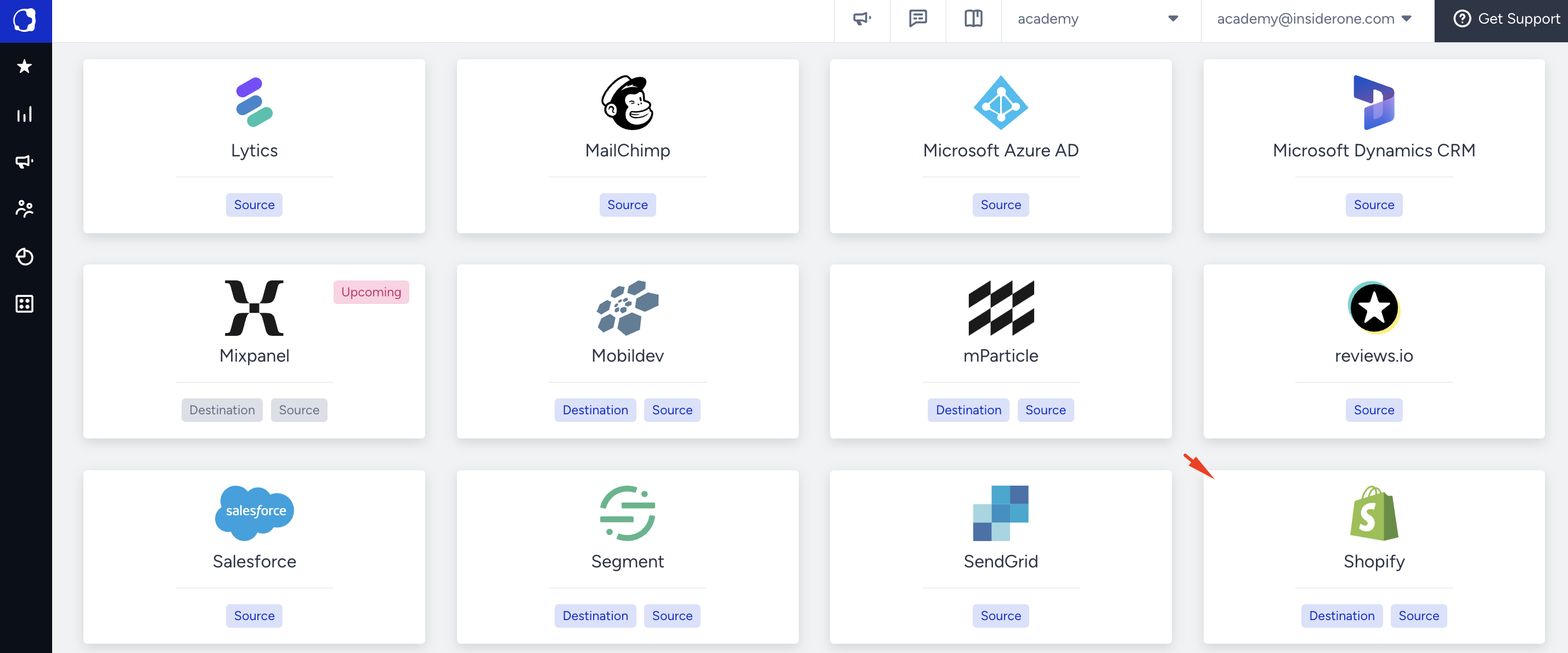
Enter your store name in the input area.
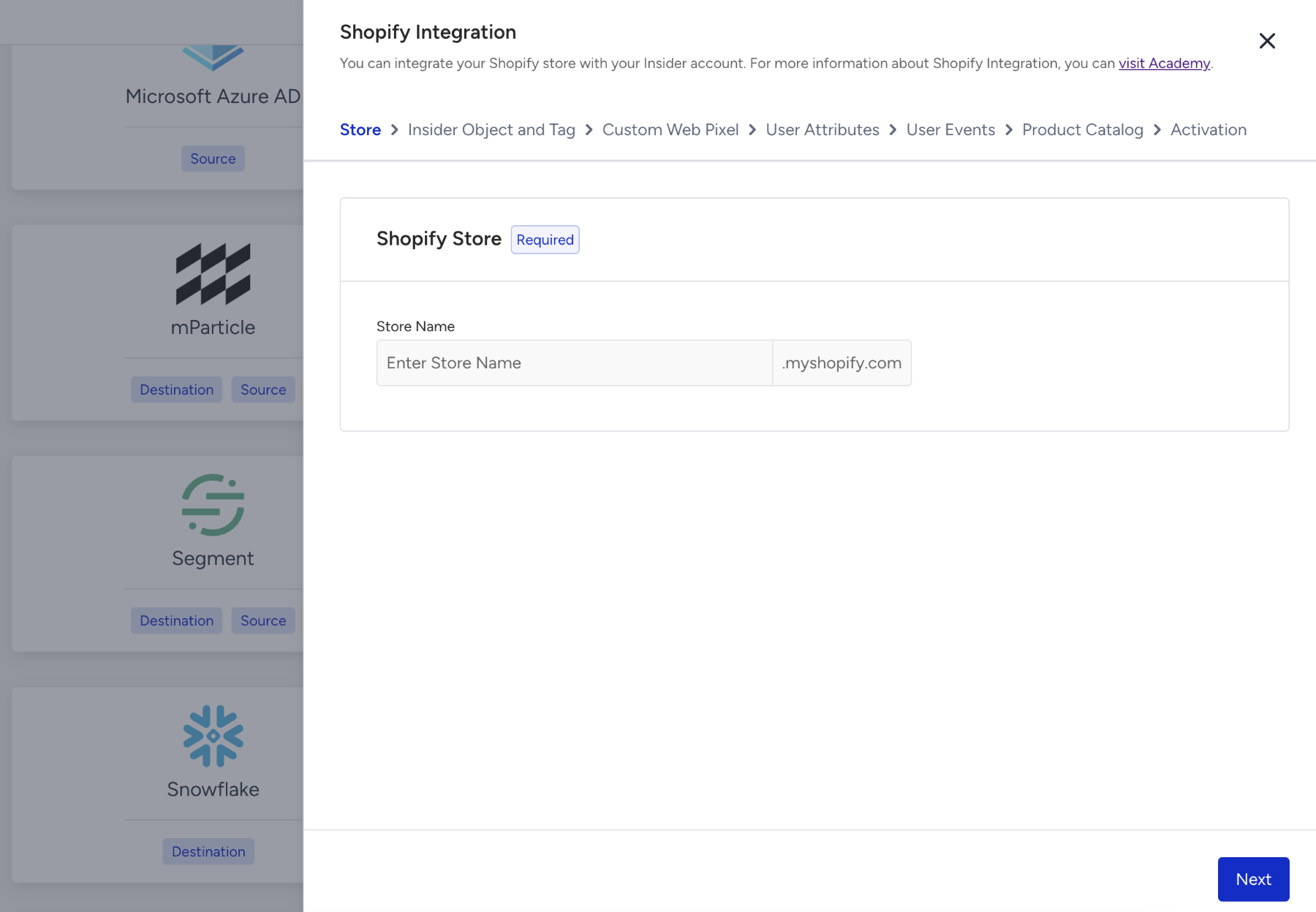
The store name is the part that appears before .myshopify.com. You can find it in your Shopify Settings.
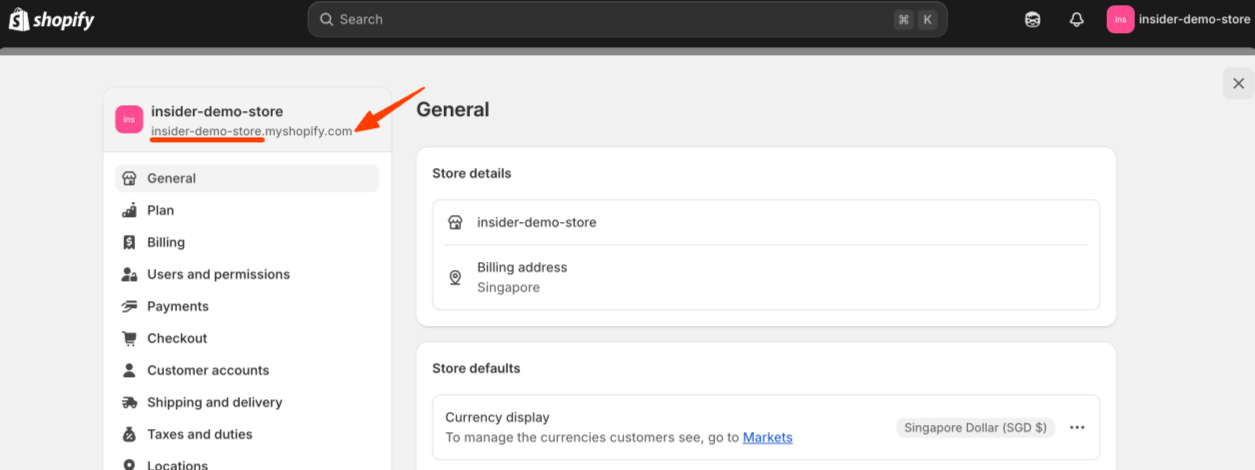
Click the Install button to accept the Terms and Conditions and the app's authorizations.
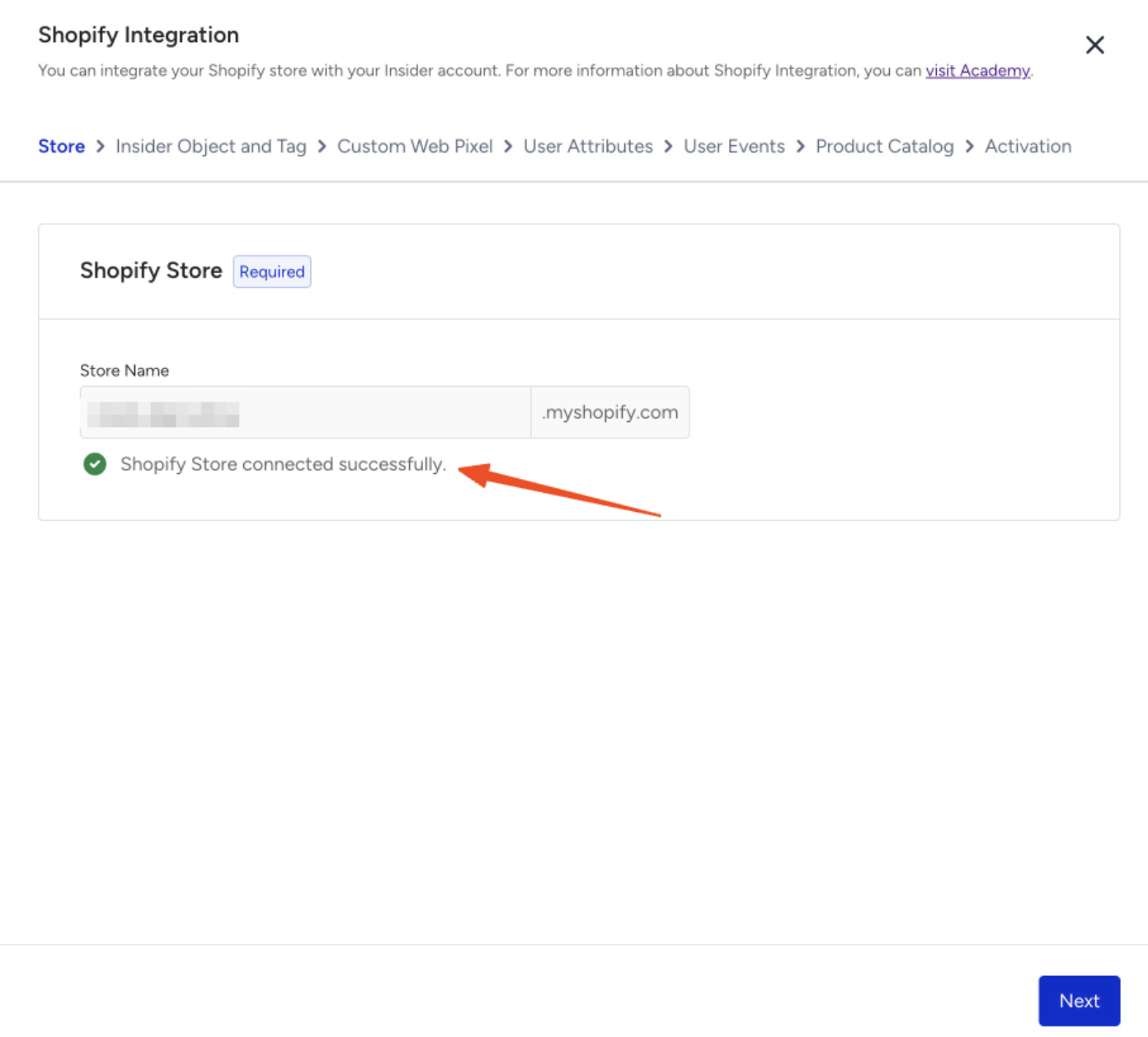
The app will redirect you to Insider One's InOne panel. After you see the success message, click the Next button.
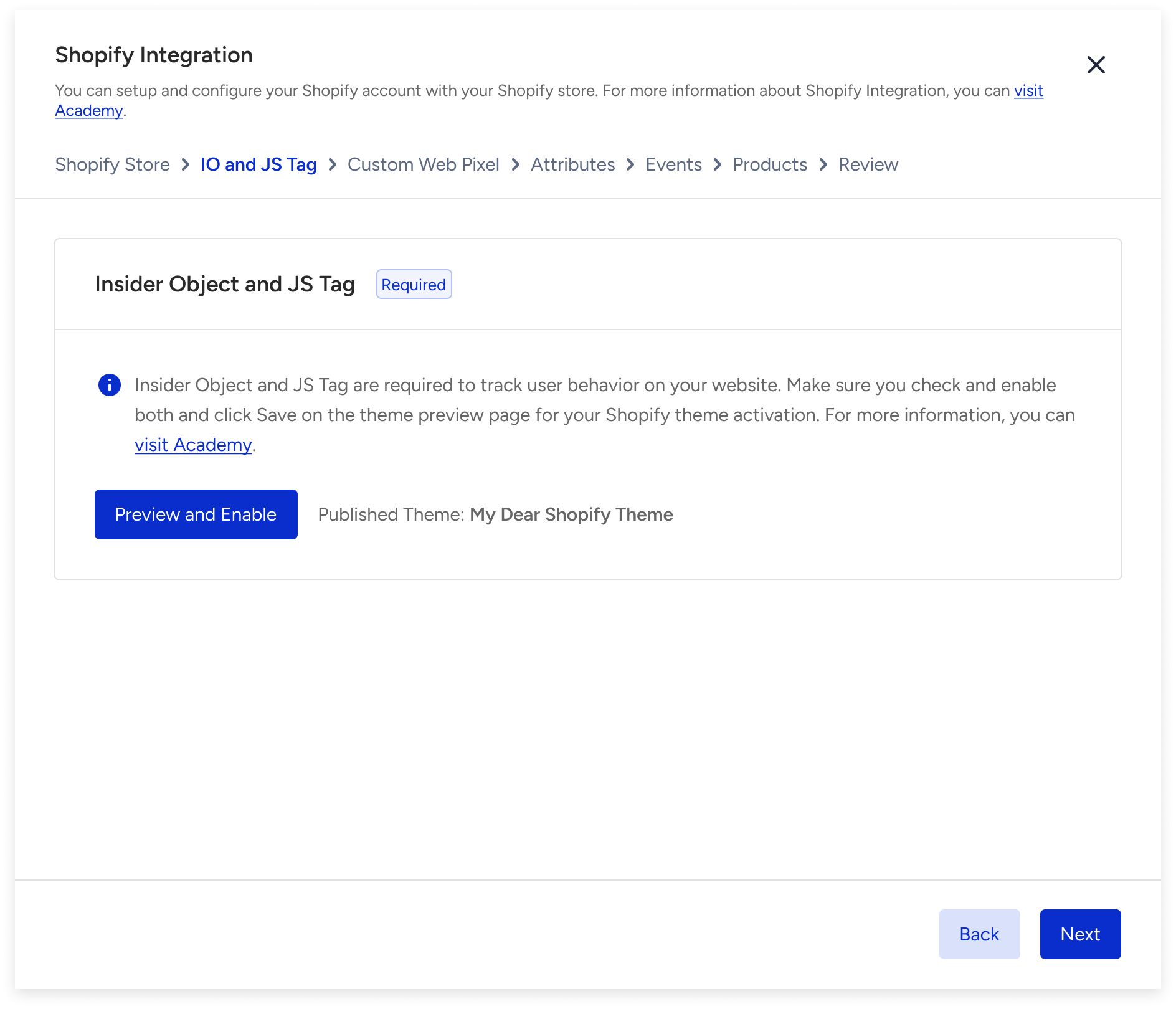
You must enable Insider Object (IO) and JS Tag; click the Preview and Enable button.
If you are using Hydrogen or a custom storefront, contact the Insider One team to learn how to implement IO and JS Tag.
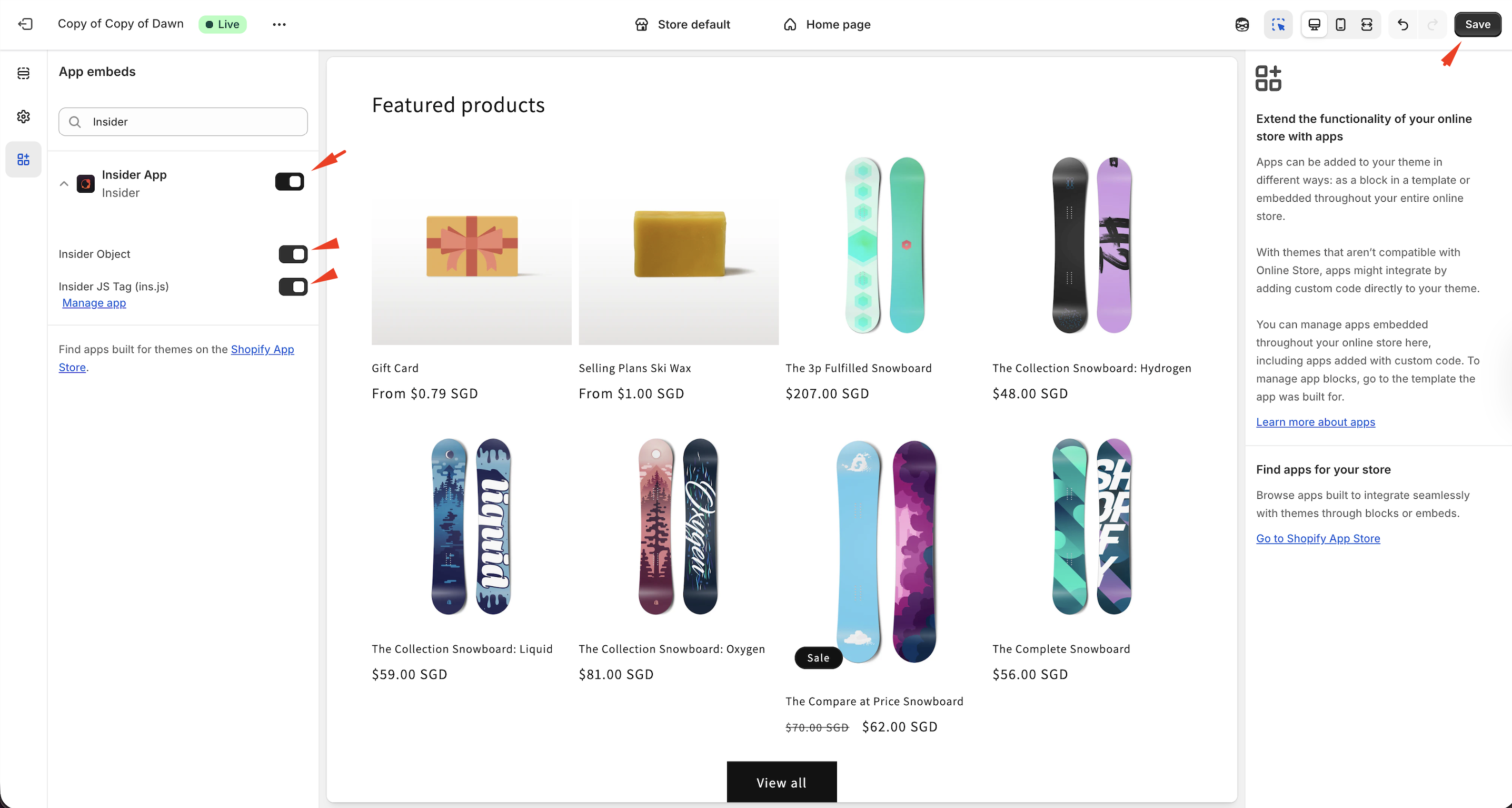
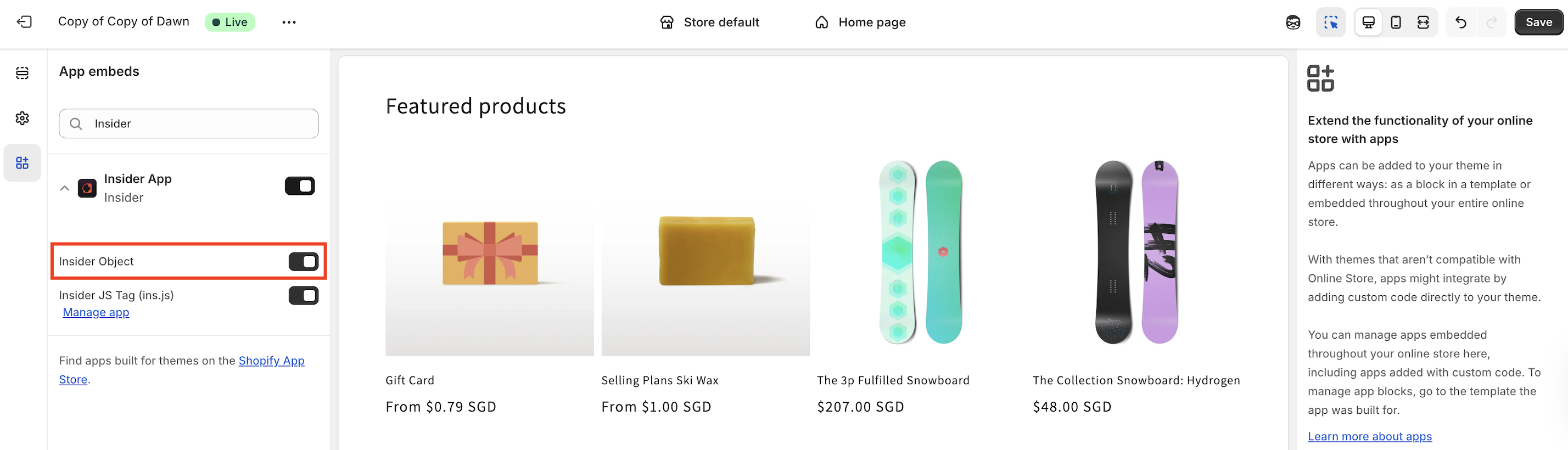
You will be redirected to Shopify’s App Embed page for your published theme in a new tab. Enable Insider App, Insider Object, Insider JS Tag (ins.js) toggles, and click the Save button.
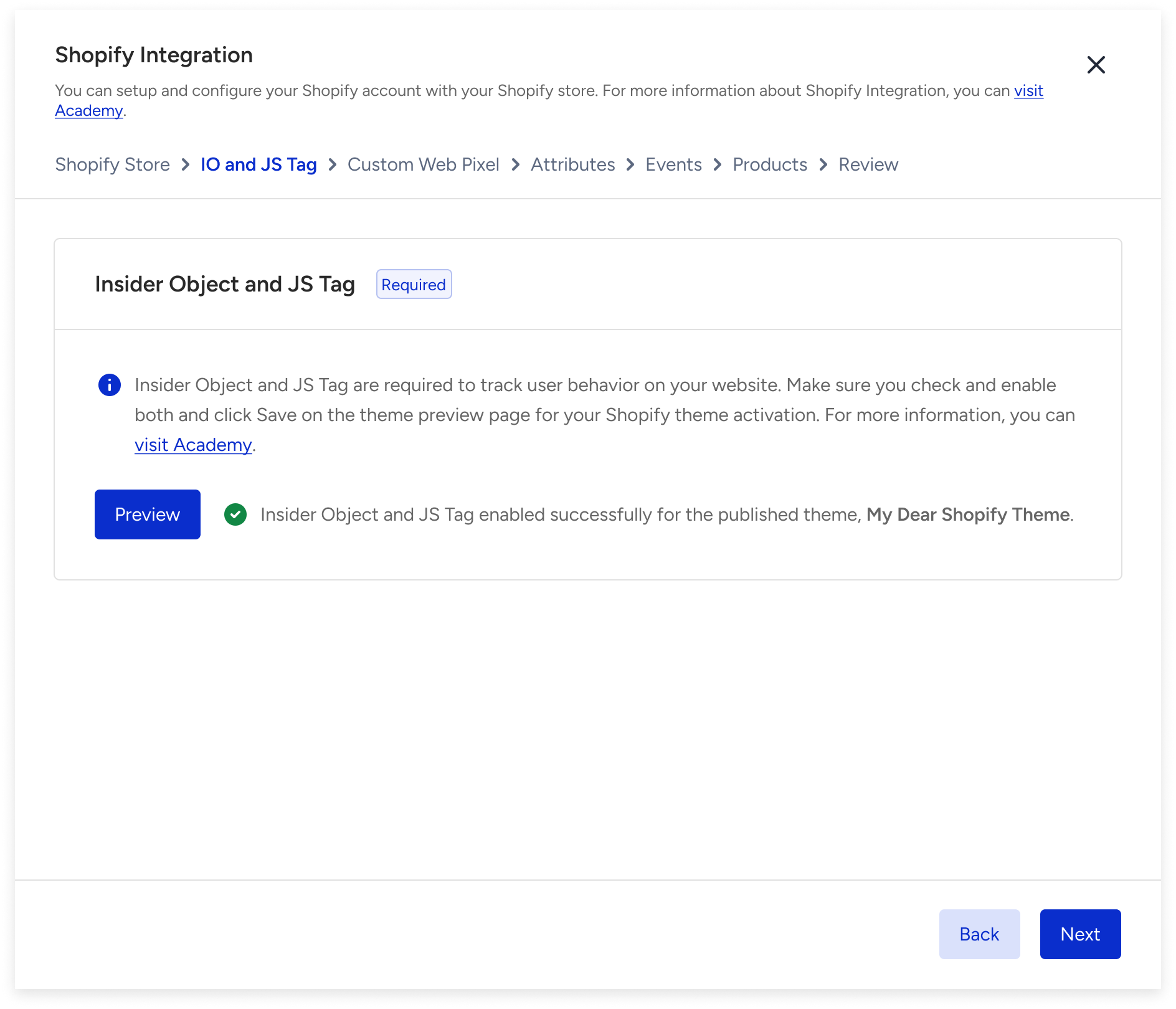
Return to the previous tab for the InOne panel, and click the Next button when you see the successful message.
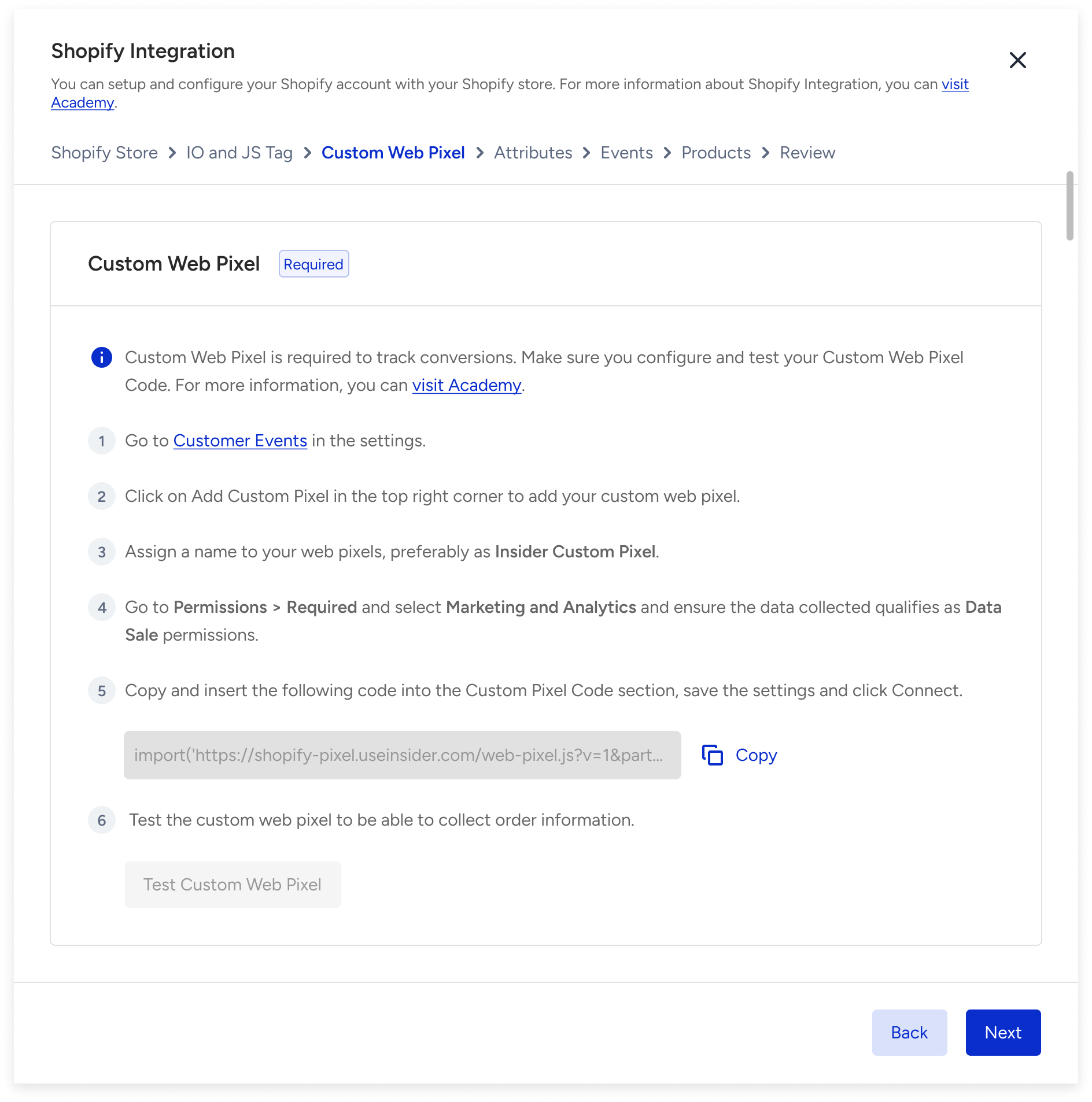
To implement the Custom Web Pixel, copy the code.
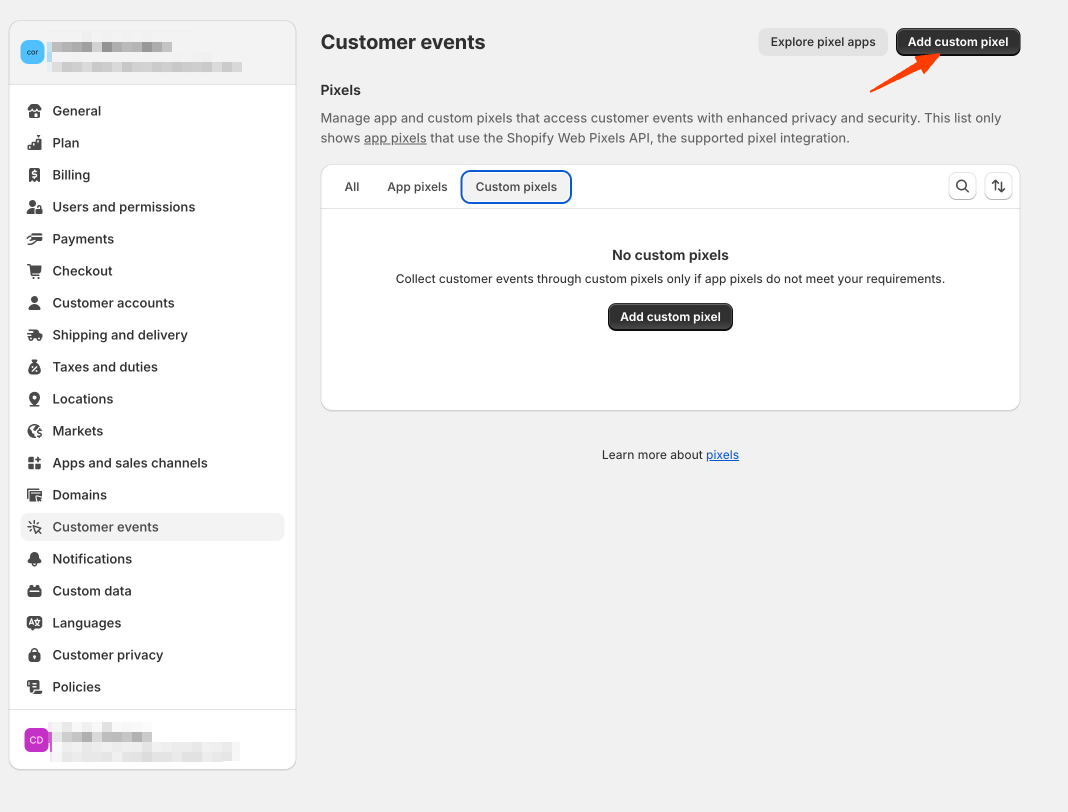
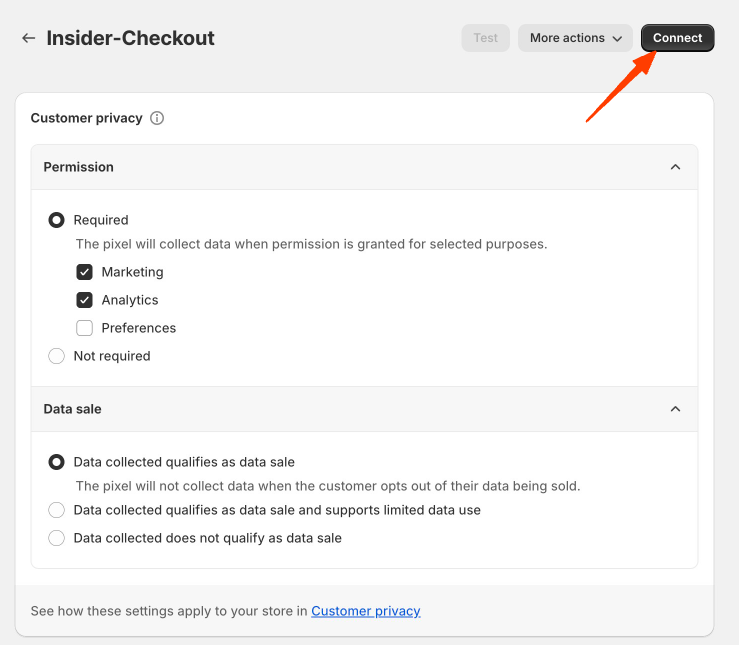
Go to the Shopify Settings > Customer Events and click the Add custom pixel button.
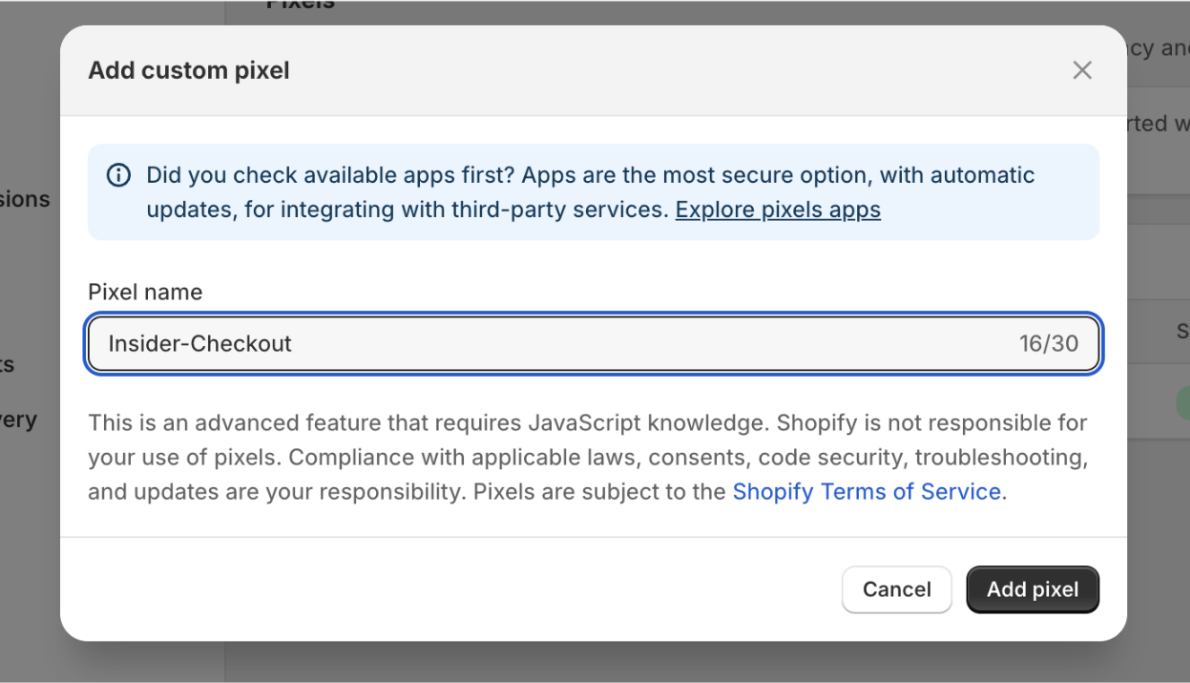
Name your pixel app; preferably, you can name it Insider Order Status Custom Pixel.
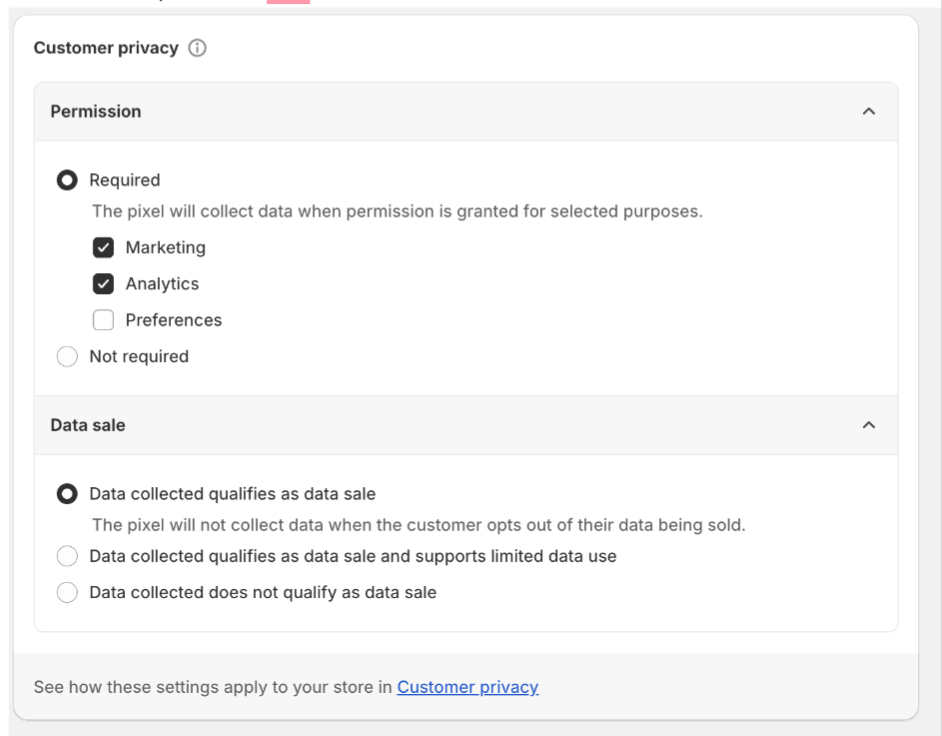
Select the following permissions from the settings page.
Marketing and Analytics permission
Data collected qualifies as a data sale
To save settings, click the Connect button to connect the pixel.
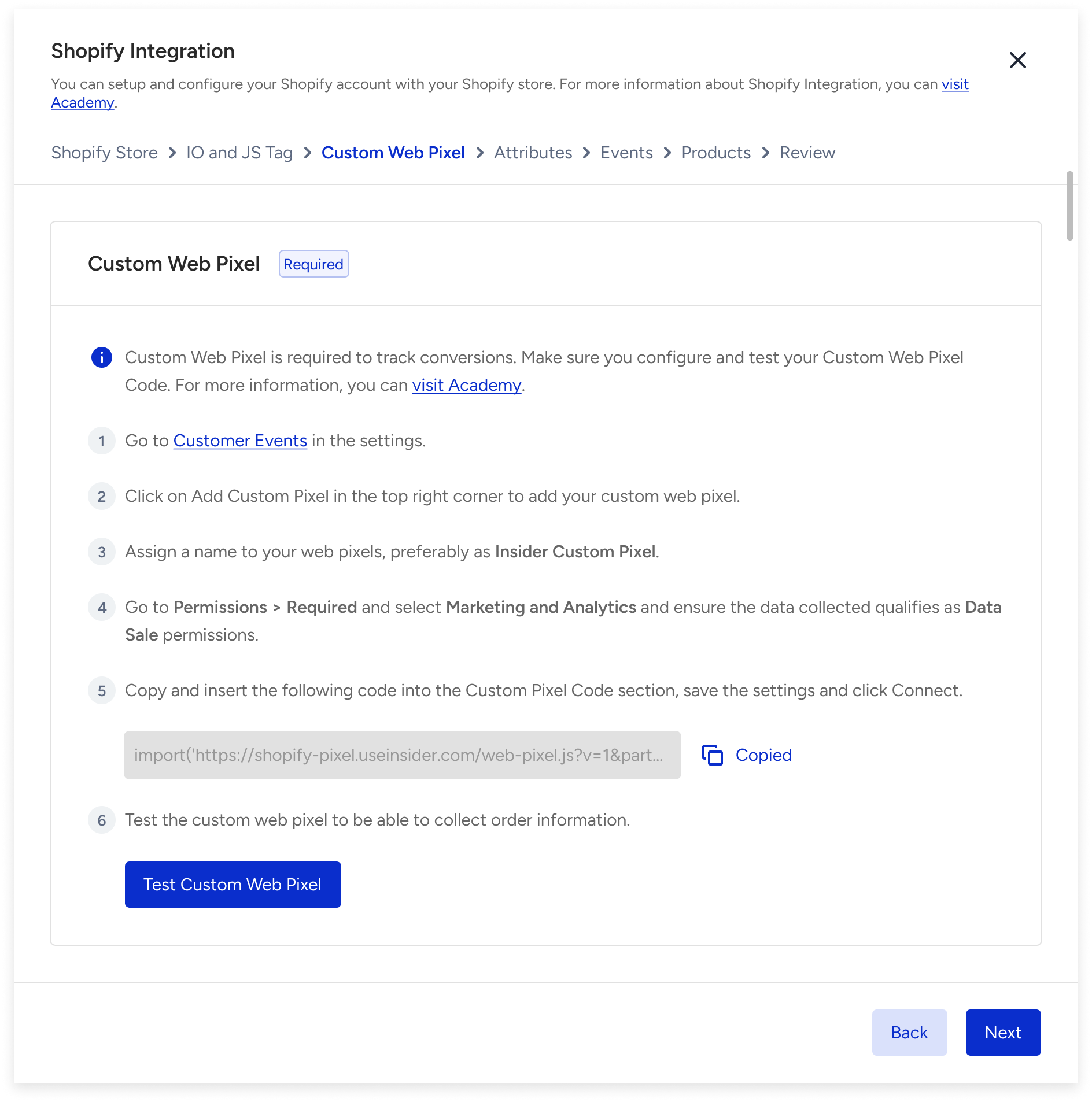
Return to the InOne panel and click the Test Custom Web Pixel button to verify your pixel.
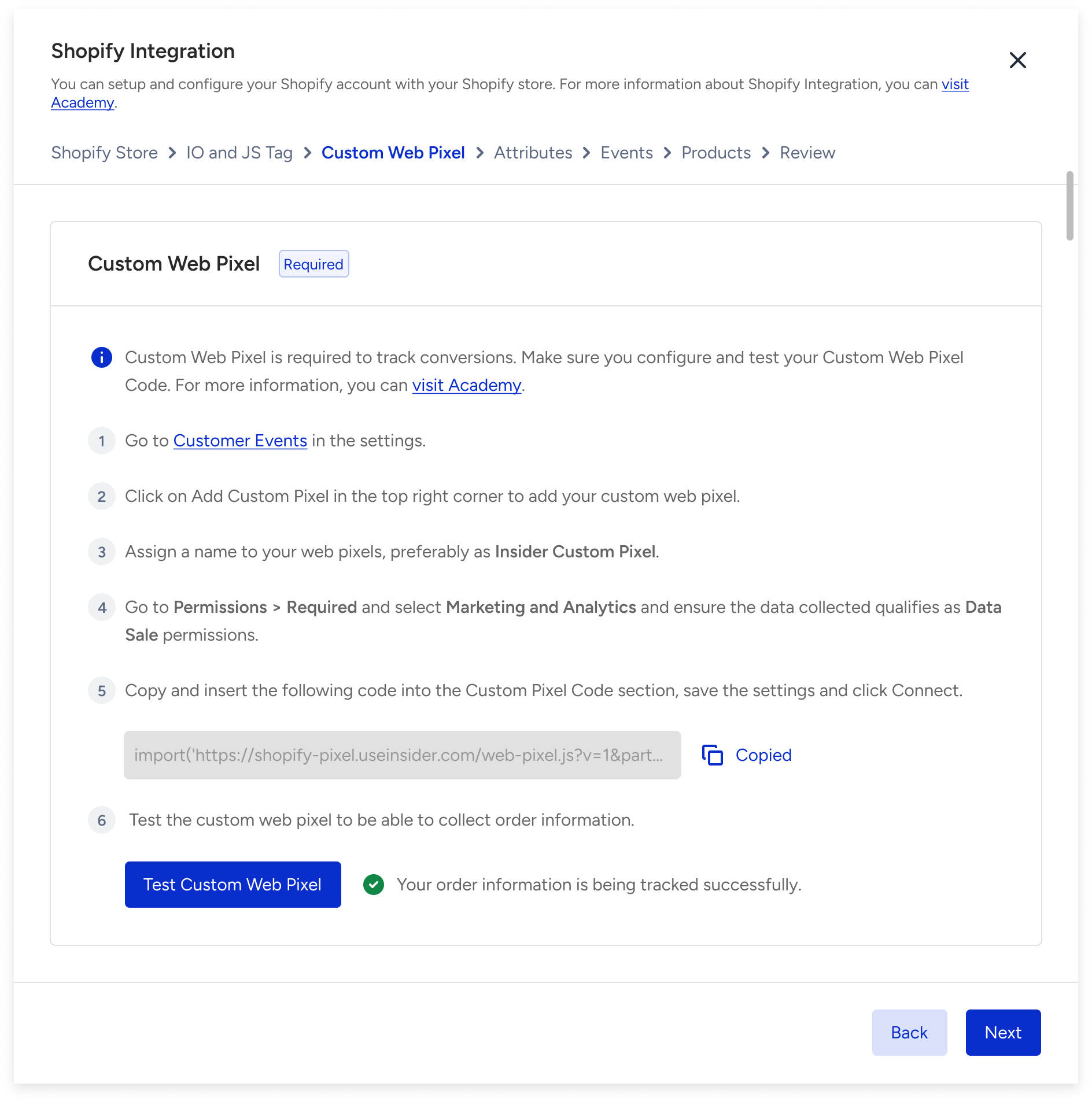
When you see the confirmation message, click the Next button to proceed.
Proceed with the Attributes tab, where you can define which attributes to sync between Insider One and Shopify.
From Shopify to Insider One:
You can sync SMS and Email subscribers' consent from Shopify.
You can also sync WhatsApp subscribers' consent historically based on SMS opt-in.
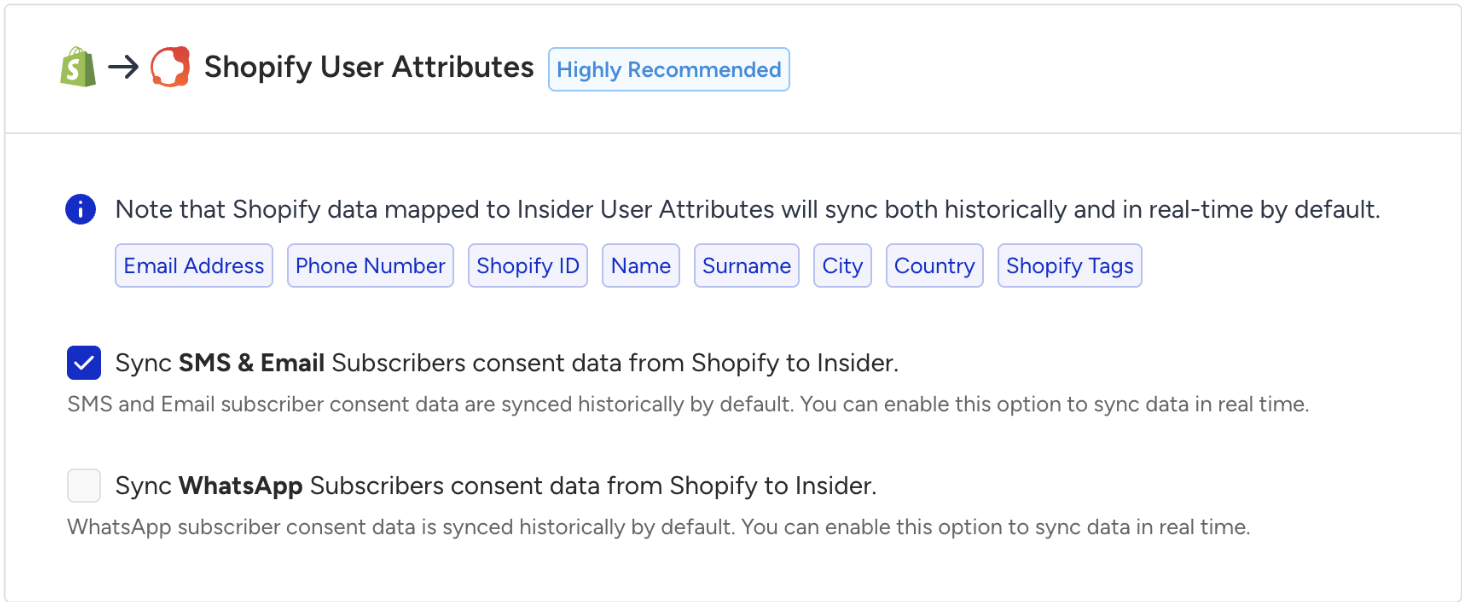
If you sync the WhatsApp option from the SMS settings in Shopify, note that opt-in changes made in Insider One cannot sync back to Shopify. This sync functions in only one direction: from Shopify to Insider One.
If you want to change the user sync setting after activating the integration, please contact the Insider One team to make the change.
You can also map Shopify metafields to Insider One Attributes. You can select the Shopify metafields from the dropdown and map them to the attribute that you already created.
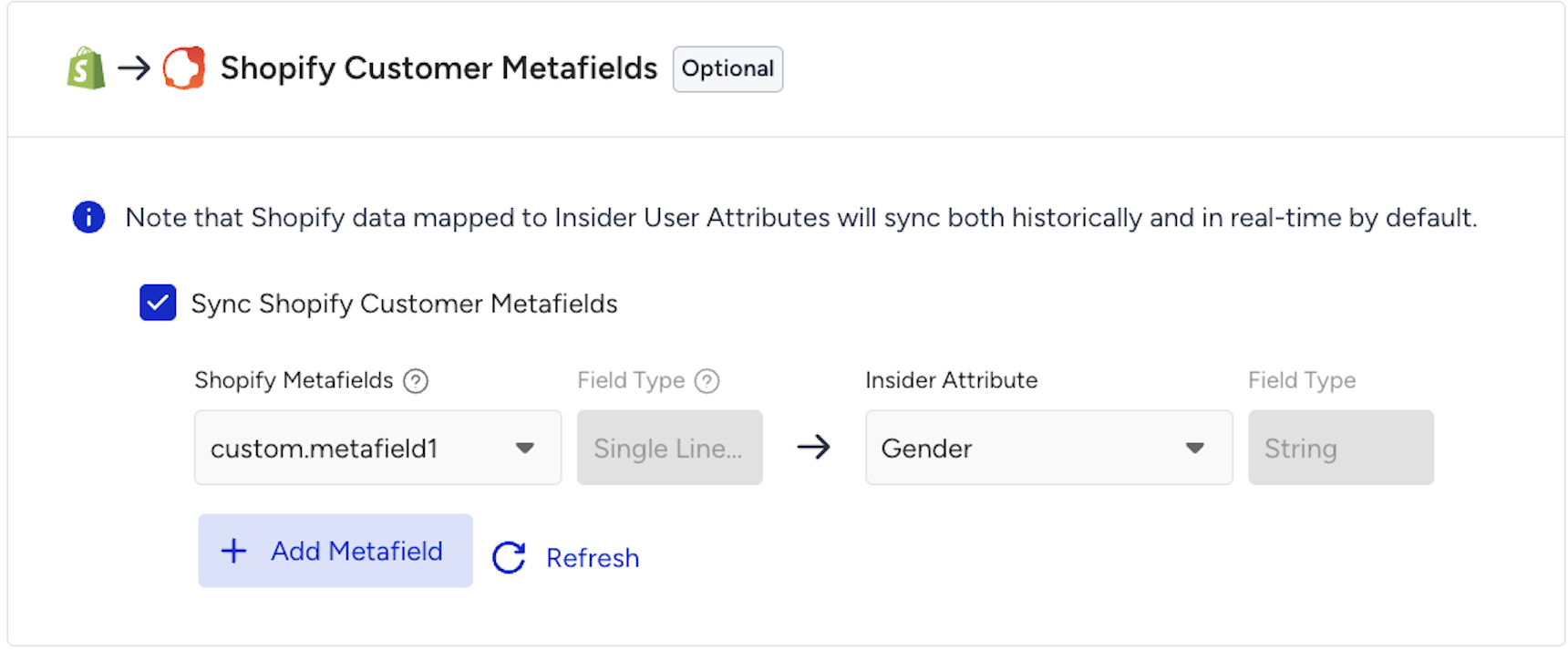
Refer to Shopify User Data Synchronization for more information about Shopify Metafield Mapping.
From Insider One to Shopify: Insider One will update your Shopify user profiles, including Email and SMS Opt-In data, using the following sources: Lead Collection Updates, API Data, and Data Uploads. You can also choose whether Insider One should create new user profiles when identifiers change.
Update already existing User Profiles and create new ones: This option allows Insider One to create new customer profiles in Shopify and update the email and SMS consent statuses of existing profiles.
Only update already existing User Profiles: With this option, Insider One will not create new customer profiles in Shopify but will update the email and SMS consent statuses for existing profiles only.
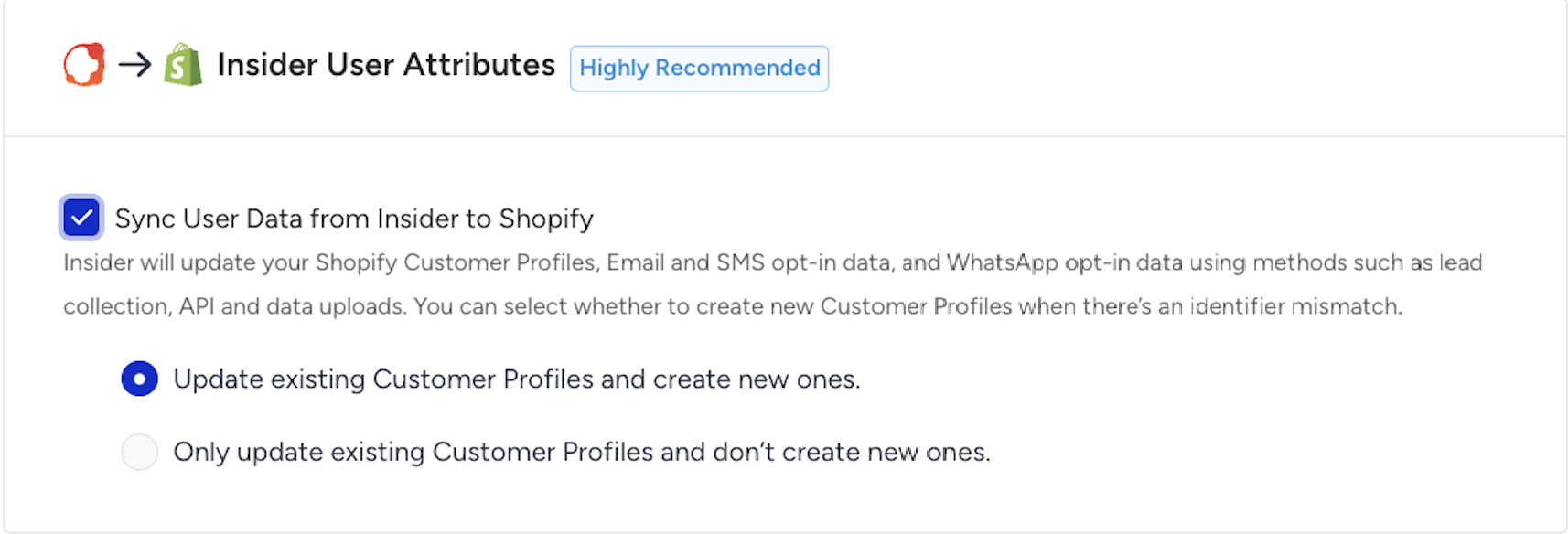
When both toggles (Shopify to Insider One and Insider One to Shopify) are enabled, Insider One provides full synchronization between Shopify customers and Insider One users. However, if one or both toggles are disabled, full synchronization between the two platforms cannot be guaranteed.
Disabling a sync toggle stops future synchronization only. Data that Insider One and Shopify already synchronized is not removed from either platform. To correct attribute values on existing profiles, you can upload them in a static segment. See Static Segments.
When a user exists in Shopify without a phone number, Insider One can populate that field in Shopify— if the “Insider One to Shopify” sync is active. However, if a phone number already exists in Shopify, Insider One will not overwrite it. This behavior also applies to email addresses.
Refer to Shopify User Data Synchronization for detailed information about attribute type and mapping.
After configuring the Attributes settings, click the Next button. You will then see the list of events collected from Shopify.
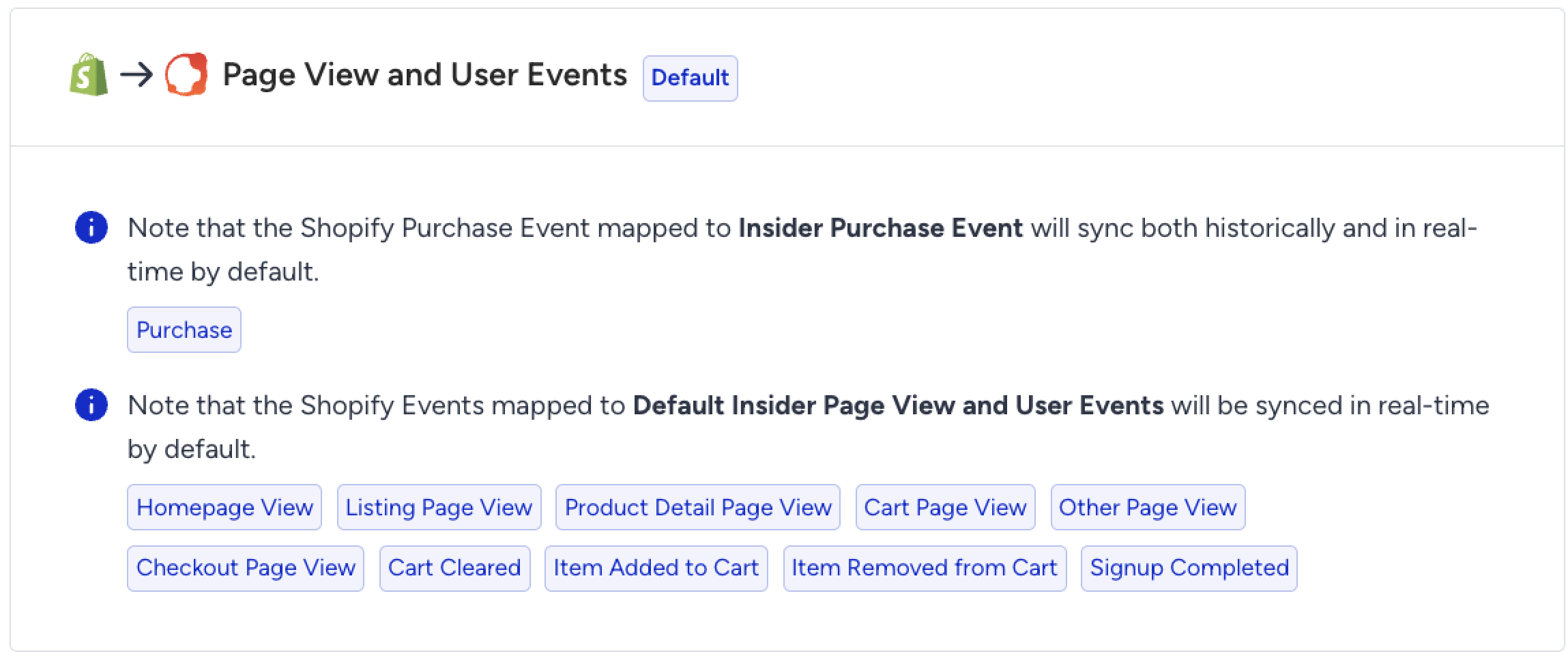
It might take some time for all your users’ purchase information to migrate to the Insider One Database.
Insider One only collects purchase data according to the TTL of your purchase event. It is 2 years by default.
Insider One collects only orders with Open or Archived status in the Shopify Store.
Refer to Purchase Data Synchronization to learn which parameters are synced from Shopify to Insider One with Purchase Event.
Refer to Checkout Event Synchronization to learn what Checkout Event is and how to utilize it.After the Events tab, you will go to the Products tab, where you can choose whether to sync your product data from Shopify to Insider One via API and map the metafields you want to use in Insider One.
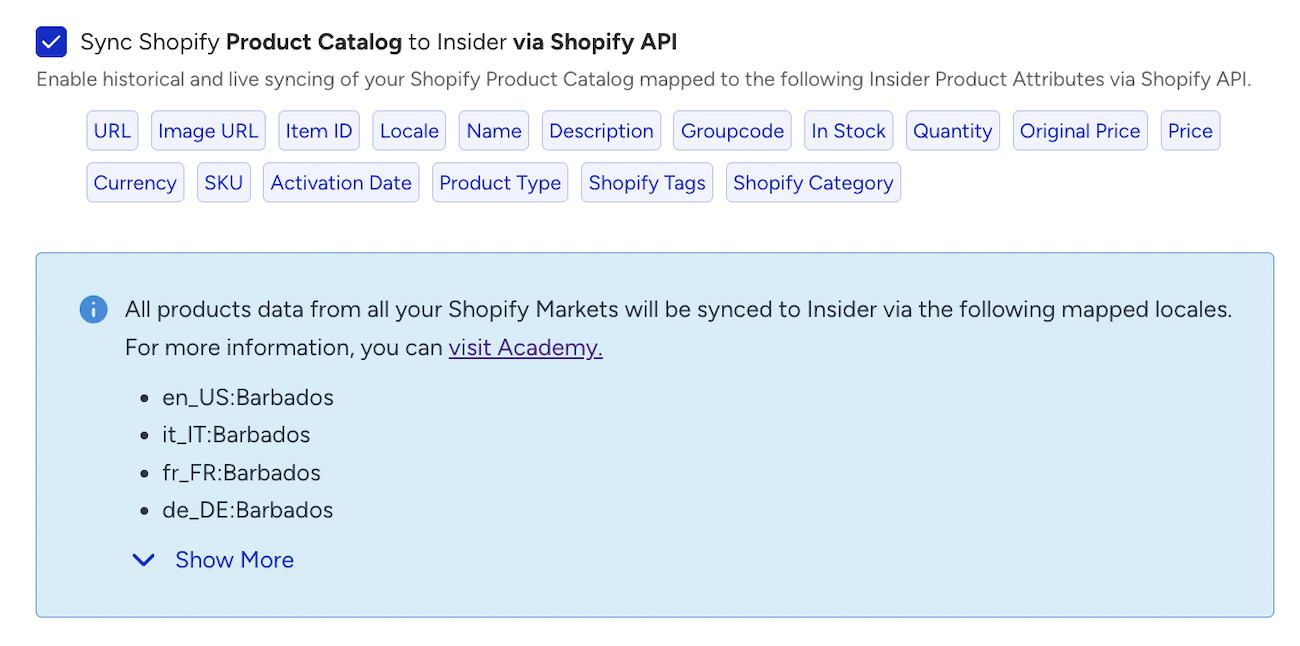
You can choose which attributes to map to Insider One’s category. By default, collections are mapped to categories. Consult with the Insider One team before making any changes; they can provide guidance tailored to your specific needs. Note that the mapping can also be updated later if necessary.
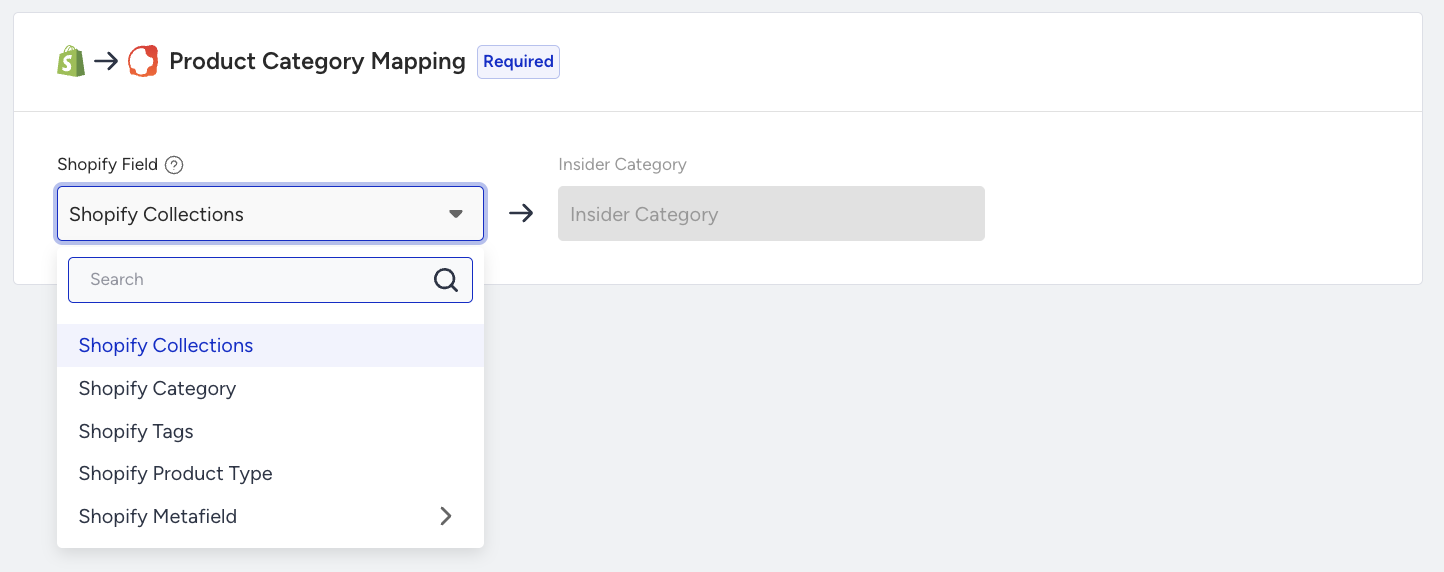
If you change it from collections to any other attribute you can still use collections via mapping it to a different product attribute.
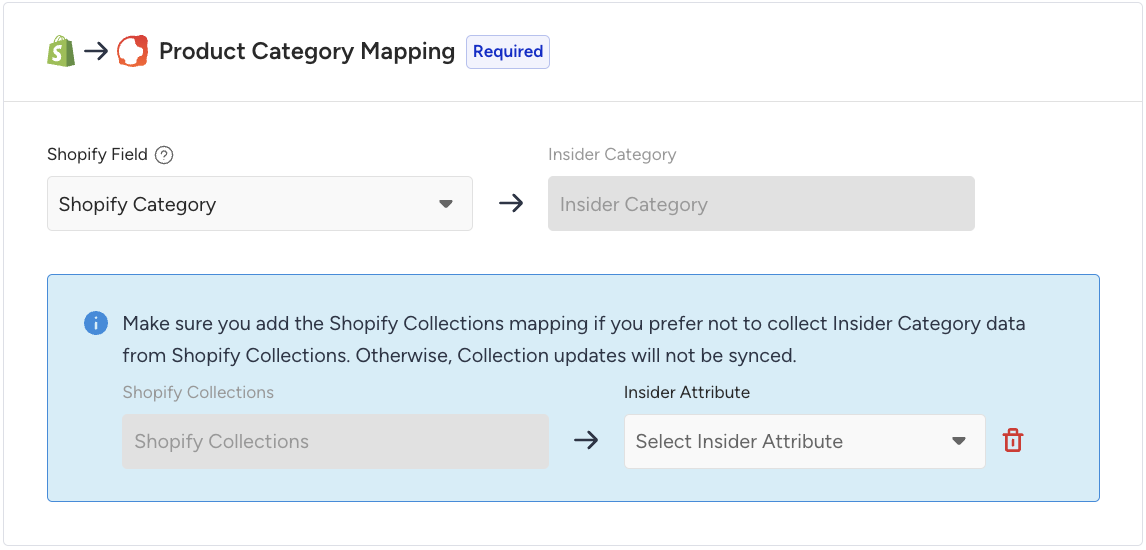
If you are using a custom storefront or hydrogen you should also configure the taxonomy in the Insider Object.
You can also sync Product Options that you use to create your product variants, such as size and color.
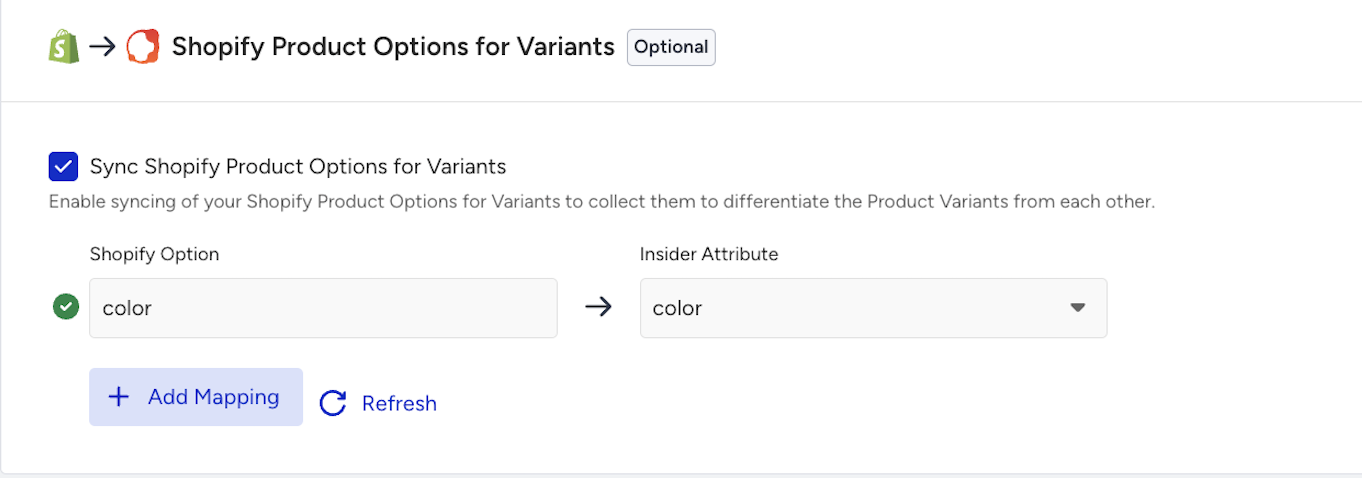
- Before the sync, we are unable to retrieve the option names used in your Shopify store. Therefore, you need to manually enter the option name. If Insider One cannot find the option you’ve entered, a warning will appear next to it, and you will receive an email notification.
- Shopify option input is case-insensitive. For example, inputs like “SiZE”, “size”, or “SIZE” will all be treated the same and converted to lowercase. As a result, if you use both “Size” and “size” in your Shopify store, they will be mapped to the same Insider One product attribute you selected.
You can also map Shopify metafields to Insider One product attributes. Select the Shopify metafield you want to map and the Insider One product attribute that you want to use.
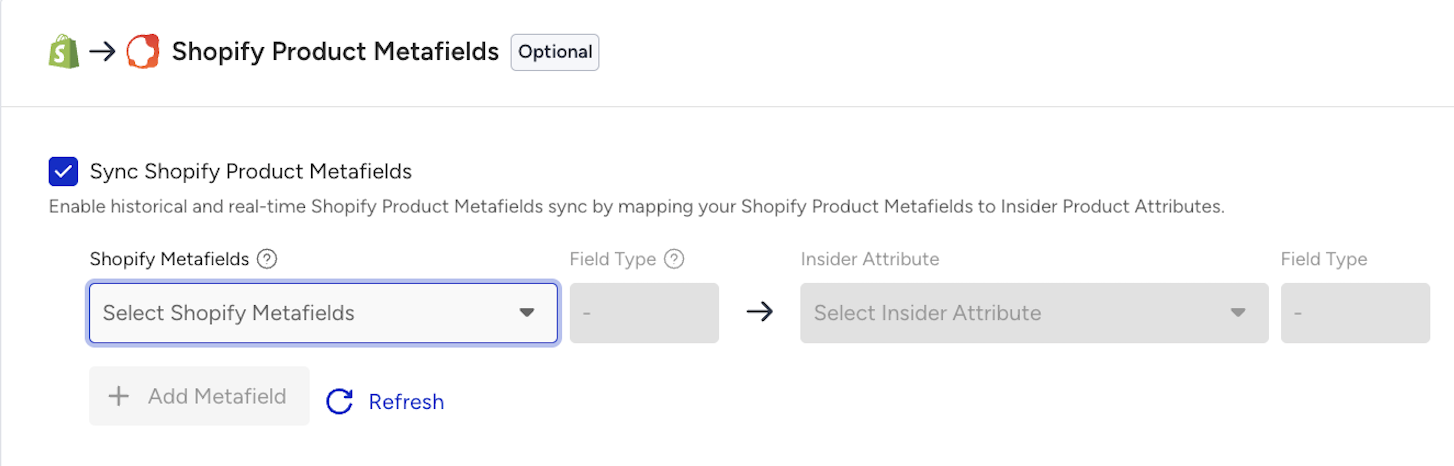
You can click the Refresh buttons in Product Metafields and Options to refresh the dropdowns if you cannot see your newly created Insider One product attributes or Shopify metafields.
Refer to Product Catalog Synchronization for detailed information about the catalog sync.
The Insider One Shopify App supports product sync only for the primary locale and currency. If you have multiple languages, markets, product catalogs, or currencies, other locales and currencies must be populated through different product feed methods. You can reach out to the Insider One team for the method that is suitable for you.
You will land on the Review page when you click Next. Here, you can review all your settings. To finalize, click Activate Integration to start the historical user, purchase, and product sync and complete the Shopify integration with the selected settings.
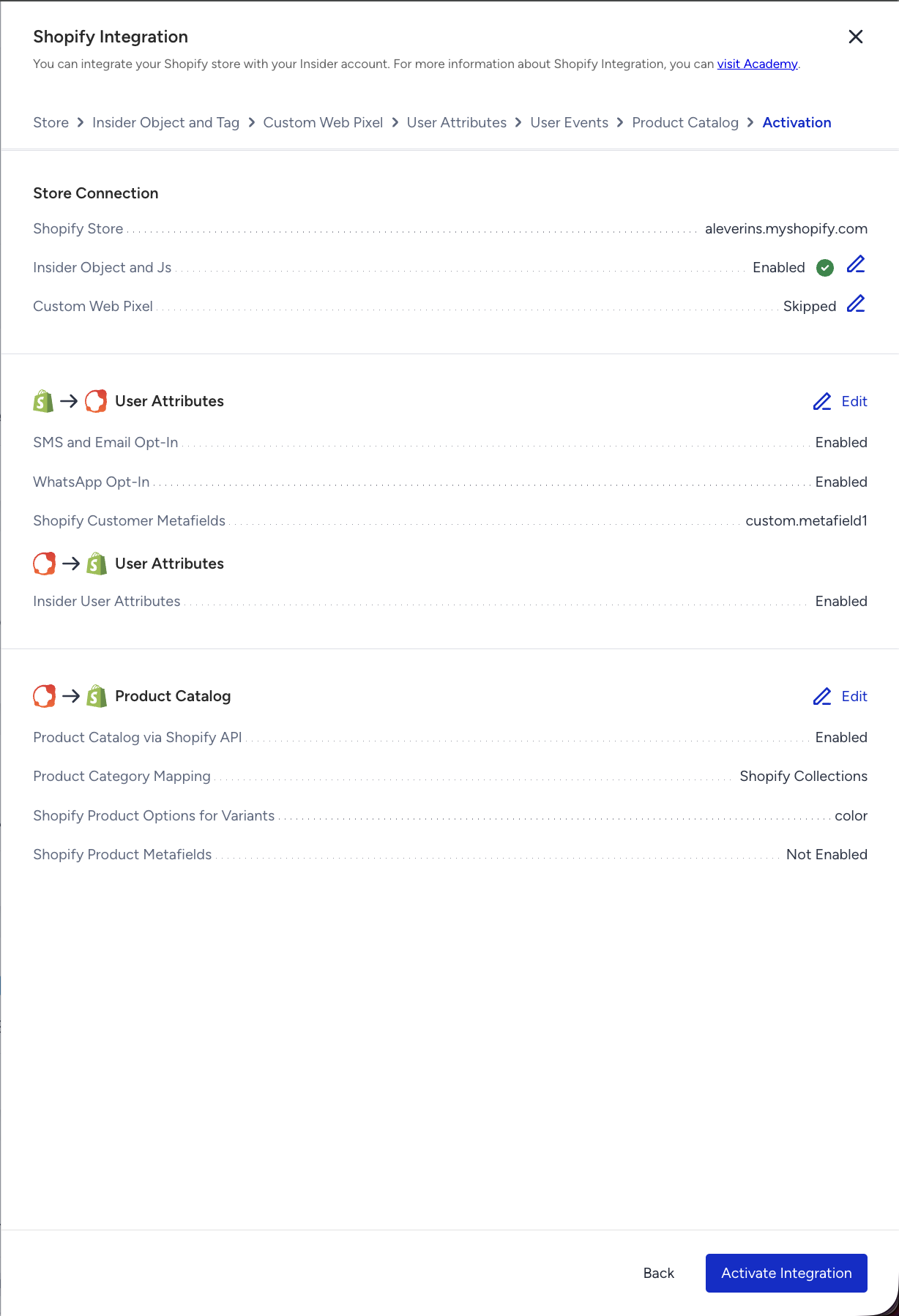
Note that Insider One automatically imports your customers' data from Shopify into Insider One based on your configuration.
FAQ about Shopify Integration
Why does my Shopify integration show a yellow warning ribbon or ‘Action Required’ status?
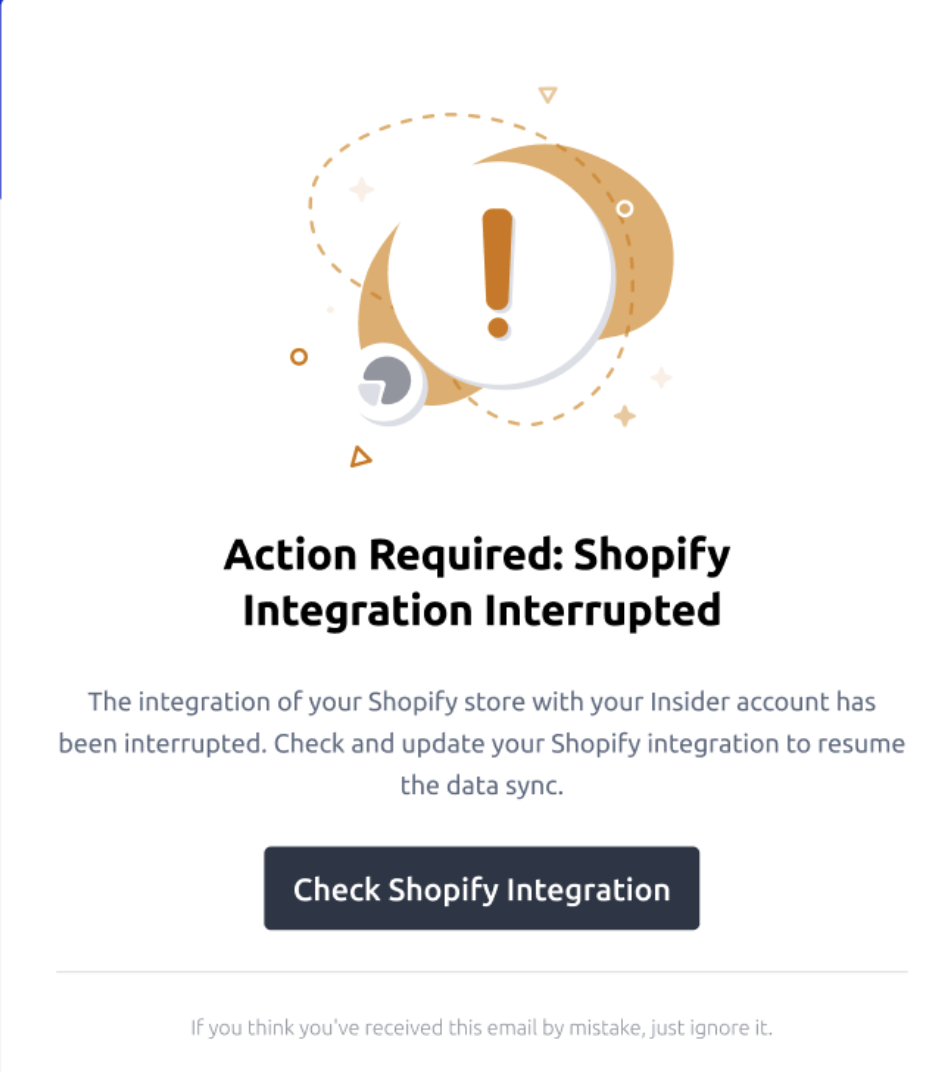
If an active Shopify Integration encounters an issue with the Insider Tag (ins.js) or Insider Object (IO), the status changes to Action Required. A yellow warning ribbon appears on the External Integrations page, details are shown in the Shopify settings, and an email notification is sent. This means live sync is paused until the issue with the Insider Tag and/or Insider Object is fixed. Make sure both are correctly added to your store to resume live sync.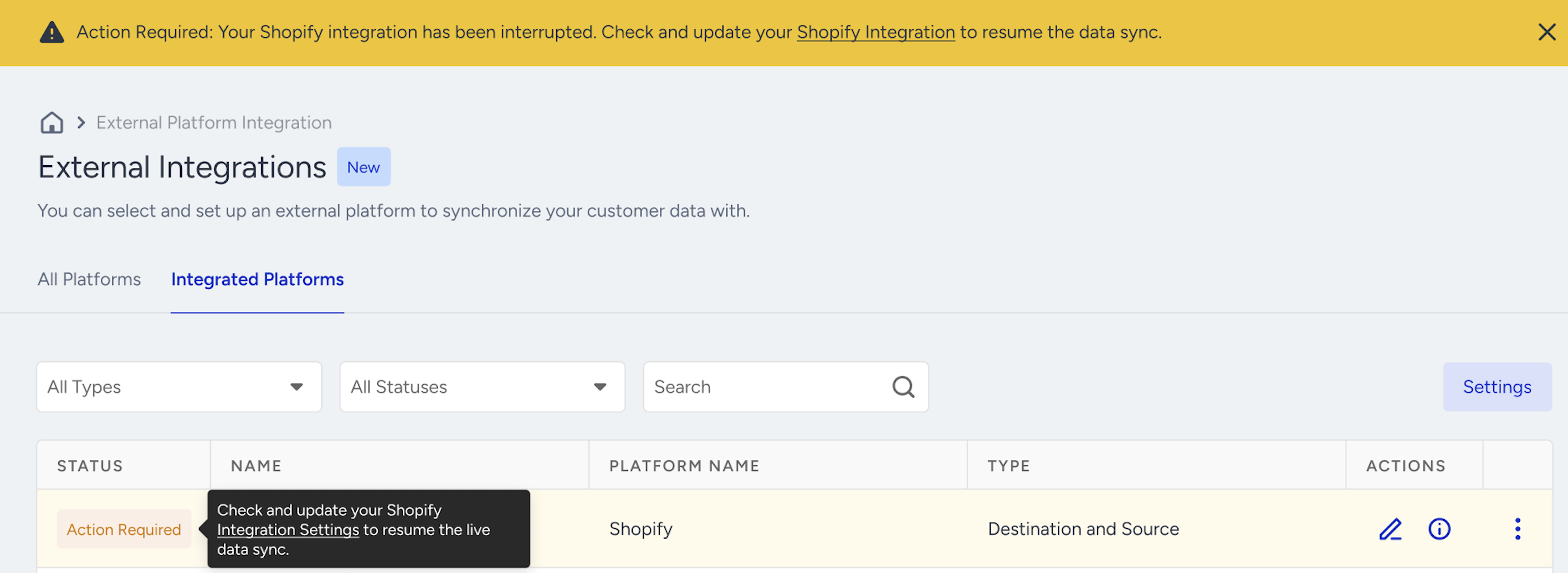
Can the Shopify app work on single-page websites?
Shopify does not offer a single-page website template in its library; this can only be achieved using extensions. For single-page websites, we recommend utilizing only Shopify features that operate from the backend, such as purchase sync, checkout events, user sync, and product catalog sync, along with our ins.js integration.
For IO, we recommend populating the Insider Object or using WebSDK for better stability. You can also disable the Insider Object from the preview theme page.
How does Insider Object work for the Shopify App?
Insider Object loads data when a user visits or refreshes the page.
Insider Object does not get new information if the page is not refreshed.
How does Insider One collect GDPR Opt-In?
Insider One does not collect gdpr_optin data from the Shopify Store to Insider One. Insider One accepts all users that exist on Shopify as having gdpr_optin by default. You can refer to the Insider Privacy Policy for further information.