Account access and login
A user cannot log in to the InOne panel. What should I do?
The two most common causes are:
The user attempted to use the Forgot Password option before completing the initial registration. Forgot Password only works for users who have already registered. If the user has not yet registered, resend their invitation from User Management.
The user is trying to register using an expired invitation link. Invitation links expire after 7 days. Send a new invitation and ask the user to register using the latest link.
Only users with the Administrator role can resend invitations.
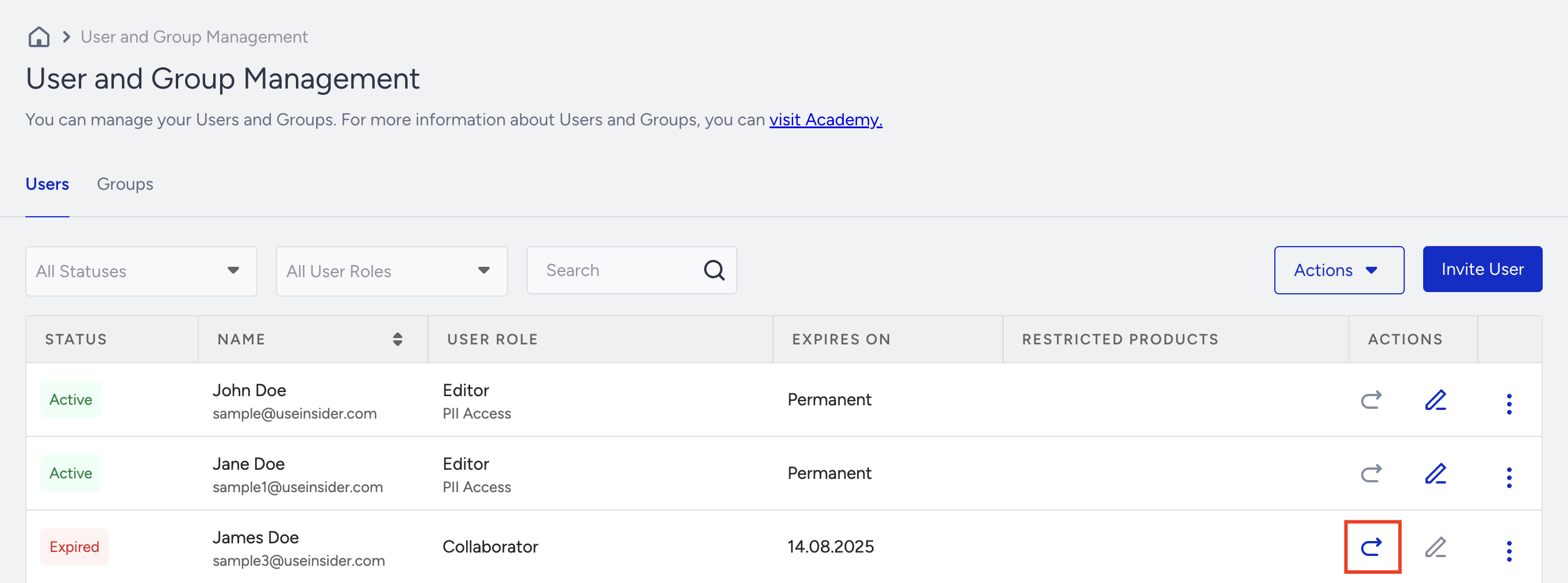
A user's account is showing as "unregistered." What does this mean?
An unregistered user has been added to the panel but has not completed the registration flow. Send a new invitation to the user and confirm they register using the link in the most recent email, not an older one.
When does a registration invitation expire?
Invitation links expire based on the access type granted:
Permanent or temporary access of 7 days or more: 7 days from the date the invitation was sent
Temporary access of less than 7 days: At the end of the temporary access period
Example: If a user is granted 3 days of temporary access, their invitation link expires on day 3.
If the invitation expires, the Administrator can send a new one from the User Management.
Can I grant temporary access to the InOne panel?
Yes. You can grant temporary access with a defined expiry date. Once the access period ends, the user can no longer log in. To restore access, an Administrator must re-authorize the user.
How do I extend a user's temporary access?
If the user's access has not yet expired, edit their access settings in the User Management to extend the end date.
If the user's access has already expired, re-invite them. They do not need to register again and can log in with their existing credentials once access is restored.
My access to all panels was revoked, and my account expired. How do I restore it?
Contact the Administrator of the relevant panel and ask them to send a re-invite email. Once you receive the email, your access is restored. You can log in with your existing credentials.
Can the same person have different roles in different panels?
Yes. Each panel manages its own users. The same person can be a Viewer in one panel and an Editor in another.
Locked accounts
A user's account is locked. What should I do?
An account is locked after six consecutive incorrect password attempts. This is a security measure. When locked, the user receives an email with a password reset link. Once they reset their password, they can log in again.
If a user's account is locked 3 times consecutively, the account is permanently blocked and cannot be reopened automatically. Contact the Insider One team or submit a support ticket to resolve this.
Invitation issues
The Administrator did not receive the invitation email.
The email may have been filtered into the spam or junk folder or blocked by a firewall. Add Insider One's domain insiderone.com to your email allowlist to prevent this.
A previously deleted user was re-added, but did not receive an invitation email.
When a user is deleted from a panel, they are removed from that panel's access list, but their Insider One account is not deleted. When you re-add the same user through User Management, no new invitation is sent because the account already exists. The user's role and access are updated automatically. They can log in with their existing password or use the Forgot Password flow if needed.
I signed up but haven't received my invitation email. What do I do?
Check your spam folder first. If it's still missing, see Receiving No Invitation Email or ask your account admin to resend it.
Two-factor authentication (2FA)
The QR code is not appearing during 2FA setup.
Wait a few seconds. The QR code is generated by Google, and the delivery time can vary depending on network conditions.
Can users use an authenticator app other than Google Authenticator?
Yes. Twilio Authy is a supported alternative. Authy also allows users to access their authentication codes from a computer, which is useful if they lose or change their phone.
What should users do if they lose access to their 2FA device?
Users can log in using their backup codes. It is strongly recommended that all users save their backup codes immediately after completing 2FA setup.
How do I reset a user's 2FA setup?
Only users with the Administrator role can reset another user's 2FA.
Resetting 2FA removes a security layer from the user's account. Before resetting, confirm the user's identity and ensure their password is strong.
Go to User Management and locate the user.
Reset their 2FA from the user settings panel.
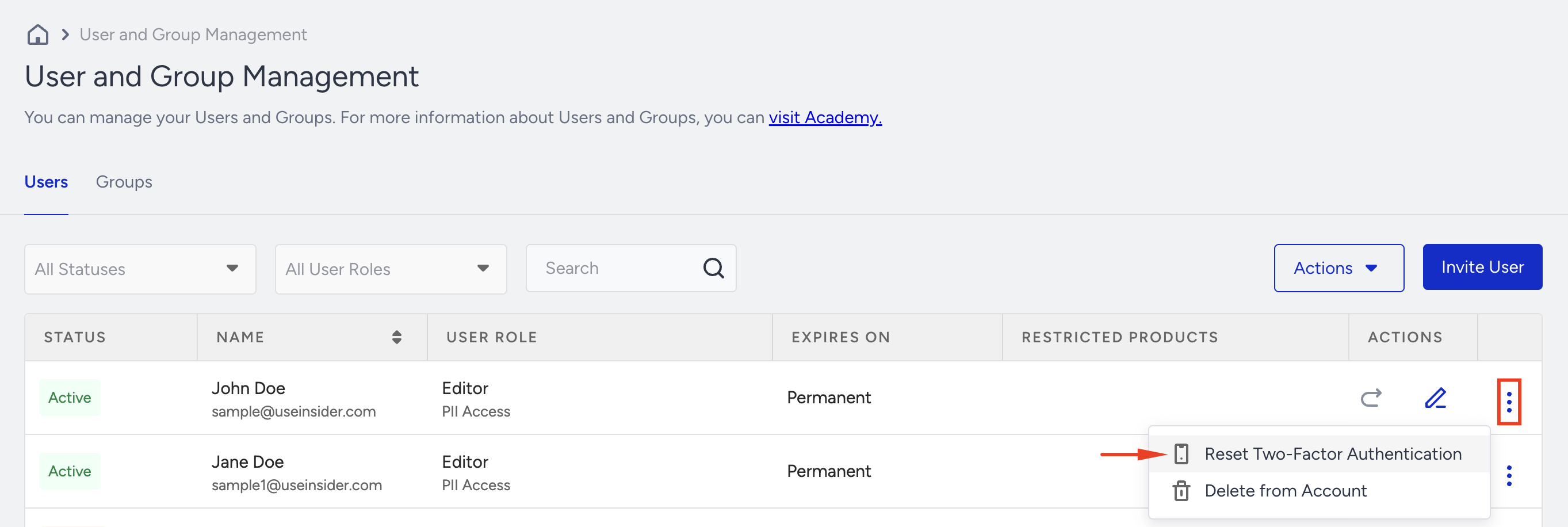
After the reset, the user must:
Log out of the InOne panel.
Log back in.
Complete the 2FA setup on their new device or app.