Suggested reading: Create a WhatsApp Carousel Template
Carousel WhatsApp message campaigns are a powerful tool for delivering visually engaging, highly interactive messages to your audience. With the ability to include up to six carousel cards in a single message, these campaigns are perfect for capturing attention and presenting information dynamically. Each card can feature a unique image, description, and call-to-action button, allowing you to showcase various products, services, or features in a single interaction.
Carousel WhatsApp message campaign enables you to guide users through a narrative or highlight different aspects of your offerings. Whether promoting a product catalog or running a campaign, Carousel messages help create a more immersive and engaging user experience that encourages interaction and drives results. 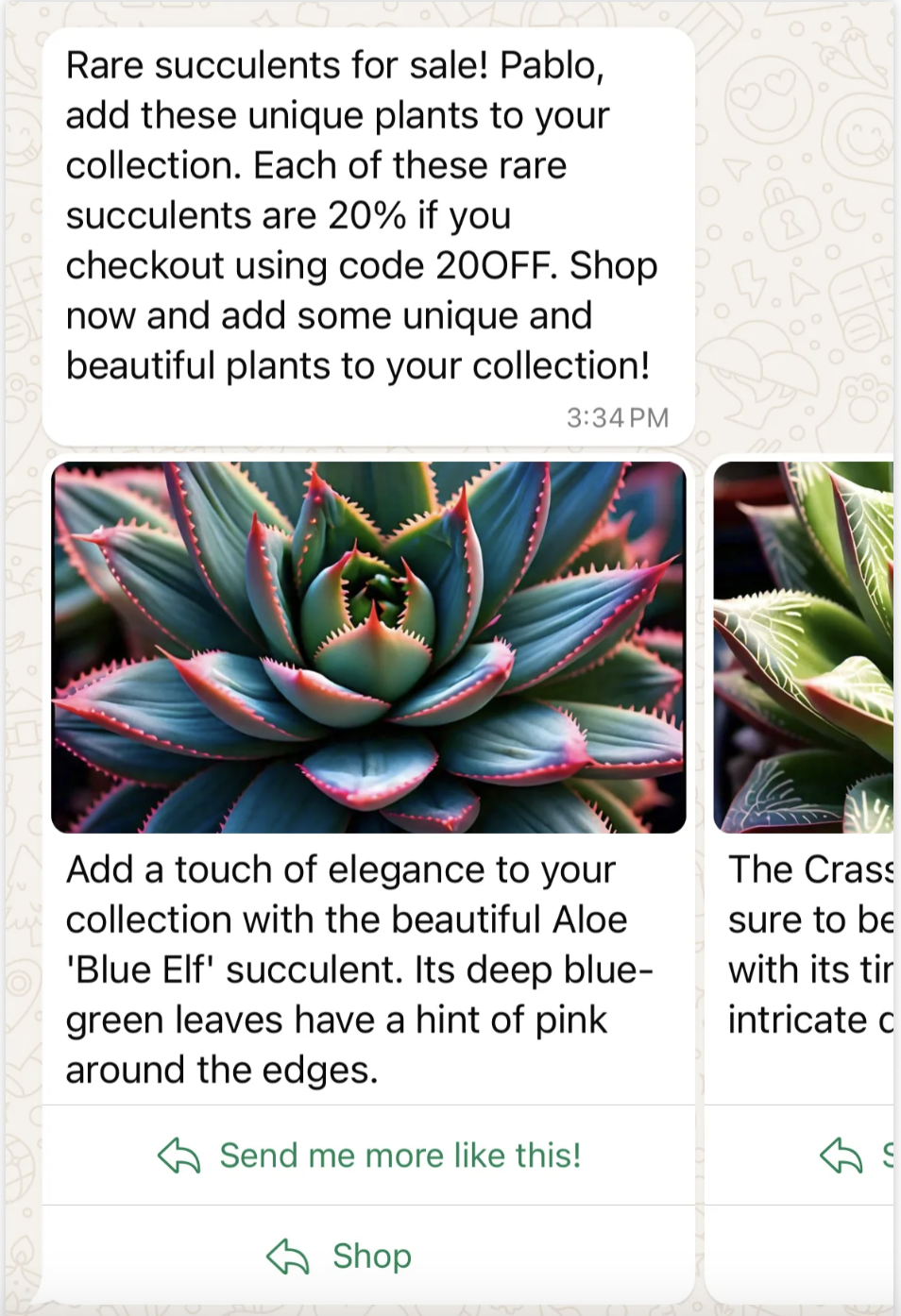
You can use the Carousel WhatsApp message campaign for all WhatsApp campaign types:
Creating a Carousel WhatsApp Message campaign starts with template creation. After your Carousel template is approved by WhatsApp, you can refer to the steps below to start creating your Carousel WhatsApp message campaign.
In this article, you can find answers to these questions:
Create a Carousel WhatsApp message
1. Navigate to InOne > Campaigns > Messaging > WhatsApp.
2. On the listing page of WhatsApp, click the Create button to start. 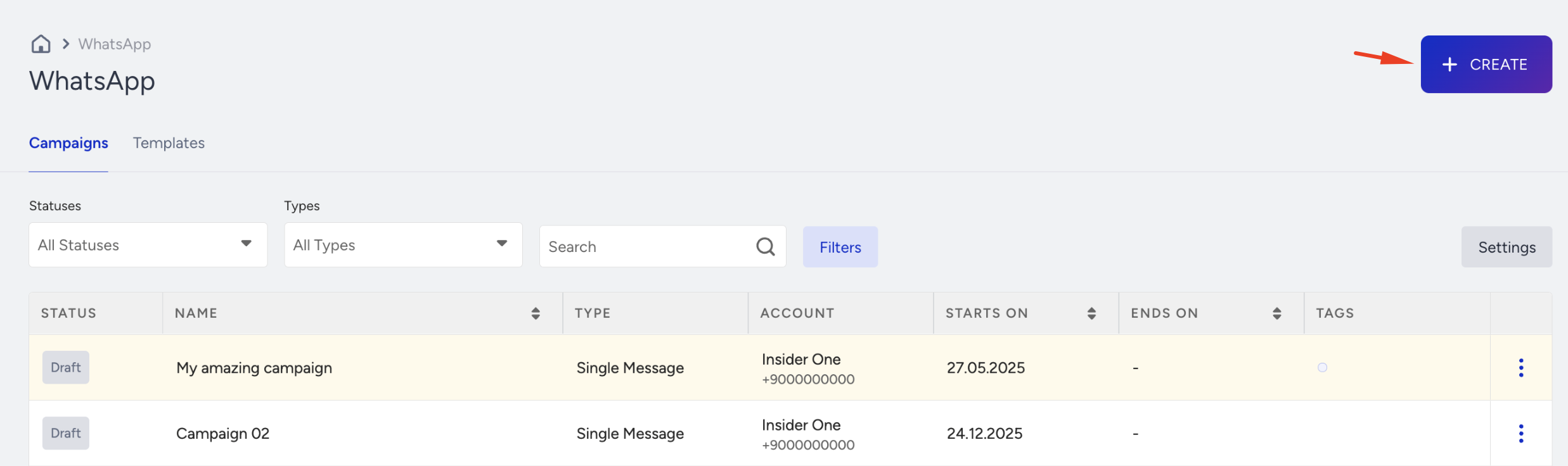
3. Enter a name for your Carousel campaign, select the campaign type that you prefer, and click the Create button. 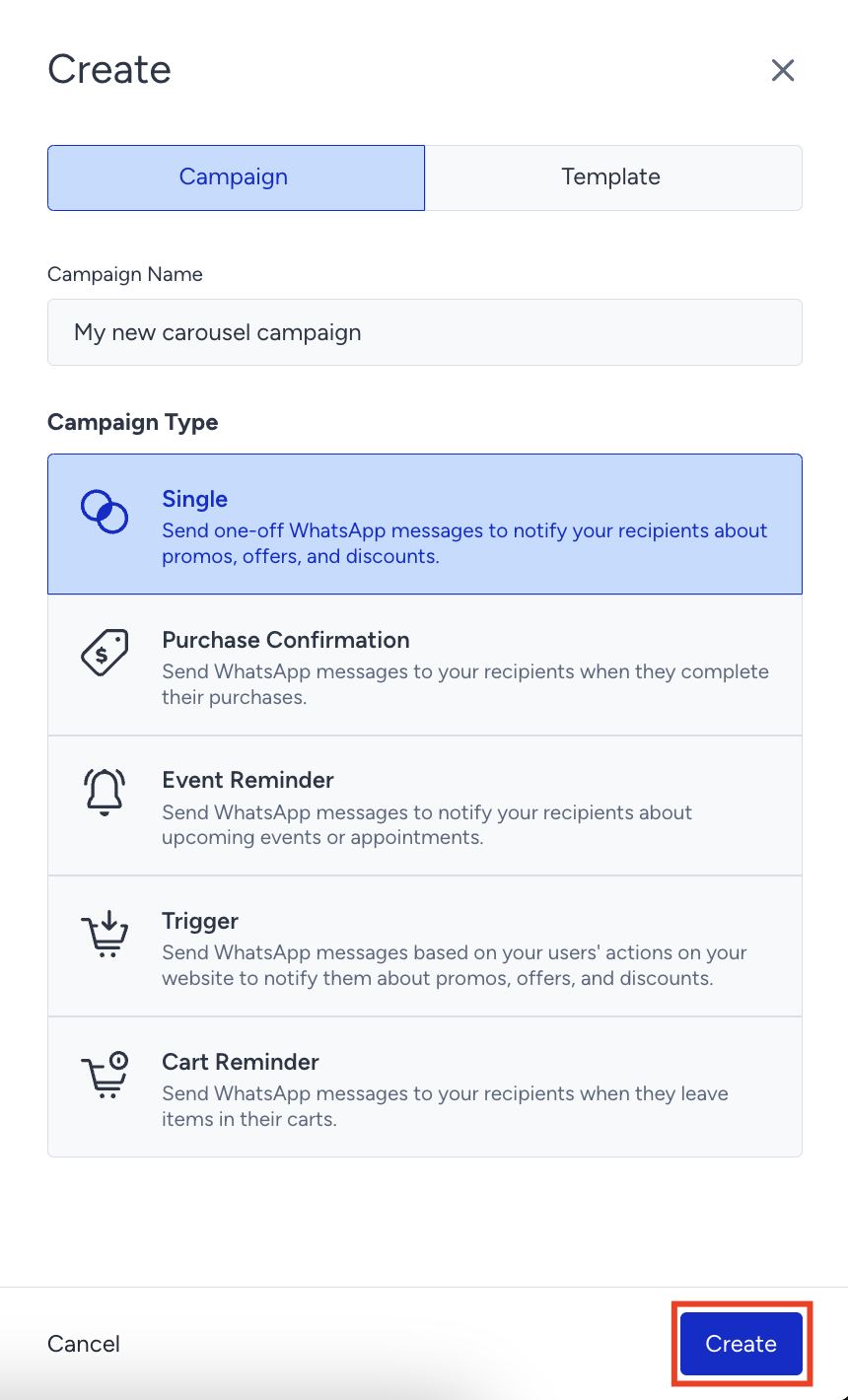
Segment your audience
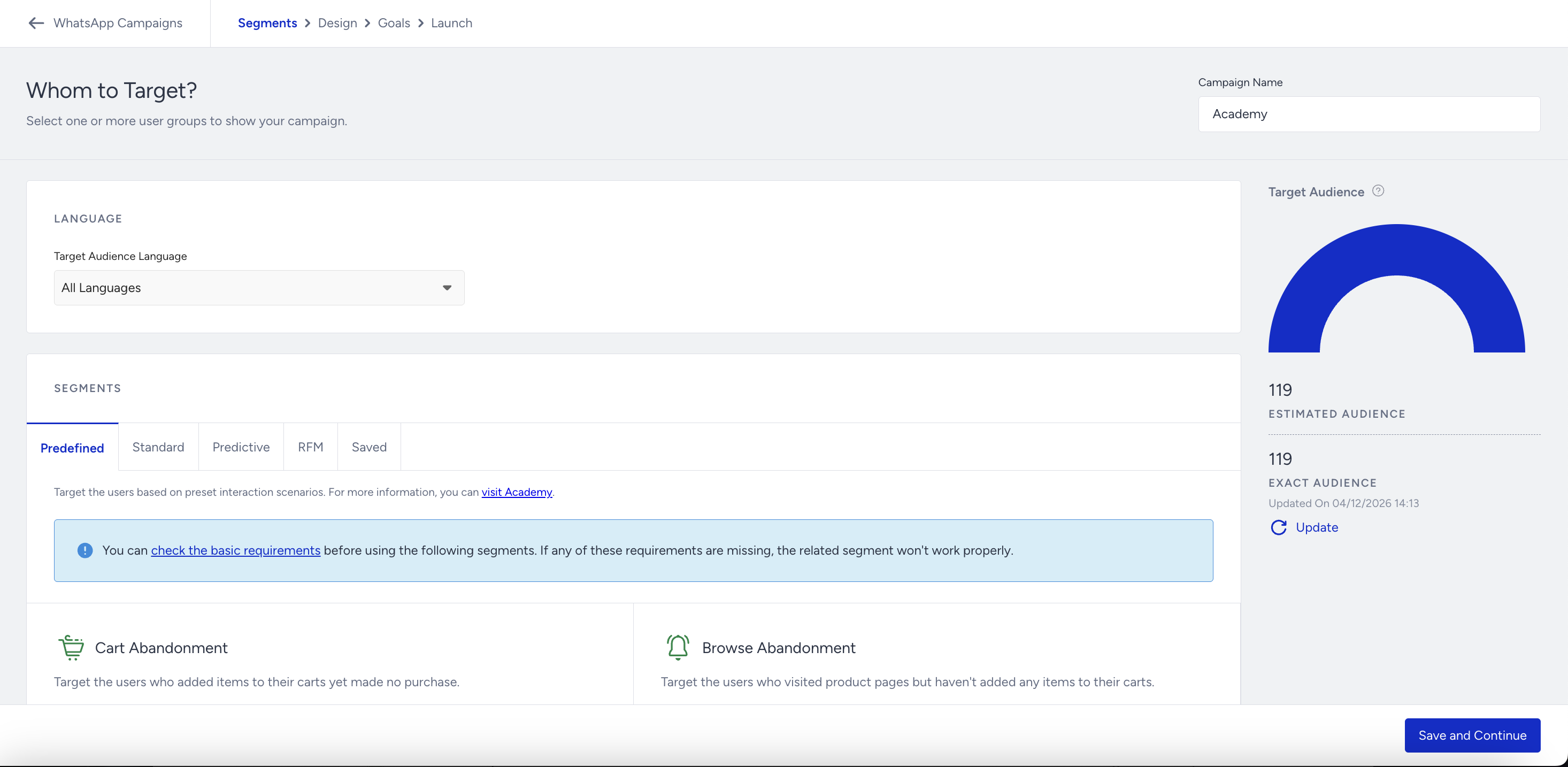
In the Segments step, select your Subscriber Language to create your content accordingly. Select “All Languages” if you do not want to segment your users by language.
Create a Segment group to target the relevant audience. You can use the following segmentation options: Predefined Segments, Standard Segments, Predictive Segments, RFM, and Saved Segments. Click Save and Continue.
Design your Carousel WhatsApp message
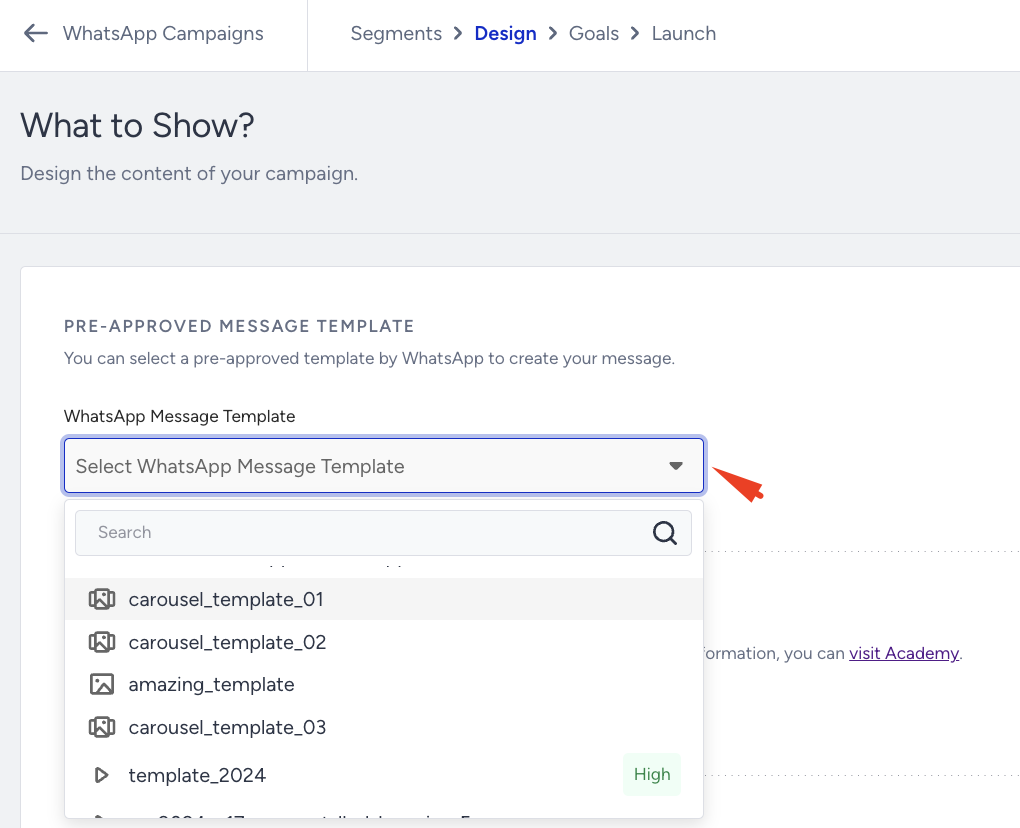
1. In the Design step, you should select the pre-approved Carousel template in the template selection.
In the Design step, you can only use pre-approved templates you have applied for. While creating your templates, you can use media such as images, videos, documents, variables, emojis, and action buttons.
Using variables and emojis in templates is highly recommended since they help you make your content more friendly and, therefore, more personalized.
The media are useful for drawing users' attention. They can be personalized according to their attributes.
Using buttons will help you to engage with your users and target them more efficiently. For example, you can offer a discount coupon in the second message after the user chooses the positive reply in the first message.
Refer to Create a WhatsApp Carousel Template to create your Carousel template.
2. After selecting the pre-approved Carousel template, you can change the media chosen for the message header for each card. To change the chosen media, click the Change button. 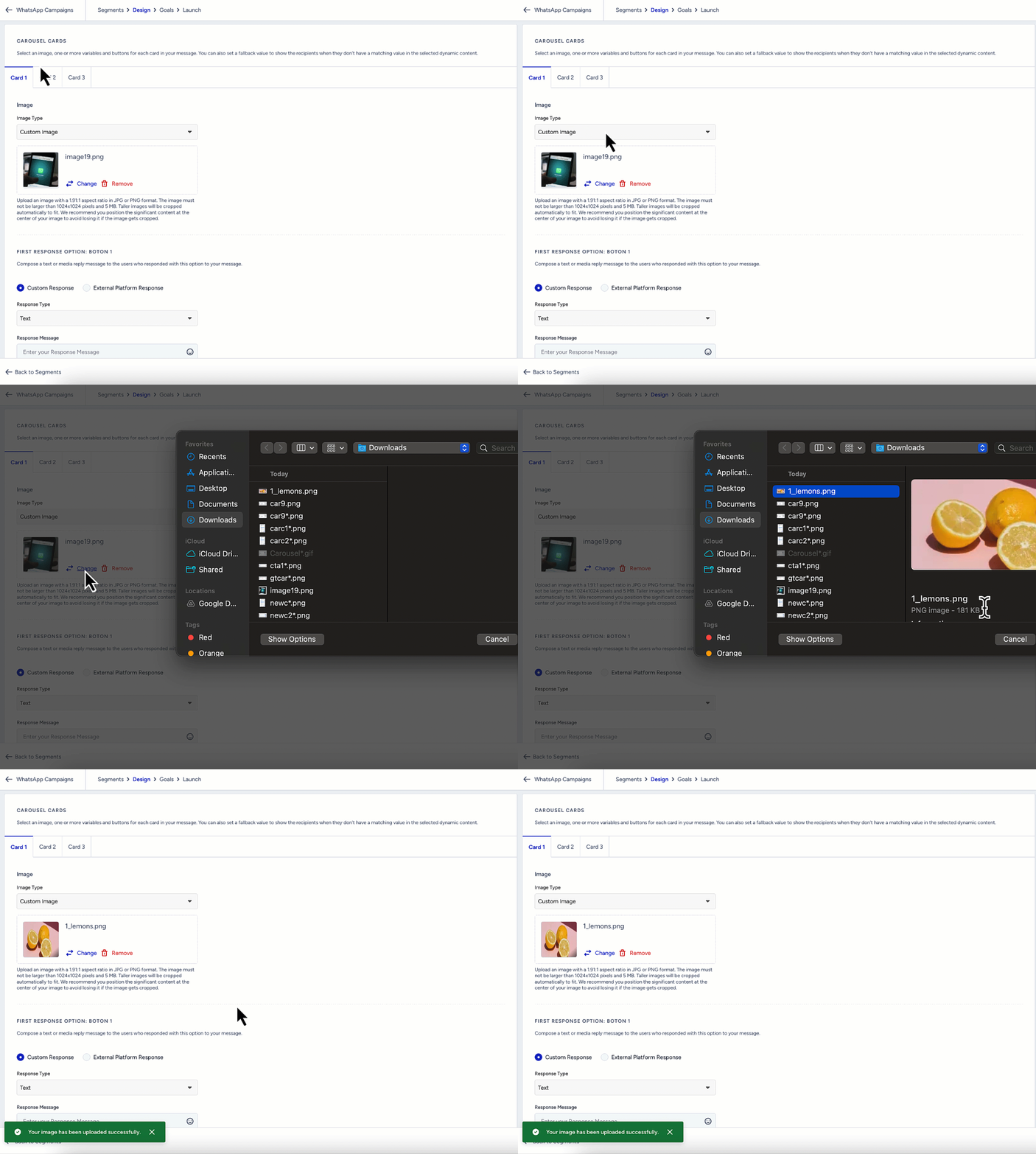
You can't change the media type at this stage.
When uploading videos, remember that changing a file’s extension to .mp4 or .3gp does not convert it into an MP4 or 3GPP format. The video must be originally encoded in MP4 or 3GPP; otherwise, it might fail the format check and result in an error. If your video is in a different format or exceeds the size limit, you must convert or resize it before uploading.
If you encounter a media upload error related to the video codec when uploading a video URL, refer to the troubleshooting steps to resolve the issue.
If the template includes a Call-to-Action (CTA) button, you can update the link.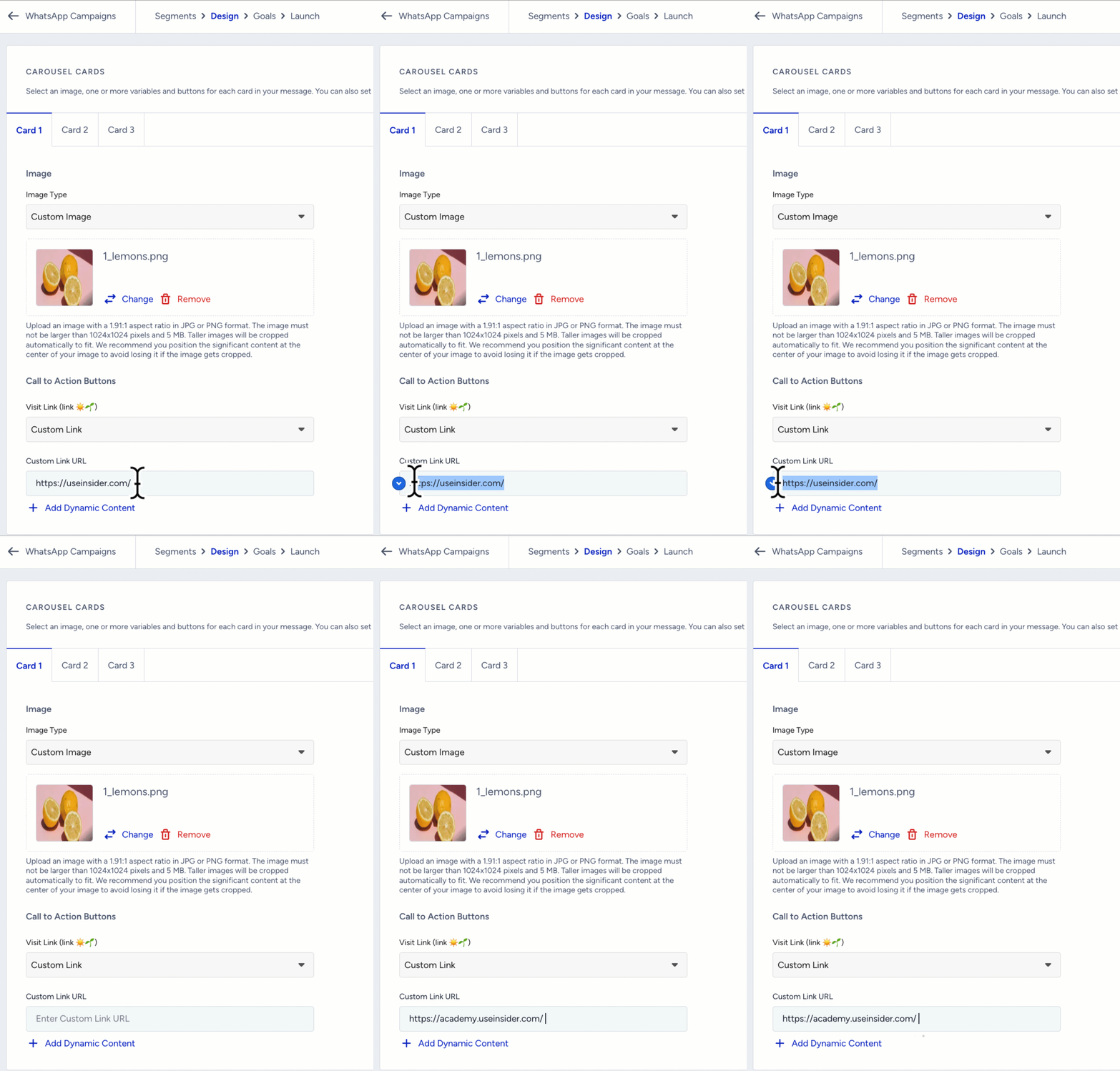
To structure your URL correctly, avoid using invalid characters like commas (,) or exclamation marks (!). If included, they must be encoded to prevent errors.
You can also use deep links in your Visit Website CTA buttons when creating a WhatsApp campaign. To use a deep link, replace the existing CTA URL with your mobile app deep link. For example: myapp://product/123
Deep links work only on mobile devices and require the related mobile application to be installed on the recipient’s device.
If the template includes a quick reply button, define responses for each card's quick reply button. .gif) To see responses for the quick reply buttons, select the relevant response in the preview.
To see responses for the quick reply buttons, select the relevant response in the preview.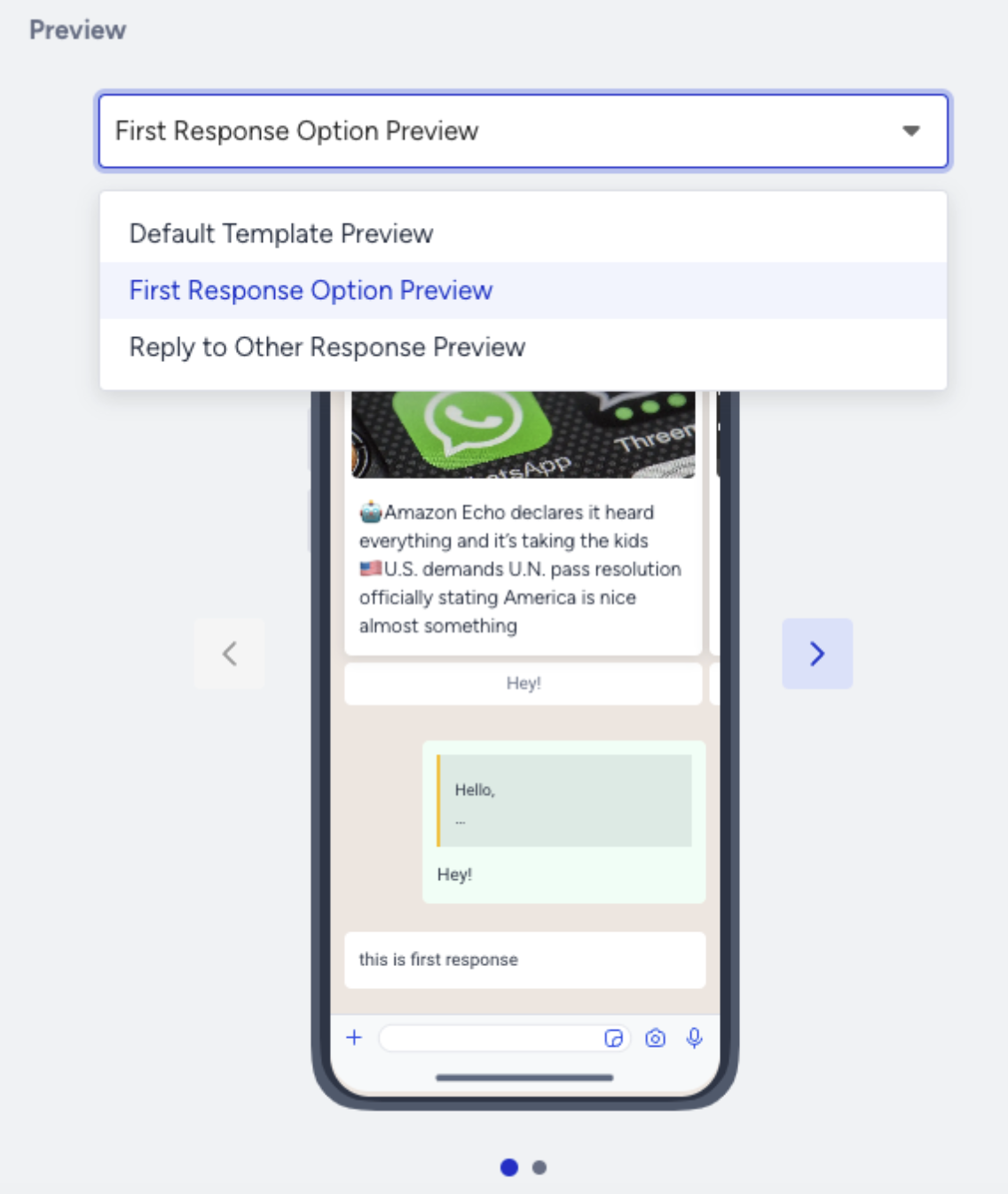
You can shorten URLs in your messages to avoid long links.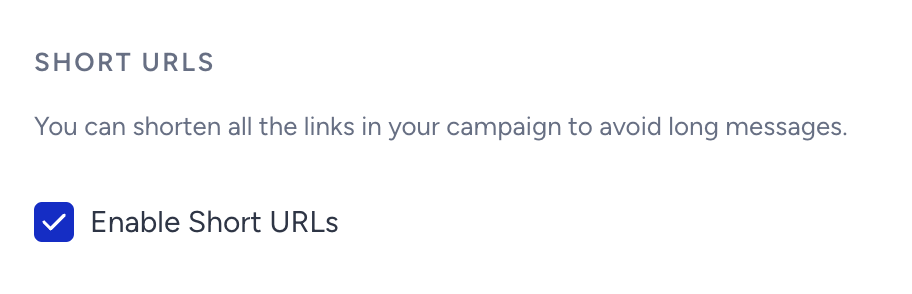 You can enable UTM Parameters to track your campaign's performance on Google Analytics by assigning tags to your message links.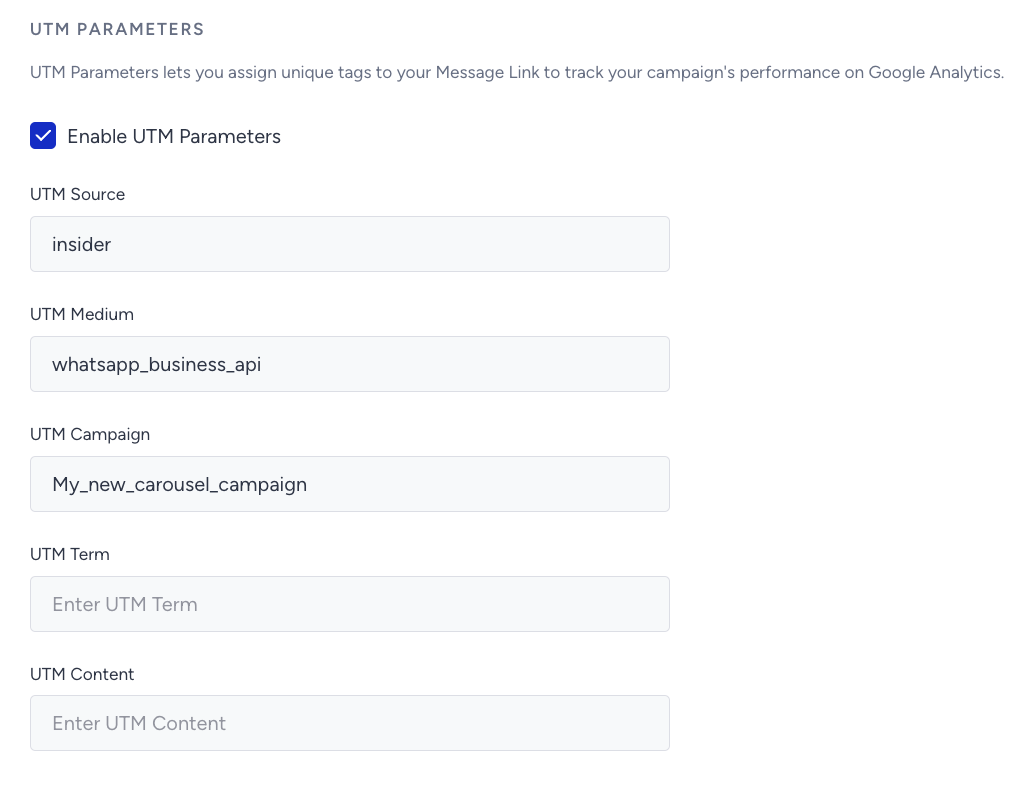
3. After designing your Carousel campaign message, click the Save and Continue button. 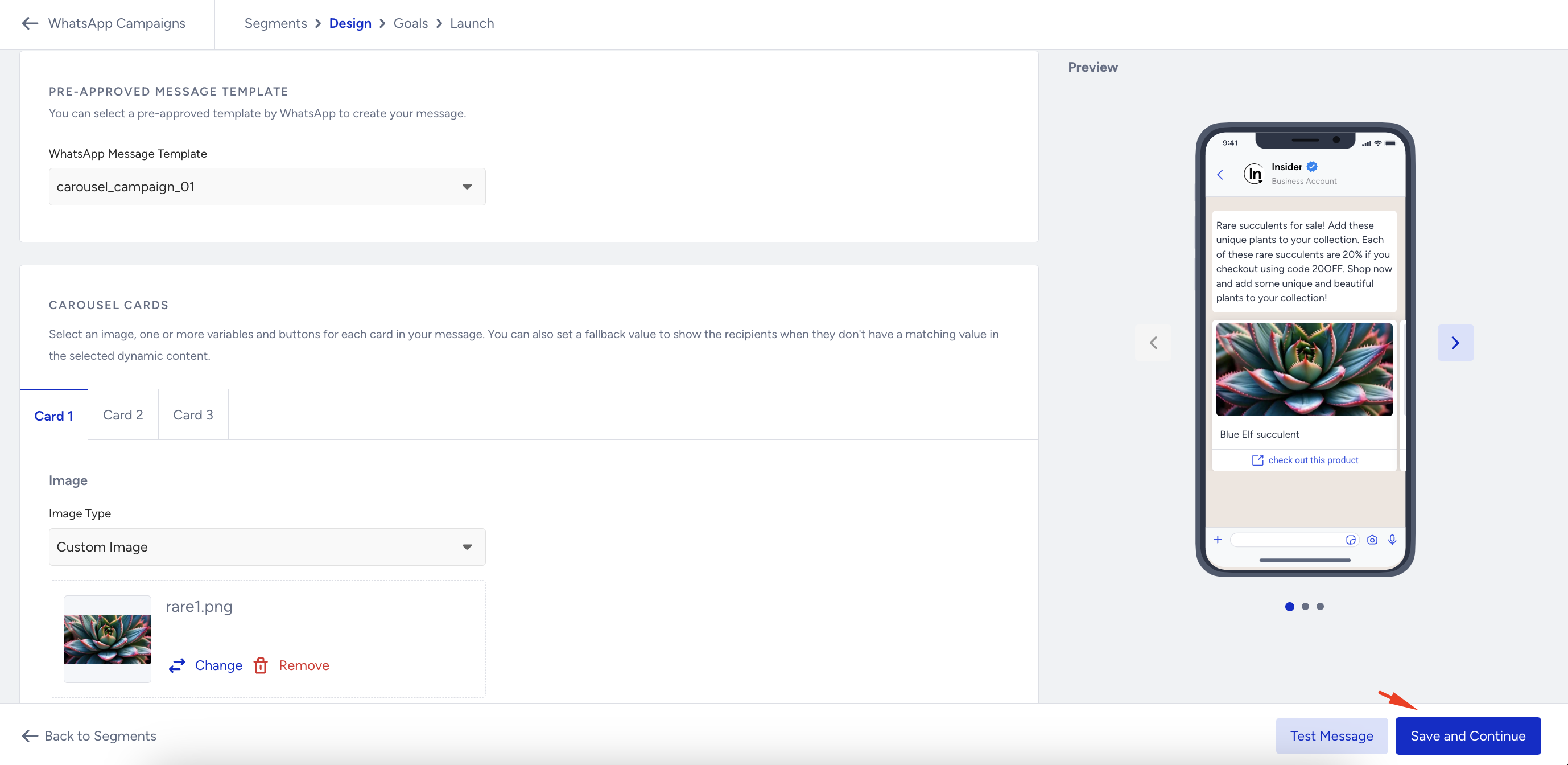
Set your goals
In the Goals step, you can set goals to track the performance of your campaign and strategize it accordingly. Purchases come as the primary goal by default. You can change it based on your needs.
You can also set Goal Conversion Duration. It is the time interval that starts after a user clicks a campaign for the first time. During that time interval you set, when your goal is achieved, the campaign will be logged as a conversion. Click Save and Continue to proceed.
Refer to Attribution Methods Across Inone for more details on WhatsApp attribution.
Launch your Carousel WhatsApp message
When you finalize the configuration of your campaign, you can make it ready to go in the Launch step.
1. You can send your message immediately or later at a specific time, or save your design as a draft and continue configuring it later.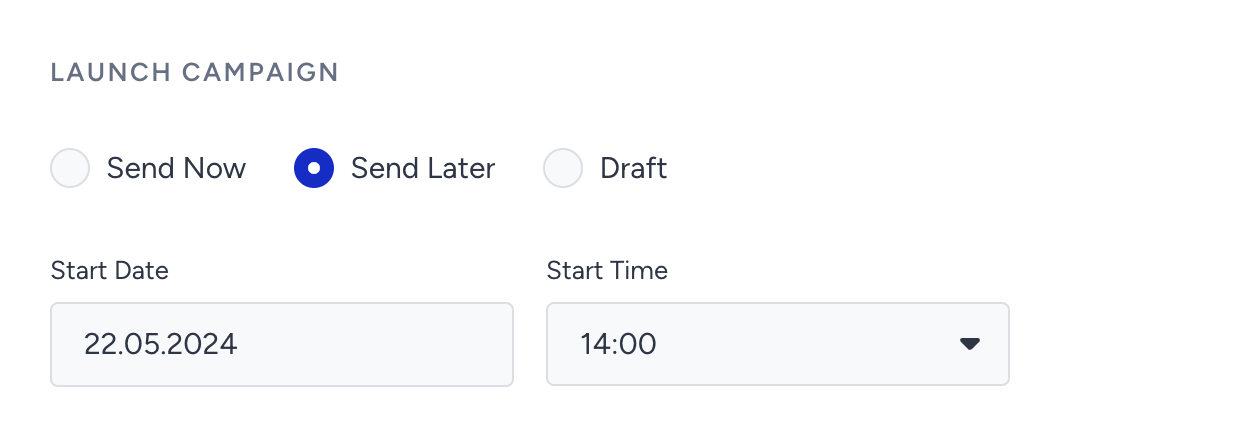
2. You can assign or create tags for your campaign to reach it later easily. You can add up to 6 tags to a campaign and filter them according to their tags.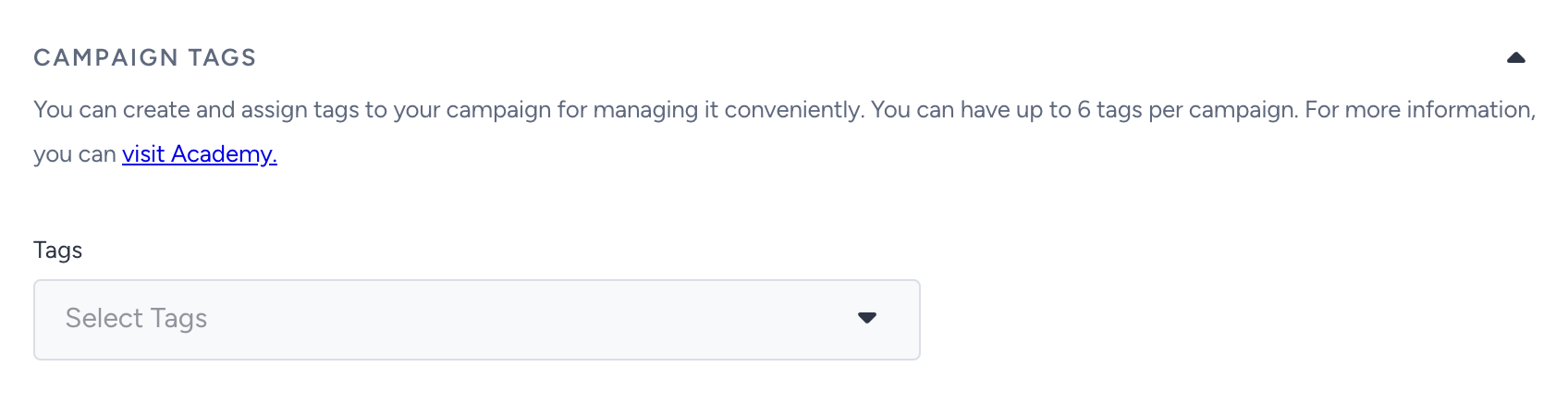
3. Under Frequency Capping, you can override the limit of messages that the users can receive within a specified period, which is assigned in Global Frequency Capping settings.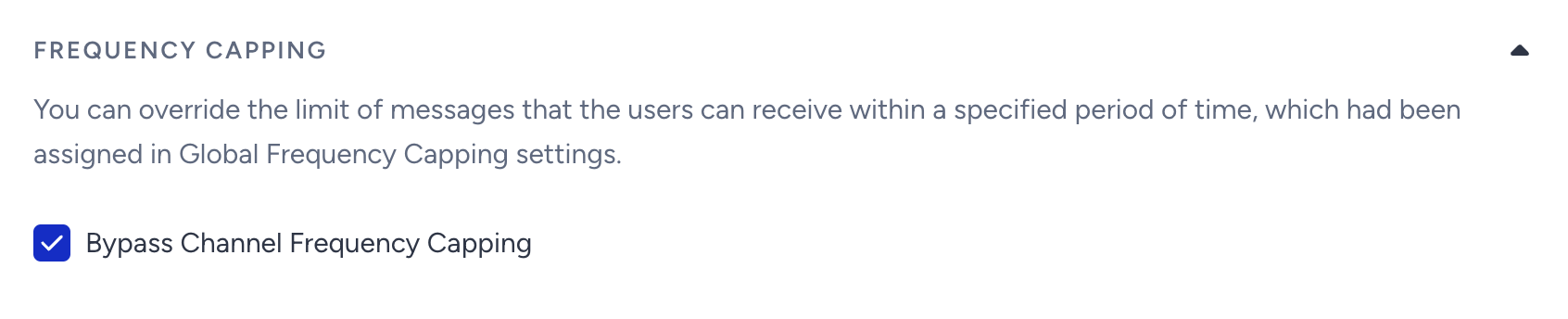 4. You can keep your notes in the designated area as well.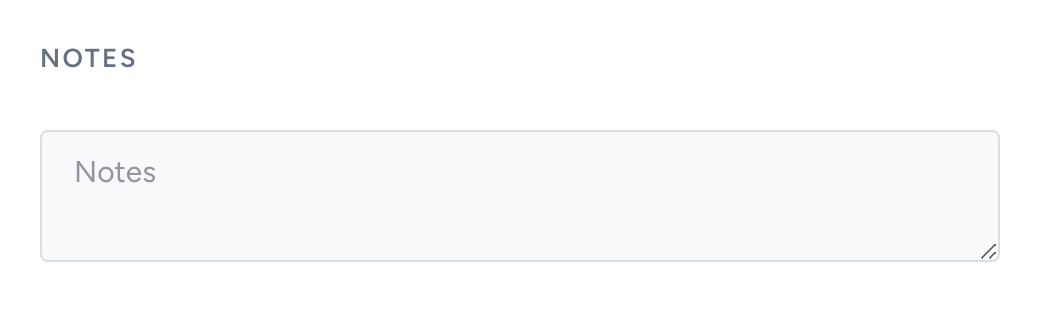
5. On the right side of the screen, you will see an information area that displays the total number of recipients and indicates if everything is set to send your message.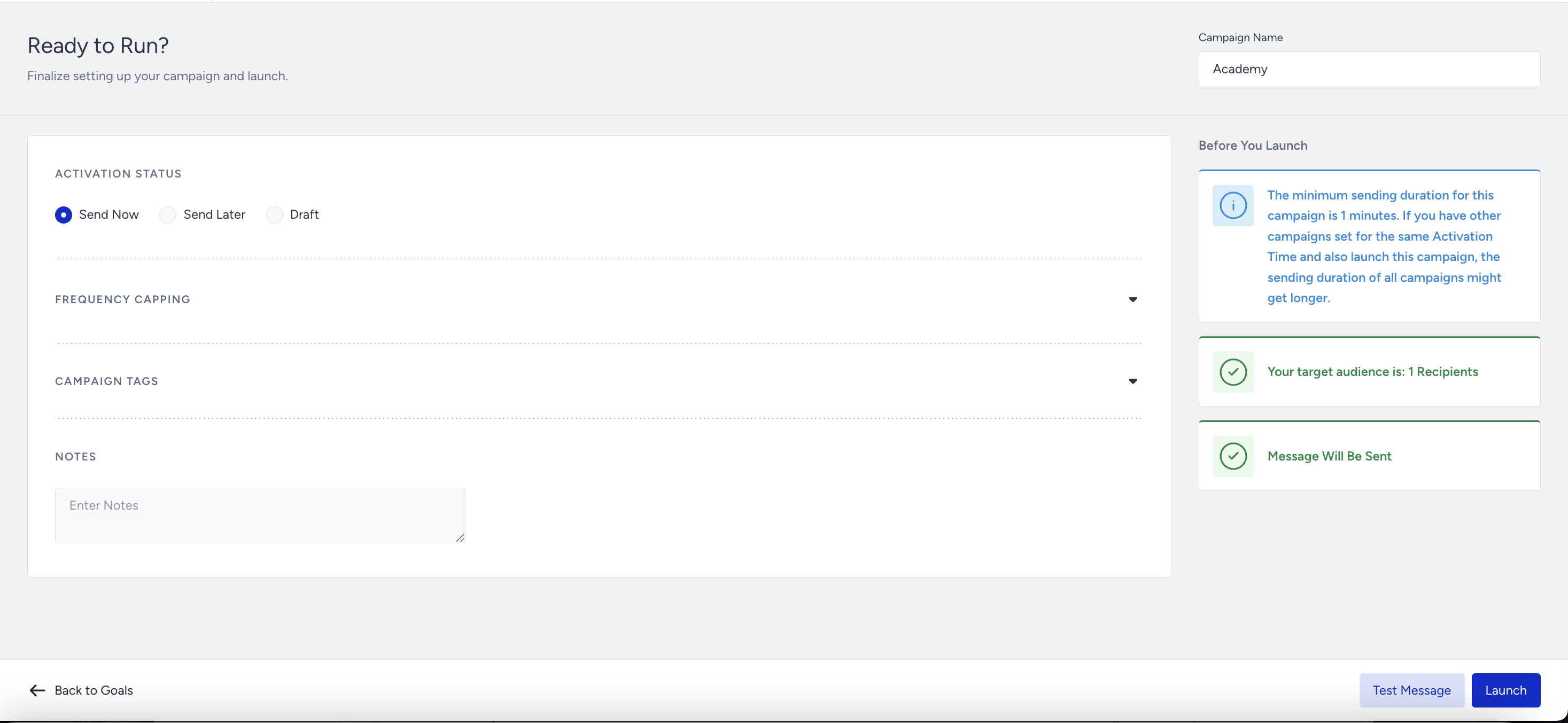
6. When you finalize all your configurations and your campaign is ready, we highly suggest you test it before launching it. After confirming everything goes as expected, click the Launch button to start.