After launching an email campaign, you may notice that the full email message isn't visible in your Gmail inbox and is instead cut off, or truncated. You can see the entire message if you click the [Message Clipped] View Entire Message link at the end of your email.
Clipped messages might not offer a smooth experience to users. It might even discourage them from receiving messages from your brand. To avoid email clipping by Gmail, you can take some measures.
This guide answers the following questions:
Let's first understand why an email is clipped.
When does Gmail clip your emails?
Gmail clips emails larger than 102KB and hides the full content behind the [Message Clipped] View Entire Message hyperlink..png) If your pure email HTML template is close to the 75 KB threshold, you will see a notification on the Launch step of your email campaign. This means that your message will most likely be clipped in the users' inboxes.
If your pure email HTML template is close to the 75 KB threshold, you will see a notification on the Launch step of your email campaign. This means that your message will most likely be clipped in the users' inboxes.
Your email campaign size may be larger after launch than before, as tracking parameters are added to every URL in the email to track link-click events.
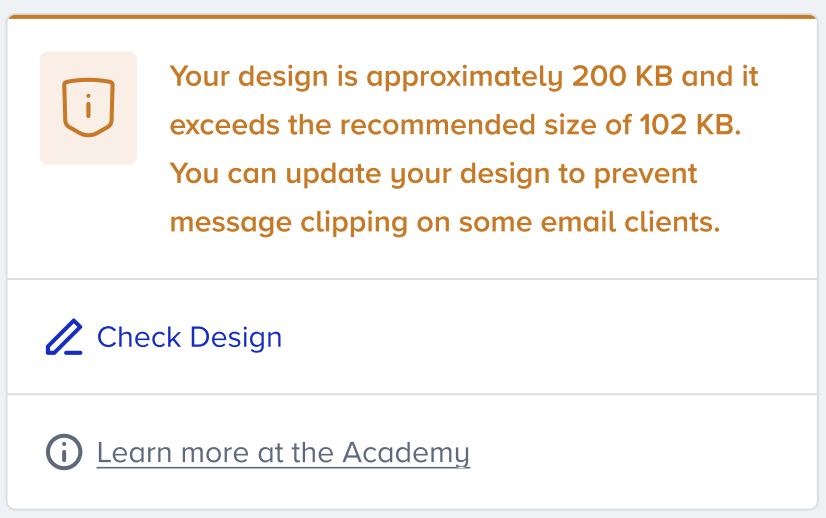
Campaign with one variant
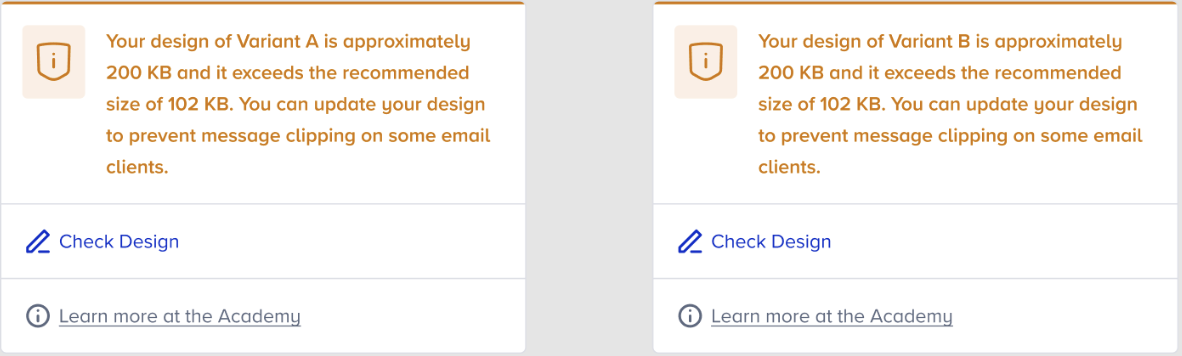
Experiment campaign with two variants
You can send a test message on the Launch step to yourself to check your email and see if it is clipped in your Gmail inbox. If it is clipped in the test email, it will also be clipped when you launch your email campaign.
To understand the final size of your email campaign, you can download it from Gmail.
How does email clipping impact user experience?
If your email messages keep getting clipped, you will likely see an increase in your spam reports. Your users will have a frustrating experience and may want to change their opt-in preferences. They might also want to opt out of your campaigns globally. This might eventually decrease your users' interactivity and engagement.
How can you prevent clipping in your emails?
We strongly suggest you follow the measures below if you see clipping in your test messages or email campaigns.
Shorten URL size: Shortening the URL size can help you reduce the size of your email messages. To enable the link shortener feature for your panel, you should create a ticket for Insider One’s team. This will shorten the link by about 40%. However, the data retention window is only 60 days from when the link is created. The clicks are not tracked if a short link is clicked outside this window.
Delete previous test emails: Gmail often combines emails with the same subject line into a single email in your inbox. If you send several test emails for the same campaign, your message might become so large that Gmail clips the test email. However, you can delete the previous test emails from your inbox for testing purposes and then send the test email again.
Create emails from scratch: If you directly paste content from an outside source, you may add the formatting code hidden behind the pasted content to your campaign's code. To avoid these issues, we recommend creating your email templates from scratch using an HTML editor or the Drag & Drop Editor.
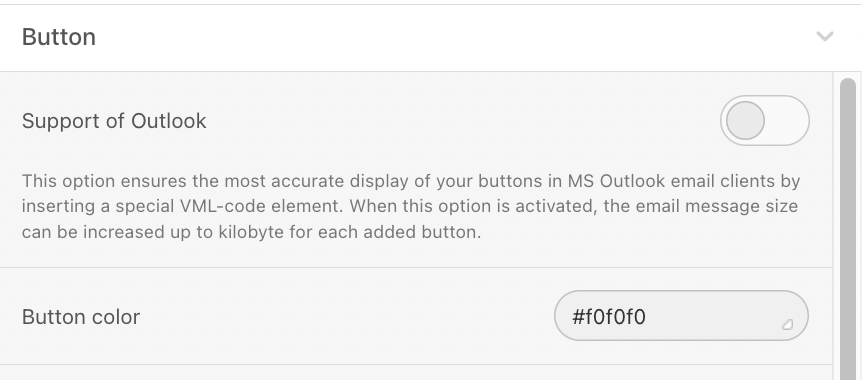
Disable Support for Outlook option: The "Support for Outlook" option alone is 1KB per button in the email. If your user base isn't Outlook-focused, consider disabling this option to prevent your emails from being clipped.
Clean your code: Remove unnecessary lines, excessive padding, and messy code to optimize your email's HTML structure.
Use "Read More" links: We suggest adding “Read More” links for long content. This reduces email size while maintaining tracking data.
Test your email size: Clean and optimize emails before sending to ensure the intended impact.
If the above options don't seem to help prevent clipping, your campaign likely has a lot of content. To reduce your email weight, remove some content from containers, structures, and stripes, and minimize the number of styles applied to email elements.
How can you optimize images to reduce email size?
Images are one of the most common causes of large email sizes.
Resize and crop images directly in the editor
Uploading oversized images is a common cause of bloated email HTML. Instead of uploading large images and scaling them down with CSS, resize them before embedding.
After uploading an image, click the Edit Image button in the settings panel.
Use the Resize tool to set specific pixel dimensions (e.g., limit width to 600–800 px for standard email layouts).
Use the Crop tool to remove unnecessary parts of the image.
Save your changes. The edited image replaces the original in the template.
Keeping images at the actual display size (rather than relying on HTML/CSS scaling) helps keep your email weight low.
Choose the right image format
Selecting the appropriate file format for each image type can significantly reduce file size:
JPEG: Best for photographs and images with many colors. Smaller file size, but lossy compression may reduce quality.
PNG: Best for logos, icons, and images requiring transparent backgrounds. Larger file size, but preserves sharpness.
GIF: Best for simple animations. Suitable when your email service provider does not support video, but colors may appear less vibrant.
Avoid using PNG for large photographic images, as this unnecessarily increases email size.
Hide images on mobile (when applicable)
If certain images are purely decorative and add unnecessary weight for mobile users, you can choose to hide them on mobile:
Select the Image block or the container holding the image.
In the Settings panel, enable the Hide element on Mobile option.
This reduces the content loaded on mobile devices, improving both email weight and user experience on smaller screens.