Suggested reading: Email Warm-Up
Automated warm-up is a feature that aims to protect your IP reputation and enhance your deliverability by providing a warm-up schedule tailored to your needs and automatically limiting the number of emails you send daily.
While manually warming up your IP address, you must prepare a warm-up schedule by considering your future volume. Each day, you need to double-check the number of emails you should send during that day. In case of any mistakes, you may need to restart the process or may need a new IP. The automated warm-up feature smooths this process significantly. It provides you with a warm-up schedule that is tailored to your maximum daily volume goal. It guides you on the number of emails that you should send each day on the panel.
You can create separate automated warm-up plans for your separate sender domains. For further details, refer to Warm-Up Planning.
Benefits of automated warm-up
Automated warm-up:
Guides you during the warm-up process.
Provides you with a schedule and easy tracking on the panel.
Decreases manual work and prevents mistakes that could damage your company's reputation.
Experiment (A/B) email campaigns cannot be used while the warm-up feature is on.
IP warm-up is notrequired for Transactional Email API or Transactional Journey Emails.
Automated warm-up tracker
After configuring your automated warm-up plans from the Warm Up Planning step under Email Setup Wizard, you can start tracking your sender domains' automated warm-ups directly from the InOne panel.
The Automated Warm-Up Tracker allows you to track the following in real-time:
You can see which day it is and how many emails you will send that day.
The status indicators will inform you about your warm-up status: Completed, In Progress, Interrupted, Not Started.
You can see your complete warm-up plan, including daily target volumes, the starting volume for that day, and the total volume by the end of that day.
Finally, you can see the emails sent on each day and when that day's volume is complete.
Additionally, you can switch between your sender domains to track each domain's warm-up progress separately.
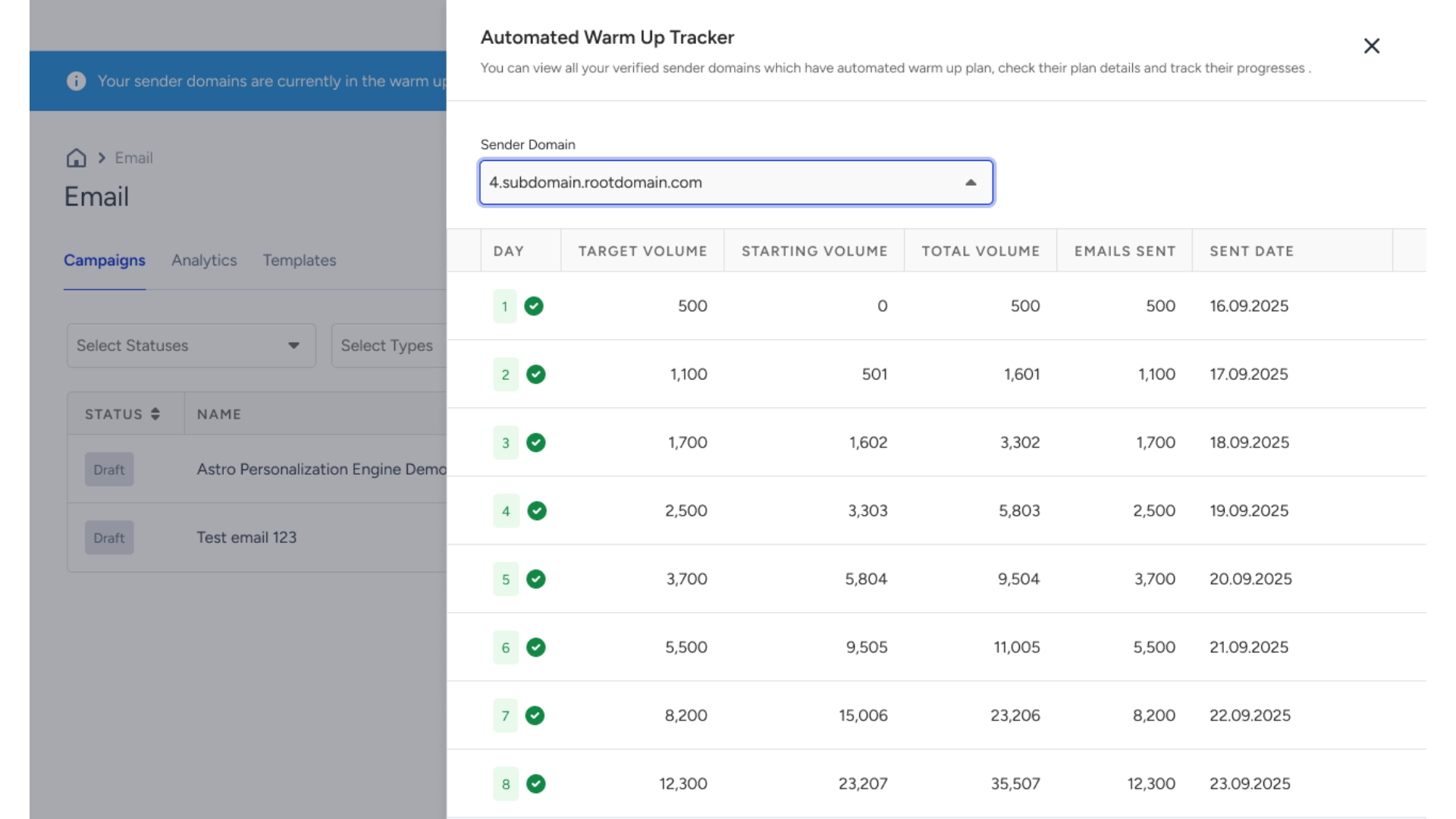
To move on to the next day of your warm-up plan, you need to send at least ±50 emailsof your daily email limit. If you cannot reach the daily limit of that warm-up day, you will need to repeat it on the same day to jump on the next day. You will see an informational prompt about your remaining daily limit on the launch step.
If you cannot reach the daily limit of the respective warm-up day, you will have the flexibility to continue with the same daily quota on the next warm-up day. However, keep in mind that it is advised for you to follow the automated plan on a daily streak.
Access the Automated Warm-Up Tracker
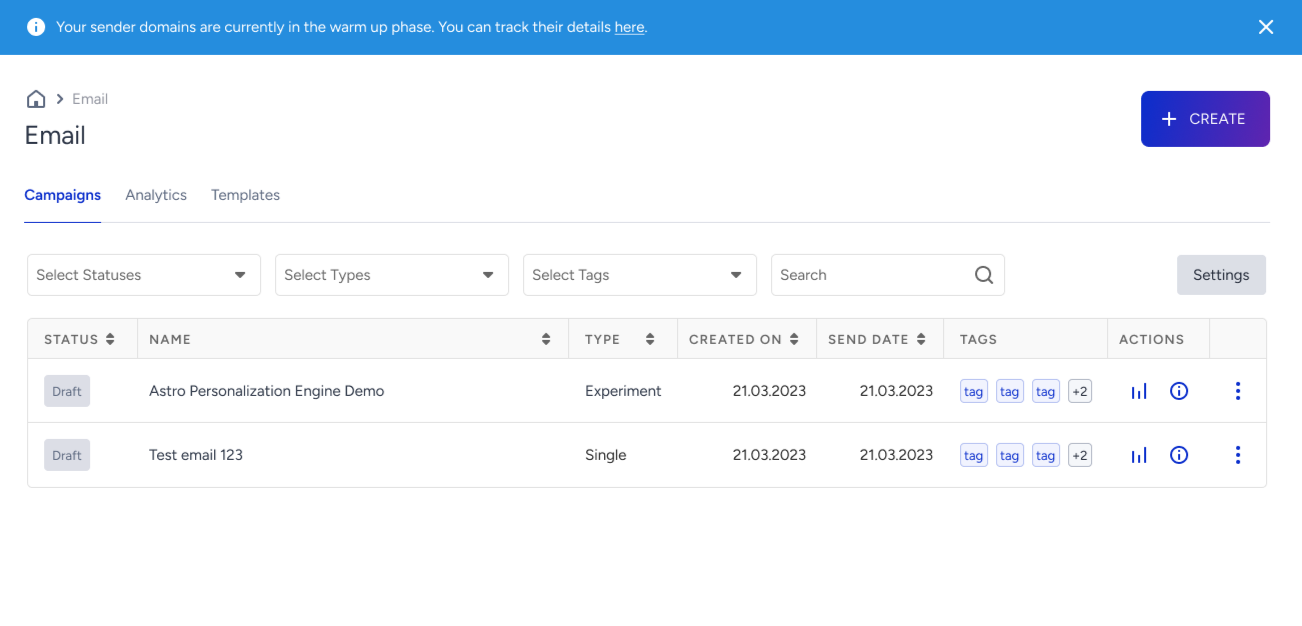
The Automated Warm Up Tracker can be accessed throughout the Email Listing Page and on the email campaign creation steps (Recipients, Design, Launch).
On the Email Listing Page, when you have an active (or not started) warm-up plan for any of your sender domains, you will find the ribbon at the top of the page. In the ribbon message, you can click the here button to access the Automated Warm Up Tracker.
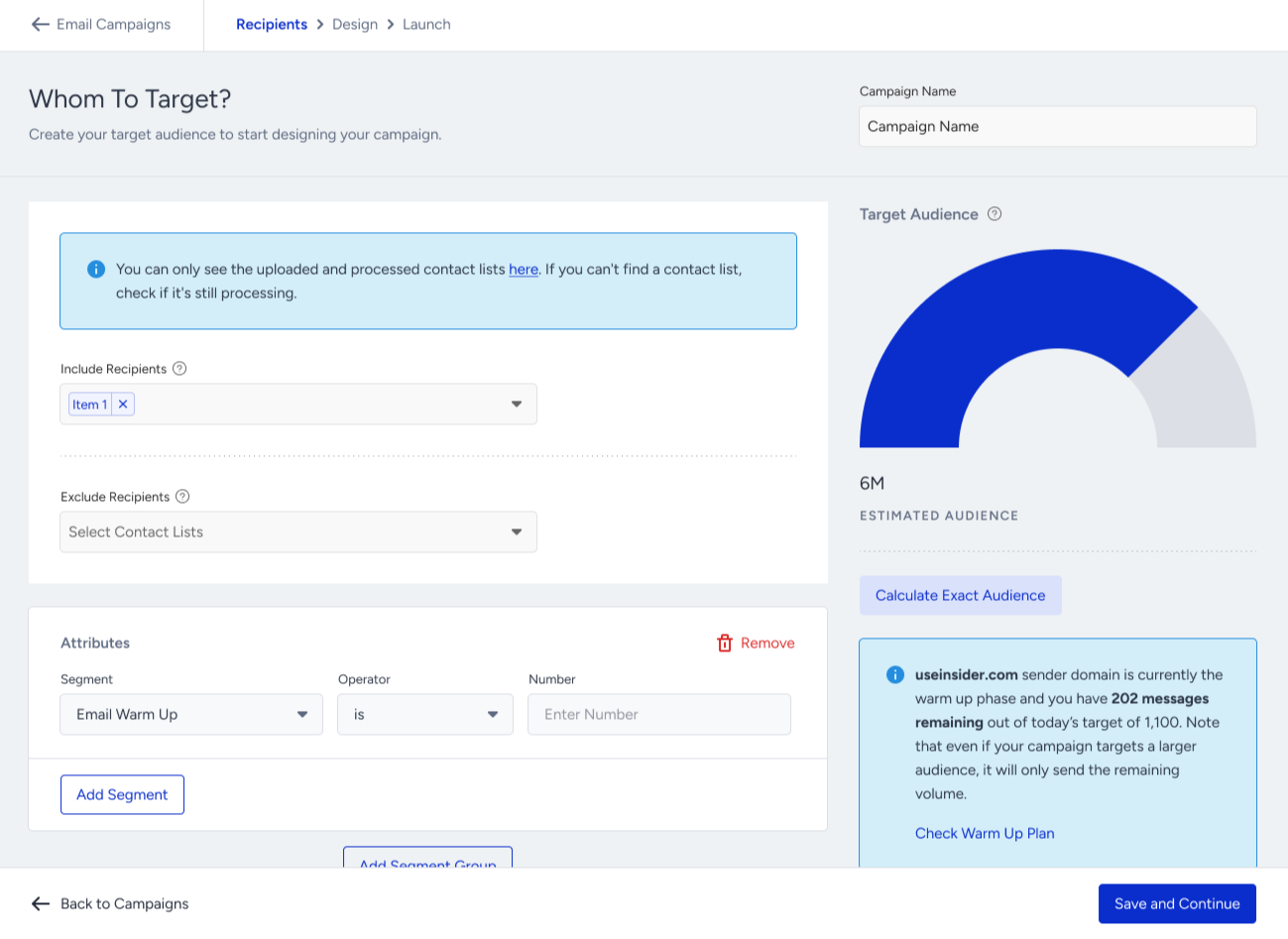
When creating an email campaign, you will see informational messages about the daily quota for the selected sender domains.
On the Recipients step, you can see the number of emails you should send during that specific day of warm-up, for your default sender domain.
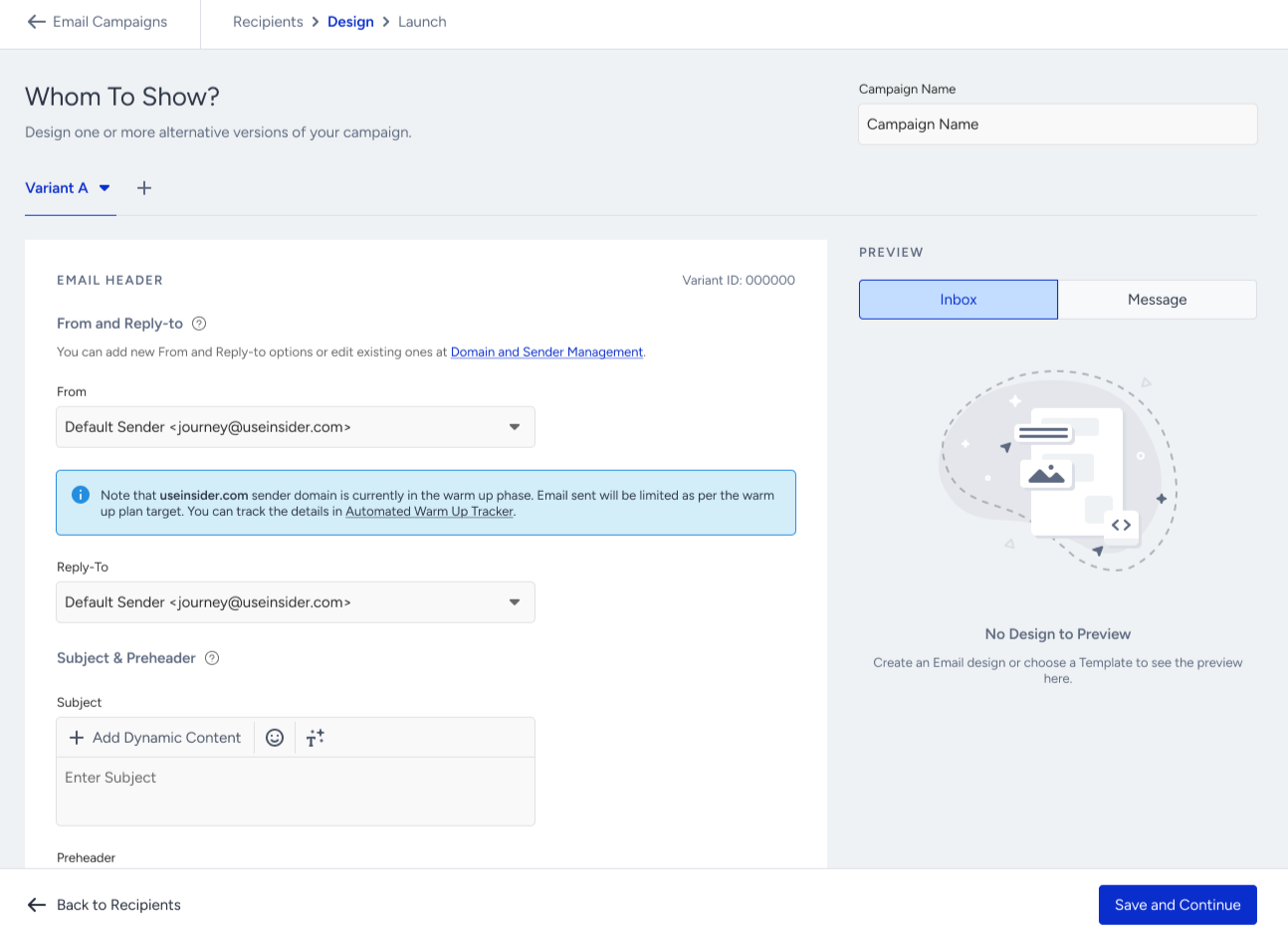
On the Design step, you will see the information message below the From Address selection, you can access the Automated Warm-Up Tracker.
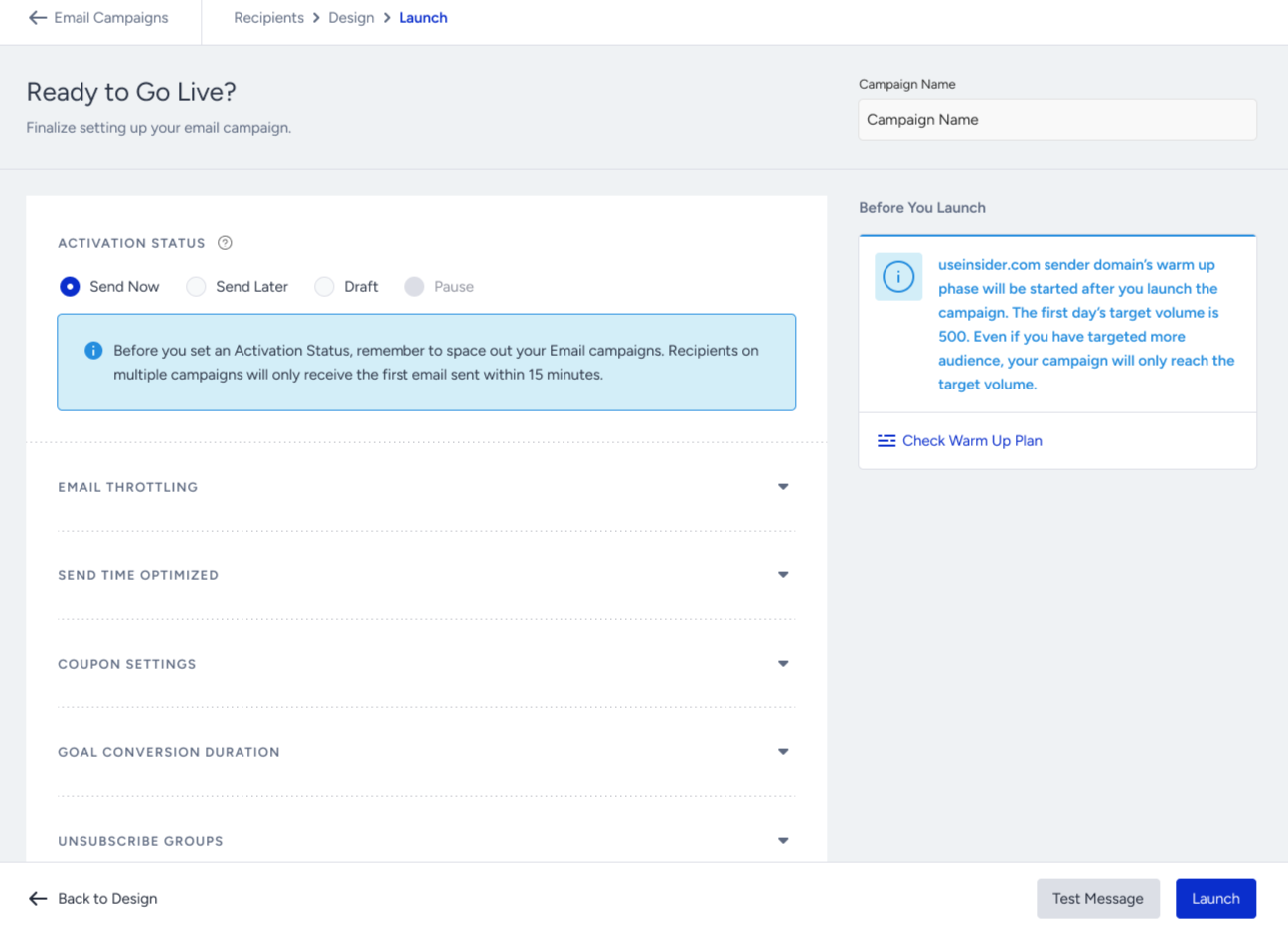
On the Launch step, before you launch your campaign, you will be reminded of the daily quota one last time before sending the your email campaign. Here you will be able to access the Automated Warm Up Tracker through the Check Warm Up Plan button.
Audience Limit helps fetch the desired number of users directly from the user base if the number of selected contact lists or segmentations based on contact lists is greater than the daily quota reflected from the automated warm-up. This way, you do not need to use any extra contact lists or segments to reach out to the desired number of contacts in the list.
For example, if you attempt to send a campaign that has more recipients than your daily limit, you will see a notification on the launch step where the audience limit feature displays your daily quota remaining for your recipients. The other recipients in the contact list will be dismissed.
If you schedule a campaign that has more recipients than your daily limit, you will see a notification on the launch step where the audience limit feature displays your daily quota remaining for your recipients. The other recipients in the contact list will be dismissed.