Insider One’s Affinity-Based personalization lets you display personalized search results and category pages based on each user’s preferences. This model considers users' product clicks, add-to-cart, and purchase behaviors to calculate each user’s favorite affinities.
Eureka uses affinity values to improve the visibility of relevant products in search results and category pages, providing a user-centric experience. For Example, user A’s favorite brand is XY and his shoe size is 42. When the user searches for “Sneakers”, Eureka automatically boosts XY Sneakers, which are available in size 42, in the search results.
In this article, you can find answers to the following questions:
What are the requirements for using Affinity-Based Personalization?
How can I preview the user’s affinities for selected attributes?
The requirements for using Affinity-Based Personalization
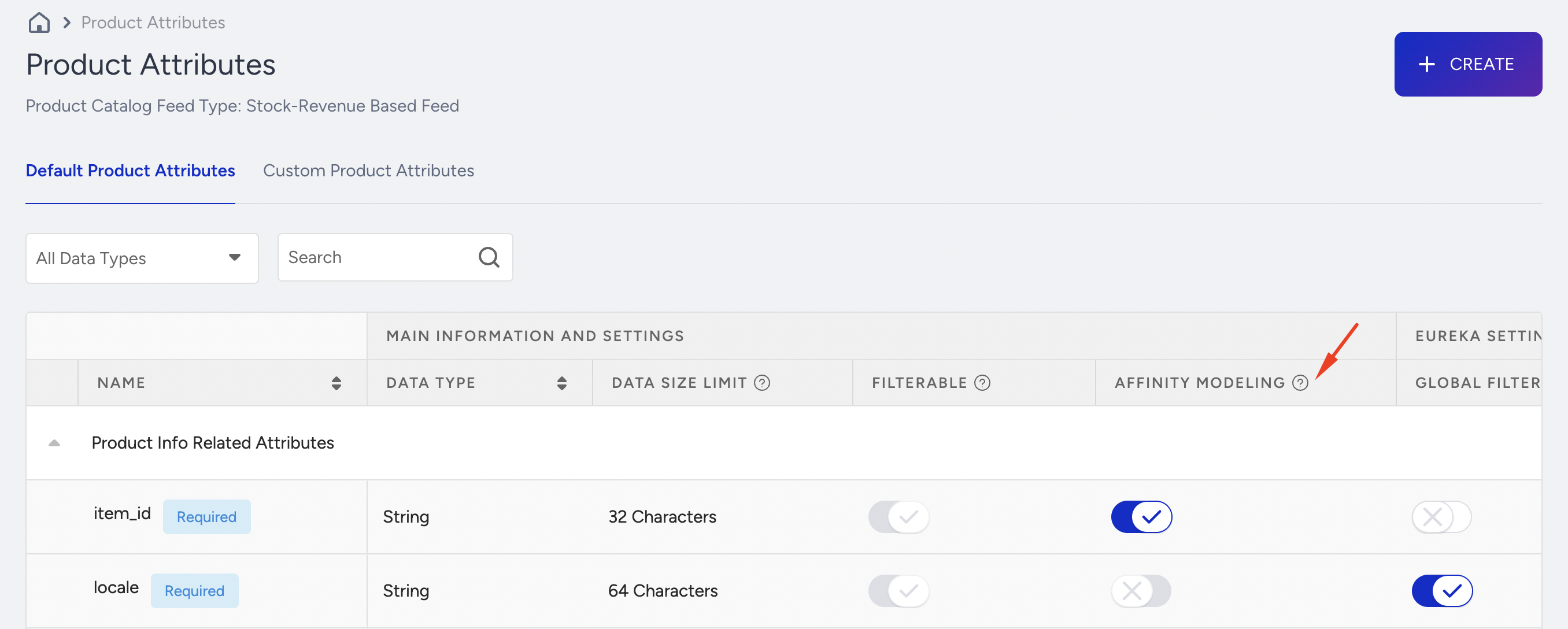
In the Product Catalog Manager, under Product Attributes Settings, you need to enable the Affinity Modeling toggle for the attributes you want to use for search personalization.
In the Eureka Settings under the Personalization menu, you need to switch the Affinity-Based Personalization toggle for Search and/or Category Pages.
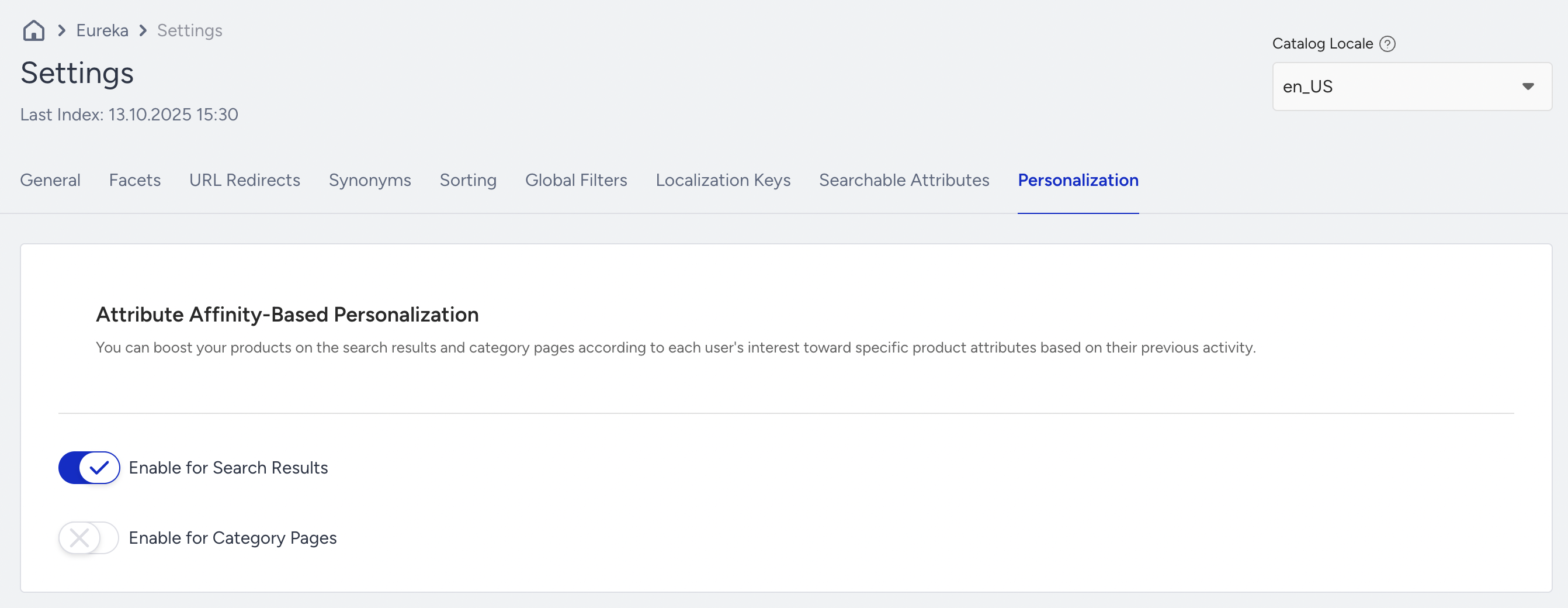
Configuration of the Search Personalization settings
The steps you should follow to personalize the search settings are:
1. Select the affected area
If you enable the Search Results toggle, the personalization model will be applied to your website's search results.
If you enable the Category Pages toggle, the personalization model will work on category pages, sorting products for each product listing page on your website.
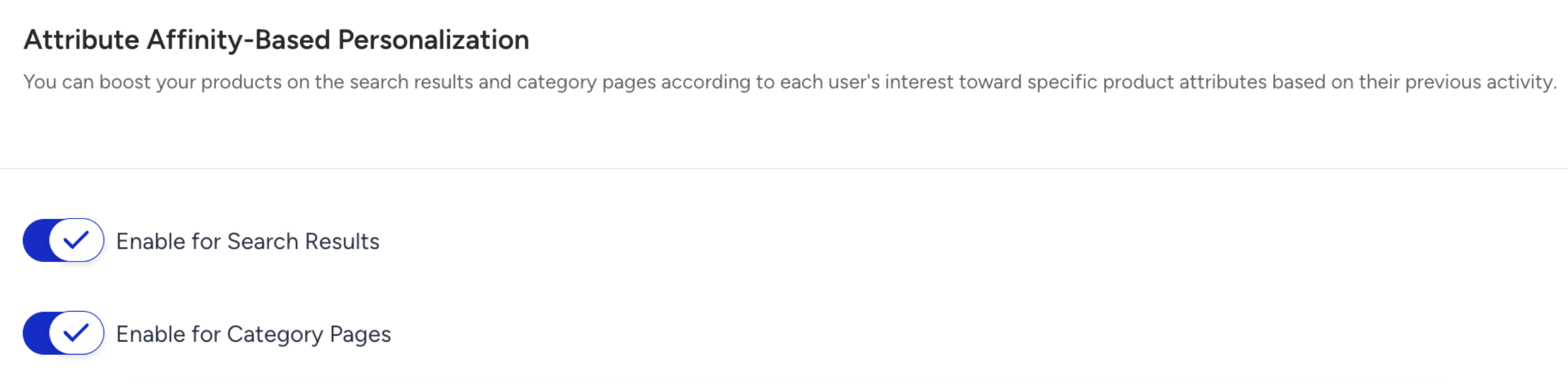
Please note that to use affinity-based personalization in the Product Listing Page (PLP), you must implement the Category API. For Search, no additional implementation is necessary if the Eureka Search Widget is in use. However, if you want to apply affinity-based personalization on a search result page or within a mobile app, you must implement the Eureka Search API Integration.
2. Define the affinity attributes
You need to select attributes (such as color, size, material, style, brand, etc.) under the Product Attributes in the Product Catalog Manager.
You need to select at least one attribute and a maximum of 5 attributes to activate personalization.
3. Define the strengths of each affinity attribute
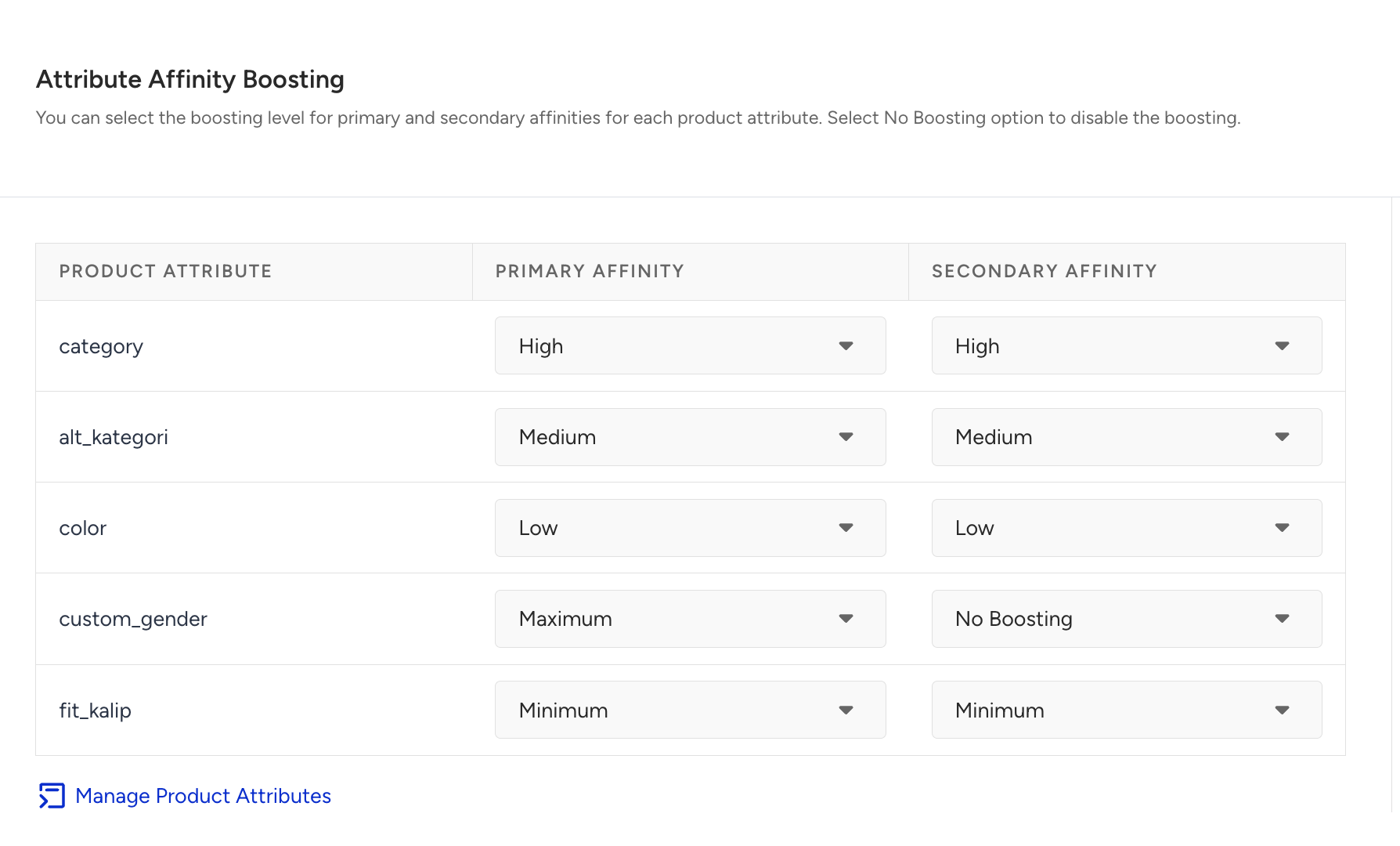
You need to select the strength of each attribute.
Maximum means that the products with the user’s affinity value will be boosted at the top of the search results.
Medium means that these products will be listed higher than their original positions.
None means that no boosting will be done for this attribute.
Insider One’s affinity model provides two values for each attribute: the user's primary and secondary favorites. These affinities are determined based on user events. The product attribute cannot be used as an affinity if the number of events does not meet a specific threshold.
You should select the strength levels for the primary and secondary values accordingly. For example, for the product attribute “color,” User A has a primary affinity for White with maximum strength and a secondary affinity for Black with medium strength. When User A clicks on the Men’s T-shirts category, White T-shirts will appear at the top of the list. At the same time, Black T-shirts will rank higher than their original positions—appearing between the top and middle—due to affinity-based personalization.
Even though you select the strength for the secondary affinity, if insufficient data has been collected, the selection of the primary affinity will take precedence.
Preview User’s Affinities for selected attributes
The preview section in the Affinity-Based Personalization menu allows you to view each user's affinity values. To search for affinity values, you need to enter the user's Insider One User ID in the User ID area.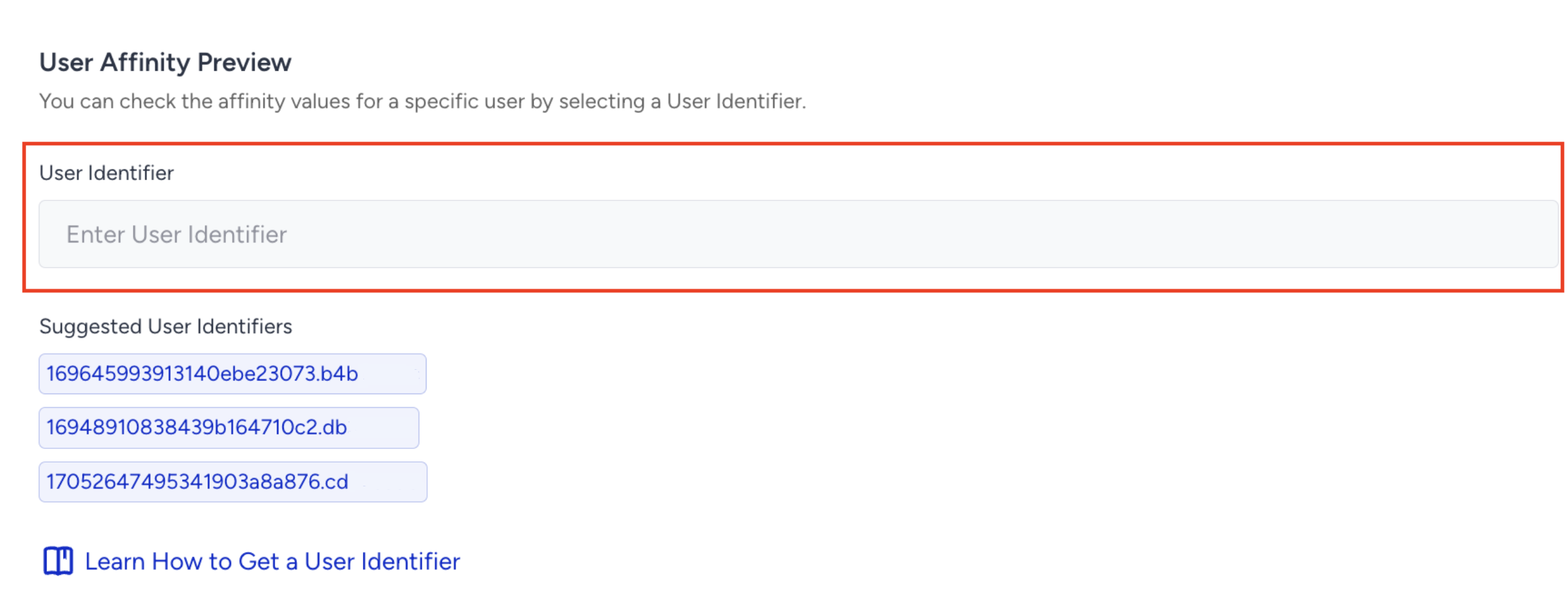
Please note that not all users will have affinity values for every attribute, as these values are generated based on the user's previous behaviors. The user affinity values are generated after 24 hours, which means search personalization will start working one day later for the new users.